> ## Documentation Index
> Fetch the complete documentation index at: https://help.jetpack3pl.com/llms.txt
> Use this file to discover all available pages before exploring further.
# Tracking Packages
> Learn how to access and monitor shipment tracking information for your D2C orders in the Jetpack dashboard.
Jetpack's order tracking timeline is the most detailed, granular way on Earth to monitor the progress of your orders. Once your orders are labeled and shipped, tracking information becomes available as part of that timeline in your Jetpack dashboard. You can monitor shipment progress from the fulfillment center to your customer, view detailed carrier updates, and handle common tracking scenarios like stalled updates or delivery issues.
## How Shipment Tracking Works
Once Jetpack's Operations team labels an order, a unique tracking number is uploaded to the Order Details page under the Shipment Breakdown section. This tracking number links directly to the carrier's website, allowing you to monitor the shipment's progress from the Jetpack fulfillment center to your customer.
**What Happens Automatically:**
* Tracking information is automatically synced to the e-commerce platform from which the order was imported
* For orders imported from Shopify, Amazon, or other integrated platforms, your customers receive tracking updates directly from your store
**What Requires Manual Action:**
* For manually created orders (e.g., manual entry or Excel uploads), you must manually share the tracking details with your customer
* You can subscribe to order updates to receive tracking notifications via your team's email address (do not use customer emails)
***
## Shipment Status Explained
As your orders move through the fulfillment and delivery process, they progress through different statuses that indicate where the package is in its journey.
| Status | What It Means |
| -------------------------- | -------------------------------------------------------------------------------------------------------------------- |
| **Received** | Order is visible to Jetpack, either manually created or automatically ingested from an e-commerce site (pre transit) |
| **At Depot** | Order is packed and labeled, and is now ready for pickup by a carrier (pre transit) |
| **Pick Up Scan from Dock** | Scan indicates that this order has been picked up by the carrier and is now considered in transit |
| **Out for Delivery** | The order is out for delivery, and will be at the end customer soon |
| **Delivered** | The order has been delivered, and the end customer has received the package |
***
## Viewing Tracking Information
You can access tracking details directly from the Jetpack dashboard by navigating to the Order Details page for any shipped order.
Click **Orders** on the left-hand navigation. Additional menu options will appear.
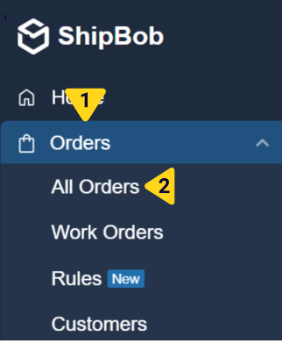 Select **All Orders**. You will be redirected to the Orders page.
Use the search bar to find the specific order, or filter orders by **Completed** status to see shipped orders. You can also browse through **Processing** orders, noting that orders with tracking information move to Completed by 6 am CT the next day.
Click the hyperlinked number under the **Shipment ID** column. This will redirect you to the [Order Details page](/fulfillment/order-management/shipment-details-page).
The Order Details page displays the shipment timeline and breakdown sections.
Select **All Orders**. You will be redirected to the Orders page.
Use the search bar to find the specific order, or filter orders by **Completed** status to see shipped orders. You can also browse through **Processing** orders, noting that orders with tracking information move to Completed by 6 am CT the next day.
Click the hyperlinked number under the **Shipment ID** column. This will redirect you to the [Order Details page](/fulfillment/order-management/shipment-details-page).
The Order Details page displays the shipment timeline and breakdown sections.
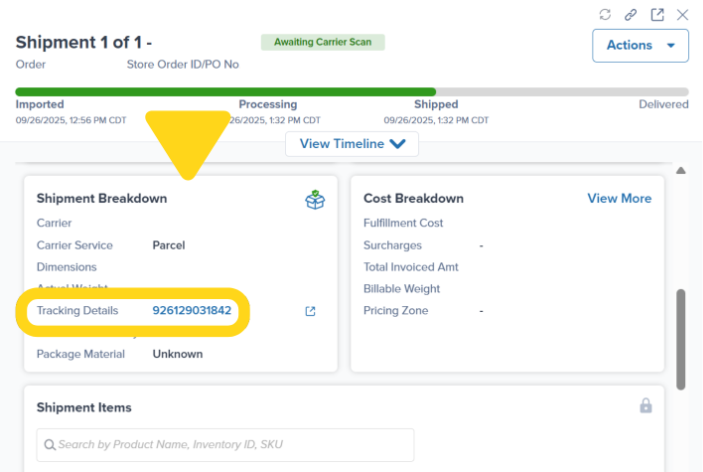 In the **Shipment Breakdown** section, find the **Tracking Details** field showing the tracking number.
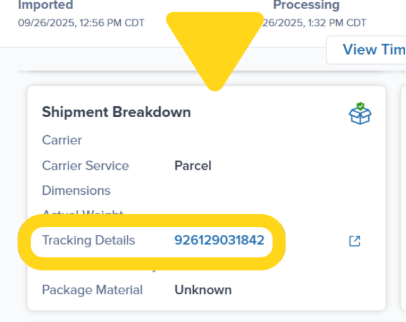 Click the hyperlinked tracking number to open a new browser tab with the carrier's tracking page.
Orders automatically transition from **Processing** to **Completed** status by 6 am CT the day after tracking information is uploaded. For more details on order status progression, see [Order Status Overview](/fulfillment/d2c/order-status).
***
## Tracking Updates and Timing
### When Tracking Information Becomes Available
Once an order is labeled, tracking details will be uploaded to the Jetpack dashboard. However, the first carrier scan typically doesn't occur immediately.
**Carrier Scan Timing:**
* The initial carrier scan takes place when the shipment arrives at the carrier's facility
* Packages are typically scanned on the following business day
**Example:** If an order is picked up on a Friday, the first scan may not occur until the following Monday.
### Final-Mile Deliveries
The final leg of delivery may involve a handoff to another carrier, which can affect how tracking information appears.
**Domestic Shipments:**
For domestic shipments, Jetpack works with carriers who hand off delivery to USPS. Once the handoff occurs, a new USPS tracking link appears on the tracking page, allowing you to follow your package's progress.
**International Shipments:**
For international shipments, carriers transfer packages to local carriers for the final delivery stage. In these cases, detailed tracking information might be limited, but you can usually find additional updates by visiting the original carrier's website.
***
## Tracking Issues and Claims
### Stalled or Missing Tracking Updates
If tracking information has not updated within the expected timeframe, you can file a lost in transit parcel claim by contacting Jetpack Care via Slack or email.
**Important Limitations:**
* Jetpack can only file claims for orders shipped using Jetpack-generated labels
* For shipments using prepaid labels, contact the carrier directly
For detailed guidance on filing claims, see [How to Submit a Claim](/fulfillment/claims/submit-a-claim).
### "Delivered" But Not Received
Jetpack will not file lost in transit claims or offer refunds for orders marked as **Delivered** or orders that have a final scan, unless there is carrier confirmation of a misdelivery.
**What Qualifies as a Misdelivery:**
A misdelivery occurs when the order is delivered to the wrong location. Examples include:
* The order is in another country as stated in the carrier tracking
* The proof of delivery shows the order in a trash bin
* Carrier confirms delivery to an incorrect address
Once generated, carrier tracking is valid for 120 days and will expire after this period. This is a carrier limitation and cannot be retrieved by Jetpack once it has expired.
***
## Tracking FAQs
Once an order is labeled, tracking details will be uploaded to the Jetpack dashboard immediately. However, the first carrier scan typically occurs on the following business day after pickup.
The initial carrier scan takes place when the shipment arrives at the carrier's facility. Packages are typically scanned on the following business day.
Example: If an order is picked up on a Friday, the first scan may not occur until the following Monday.
If tracking information has not updated within the expected timeframe, you can file a lost in transit parcel claim by contacting Jetpack Care via Slack or email.
**Note:** Jetpack can only file claims for orders shipped using Jetpack-generated labels. For shipments using prepaid labels, contact the carrier directly.
Jetpack will not file lost in transit claims or offer refunds for orders marked as Delivered or orders that have a final scan, unless there is carrier confirmation of a misdelivery.
A misdelivery occurs when the order is delivered to the wrong location (e.g., the order is in another country as stated in the carrier tracking, the proof of delivery shows the order in a trash bin, etc.).
**Domestic Shipments:**
For domestic shipments, we work with carriers who hand off delivery to USPS. Once the handoff occurs, a new USPS tracking link appears on the tracking page, allowing you to follow your package's progress.
**International Shipments:**
For international shipments, carriers transfer packages to local carriers for the final delivery stage. In these cases, detailed tracking information might be limited, but you can usually find additional updates by visiting the original carrier's website.
Once generated, carrier tracking is valid for 120 days and will expire after this period.
**Note:** This is a carrier limitation and cannot be retrieved by Jetpack once it has expired.
***
## Let's Dive Deeper
Back to the main D2C fulfillment guide
Understand order status progression
Explore the full order details interface
File claims for lost or damaged shipments
Expected delivery windows by shipping method
Service level agreements for order processing
Click the hyperlinked tracking number to open a new browser tab with the carrier's tracking page.
Orders automatically transition from **Processing** to **Completed** status by 6 am CT the day after tracking information is uploaded. For more details on order status progression, see [Order Status Overview](/fulfillment/d2c/order-status).
***
## Tracking Updates and Timing
### When Tracking Information Becomes Available
Once an order is labeled, tracking details will be uploaded to the Jetpack dashboard. However, the first carrier scan typically doesn't occur immediately.
**Carrier Scan Timing:**
* The initial carrier scan takes place when the shipment arrives at the carrier's facility
* Packages are typically scanned on the following business day
**Example:** If an order is picked up on a Friday, the first scan may not occur until the following Monday.
### Final-Mile Deliveries
The final leg of delivery may involve a handoff to another carrier, which can affect how tracking information appears.
**Domestic Shipments:**
For domestic shipments, Jetpack works with carriers who hand off delivery to USPS. Once the handoff occurs, a new USPS tracking link appears on the tracking page, allowing you to follow your package's progress.
**International Shipments:**
For international shipments, carriers transfer packages to local carriers for the final delivery stage. In these cases, detailed tracking information might be limited, but you can usually find additional updates by visiting the original carrier's website.
***
## Tracking Issues and Claims
### Stalled or Missing Tracking Updates
If tracking information has not updated within the expected timeframe, you can file a lost in transit parcel claim by contacting Jetpack Care via Slack or email.
**Important Limitations:**
* Jetpack can only file claims for orders shipped using Jetpack-generated labels
* For shipments using prepaid labels, contact the carrier directly
For detailed guidance on filing claims, see [How to Submit a Claim](/fulfillment/claims/submit-a-claim).
### "Delivered" But Not Received
Jetpack will not file lost in transit claims or offer refunds for orders marked as **Delivered** or orders that have a final scan, unless there is carrier confirmation of a misdelivery.
**What Qualifies as a Misdelivery:**
A misdelivery occurs when the order is delivered to the wrong location. Examples include:
* The order is in another country as stated in the carrier tracking
* The proof of delivery shows the order in a trash bin
* Carrier confirms delivery to an incorrect address
Once generated, carrier tracking is valid for 120 days and will expire after this period. This is a carrier limitation and cannot be retrieved by Jetpack once it has expired.
***
## Tracking FAQs
Once an order is labeled, tracking details will be uploaded to the Jetpack dashboard immediately. However, the first carrier scan typically occurs on the following business day after pickup.
The initial carrier scan takes place when the shipment arrives at the carrier's facility. Packages are typically scanned on the following business day.
Example: If an order is picked up on a Friday, the first scan may not occur until the following Monday.
If tracking information has not updated within the expected timeframe, you can file a lost in transit parcel claim by contacting Jetpack Care via Slack or email.
**Note:** Jetpack can only file claims for orders shipped using Jetpack-generated labels. For shipments using prepaid labels, contact the carrier directly.
Jetpack will not file lost in transit claims or offer refunds for orders marked as Delivered or orders that have a final scan, unless there is carrier confirmation of a misdelivery.
A misdelivery occurs when the order is delivered to the wrong location (e.g., the order is in another country as stated in the carrier tracking, the proof of delivery shows the order in a trash bin, etc.).
**Domestic Shipments:**
For domestic shipments, we work with carriers who hand off delivery to USPS. Once the handoff occurs, a new USPS tracking link appears on the tracking page, allowing you to follow your package's progress.
**International Shipments:**
For international shipments, carriers transfer packages to local carriers for the final delivery stage. In these cases, detailed tracking information might be limited, but you can usually find additional updates by visiting the original carrier's website.
Once generated, carrier tracking is valid for 120 days and will expire after this period.
**Note:** This is a carrier limitation and cannot be retrieved by Jetpack once it has expired.
***
## Let's Dive Deeper
Back to the main D2C fulfillment guide
Understand order status progression
Explore the full order details interface
File claims for lost or damaged shipments
Expected delivery windows by shipping method
Service level agreements for order processing

Questions? Contact Jetpack Care.
If you have any questions or run into issues, you can always contact Jetpack Care for help. Our team is always here to assist via Slack, phone, or email!