


> ## Documentation Index
> Fetch the complete documentation index at: https://help.jetpack3pl.com/llms.txt
> Use this file to discover all available pages before exploring further.

# Splitting Orders in Exception Status

> Learn how to split orders in Exception status when items are out of stock, allowing available products to ship immediately while remaining items process upon restocking.

<div className="page-intro">
  When an order enters Exception status due to out-of-stock items, you have the option to split the order. This allows you to ship the available products immediately while the remaining items automatically process once your inventory is restocked.
</div>

## How Order Splitting Works

Splitting an order separates it into two distinct shipments:

* **Immediate shipment** - Contains the in-stock items you select, which ships right away
* **Future shipment** - Contains the remaining out-of-stock items, which automatically processes once inventory arrives via a Warehouse Receiving Order (WRO)

This approach prevents delays for available products while ensuring back-ordered items ship as soon as they're restocked.

<Warning title="Customer Communication Required">
  You must notify the customer that their order has been split and they should expect two separate packages instead of one. The newly created shipment will contain only the selected items.
</Warning>

***

## Splitting an Order

<Steps>
  <Step title="Navigate to Orders and click the Exceptions tab">
    Navigate to the **Orders** section in your Jetpack dashboard and click on the **Exceptions** tab.

    <img src="https://mintcdn.com/jetpack/2iejPNBTYKEx6ntF/images/d2c/split-orders-exceptions-tab.png?fit=max&auto=format&n=2iejPNBTYKEx6ntF&q=85&s=6629f493564ab0de79584291dd1b8059" alt="Orders page showing the Exceptions tab with orders in exception status" className="screenshot" width="977" height="175" data-path="images/d2c/split-orders-exceptions-tab.png" />
  </Step>

  <Step title="Click on the Shipment ID">
    Locate the order you want to split and click on the relevant **Shipment ID** to open the order details.

    <img src="https://mintcdn.com/jetpack/2iejPNBTYKEx6ntF/images/d2c/split-orders-shipment-id.png?fit=max&auto=format&n=2iejPNBTYKEx6ntF&q=85&s=1d44a7f0d04eec7da08d8ef3a9c35599" alt="Exceptions tab showing shipment ID highlighted" className="screenshot" width="982" height="121" data-path="images/d2c/split-orders-shipment-id.png" />
  </Step>

  <Step title="Click the Actions button">
    On the order details page, click the **Actions** button in the top-right corner.

    <img src="https://mintcdn.com/jetpack/2iejPNBTYKEx6ntF/images/d2c/split-orders-actions-button.png?fit=max&auto=format&n=2iejPNBTYKEx6ntF&q=85&s=6b63e699d9ee5b880f315047d020fc46" alt="Order details page showing Actions button in top-right corner" className="screenshot" width="975" height="190" data-path="images/d2c/split-orders-actions-button.png" />
  </Step>

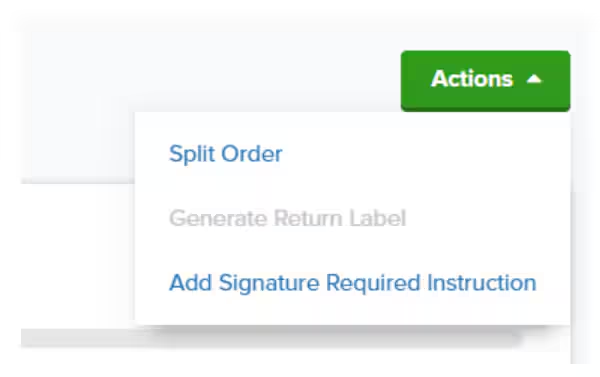
  <Step title="Select Split Order from the dropdown menu">
    In the Actions dropdown menu, click **Split Order**.

    <img src="https://mintcdn.com/jetpack/2iejPNBTYKEx6ntF/images/d2c/split-orders-actions-dropdown.png?fit=max&auto=format&n=2iejPNBTYKEx6ntF&q=85&s=f55d784d01ec740717f03e138fe8c38c" alt="Actions dropdown menu with Split Order option highlighted" className="screenshot" width="600" height="377" data-path="images/d2c/split-orders-actions-dropdown.png" />
  </Step>

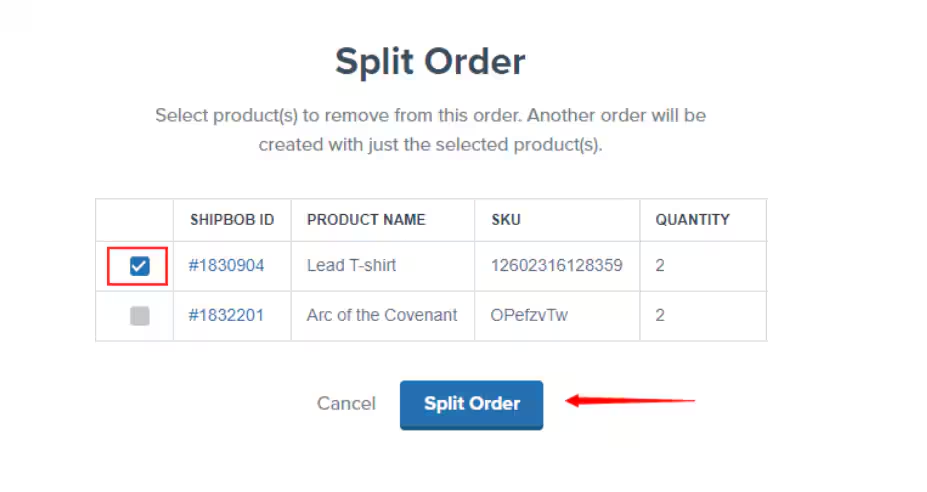
  <Step title="Select items and click Split Order">
    In the Split Order dialog:

    1. Select the checkbox next to each product you want to remove from the original order and ship immediately
    2. Click **Split Order** to create a separate shipment for the selected items

    <img src="https://mintcdn.com/jetpack/2iejPNBTYKEx6ntF/images/d2c/split-orders-dialog.png?fit=max&auto=format&n=2iejPNBTYKEx6ntF&q=85&s=f6a03c9f510dd3d157a76e41b4b5a968" alt="Split Order dialog showing product selection checkboxes and Split Order button" className="screenshot" width="927" height="492" data-path="images/d2c/split-orders-dialog.png" />

    The order will split into two shipments: one containing the items you selected (which ships immediately) and one containing the remaining out-of-stock items (which ships upon restocking).

  </Step>
</Steps>

***

## Preventing Manual Splits in the Future

To avoid manually splitting orders due to out-of-stock items, you can configure [automatic split rules](/fulfillment/rules-customization-kitting/auto-split-rules) in your Jetpack dashboard. These rules automatically split orders when inventory is unavailable, eliminating the need for manual intervention.

Learn more about configuring partial shipment rules to automate this process.

***

## Let's Dive Deeper

<CardGroup cols={3}>
  <Card title="D2C Fulfillment Overview" icon="box" href="/fulfillment/d2c">
    Back to the main D2C fulfillment guide
  </Card>

  <Card title="Orders in Exception Status" icon="triangle-exclamation" href="/fulfillment/d2c/orders-action-required">
    Understand why orders enter Exception status
  </Card>

  <Card title="Order Auto Split Rules" icon="code-branch" href="/fulfillment/rules-customization-kitting/auto-split-rules">
    Configure automatic splitting to prevent manual work
  </Card>

  <Card title="Creating Warehouse Receiving Orders" icon="truck-ramp-box" href="/fulfillment/sending-inventory/creating-wro">
    Send inventory to restock out-of-stock items
  </Card>

  <Card title="Order Allocation Explained" icon="warehouse" href="/fulfillment/d2c/order-allocation-explained">
    How Jetpack assigns orders to fulfillment centers
  </Card>

  <Card title="Editing Orders" icon="pen-to-square" href="/fulfillment/order-management/editing-orders">
    Make changes to order details
  </Card>
</CardGroup>

<div className="jetpack-callout">
  <img src="https://mintcdn.com/jetpack/2iejPNBTYKEx6ntF/images/jetpack-logomark-256.png?fit=max&auto=format&n=2iejPNBTYKEx6ntF&q=85&s=340604ced4add3864f2641341826e1c9" alt="Jetpack" className="jetpack-callout-icon" width="256" height="256" data-path="images/jetpack-logomark-256.png" />

  <div className="jetpack-callout-content">
    <h4 className="jetpack-callout-title">Questions? Contact Jetpack Care.</h4>
    <p className="jetpack-callout-text">If you have any questions or run into issues, you can always contact Jetpack Care for help. Our team is always here to assist via Slack, phone, or email!</p>
  </div>
</div>
