> ## Documentation Index
> Fetch the complete documentation index at: https://help.jetpack3pl.com/llms.txt
> Use this file to discover all available pages before exploring further.
# FBA LTL Workflow
> Create Less-Than-Truckload (LTL) freight shipments to Amazon FBA using Jetpack's Business order flow with pallet preparation and special handling.
This guide explains how to create FBA freight/LTL shipments using Jetpack's Business order flow. The legacy Amazon FBA prep shipment creation flow may no longer be available, so this workflow uses the standard Business order creation process with special instructions for Amazon's LTL requirements.
## Legacy vs. New Amazon Flow
The legacy Amazon FBA prep shipment creation flow may no longer be available in your Jetpack dashboard. If it is still accessible, you can continue using it as detailed in the [Manual FBA Prep with Jetpack](/fulfillment/b2b/amazon-fba/manual-fba-prep) guide.
The workflow below outlines how to create FBA freight/LTL shipments using the new Amazon flow, which follows the standard Business order creation process with Amazon-specific requirements.
***
## Creating an FBA Freight/LTL Shipment
By following these structured steps, you can effectively create an FBA freight/LTL shipment using Jetpack's Business order flow, ensuring that all shipping details, special instructions, and product requirements are correctly processed.
From the Jetpack dashboard, click **Orders** in the left-hand navigation, then click **New Order** and select **Business**.
Search through your saved contacts or create a new contact for Amazon. Include a **Company** field if applicable.
Since the Amazon shipment location is provided later in the process, enter a dummy address for now.
If you wish to use Jetpack freight services, submit a request with Jetpack Care before proceeding.
Choose **Freight** as the shipping method, then click **Next**.
Decide how you would like to pay for the shipping label:
* **If you purchase your own label:** You will be notified after the order is packed
* **For Jetpack's network of carriers:** Select **Jetpack Buys** to have the order automatically shipped and billed to your account
When prompted for packaging instructions, include the following text in the form field:
**Required instructions:**
> "For freight, Amazon FBA orders have a 1500lb weight limit per pallet. Carton and pallet labels will be provided."
**If creating a prepaid freight order, add:**
> "We will also provide the BOL."
Choose a specific fulfillment center from the drop-down list, or select **Let Jetpack optimize for me** to have Jetpack automatically select the optimal FC based on your inventory location and order requirements.
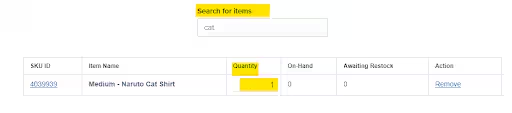
Use the search field to add items to your order. Enter the total number of units you wish to ship in the **Quantity** column for each product.
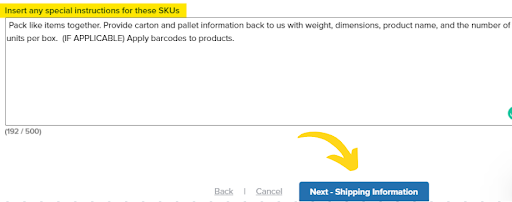
Copy and paste the following text in the **special instructions** box:
> "Pack like items together. Provide carton and pallet information back to us with weight, dimensions, product name, and the number of units per box."
**Optional: Barcoding Products**
If you want Jetpack to apply barcodes to your products, include text like:
> "Apply barcodes to products: Barcode number \[BARCODE NUMBER/SKU] product \[PRODUCT NAME]"
Make sure to update the ASIN and FNSKU fields in the Jetpack dashboard for each product you're sending to Amazon. This ensures accurate tracking and identification in Amazon's fulfillment network.
Click **Next - Shipping Information** and select a **reserve date** for your inventory. Orders will be processed based on the reserve date.
Review the [SLA for FBA prep orders](/fulfillment/b2b/b2b-turnaround-times) to understand processing timelines.
Click **Next** to review your order details, then click **Create Order** to place the order.
If the reserve date is met, the order moves to processing quickly. Otherwise, it remains on hold until the reserve date arrives.
***
## Post-Order Steps
After Jetpack picks and packs your order, you will receive carton and pallet information. Next, go to Amazon Seller Central to initiate an inbound shipment.
Navigate to Amazon Seller Central to create your inbound shipment.
**For shipments to one location:**
Generate box and pallet labels in Amazon Seller Central based on the carton and pallet information provided by Jetpack, then download the labels.
**For shipments to multiple locations:**
To consolidate inventory into a single shipment, disable the Amazon Inventory Placement service in Seller Central. This allows you to send all inventory to one Amazon FC instead of splitting across multiple locations. Then generate labels for the single consolidated shipment.
Once you've generated the necessary labels in Amazon Seller Central:
1. Return to your order in the Jetpack dashboard
2. Upload box and pallet labels as **Other** attachment type
3. For shipments using Amazon freight, upload the Bill of Lading (BOL) under the **BOL** attachment section
Learn more about [uploading order attachments](/fulfillment/b2b/upload-order-attachments) to your Business orders.
***
## Let's Dive Deeper
Overview of FBA fulfillment options
Set up automated FBA prep workflows
Alternative FBA prep workflow (legacy flow)
General Business order creation guide
Review SLAs for FBA and B2B orders
Learn about uploading documents to orders
Questions? Contact Jetpack Care.
If you have any questions or run into issues with FBA freight shipments, you can always contact Jetpack Care for help. Our team is always here to assist via Slack, phone, or email!