> ## Documentation Index
> Fetch the complete documentation index at: https://help.jetpack3pl.com/llms.txt
> Use this file to discover all available pages before exploring further.
# Creating Automated FBA Shipments
> Learn how to create automated Amazon FBA prep orders in the Jetpack dashboard to send inventory to Amazon fulfillment centers.
For US merchants, Jetpack streamlines the Amazon FBA prep process through an automated order workflow. Create FBA shipments directly in the Jetpack dashboard, select your destination Amazon fulfillment center, and choose your preferred shipping label option—all in a few clicks. Once packed, your shipment automatically syncs with Amazon Seller Central for seamless tracking.
You cannot currently create automated FBA orders using the Jetpack Developer API. All automated FBA shipments must be created through the Jetpack dashboard.
***
## Creating an Automated FBA Shipment
Follow these steps to create an automated FBA prep order from the Jetpack dashboard:
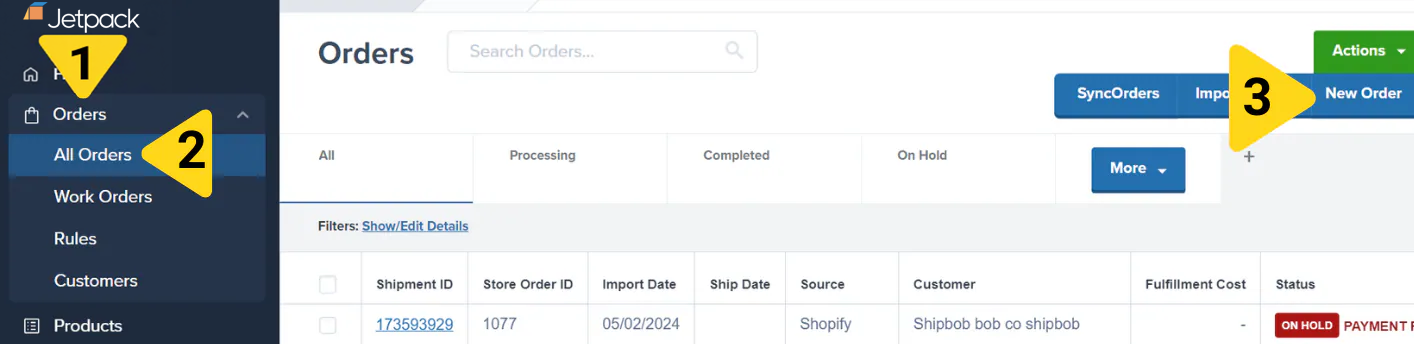
From the Jetpack dashboard, click **Orders** on the left-hand navigation bar, select **All Orders**, and click **New Order** on the right side.
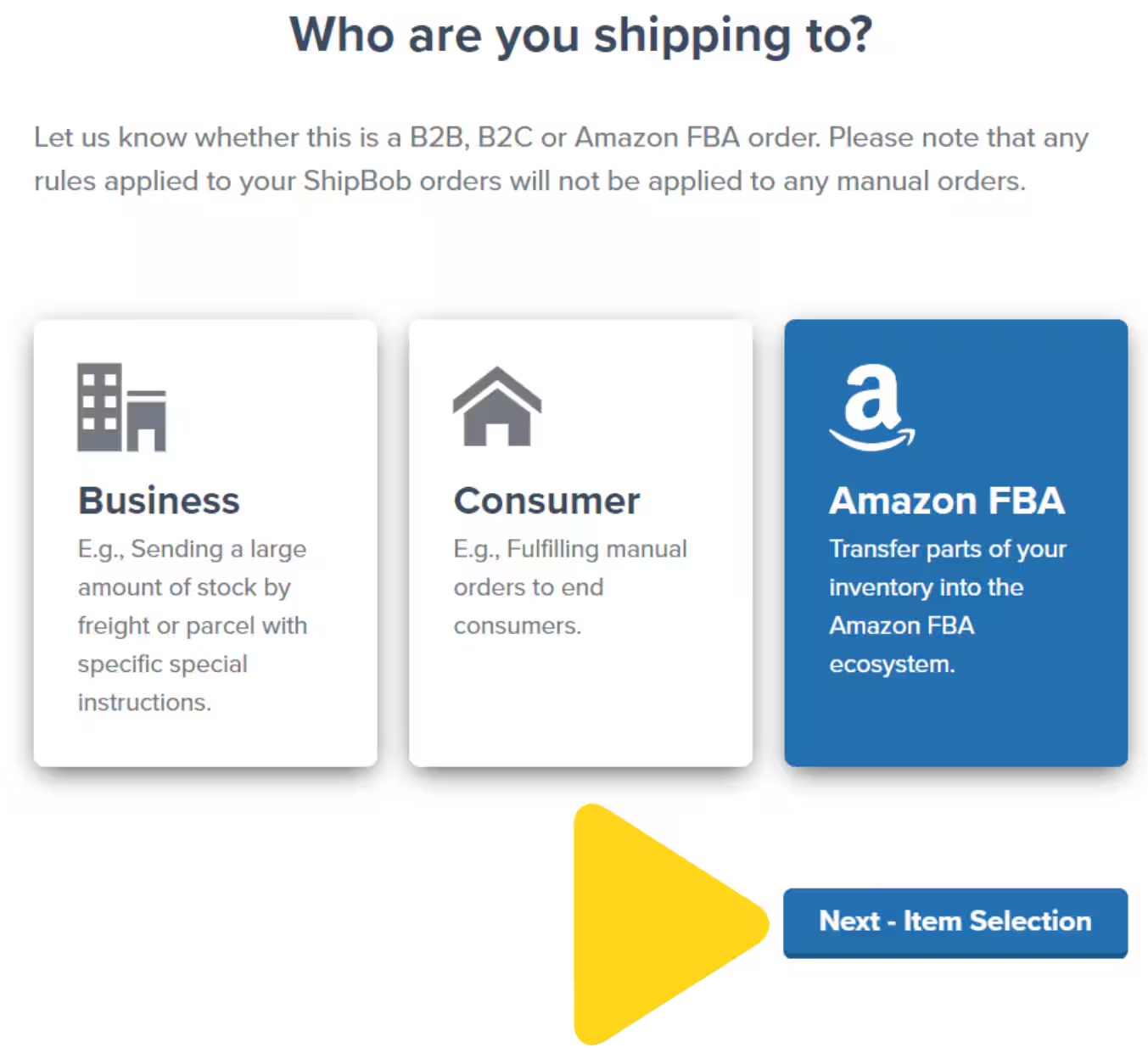
 For **Who are you shipping to?**, select **Amazon FBA**, then click **Next – Item Selection**.
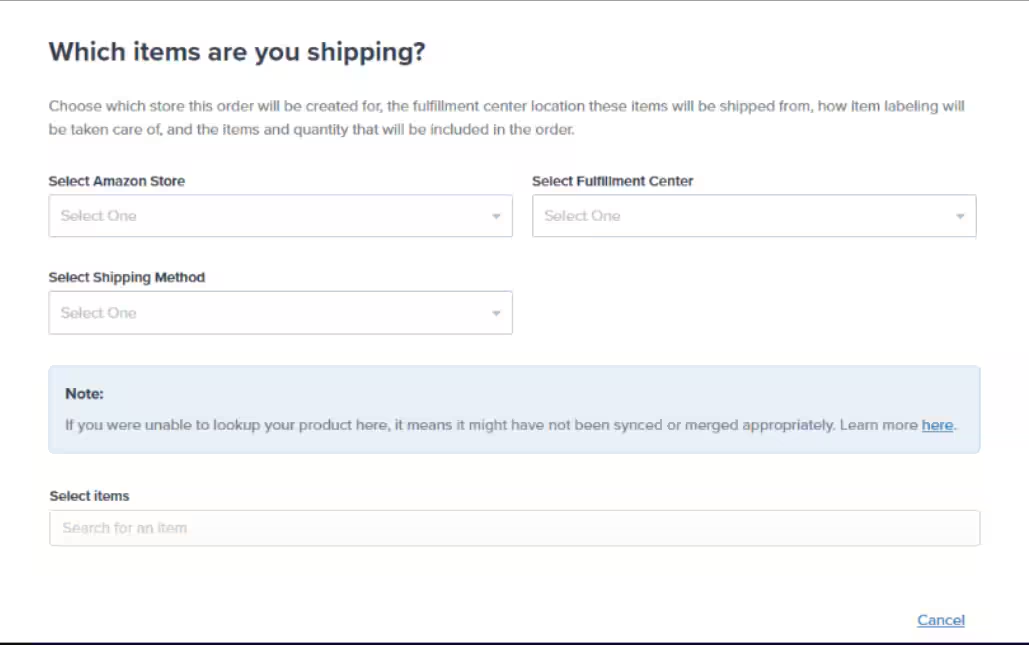
 In the item selection screen:
* **Choose your Amazon store** from the panel
* **Select the fulfillment center** from which the items will ship (your Jetpack fulfillment center, not Amazon's)
* **Choose the product(s)** you want to ship
* **Confirm the product and quantity** for each item
In the item selection screen:
* **Choose your Amazon store** from the panel
* **Select the fulfillment center** from which the items will ship (your Jetpack fulfillment center, not Amazon's)
* **Choose the product(s)** you want to ship
* **Confirm the product and quantity** for each item
 Choose from two available shipping options:
| Shipping Option | Description |
| -------------------------- | ---------------------------------------------------------------------------------------------------------------------------- |
| **Parcel-Jetpack** | Purchase shipping labels from Jetpack (charges appear on your Jetpack invoice) |
| **Parcel-Amazon Arranged** | Jetpack purchases labels directly from your Amazon Seller Central account (charges reflected in your Seller Central account) |
These shipping label options are the only types available for automated FBA orders. Merchants cannot provide their own labels for FBA orders. If you require freight shipment coordination, use the [FBA LTL workflow](/fulfillment/b2b/amazon-fba/fba-ltl-workflow).
Review the shipment details to confirm accuracy, then click **Create Order** to finalize the shipment plan.
Initially, the **Store Order ID** field will show "Jetpack" along with the date and time until the order is packed.
***
## Tracking Your FBA Shipment
### Store Order ID Transition
When you first create the automated FBA shipment, the Store Order ID displays as "Jetpack" followed by the creation date and time. Once Jetpack packs the order, this ID automatically updates to sync with Amazon Seller Central.
**Before packing:**
Choose from two available shipping options:
| Shipping Option | Description |
| -------------------------- | ---------------------------------------------------------------------------------------------------------------------------- |
| **Parcel-Jetpack** | Purchase shipping labels from Jetpack (charges appear on your Jetpack invoice) |
| **Parcel-Amazon Arranged** | Jetpack purchases labels directly from your Amazon Seller Central account (charges reflected in your Seller Central account) |
These shipping label options are the only types available for automated FBA orders. Merchants cannot provide their own labels for FBA orders. If you require freight shipment coordination, use the [FBA LTL workflow](/fulfillment/b2b/amazon-fba/fba-ltl-workflow).
Review the shipment details to confirm accuracy, then click **Create Order** to finalize the shipment plan.
Initially, the **Store Order ID** field will show "Jetpack" along with the date and time until the order is packed.
***
## Tracking Your FBA Shipment
### Store Order ID Transition
When you first create the automated FBA shipment, the Store Order ID displays as "Jetpack" followed by the creation date and time. Once Jetpack packs the order, this ID automatically updates to sync with Amazon Seller Central.
**Before packing:**
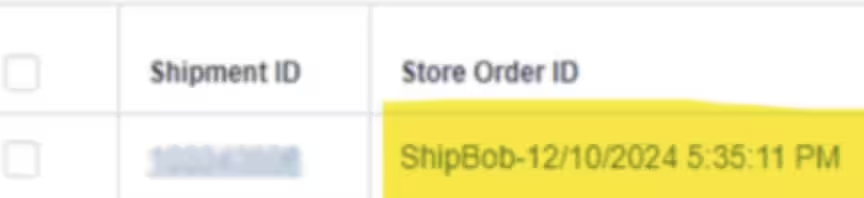 The Store Order ID shows "ShipBob" followed by the creation date and time.
**After packing:**
The Store Order ID shows "ShipBob" followed by the creation date and time.
**After packing:**
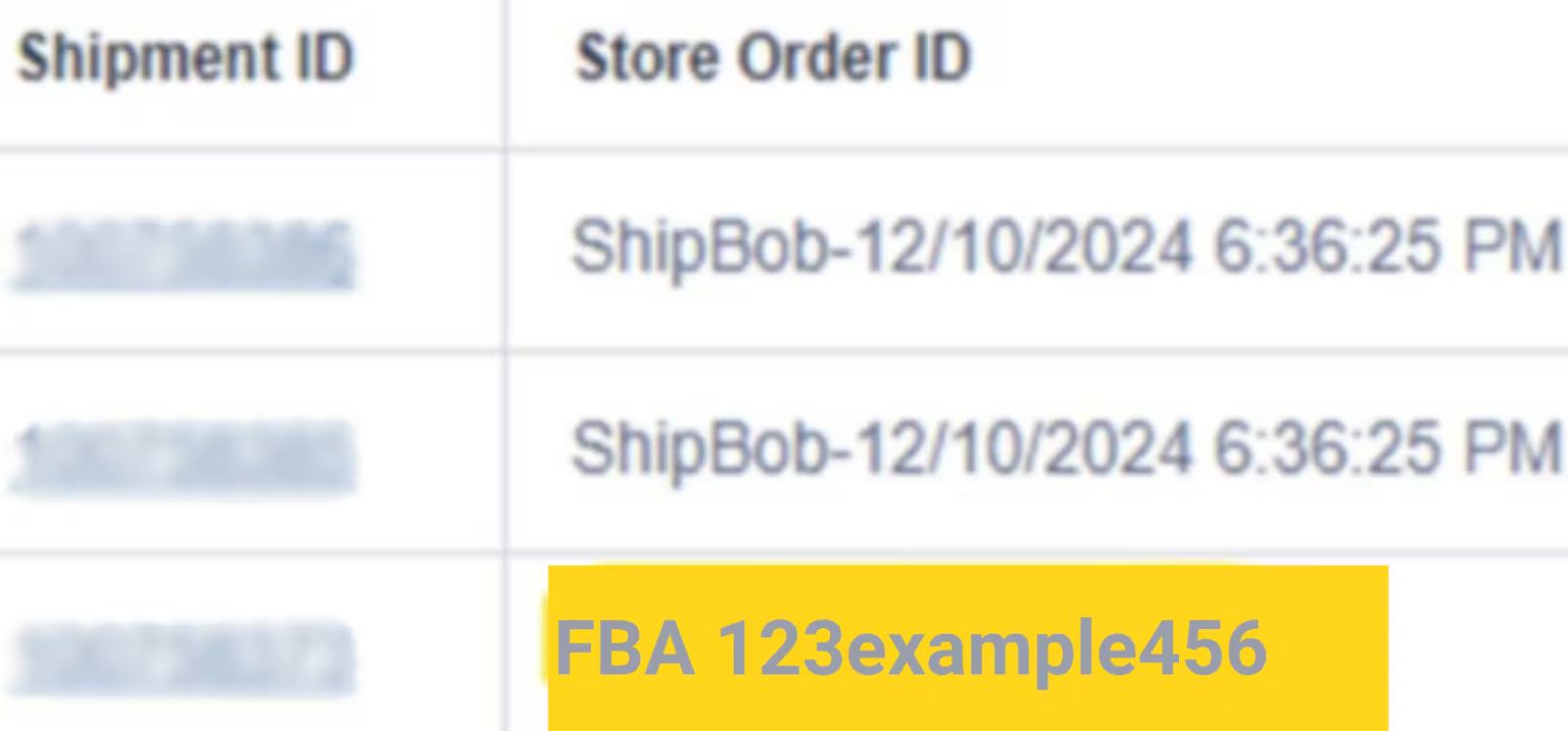 The order appears in Amazon Seller Central with the Amazon FBA ID replacing the Jetpack order ID. This automatic sync ensures your shipment is tracked in both the Jetpack dashboard and Amazon Seller Central.
### Viewing Order Details and Documentation
After packing, view comprehensive shipment information on the order details page.
The order appears in Amazon Seller Central with the Amazon FBA ID replacing the Jetpack order ID. This automatic sync ensures your shipment is tracked in both the Jetpack dashboard and Amazon Seller Central.
### Viewing Order Details and Documentation
After packing, view comprehensive shipment information on the order details page.
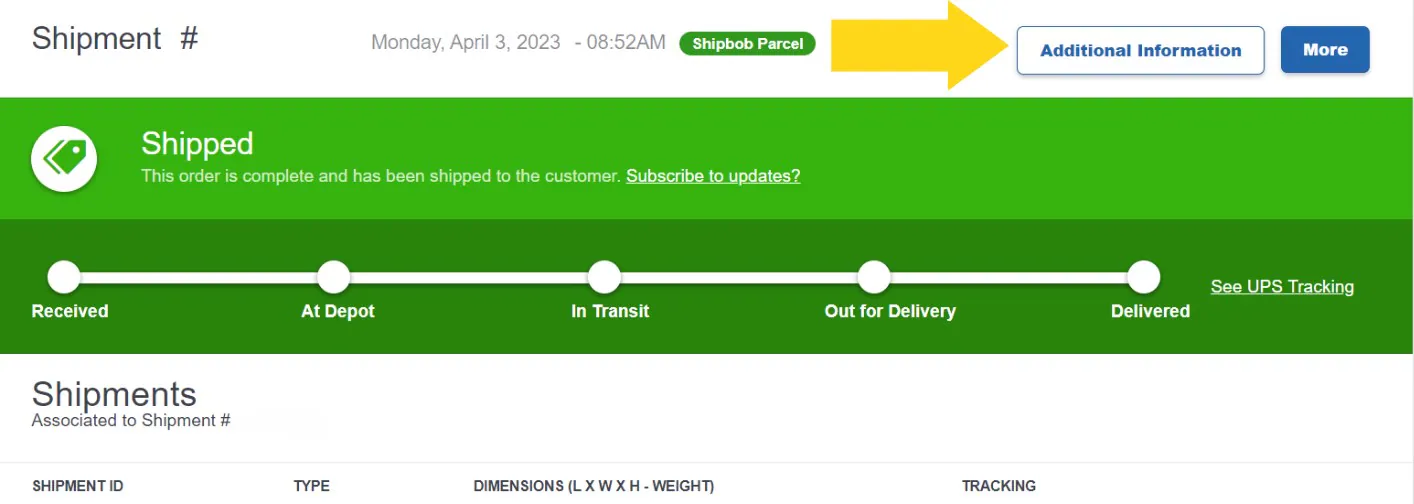 **Available Documentation:**
* Box labels (as attachments)
* Shipping labels (as attachments)
* Box and pallet dimensions (via Additional Information button)
* Package weight information (via Additional Information button)
These details are available for all prepaid parcel B2B orders, giving you complete visibility into your FBA shipment specs.
***
## Let's Dive Deeper
Explore all B2B fulfillment capabilities
Coordinate freight shipments to Amazon
Submit manual FBA prep orders for international markets
Common questions about automated FBA prep
Resolve common FBA order issues
Create other types of B2B orders
**Available Documentation:**
* Box labels (as attachments)
* Shipping labels (as attachments)
* Box and pallet dimensions (via Additional Information button)
* Package weight information (via Additional Information button)
These details are available for all prepaid parcel B2B orders, giving you complete visibility into your FBA shipment specs.
***
## Let's Dive Deeper
Explore all B2B fulfillment capabilities
Coordinate freight shipments to Amazon
Submit manual FBA prep orders for international markets
Common questions about automated FBA prep
Resolve common FBA order issues
Create other types of B2B orders

Questions? Contact Jetpack Care.
If you have questions about automated FBA shipments or encounter issues during order creation, contact Jetpack Care for assistance. Our team is here to help via Slack, phone, or email!