 The summary displays four key metrics:
| Metric | What It Shows |
| ------------------------------------------------- | ------------------------------------------------------------------------------------------------------------------------------------------------------------------------------------ |
| **Total Exception Order Count** | The number of orders currently in the Exception status due to SKUs being out of stock |
| **SKU with Incoming Quantity > Exception Count** | The number of out-of-stock SKUs with inbound WROs containing enough inventory to resolve all orders in the Exception status (once the inventory is stored from inbound WROs) |
| **SKU with Incoming Quantity \< Exception Count** | The number of out-of-stock SKUs with inbound WROs that will not have enough inventory to resolve all orders in the Exception status (once the inventory is stored from inbound WROs) |
| **SKU with No WRO Incoming** | The number of SKUs that are out of stock without any WROs inbound to replenish the SKU |
Use this summary to prioritize which SKUs need immediate attention—particularly those with no incoming WROs or insufficient incoming quantity to clear the exception queue.
***
## Inventory and Exception Orders
This sub-report provides detailed, SKU-level insight into inventory shortages, ongoing exception orders, and expected restock timelines based on created WROs.
The summary displays four key metrics:
| Metric | What It Shows |
| ------------------------------------------------- | ------------------------------------------------------------------------------------------------------------------------------------------------------------------------------------ |
| **Total Exception Order Count** | The number of orders currently in the Exception status due to SKUs being out of stock |
| **SKU with Incoming Quantity > Exception Count** | The number of out-of-stock SKUs with inbound WROs containing enough inventory to resolve all orders in the Exception status (once the inventory is stored from inbound WROs) |
| **SKU with Incoming Quantity \< Exception Count** | The number of out-of-stock SKUs with inbound WROs that will not have enough inventory to resolve all orders in the Exception status (once the inventory is stored from inbound WROs) |
| **SKU with No WRO Incoming** | The number of SKUs that are out of stock without any WROs inbound to replenish the SKU |
Use this summary to prioritize which SKUs need immediate attention—particularly those with no incoming WROs or insufficient incoming quantity to clear the exception queue.
***
## Inventory and Exception Orders
This sub-report provides detailed, SKU-level insight into inventory shortages, ongoing exception orders, and expected restock timelines based on created WROs.
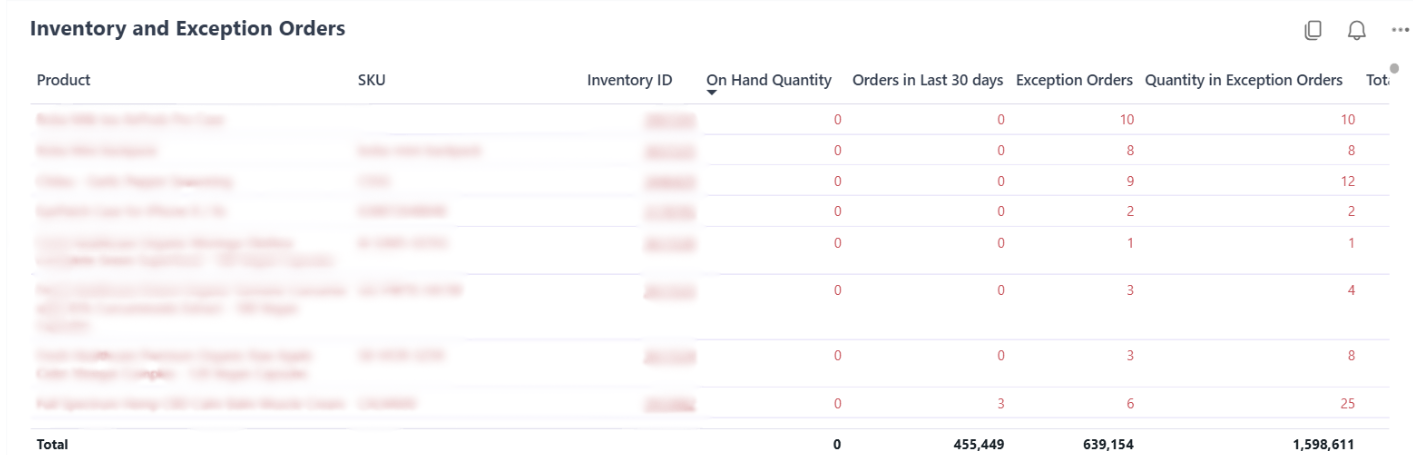 ### Column Definitions
| Column | What It Shows |
| ---------------------------------- | -------------------------------------------------------------------------------------------------------------------------------------------- |
| **Fulfillable On Hand Quantity** | Quantity of a SKU currently available across all fulfillment centers (which includes units assigned to orders but not yet picked for orders) |
| **Orders in Last 30 Days** | The total number of orders placed for the SKU in the last 30 days |
| **Exception Orders** | The total number of orders that could not be fulfilled because the SKU was out of stock at the time of order creation |
| **Quantity in Exception Orders** | Total number of units included in orders in the Exception status |
| **Total Incoming WRO Count** | Total number of WROs created to replenish the SKU |
| **Total Incoming Quantity** | Total number of units expected via the incoming WROs |
| **Total Incoming Filled Quantity** | The total number of units that have already arrived via WROs |
This view helps you compare current demand (exception orders) against incoming supply (WRO quantity) to identify which SKUs need additional replenishment beyond what's already in transit.
***
## On-Hand Quantity across Fulfillment Centers
This sub-report shows how your available inventory is distributed across various Jetpack fulfillment centers for each SKU.
### Column Definitions
| Column | What It Shows |
| ---------------------------------- | -------------------------------------------------------------------------------------------------------------------------------------------- |
| **Fulfillable On Hand Quantity** | Quantity of a SKU currently available across all fulfillment centers (which includes units assigned to orders but not yet picked for orders) |
| **Orders in Last 30 Days** | The total number of orders placed for the SKU in the last 30 days |
| **Exception Orders** | The total number of orders that could not be fulfilled because the SKU was out of stock at the time of order creation |
| **Quantity in Exception Orders** | Total number of units included in orders in the Exception status |
| **Total Incoming WRO Count** | Total number of WROs created to replenish the SKU |
| **Total Incoming Quantity** | Total number of units expected via the incoming WROs |
| **Total Incoming Filled Quantity** | The total number of units that have already arrived via WROs |
This view helps you compare current demand (exception orders) against incoming supply (WRO quantity) to identify which SKUs need additional replenishment beyond what's already in transit.
***
## On-Hand Quantity across Fulfillment Centers
This sub-report shows how your available inventory is distributed across various Jetpack fulfillment centers for each SKU.
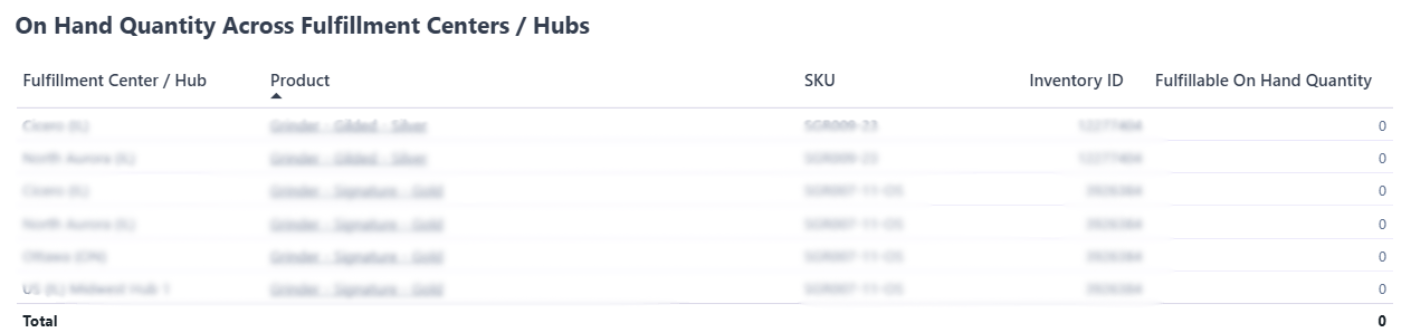 Use this view to understand which fulfillment centers have stock available and which locations are completely out. This information is particularly useful when determining where to send replenishment WROs or when considering [internal inventory transfers](/fulfillment/managing-inventory/inventory-transfers-page) to balance stock across your network.
***
## Incoming WRO
This sub-report displays all Warehouse Receiving Orders created to restock SKUs that are out of stock or causing orders to be in the Exception status.
Use this view to understand which fulfillment centers have stock available and which locations are completely out. This information is particularly useful when determining where to send replenishment WROs or when considering [internal inventory transfers](/fulfillment/managing-inventory/inventory-transfers-page) to balance stock across your network.
***
## Incoming WRO
This sub-report displays all Warehouse Receiving Orders created to restock SKUs that are out of stock or causing orders to be in the Exception status.
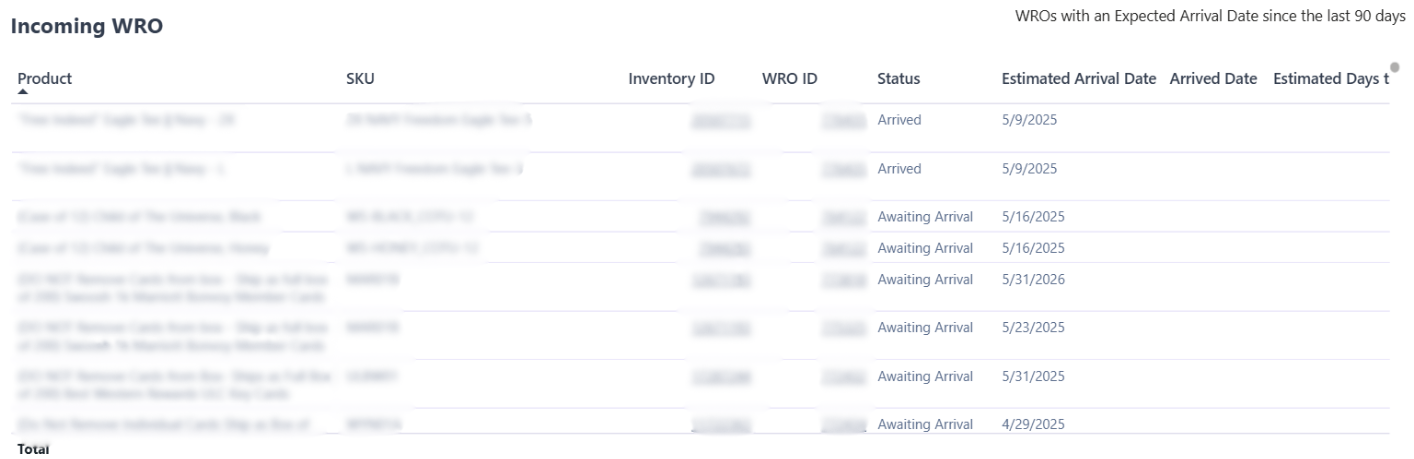 Review this table to track the status of your replenishment shipments and estimated arrival times. You can cross-reference WRO IDs with the [Managing Your Warehouse Receiving Orders](/fulfillment/sending-inventory/managing-wro) page for detailed tracking and status updates.
***
## Exception Orders
This sub-report lists individual orders stuck in the Exception status due to one or more required products being out of stock, along with the specific SKUs causing the status.
Review this table to track the status of your replenishment shipments and estimated arrival times. You can cross-reference WRO IDs with the [Managing Your Warehouse Receiving Orders](/fulfillment/sending-inventory/managing-wro) page for detailed tracking and status updates.
***
## Exception Orders
This sub-report lists individual orders stuck in the Exception status due to one or more required products being out of stock, along with the specific SKUs causing the status.
 ### Column Definitions
| Column | What It Shows |
| -------------------------------- | ---------------------------------------------------------------------------------------------------------------------- |
| **Order Quantity** | Number of units ordered |
| **Quantity in Exception** | Number of uncommitted units in the order |
| **Fulfillable On-Hand Quantity** | The total units available across fulfillment centers, including units assigned to orders but not yet picked for orders |
Use this view to identify which specific orders are waiting for replenishment and prioritize resolution based on order age, customer importance, or order value.
***
## Filtering the Report
You can refine the data across all sub-reports using four filter options to focus on specific products, inventory conditions, or replenishment scenarios.
### By Product / SKU / Inventory ID
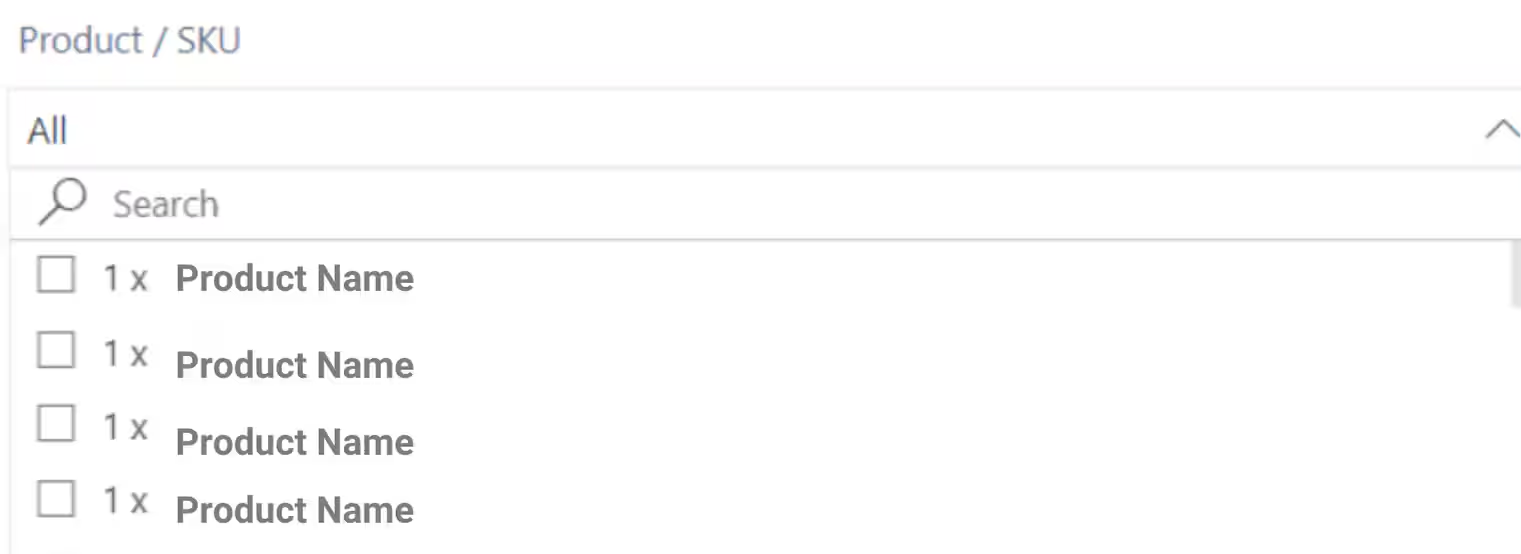
Use the dropdown or search bar to select specific products. By default, all products are shown.
### Column Definitions
| Column | What It Shows |
| -------------------------------- | ---------------------------------------------------------------------------------------------------------------------- |
| **Order Quantity** | Number of units ordered |
| **Quantity in Exception** | Number of uncommitted units in the order |
| **Fulfillable On-Hand Quantity** | The total units available across fulfillment centers, including units assigned to orders but not yet picked for orders |
Use this view to identify which specific orders are waiting for replenishment and prioritize resolution based on order age, customer importance, or order value.
***
## Filtering the Report
You can refine the data across all sub-reports using four filter options to focus on specific products, inventory conditions, or replenishment scenarios.
### By Product / SKU / Inventory ID
Use the dropdown or search bar to select specific products. By default, all products are shown.
 ### By Inventory Status
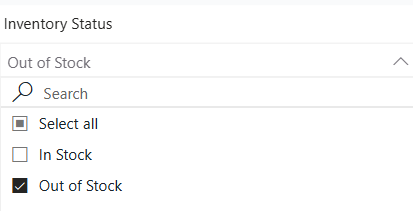
Use the dropdown to filter by stock availability:
| Filter Option | What It Shows |
| ---------------- | ------------------------------------------------------------------------------------------------------- |
| **Out of Stock** | All SKUs with 0 units On-Hand (based on the Inventory Status page). This option is selected by default. |
| **In Stock** | All SKUs with at least 1 unit On-Hand (based on the Inventory Status page) |
| **Select all** | Both Out of Stock and In Stock SKUs |
### By Inventory Status
Use the dropdown to filter by stock availability:
| Filter Option | What It Shows |
| ---------------- | ------------------------------------------------------------------------------------------------------- |
| **Out of Stock** | All SKUs with 0 units On-Hand (based on the Inventory Status page). This option is selected by default. |
| **In Stock** | All SKUs with at least 1 unit On-Hand (based on the Inventory Status page) |
| **Select all** | Both Out of Stock and In Stock SKUs |
 ### By Exception Status
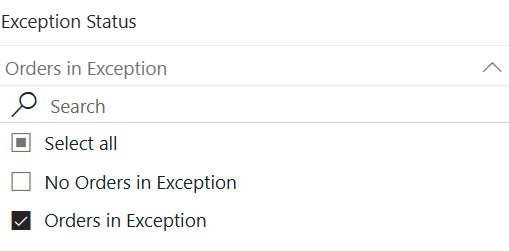
Use the dropdown to filter based on whether SKUs are associated with exception orders:
| Filter Option | What It Shows |
| -------------------------- | ---------------------------------------------------------------------------------------------------- |
| **Orders in Exception** | SKUs associated with at least one order in the Exception status. This option is selected by default. |
| **No Orders in Exception** | SKUs that are currently not linked to any exception orders |
### By Exception Status
Use the dropdown to filter based on whether SKUs are associated with exception orders:
| Filter Option | What It Shows |
| -------------------------- | ---------------------------------------------------------------------------------------------------- |
| **Orders in Exception** | SKUs associated with at least one order in the Exception status. This option is selected by default. |
| **No Orders in Exception** | SKUs that are currently not linked to any exception orders |
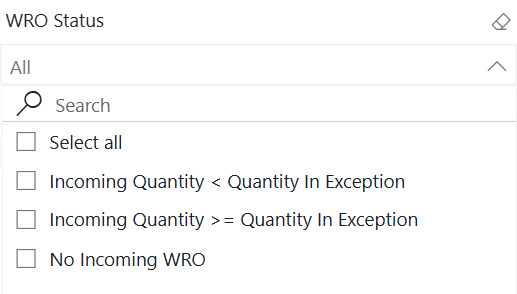
 ### By WRO Status
Use the dropdown to filter SKUs based on their replenishment status:
| Filter Option | What It Shows |
| ---------------------------------------------- | --------------------------------------------------------------------------------------------------------------------------------------------------------------------------------------------------------------------- |
| **Incoming Quantity \< Quantity in Exception** | SKUs that have a WRO in route to a Jetpack fulfillment center, with the WRO containing a quantity less than the total quantity needed to fulfill all orders in the Exception status |
| **Incoming Quantity ≥ Quantity in Exception** | SKUs that have a WRO in route to a Jetpack fulfillment center, with the WRO containing enough inventory to fulfill all orders in the Exception status (or exceeds the inventory required to fulfill Exception orders) |
| **No Incoming WRO** | SKUs that do not have WROs in progress |
### By WRO Status
Use the dropdown to filter SKUs based on their replenishment status:
| Filter Option | What It Shows |
| ---------------------------------------------- | --------------------------------------------------------------------------------------------------------------------------------------------------------------------------------------------------------------------- |
| **Incoming Quantity \< Quantity in Exception** | SKUs that have a WRO in route to a Jetpack fulfillment center, with the WRO containing a quantity less than the total quantity needed to fulfill all orders in the Exception status |
| **Incoming Quantity ≥ Quantity in Exception** | SKUs that have a WRO in route to a Jetpack fulfillment center, with the WRO containing enough inventory to fulfill all orders in the Exception status (or exceeds the inventory required to fulfill Exception orders) |
| **No Incoming WRO** | SKUs that do not have WROs in progress |
 ***
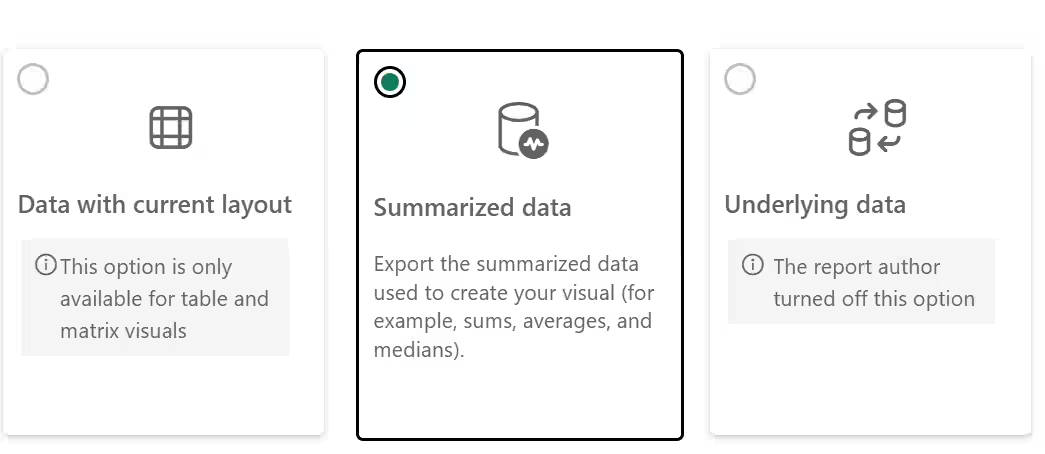
## Exporting Sub-Reports
You can export any sub-report on this page to analyze data offline or share with your team.
***
## Exporting Sub-Reports
You can export any sub-report on this page to analyze data offline or share with your team.

If you have any questions or run into issues, you can always contact Jetpack Care for help. Our team is always here to assist via Slack, phone, or email!