> ## Documentation Index
> Fetch the complete documentation index at: https://help.jetpack3pl.com/llms.txt
> Use this file to discover all available pages before exploring further.

# Inventory Snapshot Report

> Monitor daily inventory changes with detailed snapshots showing received units, picks, transfers, restocks, and more across all fulfillment centers.

<div className="page-intro">
  The Inventory Snapshot Report provides a comprehensive view of how your inventory levels change day by day across all fulfillment centers. Track every movement—from receiving shipments and picking orders to internal transfers and restocks—with detailed daily records that help you understand exactly where your inventory is going and why your counts change over time.
</div>

## Report Overview

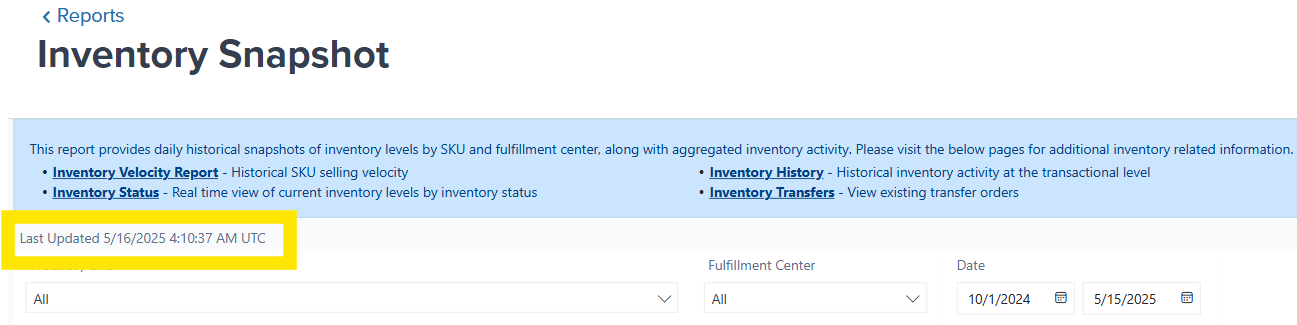
The Inventory Snapshot Report automatically refreshes once daily each morning (UTC). The page displays the date and time of the last refresh so you can confirm you're viewing the most current data.

<img src="https://mintcdn.com/jetpack/UH2x7zIe4mu_eyhk/images/analytics-reporting/inventory-snapshot-overview.png?fit=max&auto=format&n=UH2x7zIe4mu_eyhk&q=85&s=388e1e5ad732aa4cf17f09d212c3b5c8" alt="Inventory Snapshot Report page showing last refresh timestamp and daily inventory changes" className="screenshot" width="1297" height="325" data-path="images/analytics-reporting/inventory-snapshot-overview.png" />

The report organizes inventory changes into rows, with each row representing a specific day when inventory movement occurred for a product at a fulfillment center. This structure lets you track exactly how your inventory levels shifted from one day to the next.

***

## Understanding the Column Definitions

Each column in the Inventory Snapshot Report represents a different type of inventory movement or status. Understanding these definitions helps you interpret what happened to your inventory on any given day.

<img src="https://mintcdn.com/jetpack/UH2x7zIe4mu_eyhk/images/analytics-reporting/inventory-snapshot-columns.png?fit=max&auto=format&n=UH2x7zIe4mu_eyhk&q=85&s=c6e520691059120be0bd5599ec70a5df" alt="Inventory Snapshot Report showing daily inventory movement columns" className="screenshot" width="1424" height="142" data-path="images/analytics-reporting/inventory-snapshot-columns.png" />

| Column                 | What It Shows                                                                                                                                                                                                   |
| ---------------------- | --------------------------------------------------------------------------------------------------------------------------------------------------------------------------------------------------------------- |
| **Product**            | Product name as displayed in your [Product Catalog](/fulfillment/managing-products)                                                                                                                             |
| **SKU**                | Product SKU identifier                                                                                                                                                                                          |
| **Inventory ID**       | Unique identifier generated by Jetpack for this product                                                                                                                                                         |
| **Fulfillment Center** | <ul><li>The specific fulfillment center where the product is stored</li><li>If a product is stored at multiple centers, separate rows appear for each location</li></ul>                                        |
| **Date**               | The specific day when the inventory change occurred                                                                                                                                                             |
| **Start Count**        | <ul><li>Units available at the beginning of the day</li><li>This number equals the previous day's **End Count**</li></ul>                                                                                       |
| **Received**           | Units added from completed WROs that were fully received and processed                                                                                                                                          |
| **In Transit**         | <ul><li>Units currently traveling to a Jetpack fulfillment center</li><li>Includes internal transfers between fulfillment centers and [MultiHub IQ](/fulfillment/multi-hub-iq) distribution shipments</li></ul> |
| **Picked**             | Units removed from storage for any order type (D2C, B2B, wholesale, etc.)                                                                                                                                       |
| **Internal Transfer**  | Units removed specifically for internal transfer orders to other fulfillment centers                                                                                                                            |
| **Spot Check**         | <ul><li>Adjustments made during inventory spot checks</li><li>Negative values indicate units removed during the spot check</li></ul>                                                                            |
| **Restock**            | <ul><li>Units returned to available inventory</li><li>Includes customer returns, return-to-sender (RTS) orders, and restocked B2B orders</li></ul>                                                              |
| **Inventory Merge**    | <ul><li>Units added to this SKU as a result of a product merge</li><li>When you merge Inventory IDs together, the primary SKU receives all units from the merged IDs</li></ul>                                  |
| **End Count**          | Total on-hand units at the end of the day (reflects status at time of last refresh)                                                                                                                             |

<Info title="Hover for Additional Options">
  Hover over items in the report to access additional options such as enlarging charts, highlighting specific sub-reports (Spotlight feature), and sorting data by different criteria.
</Info>

***

## Filtering the Report

You can refine the data displayed in the Inventory Snapshot Report using three powerful filters: Product/SKU, Fulfillment Center, and Date.

<Steps>
  <Step title="Filter by Product or SKU">
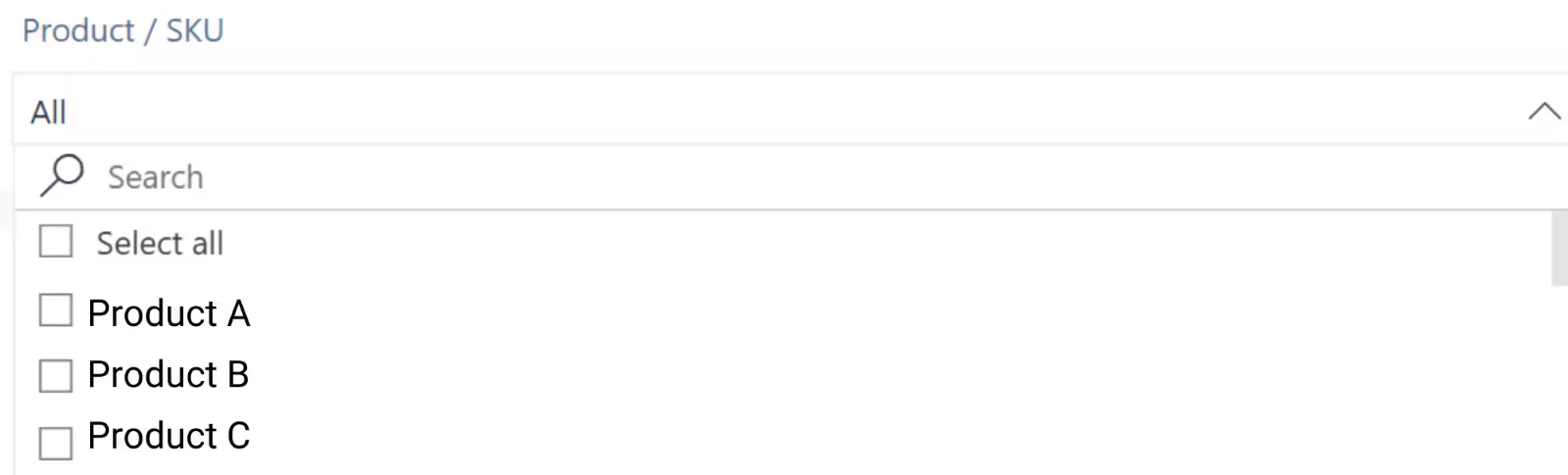
    Use the Product/SKU dropdown to select a specific product or view all SKUs from your Product Catalog.

    <img src="https://mintcdn.com/jetpack/UH2x7zIe4mu_eyhk/images/analytics-reporting/inventory-snapshot-filter-product.png?fit=max&auto=format&n=UH2x7zIe4mu_eyhk&q=85&s=963d0a0f83ae1a15c03be6f2b300cf30" alt="Product/SKU dropdown filter on Inventory Snapshot Report" className="screenshot" width="1600" height="485" data-path="images/analytics-reporting/inventory-snapshot-filter-product.png" />

    By default, the report shows all products unless you narrow your selection.
  </Step>

  <Step title="Filter by Fulfillment Center">
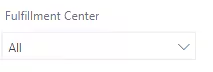
    Choose one or more fulfillment centers to focus on specific locations.

    <img src="https://mintcdn.com/jetpack/UH2x7zIe4mu_eyhk/images/analytics-reporting/inventory-snapshot-filter-fc.png?fit=max&auto=format&n=UH2x7zIe4mu_eyhk&q=85&s=e955c8e4f04b13261477030ffa132c45" alt="Fulfillment Center filter showing multiple location options" className="screenshot" width="213" height="72" data-path="images/analytics-reporting/inventory-snapshot-filter-fc.png" />

    By default, the report includes all fulfillment centers where inventory was stored during the selected time period.
  </Step>

  <Step title="Select a Date Range">
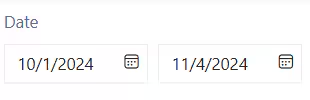
    Use the calendar icons to select your desired time period.

    <img src="https://mintcdn.com/jetpack/UH2x7zIe4mu_eyhk/images/analytics-reporting/inventory-snapshot-filter-date.png?fit=max&auto=format&n=UH2x7zIe4mu_eyhk&q=85&s=056c900456bf99210b6bada297e3c52a" alt="Date range calendar filter for Inventory Snapshot Report" className="screenshot" width="310" height="100" data-path="images/analytics-reporting/inventory-snapshot-filter-date.png" />

    * Data is available for up to the last **12 months**
    * The current day's data is not available until the next daily refresh
    * Choose any date range within the 12-month window to analyze specific periods

  </Step>
</Steps>

***

## Using the Report to Track Inventory Changes

After applying your filters, the Inventory Snapshot Report displays rows for each date when inventory changes occurred. Each row provides a complete picture of that day's inventory activity.

### What Each Row Shows

| Element                       | Information                                                                                                                                          |
| ----------------------------- | ---------------------------------------------------------------------------------------------------------------------------------------------------- |
| **Product/SKU/Inventory ID**  | Displays the product's name, SKU, and Jetpack-assigned inventory ID                                                                                  |
| **Fulfillment Center**        | Shows the specific fulfillment center storing the product. If a product is stored in multiple centers, separate rows appear for each location        |
| **Daily Inventory Movements** | Each column (Received, In Transit, Picked, Internal Transfer, Spot Check, Restock, Inventory Merge) summarizes the total units affected on that date |
| **Start and End Counts**      | Show inventory levels at the beginning and end of the day, helping you track daily changes                                                           |

<img src="https://mintcdn.com/jetpack/UH2x7zIe4mu_eyhk/images/analytics-reporting/inventory-snapshot-using-report.png?fit=max&auto=format&n=UH2x7zIe4mu_eyhk&q=85&s=066a765517b2d3a30073a07c7b49601c" alt="Inventory Snapshot Report row showing daily inventory movements" className="screenshot" width="1424" height="142" data-path="images/analytics-reporting/inventory-snapshot-using-report.png" />

This daily snapshot structure makes it easy to identify trends, spot discrepancies, and understand why your inventory levels changed over any given period.

***

## Exporting Report Data

You can export sub-reports from the Inventory Snapshot page in multiple formats for further analysis, record-keeping, or sharing with your team.
<Steps>
  <Step title="Access the Export Menu">
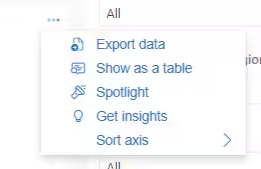
    Hover over the desired sub-report and click the **three horizontal dots** (⋯) that appear.

    <img src="https://mintcdn.com/jetpack/UH2x7zIe4mu_eyhk/images/analytics-reporting/inventory-snapshot-export-hover.png?fit=max&auto=format&n=UH2x7zIe4mu_eyhk&q=85&s=4ba48daa833e7066335f3243e9b030c3" alt="Hovering over sub-report to reveal export options" className="screenshot" width="261" height="169" data-path="images/analytics-reporting/inventory-snapshot-export-hover.png" />
  </Step>

  <Step title="Select Export Data">
    From the menu that appears, select **Export data**. A pop-up window will open with format options.
  </Step>

  <Step title="Choose Your Export Format">
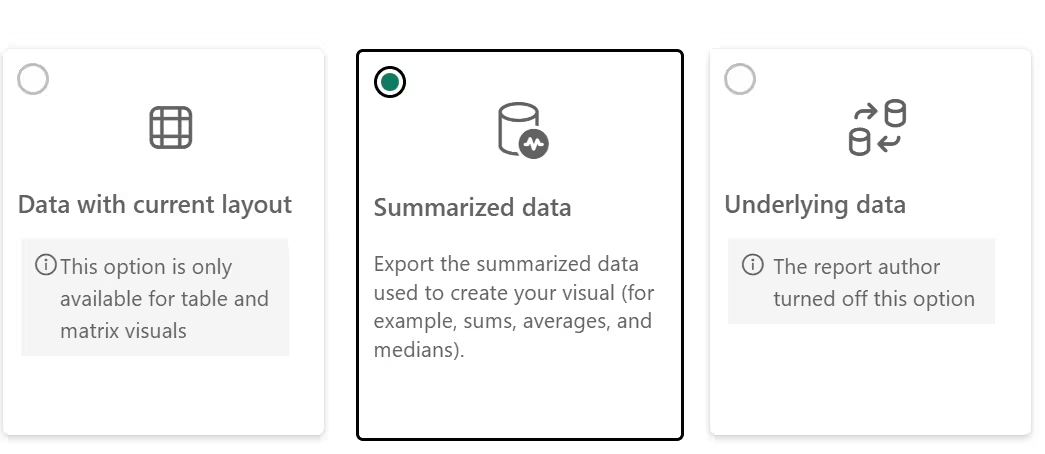
    The pop-up presents three export format options:

    * **Data with current layout** - Exports the data exactly as it appears on screen
    * **Summarized data** - Exports aggregated summary data
    * **Underlying data** - Exports the raw, detailed data behind the report

    <img src="https://mintcdn.com/jetpack/UH2x7zIe4mu_eyhk/images/analytics-reporting/inventory-snapshot-export-formats.png?fit=max&auto=format&n=UH2x7zIe4mu_eyhk&q=85&s=0912da3ca65f1ab3f7d641db6104a2ce" alt="Export format selection popup showing three options" className="screenshot" width="1045" height="454" data-path="images/analytics-reporting/inventory-snapshot-export-formats.png" />

    <Warning title="Format Compatibility">
      Some export options may be disabled or incompatible with your current data selection. Choose an available format that matches your analysis needs.
    </Warning>
  </Step>

  <Step title="Complete the Export">
    Click **Export** to begin the download process.

    A progress bar will appear to show the export status. Once completed, the file will automatically download to your computer.
  </Step>
</Steps>

***

## Let's Dive Deeper

<CardGroup cols={3}>
  <Card title="About Jetpack Reports" icon="chart-mixed" href="/fulfillment/analytics-reporting">
    Back to the main analytics and reporting overview
  </Card>

  <Card title="Inventory Replenishment Report" icon="box-check" href="/fulfillment/analytics-reporting/inventory-replenishment-report">
    Monitor reorder points and replenishment recommendations
  </Card>

  <Card title="Inventory Velocity Report" icon="gauge-high" href="/fulfillment/analytics-reporting/inventory-velocity-report">
    Track how quickly products are selling over time
  </Card>

  <Card title="Inventory Status Page" icon="boxes-stacked" href="/fulfillment/managing-inventory/inventory-status-page">
    View real-time inventory levels across all fulfillment centers
  </Card>

  <Card title="Managing Replenishment Schedules" icon="calendar-check" href="/fulfillment/sending-inventory/managing-replenishment-schedules">
    Plan and automate inventory replenishment
  </Card>

  <Card title="Out of Stock with Exceptions Report" icon="triangle-exclamation" href="/fulfillment/analytics-reporting/oos-exceptions-report">
    Identify out-of-stock SKUs and exception orders
  </Card>
</CardGroup>

<div className="jetpack-callout">
  <img src="https://mintcdn.com/jetpack/2iejPNBTYKEx6ntF/images/jetpack-logomark-256.png?fit=max&auto=format&n=2iejPNBTYKEx6ntF&q=85&s=340604ced4add3864f2641341826e1c9" alt="Jetpack" className="jetpack-callout-icon" width="256" height="256" data-path="images/jetpack-logomark-256.png" />

  <div className="jetpack-callout-content">
    <h4 className="jetpack-callout-title">Questions? Contact Jetpack Care.</h4>
    <p className="jetpack-callout-text">If you have any questions or run into issues, you can always contact Jetpack Care for help. Our team is always here to assist via Slack, phone, or email!</p>
  </div>
</div>
