> ## Documentation Index
> Fetch the complete documentation index at: https://help.jetpack3pl.com/llms.txt
> Use this file to discover all available pages before exploring further.
# Signature Requirements
> Configure delivery signature requirements for high-value orders, understand carrier signature policies, and manage signature settings in the Jetpack dashboard.
Requiring a signature upon delivery helps ensure that packages are received by their intended recipients. When you set this requirement in your Jetpack dashboard, orders will be marked to need a signature at the time of delivery. This safeguard is especially important for orders with an insurance value of USD \$300.00 or greater, as these orders automatically require a signature and cannot have this requirement removed.
## How Signature Requirements Work
Signature requirements provide an additional layer of security for your shipments by ensuring someone is present to receive the package. When a signature is required:
1. **The carrier attempts delivery** and requests a signature from the recipient
2. **If no one is available**, the carrier leaves a notice and attempts redelivery
3. **Proof of delivery** includes the signature, providing verification of receipt
This feature is particularly valuable for high-value items, luxury goods, or shipments to addresses with a history of delivery issues.
***
## Automatic Signature Requirements
**Orders with an insurance value of USD \$300.00 or greater automatically require a signature.** This requirement:
* **Cannot be removed** from high-value orders
* **Applies to all carriers** regardless of your shipping preferences
* **Incurs signature fees** as part of the carrier surcharge
The automatic signature requirement protects both you and your customer by ensuring valuable shipments are not left unattended.
All insured orders with an insurance value of USD \$300.00 or greater will automatically require a signature and incur the corresponding fee. This is a carrier policy and cannot be waived.
***
## Carrier Signature Policies
If you specify that a delivery signature is required, Jetpack's Operations team may override your selected ship option if that carrier does not support delivery signature requests. In such cases, the ship option will be changed to designate a carrier that supports delivery signatures.
**Important carrier considerations:**
* **Carrier definitions vary** - Carriers have different definitions of what constitutes a valid signature
* **No-contact protocols** - Some carriers may implement no-contact protocols in lieu of retrieving a signature from the person designated on the shipping label (e.g., obtaining a proxy signature or taking a photo of the delivered package)
* **Signature authenticity** - Because signatures might not always come directly from the recipient, Jetpack cannot reimburse discrepancies related to signature collection
Carriers may use proxy signatures or photo confirmation instead of direct recipient signatures. Jetpack cannot reimburse claims based solely on signature discrepancies, as carrier policies vary.
***
## Signature Requirement Pricing
Requiring a signature incurs additional carrier surcharges. Pricing varies by:
* **Country of origin** - US, Canada, UK, EU, and Australia have different signature fees
* **Carrier service** - Different carriers charge different signature surcharge rates
* **Order insurance value** - Orders over \$300 automatically include signature fees
For detailed information about carrier surcharges and signature fees, see [General Pricing](/fulfillment/billing-invoicing/general-pricing).
***
## Using Automation Rules for Signature Requirements
The most common way to apply signature requirements is through [Automation Rules](/fulfillment/account-setup/shipping-preferences/automation-rules). Automation Rules allow you to automatically require signatures based on specific conditions like order value, destination, or product type.
**Why use Automation Rules:**
* Automatically applies signature requirements without manual intervention for each order
* Ensures consistency across all qualifying orders
* Scales efficiently as your order volume grows
For example, you can create a rule that automatically requires signatures for all orders with an insurance value over a certain threshold or for shipments to specific regions.
To learn how to create Automation Rules for signature requirements, see [Automation Rules](/fulfillment/account-setup/shipping-preferences/automation-rules).
***
## Adding a Signature Requirement Manually
You can also add a signature requirement to individual orders manually. This is useful for one-off situations where a specific order needs a signature but doesn't match your automation rule criteria.
From the Jetpack dashboard:
This displays your orders list.
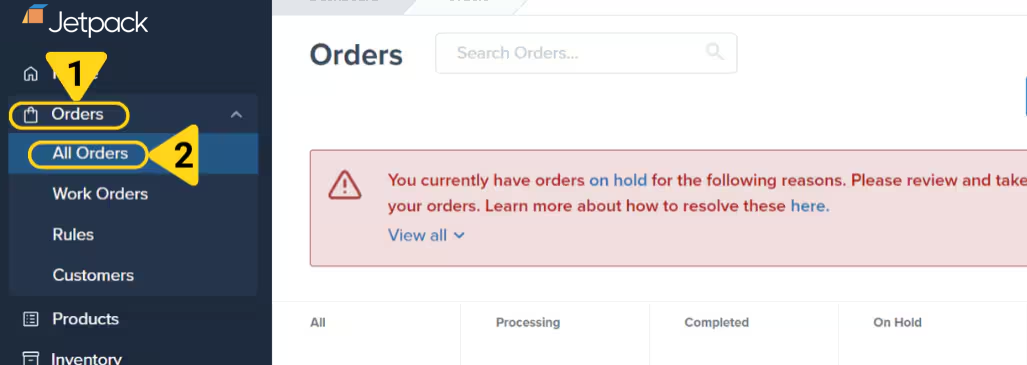 Click the hyperlinked **Order ID** of the order that should require a signature.
You will be redirected to the **Order Details** page.
From the dropdown menu.
Click the hyperlinked **Order ID** of the order that should require a signature.
You will be redirected to the **Order Details** page.
From the dropdown menu.
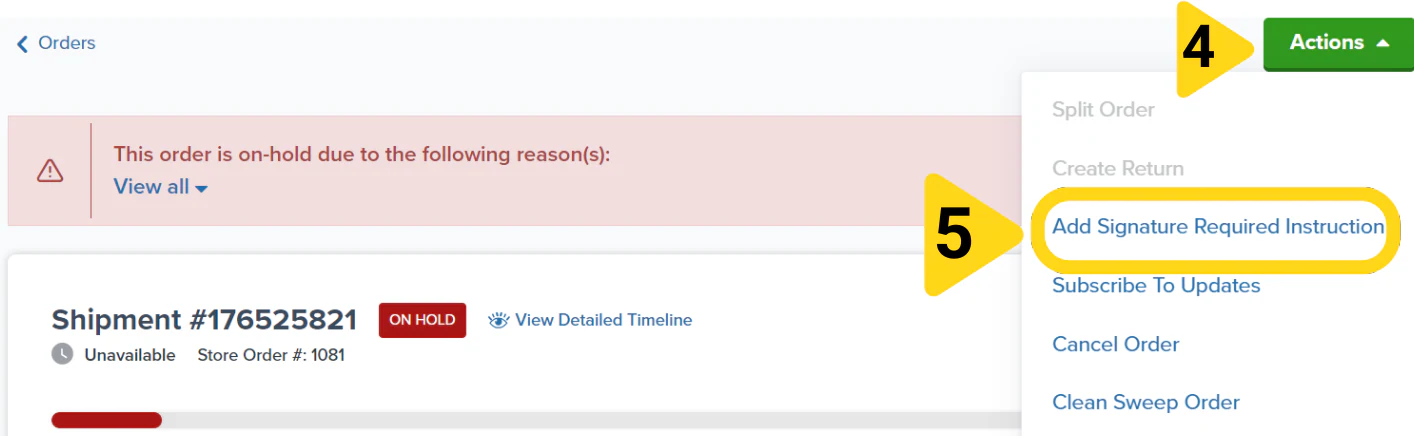 The order will be updated to require a signature upon delivery, and the appropriate carrier surcharge will apply.
***
## Removing a Signature Requirement
You **cannot remove a signature requirement** if an order has an insurance value of USD \$300.00 or greater.
For orders under \$300 that have a signature requirement, you can request removal by following these steps:
### Step 1: Move the Order to On-Hold Status
An order must be in the **On-Hold** status for the signature requirement to be removed. If the order is not already On-Hold, you must move it to On-Hold status.
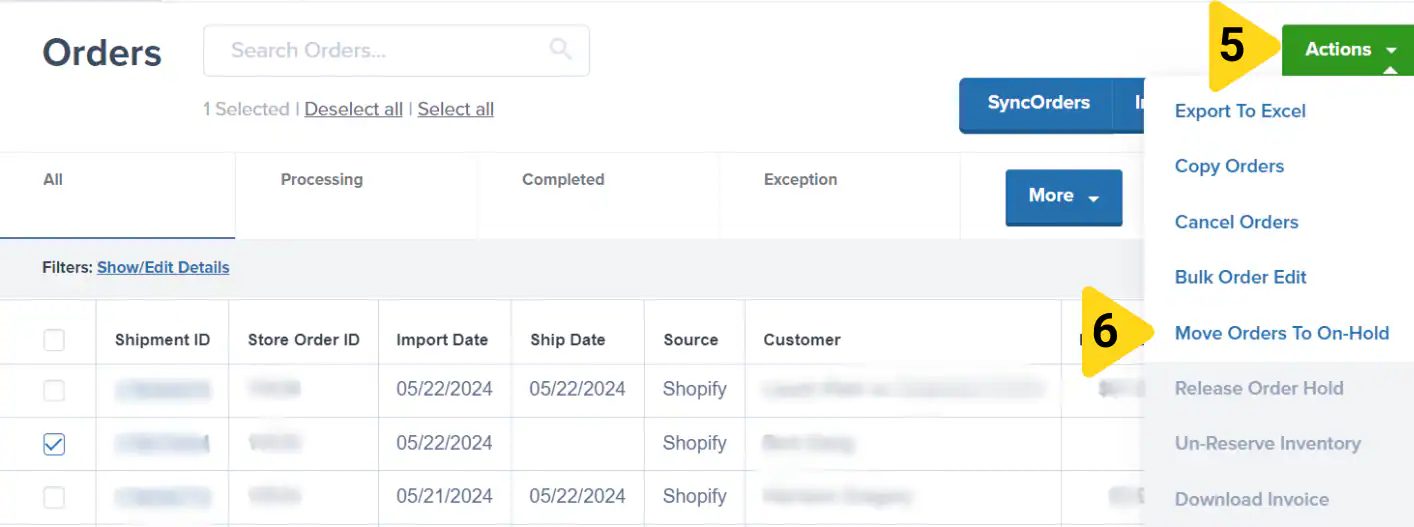
From the Jetpack dashboard:
Use filters or search as needed.
The order will be updated to require a signature upon delivery, and the appropriate carrier surcharge will apply.
***
## Removing a Signature Requirement
You **cannot remove a signature requirement** if an order has an insurance value of USD \$300.00 or greater.
For orders under \$300 that have a signature requirement, you can request removal by following these steps:
### Step 1: Move the Order to On-Hold Status
An order must be in the **On-Hold** status for the signature requirement to be removed. If the order is not already On-Hold, you must move it to On-Hold status.
From the Jetpack dashboard:
Use filters or search as needed.
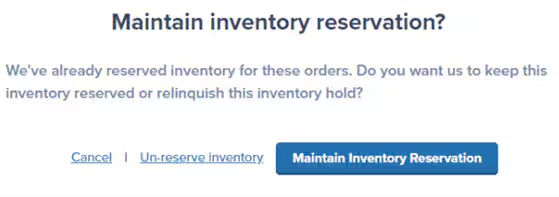
 A pop-up will appear.
This ensures inventory remains reserved for the order.
A pop-up will appear.
This ensures inventory remains reserved for the order.
 If the order is eligible, the action will succeed. If the option is grayed out, Jetpack's Operations team has already begun fulfillment.
To guarantee that new orders can be modified before fulfillment begins, you can enable the [Automatic Processing Pause](/fulfillment/account-setup/shipping-preferences/automatic-processing-pause) feature on your Jetpack dashboard. This holds all new orders until you release them to processing.
### Step 2: Contact Jetpack Care
Once the order is On-Hold, contact your Jetpack Care Manager to have the signature requirement removed:
Contact your Jetpack Care Manager to request the signature requirement be removed\*\*.
Jetpack Care will remove the signature requirement and notify you when complete.
***
## Let's Dive Deeper
Back to the main shipping preferences guide
Automatically apply signature requirements based on conditions
Hold orders for modification before fulfillment
Understand signature surcharge fees
Protect high-value shipments
Manage and modify orders
If the order is eligible, the action will succeed. If the option is grayed out, Jetpack's Operations team has already begun fulfillment.
To guarantee that new orders can be modified before fulfillment begins, you can enable the [Automatic Processing Pause](/fulfillment/account-setup/shipping-preferences/automatic-processing-pause) feature on your Jetpack dashboard. This holds all new orders until you release them to processing.
### Step 2: Contact Jetpack Care
Once the order is On-Hold, contact your Jetpack Care Manager to have the signature requirement removed:
Contact your Jetpack Care Manager to request the signature requirement be removed\*\*.
Jetpack Care will remove the signature requirement and notify you when complete.
***
## Let's Dive Deeper
Back to the main shipping preferences guide
Automatically apply signature requirements based on conditions
Hold orders for modification before fulfillment
Understand signature surcharge fees
Protect high-value shipments
Manage and modify orders

Questions? Contact Jetpack Care.
If you have any questions or run into issues, you can always contact Jetpack Care for help. Our team is always here to assist via Slack, phone, or email!