> ## Documentation Index
> Fetch the complete documentation index at: https://help.jetpack3pl.com/llms.txt
> Use this file to discover all available pages before exploring further.

# Setting Reorder Points

> Configure reorder point alerts to stay ahead of stockouts and automate inventory replenishment notifications with Jetpack.

<div className="page-intro">
  Reorder Points help you stay ahead of stockouts by automatically notifying you when inventory levels drop below a specified threshold. Instead of manually monitoring stock levels, you can configure reorder points for each SKU and receive alerts when it's time to send more inventory to Jetpack.
</div>

## How Reorder Points Work

For each product SKU in your catalog, you can set a reorder point—the inventory quantity that triggers a notification. When available inventory (across all fulfillment centers) falls below this threshold:

1. Jetpack sends you an email notification
2. The product appears in the **Low Stock** report in your dashboard
3. You can immediately [create a WRO](/fulfillment/sending-inventory/creating-wro) (Warehouse Receiving Order) to replenish stock

Reorder points help you maintain optimal inventory levels and prevent stockouts during peak seasons.

<Info title="Reorder Points vs. MultiHub IQ">
  Reorder Points are single-FC inventory thresholds that trigger alerts when stock is low. If you're using multiple fulfillment centers with MultiHub IQ, we use "Rebalance Points" to manage inventory across your entire fulfillment network. Learn more about [MultiHub IQ](/fulfillment/multi-hub-iq).
</Info>

***

## Calculating Your Reorder Point

A good reorder point balances avoiding stockouts with minimizing excess inventory. Here's a simple formula:

**Reorder Point = (Average Daily Sales × Lead Time) + Safety Stock**

### Example Calculation

**Scenario:**

* You sell 10 units per day on average
* Lead time to restock is 14 days (manufacturing + shipping to Jetpack)
* You want 7 days of safety stock

**Calculation:**

* Base Stock Needed = 10 units/day × 14 days = 140 units
* Safety Stock = 10 units/day × 7 days = 70 units
* **Reorder Point = 140 + 70 = 210 units**

Set your reorder point to 210 units to ensure you don't run out while waiting for new inventory.

***

## Setting Reorder Points for Individual Products

To set a reorder point for a specific product:

<Steps>
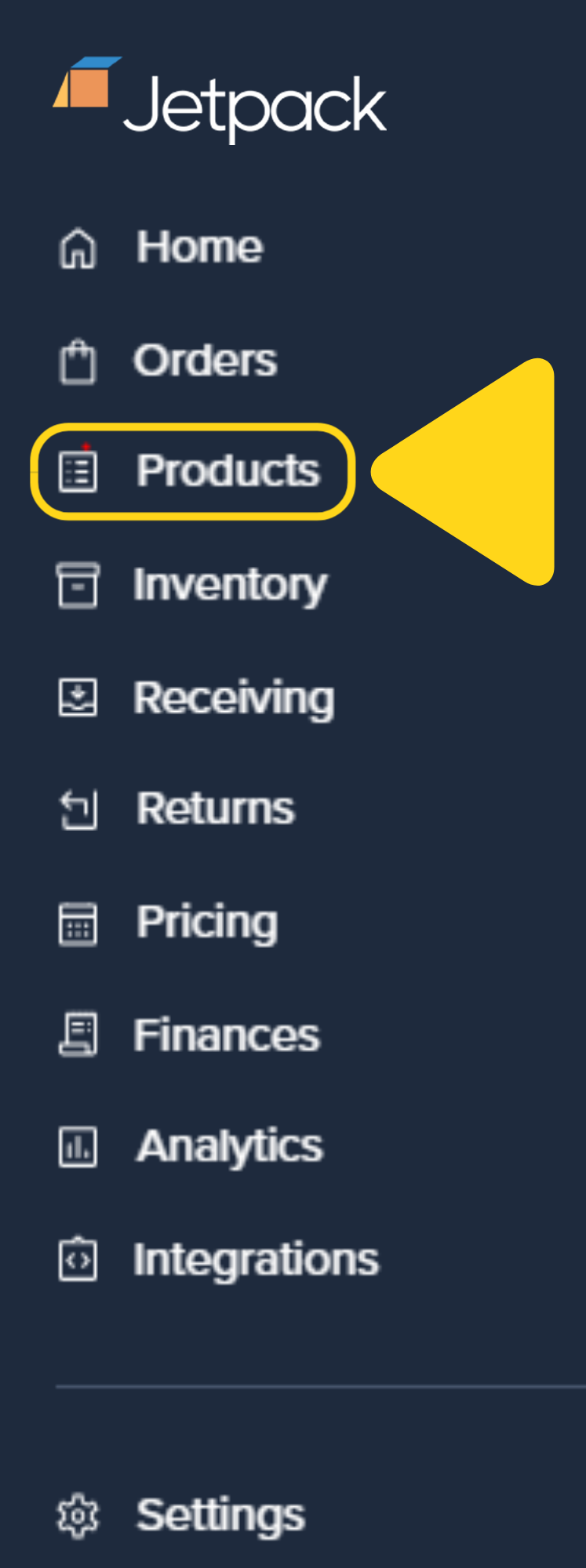
  <Step title="Navigate to Products in your Jetpack dashboard">
    <img src="https://mintcdn.com/jetpack/vowpUVk9ga2bYYSi/images/shipping-preferences/reorder-points-navigation.png?fit=max&auto=format&n=vowpUVk9ga2bYYSi&q=85&s=83be16707d366e51e3652cd9e7852cea" alt="Jetpack dashboard showing Products navigation" className="screenshot" width="747" height="2000" data-path="images/shipping-preferences/reorder-points-navigation.png" />
  </Step>

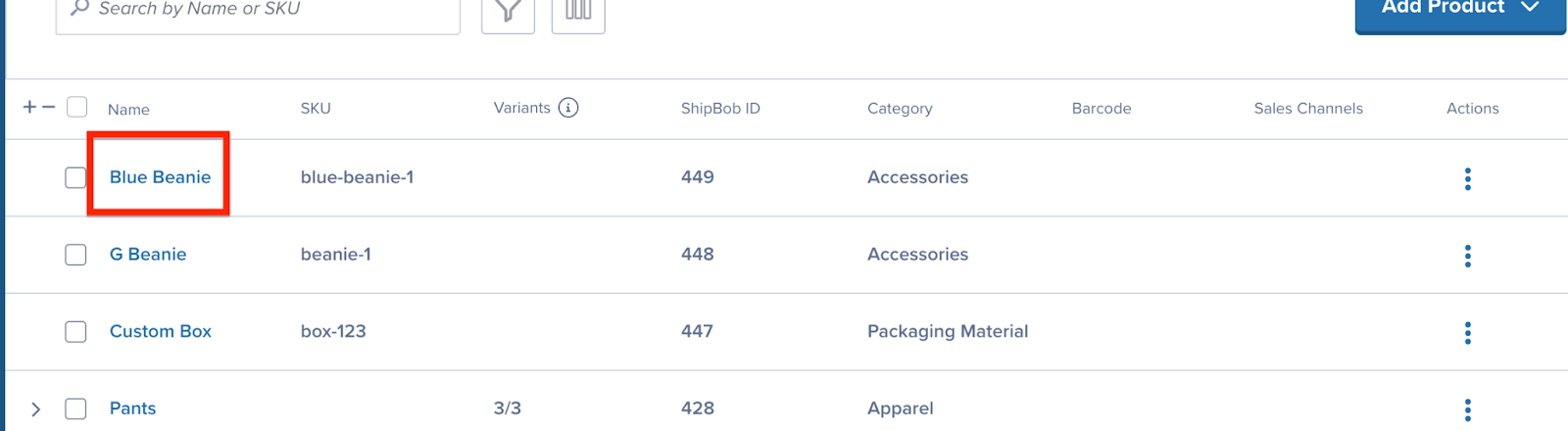
  <Step title="Find and select the product you want to configure">
    <img src="https://mintcdn.com/jetpack/vowpUVk9ga2bYYSi/images/shipping-preferences/reorder-points-product-list.png?fit=max&auto=format&n=vowpUVk9ga2bYYSi&q=85&s=089ed11d79d6142f4c6f08c208ce6536" alt="Product Catalog showing product list with search" className="screenshot" width="1600" height="440" data-path="images/shipping-preferences/reorder-points-product-list.png" />
  </Step>

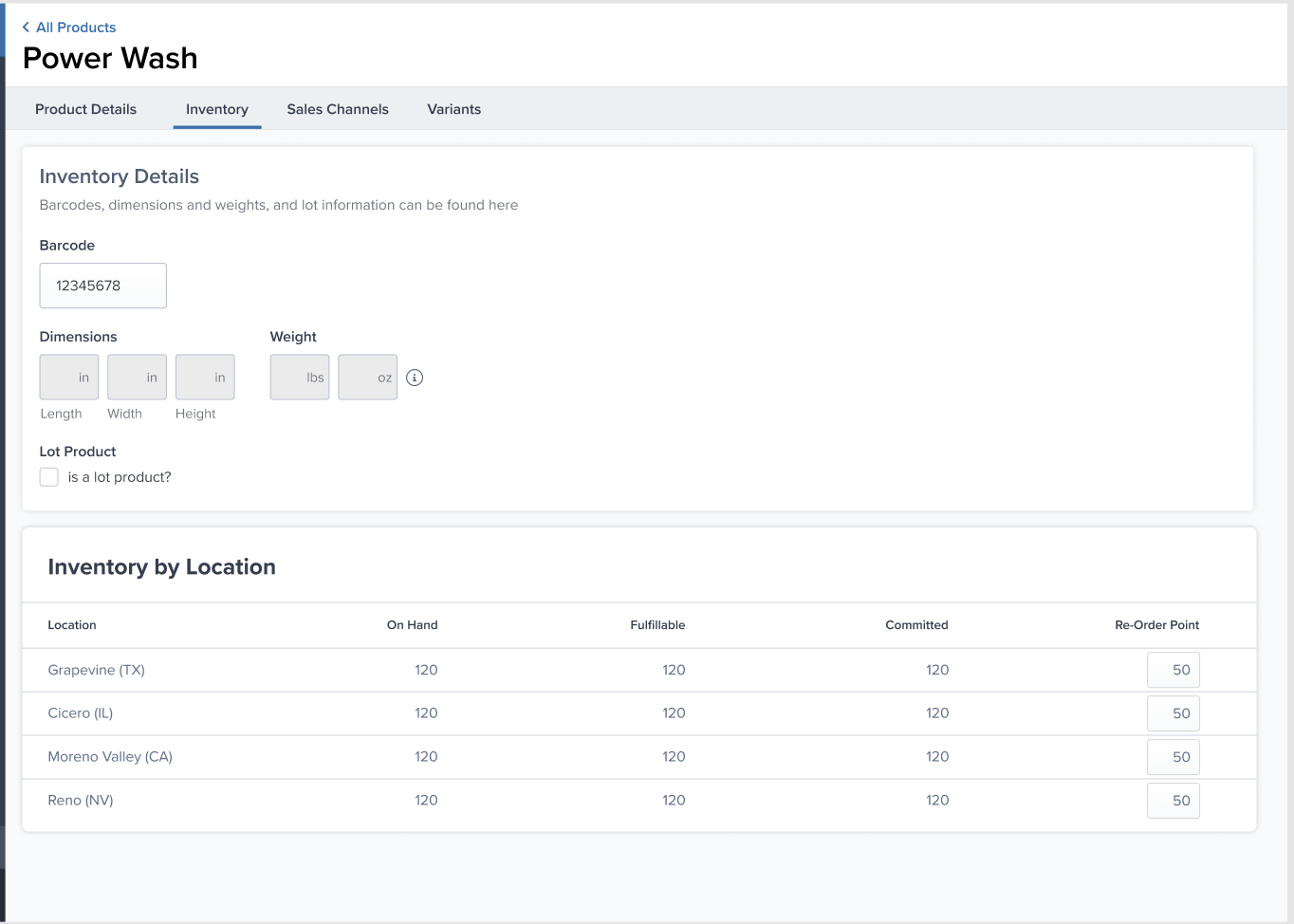
  <Step title="Click on the Inventory tab to access inventory settings">
    <img src="https://mintcdn.com/jetpack/vowpUVk9ga2bYYSi/images/shipping-preferences/reorder-points-inventory-tab.png?fit=max&auto=format&n=vowpUVk9ga2bYYSi&q=85&s=b199ab814485f4da261d18583d2cf71d" alt="Product Details page showing Inventory tab with Re-Order Point fields" className="screenshot" width="1364" height="974" data-path="images/shipping-preferences/reorder-points-inventory-tab.png" />
  </Step>

  <Step title="Enter reorder point quantities">
    Scroll to **Inventory by Location** section where you'll see the **Re-Order Point** column. Enter your **Reorder Point** quantity for each fulfillment center location (e.g., 50 units).
  </Step>

  <Step title="Save your changes">
    Click **Save** or the save button if changes are unsaved.
  </Step>
</Steps>

**Example:** If you set a reorder point of 50 units, you'll receive a notification when available inventory drops to 50 or below.

For detailed guidance on product configuration, see the [Product Details Page](/fulfillment/managing-products/product-details-page).

***

## Setting Reorder Points in Bulk

To set reorder points for multiple products at once:

1. Navigate to **Products** > **Bulk Actions**
2. Click **Import/Export** or **Bulk Edit**
3. Download your current product catalog as a CSV
4. Open the CSV and add/update the **Reorder Point** column for each SKU
5. Optionally add **Reorder Quantity** for recommended restock amounts
6. Save the CSV
7. Upload the updated file via **Products** > **Import**
8. Review changes and confirm

This method is ideal when setting up reorder points for the first time or updating many SKUs simultaneously. See [Bulk Updating Product Details](/fulfillment/managing-products/more-tools/bulk-updating-product-details) for detailed instructions.

***

## Reorder Point Notifications

When a product hits its reorder point, Jetpack notifies you through multiple channels:

<table className="reversed-column-widths">
  <thead>
    <tr>
      <th>Notification Type</th>
      <th>Details</th>
      <th>How to Configure</th>
    </tr>
  </thead>

  <tbody>
    <tr>
      <td><strong>Email Alert</strong></td>
      <td><ul><li>Sent to configured email address(es)</li><li>Lists all SKUs at or below reorder point</li><li>Includes current inventory levels</li></ul></td>
      <td><ul><li>Navigate to <strong>Settings</strong> > <strong>Notifications</strong> or <strong>Settings</strong> > <strong>Inventory Alerts</strong></li><li>Add email addresses for reorder point alerts</li><li>Click <strong>Save</strong></li></ul></td>
    </tr>

    <tr>
      <td><strong>Dashboard Low Stock Report</strong></td>
      <td><ul><li>Real-time view of all SKUs at or below reorder points</li><li>Shows current quantity and reorder quantity</li><li>Accessible from <strong>Inventory</strong> menu</li></ul></td>
      <td><ul><li>Navigate to <strong>Inventory</strong> > <strong>Reports</strong> or <strong>Inventory</strong> > <strong>Low Stock</strong></li><li>View SKUs below reorder point</li><li>Click <strong>Create WRO</strong> to replenish selected SKUs</li></ul></td>
    </tr>

    <tr>
      <td><strong>Inventory Report</strong></td>
      <td><ul><li>Downloadable CSV showing all inventory</li><li>Includes current stock vs. reorder points</li><li>Useful for offline analysis</li></ul></td>
      <td><ul><li>Export from <strong>Inventory</strong> > <strong>Reports</strong></li><li>Filter by "Below Reorder Point"</li><li>Download CSV for spreadsheet analysis</li></ul></td>
    </tr>

    <tr>
      <td><strong>Slack Notifications</strong> (Optional)</td>
      <td><ul><li>Real-time alerts in Slack workspace</li><li>Requires Slack integration</li><li>Useful for team coordination</li></ul></td>
      <td><ul><li>Install Slack integration from <strong>App Store</strong></li><li>Configure notification preferences</li><li>Enable reorder point alerts</li></ul></td>
    </tr>
  </tbody>
</table>

***

## Low Stock Report

The **Low Stock Report** shows all SKUs currently at or below their reorder points. This report updates in real-time and helps you prioritize which products need replenishment.

**To access:**

1. Navigate to **Inventory** > **Reports** or **Inventory** > **Low Stock**
2. View list of SKUs below reorder point
3. See current quantity and recommended reorder quantity
4. Click **Create WRO** to immediately create a Warehouse Receiving Order for selected SKUs

**Report Columns:**

* SKU and product name
* Current available quantity
* Reorder point threshold
* Recommended reorder quantity
* Days until stockout (based on sales velocity)
* Actions (Create WRO, Edit Product)

<Tip title="Proactive Monitoring">
  Don't wait for email alerts—check the Low Stock Report weekly to proactively manage inventory before stockouts occur.
</Tip>

***

## Factors to Consider When Setting Reorder Points

| Factor                    | How It Affects Reorder Point                                                                                              | Adjustment Strategy                                                                                                                                                                                                         |
| ------------------------- | ------------------------------------------------------------------------------------------------------------------------- | --------------------------------------------------------------------------------------------------------------------------------------------------------------------------------------------------------------------------- |
| **Sales Velocity**        | <ul><li>Faster-selling products need higher reorder points</li><li>Slow movers can have lower thresholds</li></ul>        | <ul><li>Review sales data from [Inventory Velocity Report](/fulfillmentanalytics-reporting/inventory-velocity-report)</li><li>Set higher reorder points for best-sellers</li><li>Adjust quarterly based on trends</li></ul> |
| **Lead Time Variability** | <ul><li>Longer lead times require higher reorder points</li><li>Unpredictable suppliers need more safety stock</li></ul>  | <ul><li>Track supplier lead times</li><li>Add buffer for international shipping delays</li><li>Increase safety stock for unreliable suppliers</li></ul>                                                                     |
| **Seasonality**           | <ul><li>Peak seasons require higher reorder points</li><li>Off-season can use lower thresholds</li></ul>                  | <ul><li>Increase reorder points before holidays</li><li>Review historical sales patterns</li><li>Adjust 2-3 months before peak season</li></ul>                                                                             |
| **Storage Costs**         | <ul><li>Higher reorder points mean more inventory storage fees</li><li>Balance stockout risk vs. carrying costs</li></ul> | <ul><li>Review [inventory storage fees](/fulfillment/billing-invoicing/general-pricing)</li><li>Calculate optimal order quantities</li><li>Don't over-order slow-moving products</li></ul>                                  |
| **Product Lifecycle**     | <ul><li>New products need conservative reorder points</li><li>Discontinued products can use aggressive drawdown</li></ul> | <ul><li>Start with higher safety stock for new launches</li><li>Reduce reorder points for end-of-life products</li><li>Monitor actual demand and adjust</li></ul>                                                           |

For more guidance on inventory planning, see [Managing Replenishment Schedules](/fulfillment/sending-inventory/managing-replenishment-schedules).

***

## Best Practices for Reorder Points

**Set Reorder Points for All Active SKUs:**

* Don't leave best-sellers without alerts
* Configure reorder points during [product setup](/fulfillment/managing-products/adding-products)
* Prioritize high-value and fast-moving products first

**Review Quarterly:**

* Sales velocity changes over time
* Adjust reorder points based on actual performance
* Remove reorder points for discontinued products

**Account for Lead Time:**

* Include manufacturing time
* Add shipping time to Jetpack fulfillment centers
* Consider customs clearance for international shipments

**Use Safety Stock:**

* Always add a buffer for unexpected demand spikes
* Account for supplier delays
* Increase safety stock during peak seasons

**Monitor Low Stock Reports Weekly:**

* Don't rely solely on email alerts
* Proactively check inventory status
* Plan ahead for long-lead-time products

**Create WROs Promptly:**

* When you receive an alert, create a WRO immediately
* Don't wait until inventory is completely depleted
* Allow time for manufacturing and shipping

***

## Reorder Points vs. Inventory Forecasting

Reorder points are **reactive**—they notify you when stock is already low. For more proactive inventory management, consider:

**Inventory Forecasting** - Jetpack can predict future demand based on historical sales data. This helps you plan replenishment before hitting reorder points.

**Seasonal Planning** - Increase stock levels before known peak periods (holidays, promotional events) rather than waiting for reorder alerts.

**Promotions Planning** - Boost inventory before planned sales or marketing campaigns to prevent stockouts during high-demand periods.

For more advanced inventory management strategies, see:

* [Inventory Velocity Report](/fulfillmentanalytics-reporting/inventory-velocity-report) - Analyze sales trends
* [Inventory Replenishment Report](/fulfillmentanalytics-reportingiventory-replenishment-report) - Forecast future demand
* [MultiHub IQ](/fulfillment/multi-hub-iq) - Optimize inventory across multiple fulfillment centers

***

## Reorder Points with MultiHub IQ

If you're using [MultiHub IQ](/fulfillment/multi-hub-iq) to distribute inventory across multiple fulfillment centers, reorder points work differently:

**Standard Reorder Points:**

* Alert when **total available inventory** across all FCs drops below threshold
* Don't account for distribution across network
* Useful for overall inventory monitoring

**MultiHub IQ Rebalance Points:**

* Recommend total inventory needed across entire network
* Account for regional demand patterns
* Trigger automatic rebalancing via Internal Transfer Orders (ITOs)

For optimal inventory management with MultiHub IQ, configure both reorder points (for overall inventory alerts) and rebalance points (for network optimization). See [Using MultiHub IQ](/fulfillment/multi-hub-iq/using-multihub-iq) for details.

***

## Let's Dive Deeper

<CardGroup cols={3}>
  <Card title="Shipping Preferences Overview" icon="sliders" href="/fulfillment/account-setup/shipping-preferences">
    Back to the main shipping preferences guide
  </Card>

  <Card title="Managing Replenishment Schedules" icon="calendar-check" href="/fulfillment/sending-inventory/managing-replenishment-schedules">
    Plan inventory replenishment strategically
  </Card>

  <Card title="Creating a WRO" icon="truck-ramp-box" href="/fulfillment/sending-inventory/creating-wro">
    Send inventory to Jetpack
  </Card>

  <Card title="Product Details Page" icon="box-open" href="/fulfillment/managing-products/product-details-page">
    Configure product-level settings
  </Card>

  <Card title="MultiHub IQ" icon="network-wired" href="/fulfillment/multi-hub-iq">
    Optimize inventory across your fulfillment network
  </Card>

  <Card title="Inventory Replenishment Report" icon="chart-line" href="/fulfillment/analytics-reporting/inventory-replenishment-report">
    Forecast future demand and plan restocks
  </Card>
</CardGroup>

<div className="jetpack-callout">
  <img src="https://mintcdn.com/jetpack/2iejPNBTYKEx6ntF/images/jetpack-logomark-256.png?fit=max&auto=format&n=2iejPNBTYKEx6ntF&q=85&s=340604ced4add3864f2641341826e1c9" alt="Jetpack" className="jetpack-callout-icon" width="256" height="256" data-path="images/jetpack-logomark-256.png" />

  <div className="jetpack-callout-content">
    <h4 className="jetpack-callout-title">Questions? Contact Jetpack Care.</h4>
    <p className="jetpack-callout-text">If you have any questions or run into issues, you can always contact Jetpack Care for help. Our team is always here to assist via Slack, phone, or email!</p>
  </div>
</div>