> ## Documentation Index
> Fetch the complete documentation index at: https://help.jetpack3pl.com/llms.txt
> Use this file to discover all available pages before exploring further.
# Gift Notes
> Enable gift notes to include personalized messages with your shipments, customize with your brand logo, and configure gift note settings in the Jetpack dashboard.
Enabling gift notes in your Jetpack account allows any order that contains a gift message to receive a printout of the unique message. This feature enhances the customer experience by adding a personal touch to gift shipments and helps differentiate your brand through customized messaging.
## How Gift Notes Work
When gift notes are enabled, Jetpack automatically prints and includes personalized gift messages with shipments:
1. **Customer adds gift message** at checkout (via your ecommerce platform)
2. **Message syncs to Jetpack** through your store integration
3. **Jetpack prints the message** on thermal paper with your logo (if uploaded)
4. **Gift note is included** in the package before sealing
Gift notes provide a premium unboxing experience and are especially valuable during holiday seasons, special occasions, or when targeting gift-givers.
***
## Gift Note Features and Specifications
**Display and Printing:**
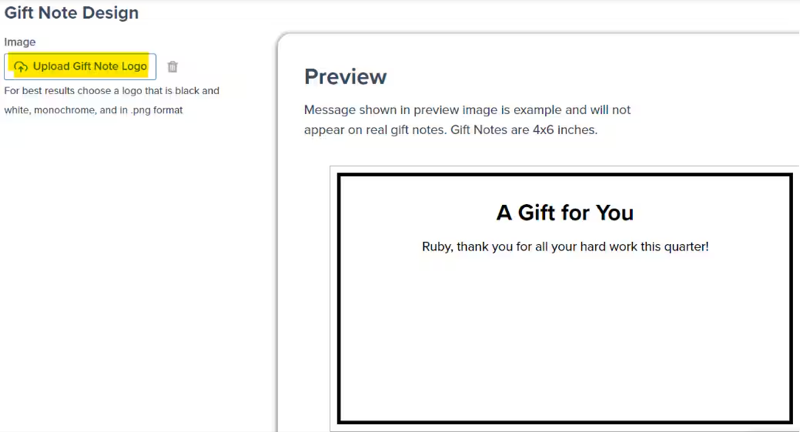
* Gift notes are printed in **black and white** on Jetpack's **4" x 6" thermal paper**
* Each note can display up to **500 characters**, including special characters
* The font used is **Zebra Font 0**, which cannot be changed
* If you upload your brand logo in the Gift Notes section, it will appear on the note
**Limitations:**
* Gift notes are **excluded from orders** that contain inventory with packaging requirements set to **Ship in Own Container** (SIOC)
* Inclusion of gift notes in B2C orders isn't guaranteed by default (depends on warehouse operations)
**Editing:**
* Gift messages can be **edited or deleted** on the Order Details page **up until the order is picked**
* After picking, the fulfillment process has begun, and changes are no longer possible
***
## Gift Note Pricing
Including gift notes incurs an additional fee per order. Pricing details vary based on your fulfillment plan and order volume.
For information about gift note pricing, see [General Pricing](/fulfillment/billing-invoicing/general-pricing).
***
## Enabling Gift Notes in the Jetpack Dashboard
To enable gift note functionality for your account:
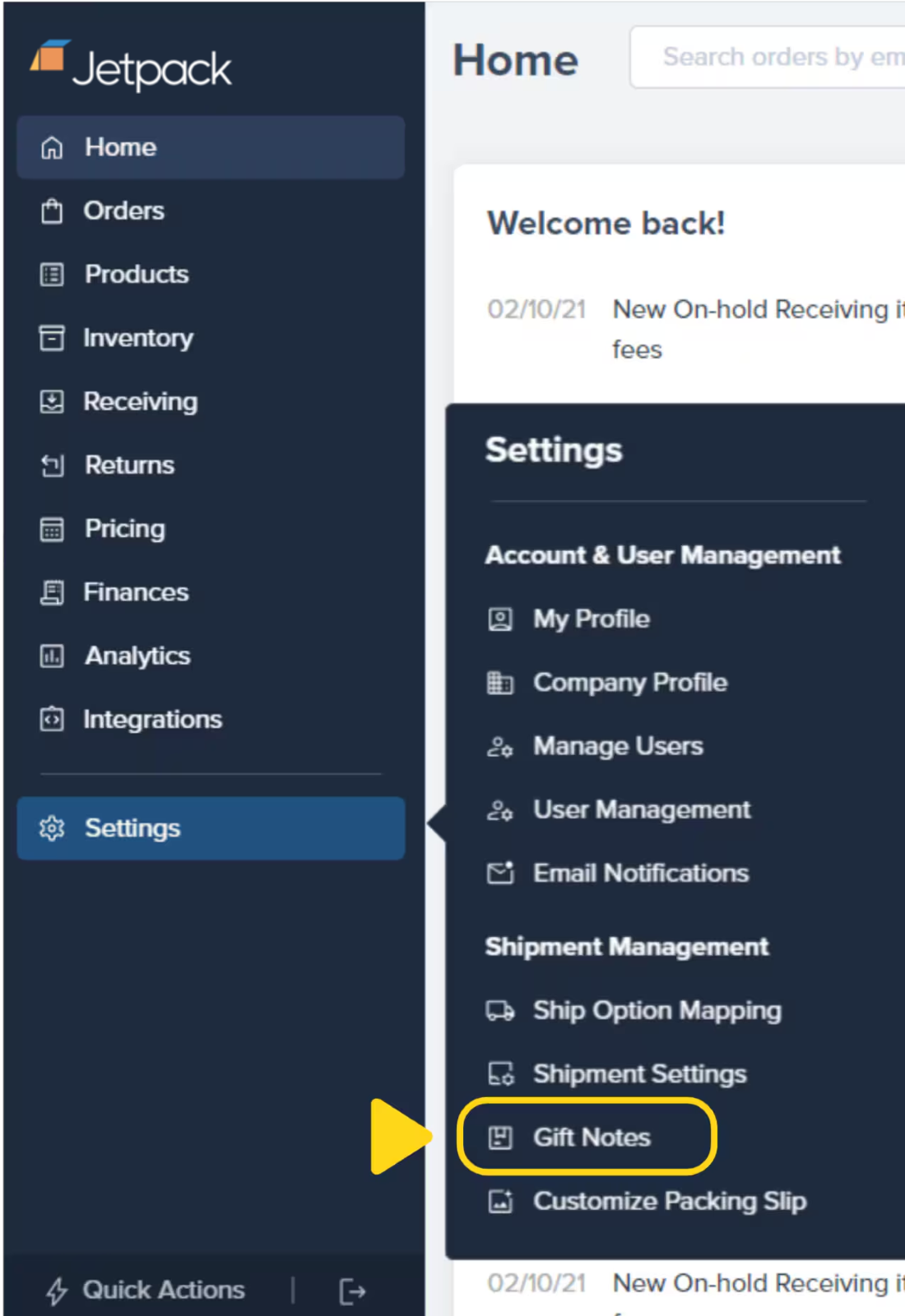
From the Jetpack dashboard:
Additional menu options will appear.
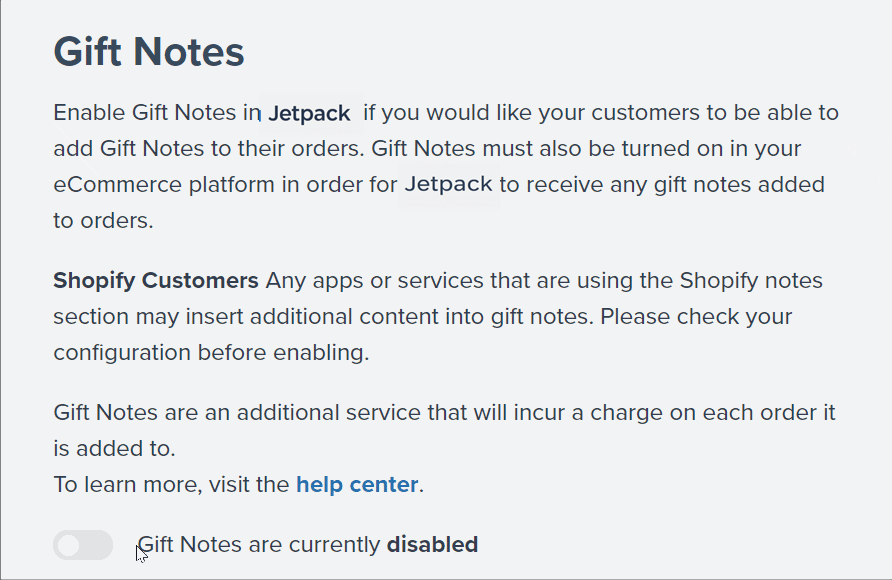
A confirmation message will appear.
Gift notes are now enabled for your account. Orders with gift messages will automatically include printed gift notes.
Enable gift notes **before** your peak gift-giving seasons (holidays, Mother's Day, Valentine's Day) to ensure the feature is active when customers need it most.
***
## Adding Gift Notes to Orders
Gift messages can be added in three ways:
### 1. Automatically via Ecommerce Integrations
The most common method—gift messages added to orders in your ecommerce platform automatically sync to Jetpack:
**[Shopify](https://www.shopify.com/):**
* Customize the order's **Notes field** in your Shopify store
* Gift messages are processed automatically when gift notes are enabled in Jetpack
**[WooCommerce](https://woocommerce.com/):**
* Include a gift message on the product page by labeling the custom field as **"Gift Message"**
* WooCommerce syncs the message to Jetpack during order import
**[ShipStation](https://www.shipstation.com/):**
* Gift messages added to the **Gift Note field** in ShipStation will be saved in Jetpack
* Ensure ShipStation integration is properly configured
**[ShipBob API](https://developer.shipbob.com/):**
* Consult the ShipBob API documentation to add gift messages programmatically
* Use the `gift_message` field in your order creation requests
Each ecommerce platform handles gift messages differently. Consult your platform's documentation to ensure gift message fields are properly configured and mapped to Jetpack.
***
### 2. Manually via the Order Details Page
You can add or edit gift messages for individual orders directly in the Jetpack dashboard:
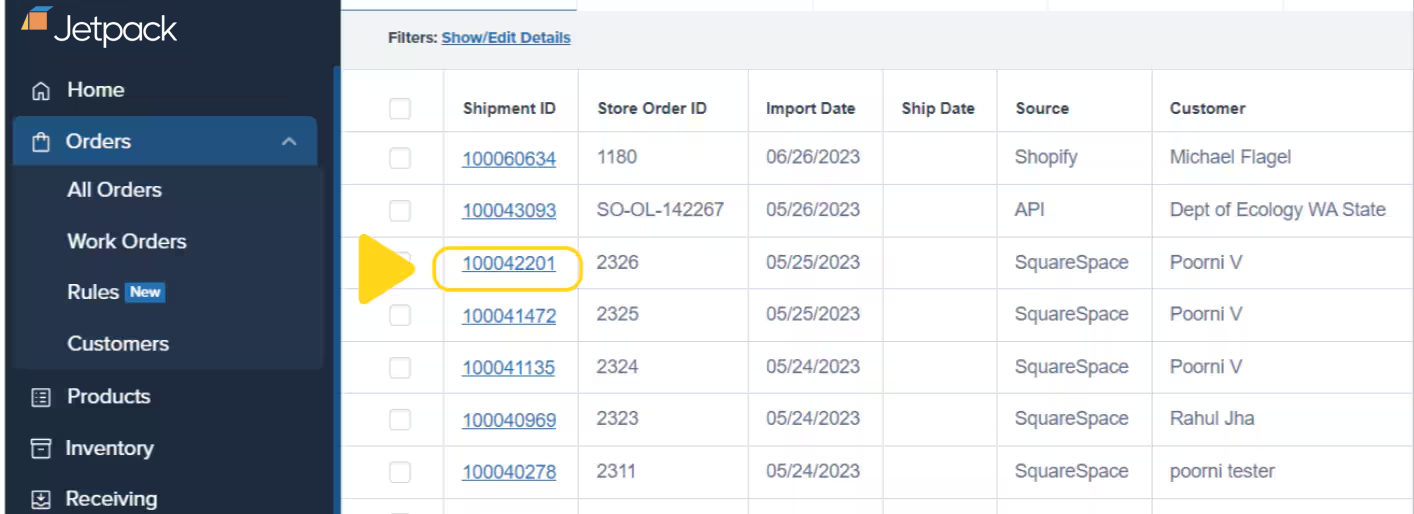
From the Jetpack dashboard:
Click the hyperlinked **Shipment ID** to access the Order Details page.
The message has a 500-character limit. To remove a message, click **Delete Gift Note**.
The gift message will be printed and included with the shipment.
Gift messages can only be edited **before the order is picked**. Once picking begins, you cannot modify or remove the gift message.
***
### 3. Bulk Import via Excel
You can add gift messages to multiple orders at once using Excel order imports:
**To bulk import gift messages:**
1. Download the **order import template** provided in the Jetpack dashboard
2. Follow the instructions on the Excel file
3. Add the gift message under the **GiftMessage** column for each order
4. **Important:** Do not alter formatting or delete cells
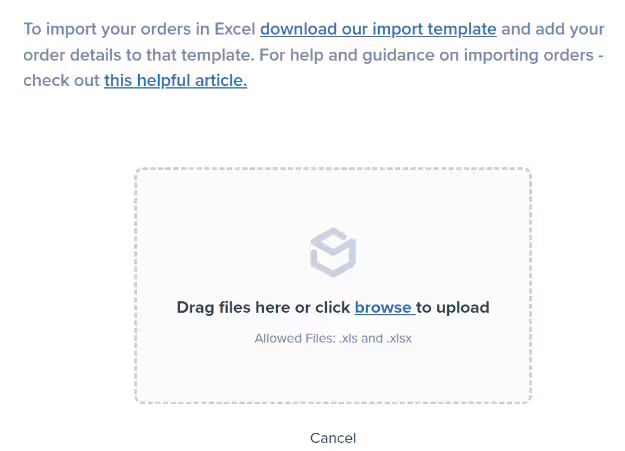
**Upload the completed Excel file:**
Use drag-and-drop or click browse to select your file.
The screen will refresh, showing the total number of orders identified. Ensure the counts match.
You will receive a success message.
**Note:** Orders should appear on the Orders page within 10-15 minutes. If not, contact Jetpack Care via Slack, phone, or email.
***
## Uploading a Gift Note Logo
Customize your gift notes by uploading your brand logo. Your logo will appear at the top of every gift note, reinforcing your brand identity.
**Logo Requirements:**
| Specification | Requirement |
| -------------- | ------------------------------------------------------ |
| **Format** | Black-and-white monochrome PNG image |
| **Dimensions** | Square dimensions, ideally 100 x 100 pixels |
| **File Size** | 499 KB or smaller |
| **Resizing** | Logo auto-resizes to fit horizontally on the gift note |
**To upload your custom logo:**
Or click the **browse link** provided.
The file uploads and saves automatically.
**To view or delete your logo:**
* **View** - Click the file icon to see your uploaded logo
* **Delete** - Click the trash can icon to remove the logo
For best results, use a simple, high-contrast black-and-white logo. Intricate details or gradients may not print clearly on thermal paper.
***
## Let's Dive Deeper
Back to the main shipping preferences guide
Brand your packing slips
Configure packaging options
Understand gift note fees
Include promotional materials in shipments
Customize sender information on packages
Questions? Contact Jetpack Care.
If you have any questions or run into issues, you can always contact Jetpack Care for help. Our team is always here to assist via Slack, phone, or email!