> ## Documentation Index
> Fetch the complete documentation index at: https://help.jetpack3pl.com/llms.txt
> Use this file to discover all available pages before exploring further.
# Choosing Default Carriers
> Map your ecommerce store's shipping methods to ShipBob's ship options to ensure orders are fulfilled accurately and cost-effectively.
**Ship Option Mapping** allows Jetpack to match your store's shipping options with the ShipBob ship options available in your dashboard. For example, if your store offers standard shipping and 2-day expedited shipping, both options must be mapped in the Jetpack dashboard so orders can be fulfilled accordingly. The mapping must match your store's shipping options exactly to integrate successfully.

Our ShipBob Partnership
Jetpack has partnered with ShipBob to bring their industry-leading shipping network to our brands. When you configure shipping in your Jetpack dashboard, you're mapping your store's shipping methods to ShipBob ship options (like ShipBob Standard, ShipBob Expedited, and ShipBob 2-Day Express). ShipBob's carrier network automatically selects the most cost-effective carrier and service to fulfill your orders while meeting your delivery commitments.
## How Ship Option Mapping Works
Your ecommerce store might offer options like standard shipping and 2-day expedited shipping. In the Jetpack dashboard, you map each of these options to their corresponding ShipBob ship options. This enables the system to process orders with the correct carrier service.
When a shipping method is mapped to an aggregated option (e.g., ShipBob Standard (Ground), ShipBob Expedited, ShipBob 2-Day Express, or ShipBob Overnight), **ShipBob automatically selects the cheapest carrier and service at the time of label generation**.
If an order is mapped to a specific carrier and that option isn't available, the system will override your selection and update the ship option to ShipBob Standard (Ground) to avoid delays or cancellations.
***
## Navigating to Ship Option Mapping
From the Jetpack dashboard:
Click **Settings** on the left-hand navigation bar (additional menu options will appear).
Under the **Shipment Management** section, click **Ship Option Mapping**.
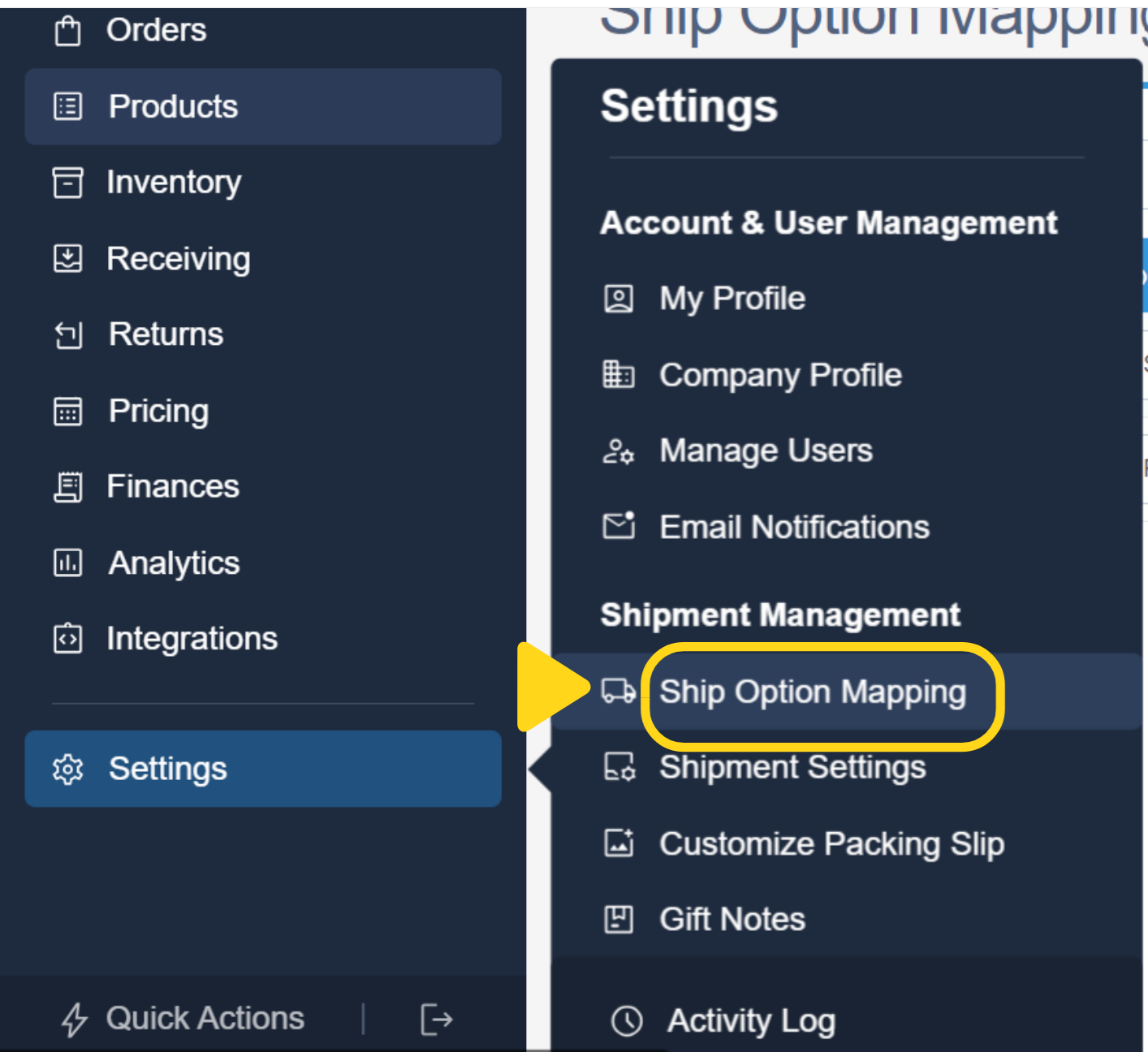 You will be redirected to the Ship Option Mapping page, where you can add new shipping methods and update existing ones.
***
## The ShipBob Default Option
The **ShipBob Default** option automatically populates under the Shipping Method column along with the shipping options from your ecommerce store. ShipBob Default is used for shipments imported without a specific Shipping Method or via Excel import.
If you use USPS media mail as your default, you must have it approved by contacting Jetpack Care.
***
## Adding a New Shipping Method
From the Ship Option Mapping page:
In the text box provided, input the name of the new Shipping Method.
You will be redirected to the Ship Option Mapping page, where you can add new shipping methods and update existing ones.
***
## The ShipBob Default Option
The **ShipBob Default** option automatically populates under the Shipping Method column along with the shipping options from your ecommerce store. ShipBob Default is used for shipments imported without a specific Shipping Method or via Excel import.
If you use USPS media mail as your default, you must have it approved by contacting Jetpack Care.
***
## Adding a New Shipping Method
From the Ship Option Mapping page:
In the text box provided, input the name of the new Shipping Method.
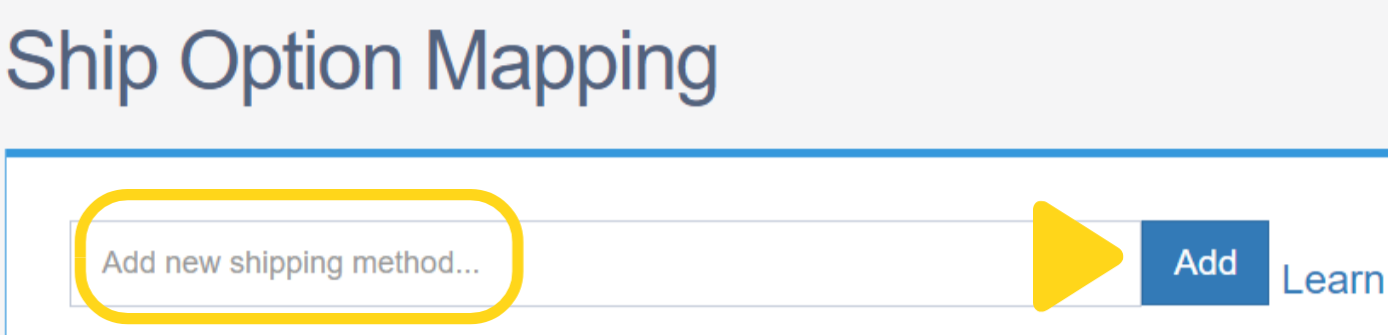 **Important**: Ensure the shipping method matches exactly as it appears on your store.
Click **Add** to include the new shipping method in your mapping list.
***
## Configuring Your Ship Option Mapping
Locate the newly added shipping method under the **Shipping Method** column.
From the drop-down list under **Domestic Ship Option**, choose the relevant shipping option.
By default, new Shipping Methods are inactive—check the box next to the shipping method to mark it as **active**.
Click **Save Mapping** to apply the changes.
You can update the ship option anytime by selecting a different option from the drop-down list. Options can be activated or deactivated at any time, though shipping methods cannot be deleted, only deactivated.
***
## Verifying Your Ship Option Mapping
The best way to confirm that your ship option mapping is updated correctly is to create a test order. Remember to cancel the test order in the Jetpack dashboard once you verify that the order information appears accurate.
***
## International Considerations
When configuring ship option mapping for US to International or Non-US orders, the mapping depends on the choice under the **Domestic Ship Option** column. The International Ship Option reviews the domestic setting to select the appropriate carrier/service available in the origin country.
For orders shipping from outside the destination country, a commercial invoice is required:
* **B2C orders**: The Jetpack dashboard automatically generates and attaches the invoice
* **B2B shipments**: You must attach the invoice manually in the dashboard
For more about international shipments, see [Customs + Commercial Invoices](/fulfillment/account-setup/shipping-preferences/customs-commercial-invoices).
***
## Available Ship Options by Country of Origin
By properly mapping your ecommerce shipping methods to ShipBob's ship options, you ensure that orders are fulfilled accurately and at the best possible rate.
### United States (US)
**Domestic Settings**: Choose a low-rate or fast option.
* **Lowest-Rate Option**: Set shipping to our most popular solution -- **ShipBob Economy** -- the system chooses the lowest available rate from the nation's best carriers.
* **Faster Option**: ShipBob 2-Day Express is recommended for quicker delivery, targeting 2-day service at lower rates than traditional air shipping
| Ship Option | Transit Time |
| -------------------- | ----------------- |
| **Economy/Standard** | 1-7 business days |
| **2-Day** | 2 business days |
| **Expedited** | 2-3 business days |
**Cross-Border Settings**: Standard or Expedited. Shipments are delivered duty unpaid (DDU) with an option to enable delivery duty paid (DDP). Overnight delivery is not available for international orders.
| Ship Option | Transit Time |
| ------------- | ------------------ |
| **Standard** | 7-30 business days |
| **Expedited** | 1-6 business days |
### Canada
**Domestic Settings**: Standard and Expedited
| Ship Option | Transit Time |
| ------------- | ----------------- |
| **Standard** | 2-7 business days |
| **Expedited** | 1-3 business days |
**Cross-Border Settings**: Standard or Expedited. All shipments are delivered DDU.
| Ship Option | Transit Time |
| ------------- | ----------------- |
| **Standard** | 5-7 business days |
| **Expedited** | 2-5 business days |
### United Kingdom (UK)
**Domestic Settings**: Standard and Expedited
| Ship Option | Transit Time |
| ------------- | ----------------- |
| **Standard** | 1-3 business days |
| **Expedited** | 1-2 business days |
**Special Note**: For bubble mailers or poly mailers within specific dimensions, a **Larger Letter Shipping** option may be available.
**Cross-Border Settings**: Standard or Expedited. Shipments are DDU with an option to enable DDP.
| Ship Option | Transit Time |
| ------------- | ----------------- |
| **Standard** | 5-7 business days |
| **Expedited** | 2-5 business days |
### European Union (EU)
**EU (Netherlands) Domestic Settings**: Standard
| Ship Option | Transit Time |
| ------------- | ----------------- |
| **Standard** | 3-5 business days |
| **Expedited** | 1-3 business days |
**Cross-Border Settings** (outside the EU): Standard or Expedited. Shipments are DDU with an option to enable DDP.
| Ship Option | Transit Time |
| ------------- | ------------------ |
| **Standard** | 4-14 business days |
| **Expedited** | 2-5 business days |
### Australia
**Domestic Settings**: Standard or Expedited (Expedited is quicker; Standard is more cost-effective)
| Ship Option | Transit Time |
| ------------- | ----------------- |
| **Standard** | 1-7 business days |
| **Expedited** | 1-3 business days |
**Cross-Border Settings**: Standard or Expedited. All shipments are delivered DDU.
| Ship Option | Transit Time |
| ------------- | ------------------ |
| **Standard** | 8-25 business days |
| **Expedited** | 4-18 business days |
***
## Additional Considerations
**Carriers do not guarantee delivery dates for standard shipments.**
Delays may occur due to factors such as:
* Address issues
* Customer unavailability
* Peak shipping times (e.g., Thanksgiving through Christmas)
The carriers and carrier services for each ship option are continuously reviewed and updated to ensure reliability and cost-effectiveness. For the latest information, you can review Jetpack's carrier data or contact your Jetpack Care Manager or Jetpack Care team.
***
## Let's Dive Deeper
Back to the main shipping preferences guide
Automate carrier selection with conditional logic
Configure international shipping documentation
Advanced geographic routing
Understanding service level commitments
Connect your ecommerce platform
**Important**: Ensure the shipping method matches exactly as it appears on your store.
Click **Add** to include the new shipping method in your mapping list.
***
## Configuring Your Ship Option Mapping
Locate the newly added shipping method under the **Shipping Method** column.
From the drop-down list under **Domestic Ship Option**, choose the relevant shipping option.
By default, new Shipping Methods are inactive—check the box next to the shipping method to mark it as **active**.
Click **Save Mapping** to apply the changes.
You can update the ship option anytime by selecting a different option from the drop-down list. Options can be activated or deactivated at any time, though shipping methods cannot be deleted, only deactivated.
***
## Verifying Your Ship Option Mapping
The best way to confirm that your ship option mapping is updated correctly is to create a test order. Remember to cancel the test order in the Jetpack dashboard once you verify that the order information appears accurate.
***
## International Considerations
When configuring ship option mapping for US to International or Non-US orders, the mapping depends on the choice under the **Domestic Ship Option** column. The International Ship Option reviews the domestic setting to select the appropriate carrier/service available in the origin country.
For orders shipping from outside the destination country, a commercial invoice is required:
* **B2C orders**: The Jetpack dashboard automatically generates and attaches the invoice
* **B2B shipments**: You must attach the invoice manually in the dashboard
For more about international shipments, see [Customs + Commercial Invoices](/fulfillment/account-setup/shipping-preferences/customs-commercial-invoices).
***
## Available Ship Options by Country of Origin
By properly mapping your ecommerce shipping methods to ShipBob's ship options, you ensure that orders are fulfilled accurately and at the best possible rate.
### United States (US)
**Domestic Settings**: Choose a low-rate or fast option.
* **Lowest-Rate Option**: Set shipping to our most popular solution -- **ShipBob Economy** -- the system chooses the lowest available rate from the nation's best carriers.
* **Faster Option**: ShipBob 2-Day Express is recommended for quicker delivery, targeting 2-day service at lower rates than traditional air shipping
| Ship Option | Transit Time |
| -------------------- | ----------------- |
| **Economy/Standard** | 1-7 business days |
| **2-Day** | 2 business days |
| **Expedited** | 2-3 business days |
**Cross-Border Settings**: Standard or Expedited. Shipments are delivered duty unpaid (DDU) with an option to enable delivery duty paid (DDP). Overnight delivery is not available for international orders.
| Ship Option | Transit Time |
| ------------- | ------------------ |
| **Standard** | 7-30 business days |
| **Expedited** | 1-6 business days |
### Canada
**Domestic Settings**: Standard and Expedited
| Ship Option | Transit Time |
| ------------- | ----------------- |
| **Standard** | 2-7 business days |
| **Expedited** | 1-3 business days |
**Cross-Border Settings**: Standard or Expedited. All shipments are delivered DDU.
| Ship Option | Transit Time |
| ------------- | ----------------- |
| **Standard** | 5-7 business days |
| **Expedited** | 2-5 business days |
### United Kingdom (UK)
**Domestic Settings**: Standard and Expedited
| Ship Option | Transit Time |
| ------------- | ----------------- |
| **Standard** | 1-3 business days |
| **Expedited** | 1-2 business days |
**Special Note**: For bubble mailers or poly mailers within specific dimensions, a **Larger Letter Shipping** option may be available.
**Cross-Border Settings**: Standard or Expedited. Shipments are DDU with an option to enable DDP.
| Ship Option | Transit Time |
| ------------- | ----------------- |
| **Standard** | 5-7 business days |
| **Expedited** | 2-5 business days |
### European Union (EU)
**EU (Netherlands) Domestic Settings**: Standard
| Ship Option | Transit Time |
| ------------- | ----------------- |
| **Standard** | 3-5 business days |
| **Expedited** | 1-3 business days |
**Cross-Border Settings** (outside the EU): Standard or Expedited. Shipments are DDU with an option to enable DDP.
| Ship Option | Transit Time |
| ------------- | ------------------ |
| **Standard** | 4-14 business days |
| **Expedited** | 2-5 business days |
### Australia
**Domestic Settings**: Standard or Expedited (Expedited is quicker; Standard is more cost-effective)
| Ship Option | Transit Time |
| ------------- | ----------------- |
| **Standard** | 1-7 business days |
| **Expedited** | 1-3 business days |
**Cross-Border Settings**: Standard or Expedited. All shipments are delivered DDU.
| Ship Option | Transit Time |
| ------------- | ------------------ |
| **Standard** | 8-25 business days |
| **Expedited** | 4-18 business days |
***
## Additional Considerations
**Carriers do not guarantee delivery dates for standard shipments.**
Delays may occur due to factors such as:
* Address issues
* Customer unavailability
* Peak shipping times (e.g., Thanksgiving through Christmas)
The carriers and carrier services for each ship option are continuously reviewed and updated to ensure reliability and cost-effectiveness. For the latest information, you can review Jetpack's carrier data or contact your Jetpack Care Manager or Jetpack Care team.
***
## Let's Dive Deeper
Back to the main shipping preferences guide
Automate carrier selection with conditional logic
Configure international shipping documentation
Advanced geographic routing
Understanding service level commitments
Connect your ecommerce platform

Questions? Contact Jetpack Care.
If you have any questions or run into issues, you can always contact Jetpack Care for help. Our team is always here to assist via Slack, phone, or email!