> ## Documentation Index
> Fetch the complete documentation index at: https://help.jetpack3pl.com/llms.txt
> Use this file to discover all available pages before exploring further.

# Triple Whale

> Connect your Jetpack account with Triple Whale to surface fulfillment costs and net profit data alongside your sales metrics.

<div className="page-intro">
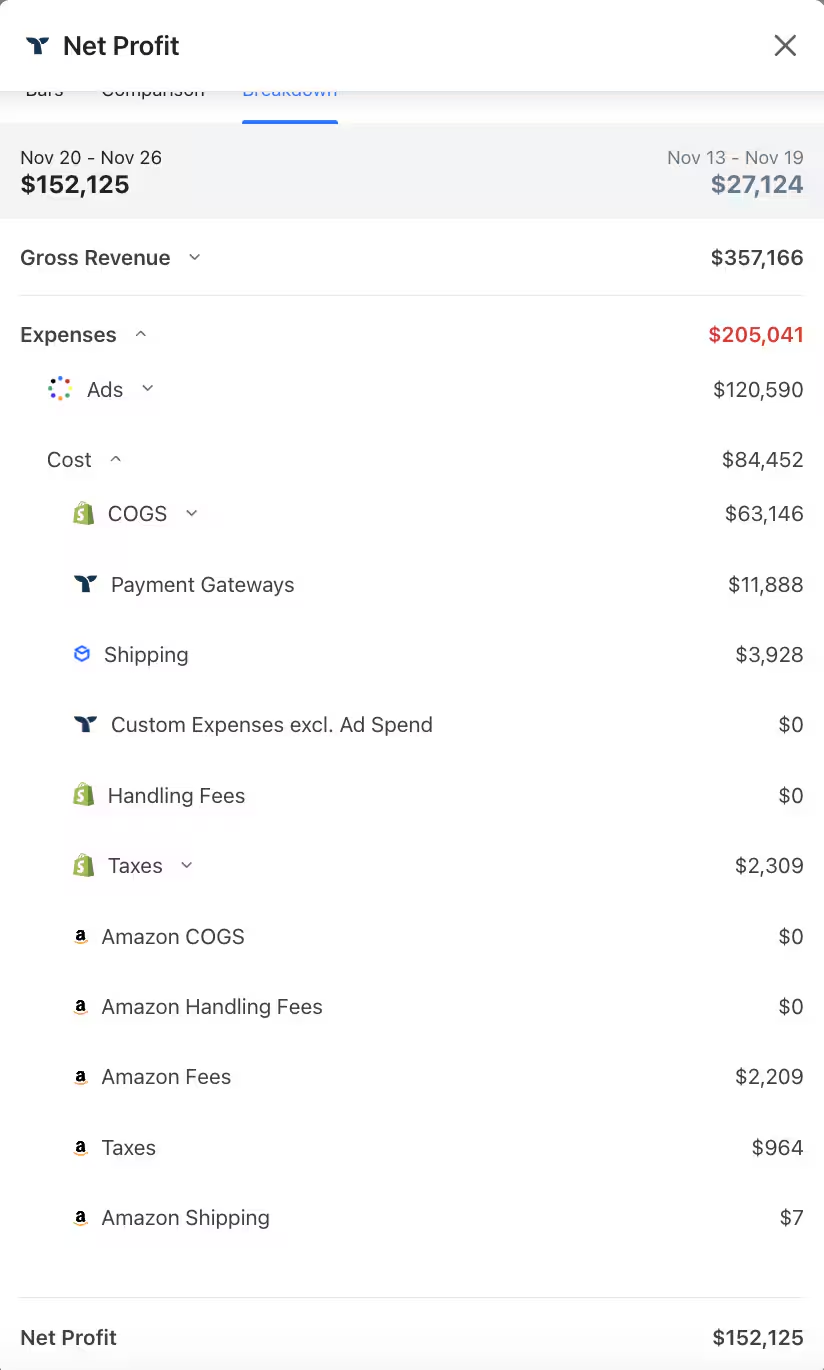
  Integrating Triple Whale with Jetpack enables you to view fulfillment costs directly within Triple Whale's analytics platform. This integration delivers accurate profit and margin insights by incorporating Jetpack's fulfillment costs into your revenue data, giving you a complete view of your business performance.
</div>

<div
  style={{
backgroundColor: 'var(--color-background-secondary, #f8f9fa)',
padding: '8px 24px',
borderRadius: '8px',
marginTop: '16px',
marginBottom: '20px',
border: '1px solid var(--color-border, #e5e7eb)'
}}
>
  <div
    style={{
display: 'flex',
alignItems: 'center',
gap: '10px',
marginBottom: '0px'
}}
  >
    <img
      src="https://mintcdn.com/jetpack/l0jHEdf4TBXptPmb/images/shipbob-logomark.svg?fit=max&auto=format&n=l0jHEdf4TBXptPmb&q=85&s=12e573fede92cef73c1e1c767cd19643"
      alt="ShipBob"
      style={{
    height: '20px',
    width: 'auto'
  }}
      width="22"
      height="22"
      data-path="images/shipbob-logomark.svg"
    />

    <div
      style={{
  fontSize: '16px',
  fontWeight: '600',
  color: 'var(--color-text-primary, #1f2937)',
  letterSpacing: '0.3px'
}}
    >
      About ShipBob Integration References
    </div>
  </div>

  <div
    style={{
fontSize: '15px',
lineHeight: '1.7',
color: 'var(--color-text-secondary, #4b5563)',
marginTop: '0'
}}
  >
    During setup, you'll connect to the <strong>"ShipBob"</strong> integration in Triple Whale. This is expected—Jetpack has licensed ShipBob's integration infrastructure to provide reliable connections. Your fulfillment cost data flows seamlessly from your Jetpack account to Triple Whale's analytics platform.
  </div>
</div>

## Triple Whale Integration Overview

Triple Whale incorporates Jetpack's fulfillment costs into your revenue data, delivering accurate profit and margin insights.

On Triple Whale's Fulfillment Summary page, you can view:

* Overall Fulfillment Cost
* Average Cost Per Fulfillment
* Total Orders
* Orders Fulfilled
* Orders Fulfilled on Time
<img src="https://mintcdn.com/jetpack/dOfmoXEb-KAEjijs/fulfillment/account-setup/other-integrations/images/triple-whale-net-profit-dashboard.png?fit=max&auto=format&n=dOfmoXEb-KAEjijs&q=85&s=df9a7c10d7e056936e8137597823893a" alt="Triple Whale Net Profit dashboard showing fulfillment costs and revenue breakdown" className="screenshot" width="824" height="1370" data-path="fulfillment/account-setup/other-integrations/images/triple-whale-net-profit-dashboard.png" />

***

## Setting Up Your Triple Whale Integration

Follow these steps to integrate Triple Whale with your Jetpack account:

<Steps>
  <Step title="Click the gear/cog icon on the left navigation">
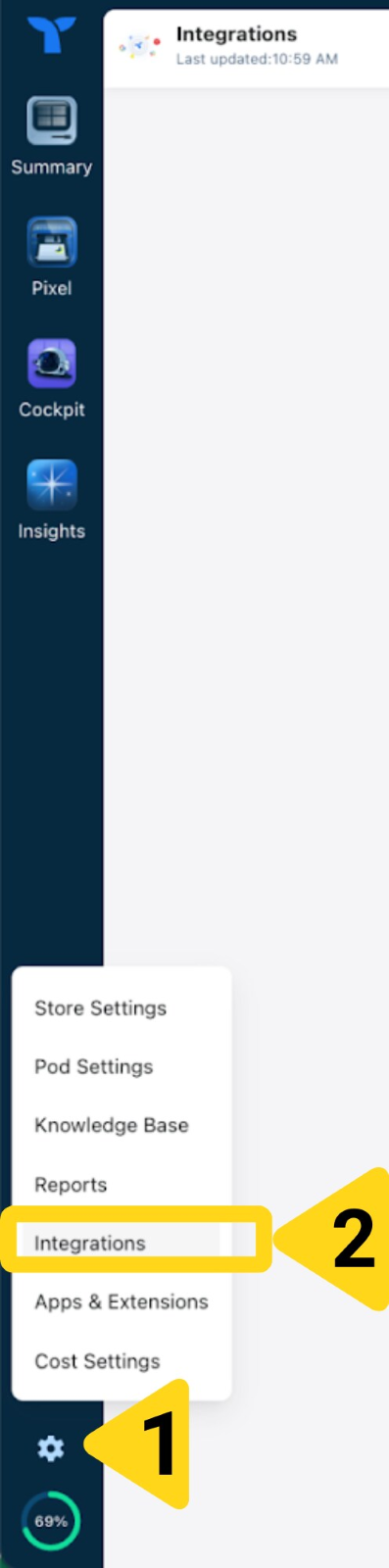
    In the Triple Whale app, click the **gear/cog icon** on the left nav.
    <img src="https://mintcdn.com/jetpack/dOfmoXEb-KAEjijs/fulfillment/account-setup/other-integrations/images/triple-whale-settings-navigation.png?fit=max&auto=format&n=dOfmoXEb-KAEjijs&q=85&s=3d48625da0c590b82069fb1379e75e08" alt="Triple Whale navigation showing gear icon and Integrations option" className="screenshot" width="397" height="1600" data-path="fulfillment/account-setup/other-integrations/images/triple-whale-settings-navigation.png" />
  </Step>

  <Step title="Select Integrations">
    From the settings menu, select **Integrations**.
  </Step>

  <Step title="Click Connect next to ShipBob">
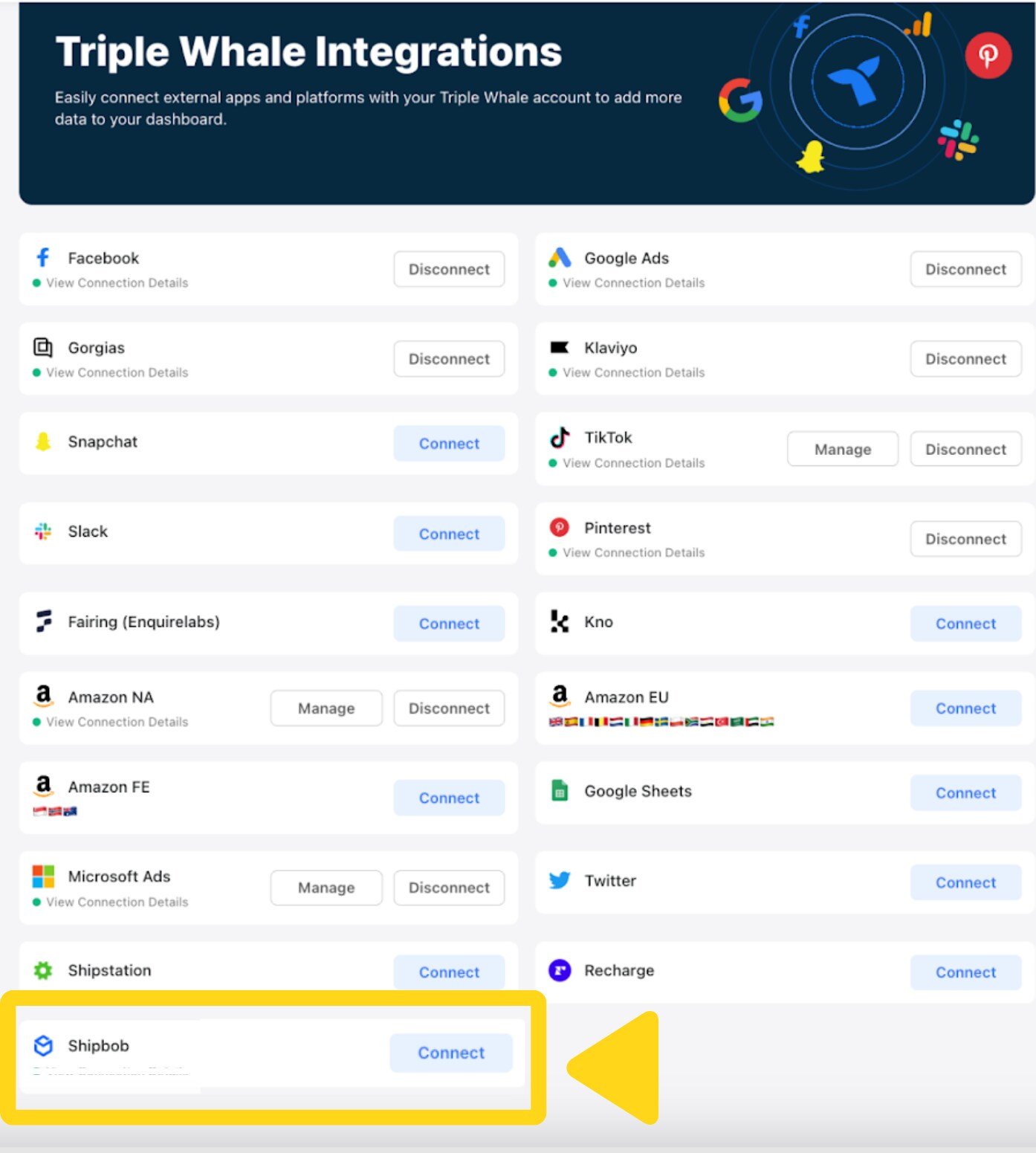
    Locate ShipBob in the integrations list and click **Connect**. You'll be redirected to ShipBob's login page.
    <img src="https://mintcdn.com/jetpack/dOfmoXEb-KAEjijs/fulfillment/account-setup/other-integrations/images/triple-whale-integrations-page.png?fit=max&auto=format&n=dOfmoXEb-KAEjijs&q=85&s=e4aa1f085888f4e620518b80fb8e7e51" alt="Triple Whale Integrations page showing ShipBob with Connect button" className="screenshot" width="1394" height="1551" data-path="fulfillment/account-setup/other-integrations/images/triple-whale-integrations-page.png" />
  </Step>

  <Step title="Log in with your ShipBob credentials">
    Enter your Jetpack account credentials on the ShipBob login page.
  </Step>

  <Step title="Enter a Channel Name for this connection">
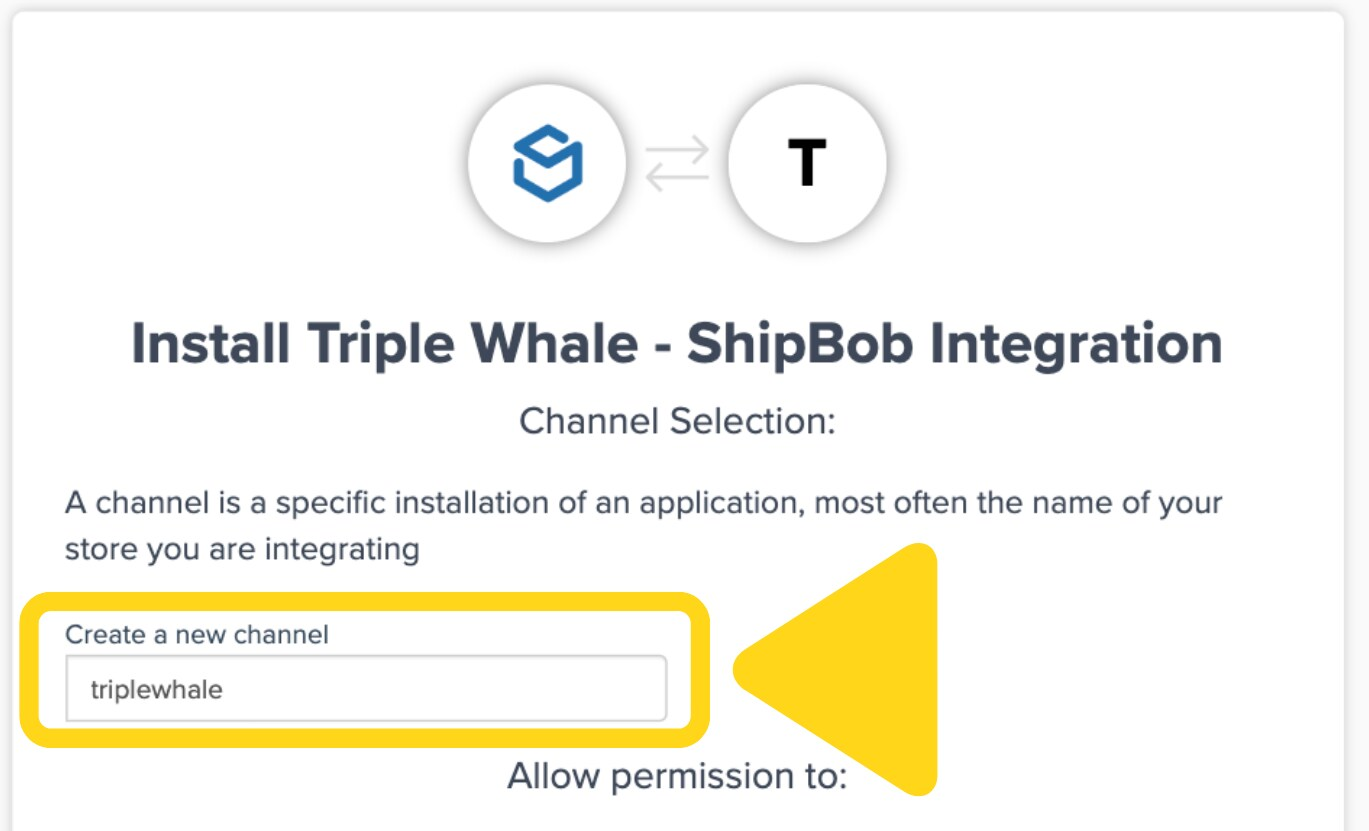
    Create a Channel Name for this connection (e.g., "ShipBob→Triple Whale").
    <img src="https://mintcdn.com/jetpack/dOfmoXEb-KAEjijs/fulfillment/account-setup/other-integrations/images/triple-whale-channel-name-dialog.png?fit=max&auto=format&n=dOfmoXEb-KAEjijs&q=85&s=b913082a642e96e40c03ab5e77864307" alt="Channel Selection dialog showing field to create a new channel name" className="screenshot" width="1369" height="831" data-path="fulfillment/account-setup/other-integrations/images/triple-whale-channel-name-dialog.png" />
  </Step>

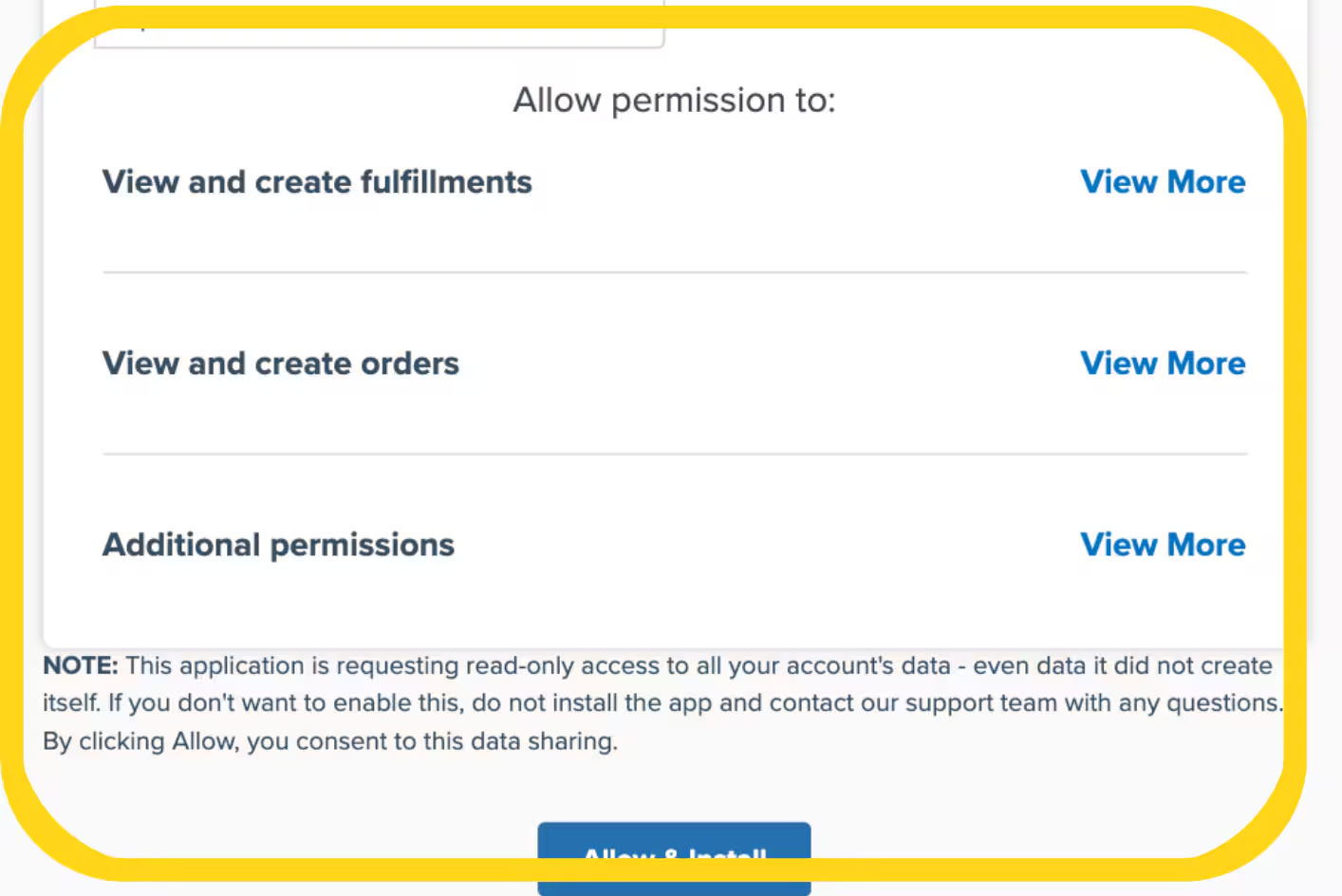
  <Step title="Review and grant permissions">
    Review the permissions you're granting and click **Authorize & Install**.
    <img src="https://mintcdn.com/jetpack/dOfmoXEb-KAEjijs/fulfillment/account-setup/other-integrations/images/triple-whale-authorize-permissions.png?fit=max&auto=format&n=dOfmoXEb-KAEjijs&q=85&s=6f29217d4d839498c520514d7461d965" alt="Authorization dialog showing permissions for fulfillments and orders with Authorize & Install button" className="screenshot" width="1414" height="944" data-path="fulfillment/account-setup/other-integrations/images/triple-whale-authorize-permissions.png" />
  </Step>
</Steps>

After authorization, you'll be taken back to Triple Whale, and your data sync will begin automatically.

***

## Support and Assistance

For assistance with Triple Whale or this integration, contact their support team at **[support@triplewhale.com](mailto:support@triplewhale.com)**.

***

## Let's Dive Deeper

<CardGroup cols={3}>
  <Card title="Other Integrations Overview" icon="grid" href="/fulfillment/account-setup/other-integrations">
    Back to the main integrations guide
  </Card>

  <Card title="Gorgias Support" icon="headset" href="/fulfillment/account-setup/other-integrations/gorgias">
    Integrate customer support with fulfillment data
  </Card>

  <Card title="Inventory Planner" icon="clipboard-list" href="/fulfillment/account-setup/other-integrations/inventory-planner">
    Connect inventory forecasting and planning
  </Card>

  <Card title="Order Desk" icon="list" href="/fulfillment/account-setup/other-integrations/order-desk">
    Centralize orders from 300+ channels
  </Card>

  <Card title="Analytics & Reporting" icon="chart-line" href="/fulfillment/analytics-reporting">
    Track your fulfillment performance
  </Card>

  <Card title="Billing & Invoicing" icon="file-invoice-dollar" href="/fulfillment/billing-invoicing">
    Understand your Jetpack costs
  </Card>
</CardGroup>

<div className="jetpack-callout">
  <img src="https://mintcdn.com/jetpack/2iejPNBTYKEx6ntF/images/jetpack-logomark-256.png?fit=max&auto=format&n=2iejPNBTYKEx6ntF&q=85&s=340604ced4add3864f2641341826e1c9" alt="Jetpack" className="jetpack-callout-icon" width="256" height="256" data-path="images/jetpack-logomark-256.png" />

  <div className="jetpack-callout-content">
    <h4 className="jetpack-callout-title">Questions? Contact Jetpack Care.</h4>
    <p className="jetpack-callout-text">If you have any questions or run into issues, you can always contact Jetpack Care for help. Our team is always here to assist via Slack, phone, or email!</p>
  </div>
</div>
