> ## Documentation Index
> Fetch the complete documentation index at: https://help.jetpack3pl.com/llms.txt
> Use this file to discover all available pages before exploring further.
# ShipStation Integration
> Integrate ShipStation with Jetpack to automatically sync orders, push tracking updates, and streamline product management.
Integrating ShipStation with Jetpack enables seamless order tracking and product synchronization. When Jetpack fulfills an order, tracking updates automatically push back to your orders page in ShipStation, with unique tracking numbers that link directly to the carrier's website for up-to-date tracking information.

About ShipBob Integration References
During setup, you'll configure the "ShipBob" integration using API credentials from ShipStation. This is expected—Jetpack has licensed ShipBob's integration infrastructure to provide reliable connections. Your data flows seamlessly to your Jetpack dashboard.
***
## How the ShipStation Integration Works
The ShipStation integration creates a seamless connection between your order management workflow and Jetpack's fulfillment operations. Here's what syncs automatically:
**Product Sync**: Products flow from ShipStation to Jetpack, ensuring your fulfillment centers have the information needed to process orders accurately.
**Order Sync**: Orders from any of your connected selling channels in ShipStation import to Jetpack for fulfillment.
**Tracking Sync**: When Jetpack ships an order, tracking information automatically syncs back to ShipStation, which then updates your selling channels and notifies customers.
This three-way sync ensures your products, orders, and shipments stay connected across all platforms without manual data entry.
***
## Integrating Jetpack and ShipStation
Follow these steps to connect your ShipStation account to Jetpack using the ShipStation API:
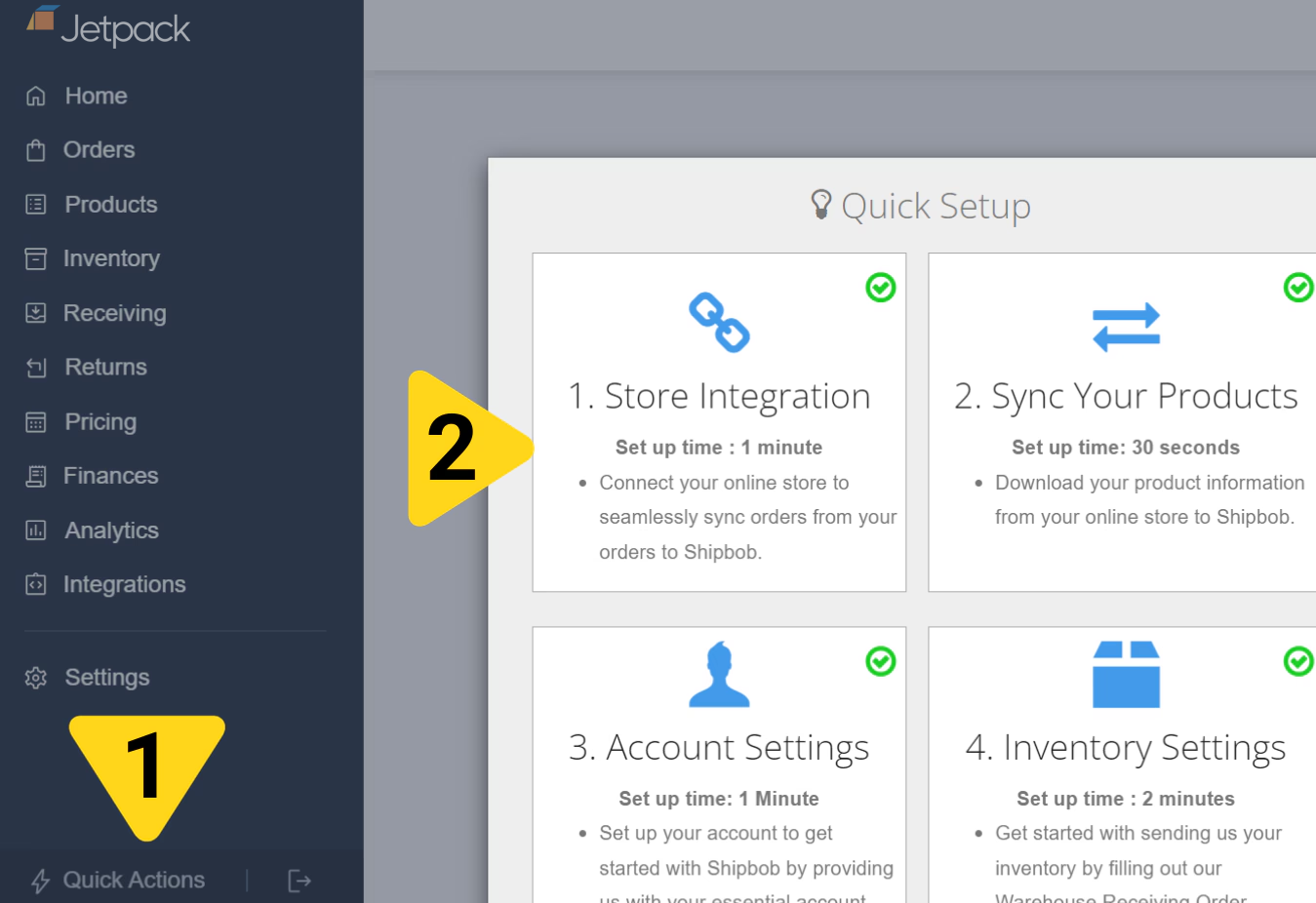
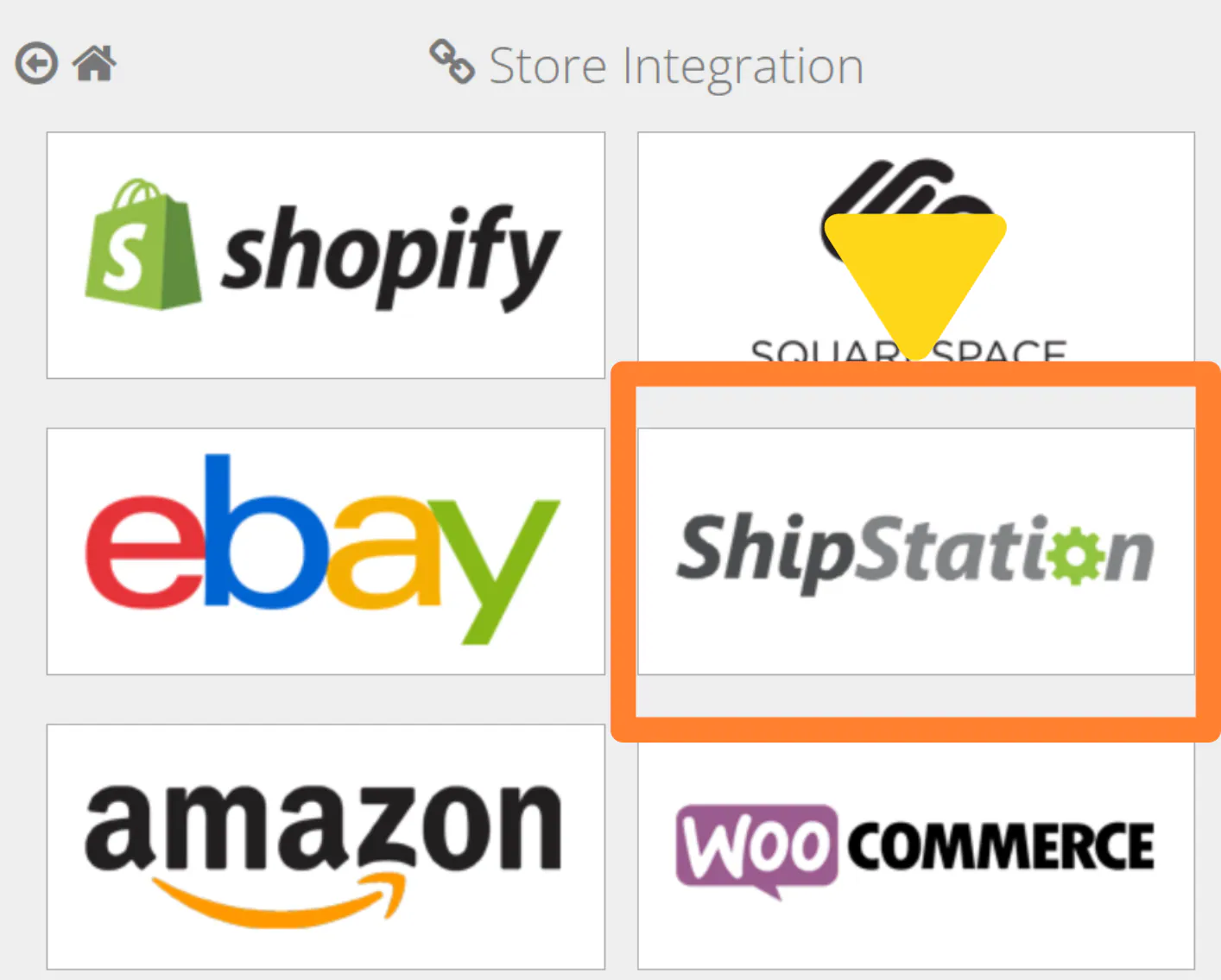 You'll be prompted to enter API credentials from your ShipStation account.
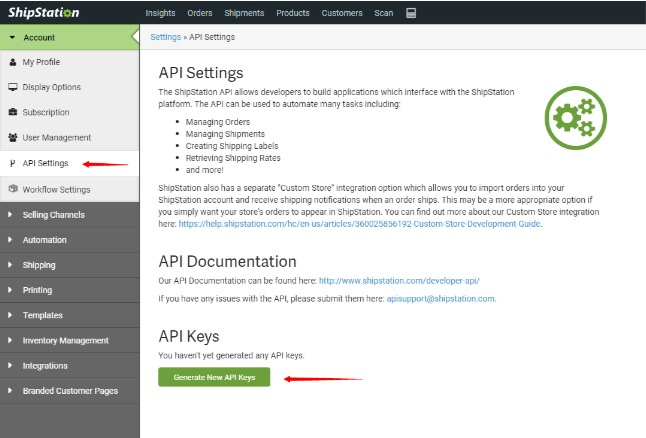
Navigate to **Account > API Settings** in ShipStation, then select **Generate New API Keys**.
You'll be prompted to enter API credentials from your ShipStation account.
Navigate to **Account > API Settings** in ShipStation, then select **Generate New API Keys**.
 Paste them into the corresponding fields on your Jetpack dashboard.
After linking your store and completing the API configuration, proceed to sync your products to Jetpack to ensure your inventory is up to date.
For guidance on syncing products, see [Syncing Your Products](/fulfillment/managing-products/syncing-products).
***
## Importing B2B Orders from ShipStation
Adding the tag "ShipBob-B2B" to ShipStation orders will allow the Jetpack dashboard to import them as manual B2B orders.
Once imported, you can add packing and special SKU instructions directly in the Jetpack dashboard.
For more information about B2B orders, see [Creating B2B/Wholesale Orders](/fulfillment/b2b/creating-manual-b2b-orders).
***
## Shopify + ShipStation + Jetpack Setup
If you're using ShipStation as middleware between Shopify and Jetpack, there are additional considerations for how data flows between the three platforms.
**Setup order:**
1. Connect your Shopify store to ShipStation
2. Create products in ShipStation (manually or via bulk upload)
3. Configure order imports from Shopify to ShipStation
4. Connect ShipStation to Jetpack using the steps above
5. Sync products from ShipStation to Jetpack
6. Sync orders only after your inventory arrives and is stowed at Jetpack fulfillment centers
**Important timing consideration:** Only sync orders from ShipStation to Jetpack after your inventory has arrived and been stowed at Jetpack fulfillment centers. This prevents orders from being placed on hold due to missing inventory.
For detailed information about using ShipStation with Shopify, see [Shopify and ShipStation Integration](/fulfillment/account-setup/integrating-store/shopify-shipstation).
***
## Let's Dive Deeper
Back to the main integrations guide
Using ShipStation with Shopify
Learn how to sync products to Jetpack
Explore B2B fulfillment options
Learn about manual B2B orders
Learn about all integration types
Paste them into the corresponding fields on your Jetpack dashboard.
After linking your store and completing the API configuration, proceed to sync your products to Jetpack to ensure your inventory is up to date.
For guidance on syncing products, see [Syncing Your Products](/fulfillment/managing-products/syncing-products).
***
## Importing B2B Orders from ShipStation
Adding the tag "ShipBob-B2B" to ShipStation orders will allow the Jetpack dashboard to import them as manual B2B orders.
Once imported, you can add packing and special SKU instructions directly in the Jetpack dashboard.
For more information about B2B orders, see [Creating B2B/Wholesale Orders](/fulfillment/b2b/creating-manual-b2b-orders).
***
## Shopify + ShipStation + Jetpack Setup
If you're using ShipStation as middleware between Shopify and Jetpack, there are additional considerations for how data flows between the three platforms.
**Setup order:**
1. Connect your Shopify store to ShipStation
2. Create products in ShipStation (manually or via bulk upload)
3. Configure order imports from Shopify to ShipStation
4. Connect ShipStation to Jetpack using the steps above
5. Sync products from ShipStation to Jetpack
6. Sync orders only after your inventory arrives and is stowed at Jetpack fulfillment centers
**Important timing consideration:** Only sync orders from ShipStation to Jetpack after your inventory has arrived and been stowed at Jetpack fulfillment centers. This prevents orders from being placed on hold due to missing inventory.
For detailed information about using ShipStation with Shopify, see [Shopify and ShipStation Integration](/fulfillment/account-setup/integrating-store/shopify-shipstation).
***
## Let's Dive Deeper
Back to the main integrations guide
Using ShipStation with Shopify
Learn how to sync products to Jetpack
Explore B2B fulfillment options
Learn about manual B2B orders
Learn about all integration types

Questions? Contact Jetpack Care.
If you have any questions or run into issues, you can always contact Jetpack Care for help. Our team is always here to assist via Slack, phone, or email!