> ## Documentation Index
> Fetch the complete documentation index at: https://help.jetpack3pl.com/llms.txt
> Use this file to discover all available pages before exploring further.
# Prime Penguin Integration
> Connect Prime Penguin to Jetpack for real-time synchronization of inventory and order data across multiple sales channels and warehouses.
Integrating Prime Penguin with Jetpack enables real-time synchronization of inventory and order data between your Prime Penguin account and your Jetpack dashboard. Prime Penguin is a self-serve integration platform for sales channels, ERP and accounting systems, warehouses, and other associated services, with connections to 30+ sales channels and marketplaces across the Northern European market. This integration streamlines operations by automatically syncing order information and inventory levels across all your connected platforms.

About ShipBob Integration References
During setup, you'll authorize the "ShipBob" integration in your Prime Penguin account. This is expected—Jetpack has licensed ShipBob's integration infrastructure to provide reliable connections. Your data flows seamlessly to your Jetpack dashboard.
***
## Prime Penguin Overview
Prime Penguin is a self-serve integration platform for sales channels, ERP and accounting systems, warehouses, and other associated services. Prime Penguin is integrated with 30+ sales channels and marketplaces, and 25+ independent logistics providers with a strong focus on the Northern European market.
 For an overview of integrating Jetpack within Prime Penguin, visit the [Prime Penguin knowledge base](https://www.primepenguin.com/knowledge-base/warehouse-connections/shipbob).
Jetpack's integration is built and maintained by the Prime Penguin development team. If you encounter any problems during setup, contact [support@primepenguin.com](mailto:support@primepenguin.com).
To learn more about Prime Penguin, email [hello@primepenguin.com](mailto:hello@primepenguin.com).
***
## Setting Up Your Prime Penguin Integration
Follow these steps to connect Prime Penguin to your Jetpack dashboard:
You will be redirected to the Apps & Integrations page.
For an overview of integrating Jetpack within Prime Penguin, visit the [Prime Penguin knowledge base](https://www.primepenguin.com/knowledge-base/warehouse-connections/shipbob).
Jetpack's integration is built and maintained by the Prime Penguin development team. If you encounter any problems during setup, contact [support@primepenguin.com](mailto:support@primepenguin.com).
To learn more about Prime Penguin, email [hello@primepenguin.com](mailto:hello@primepenguin.com).
***
## Setting Up Your Prime Penguin Integration
Follow these steps to connect Prime Penguin to your Jetpack dashboard:
You will be redirected to the Apps & Integrations page.
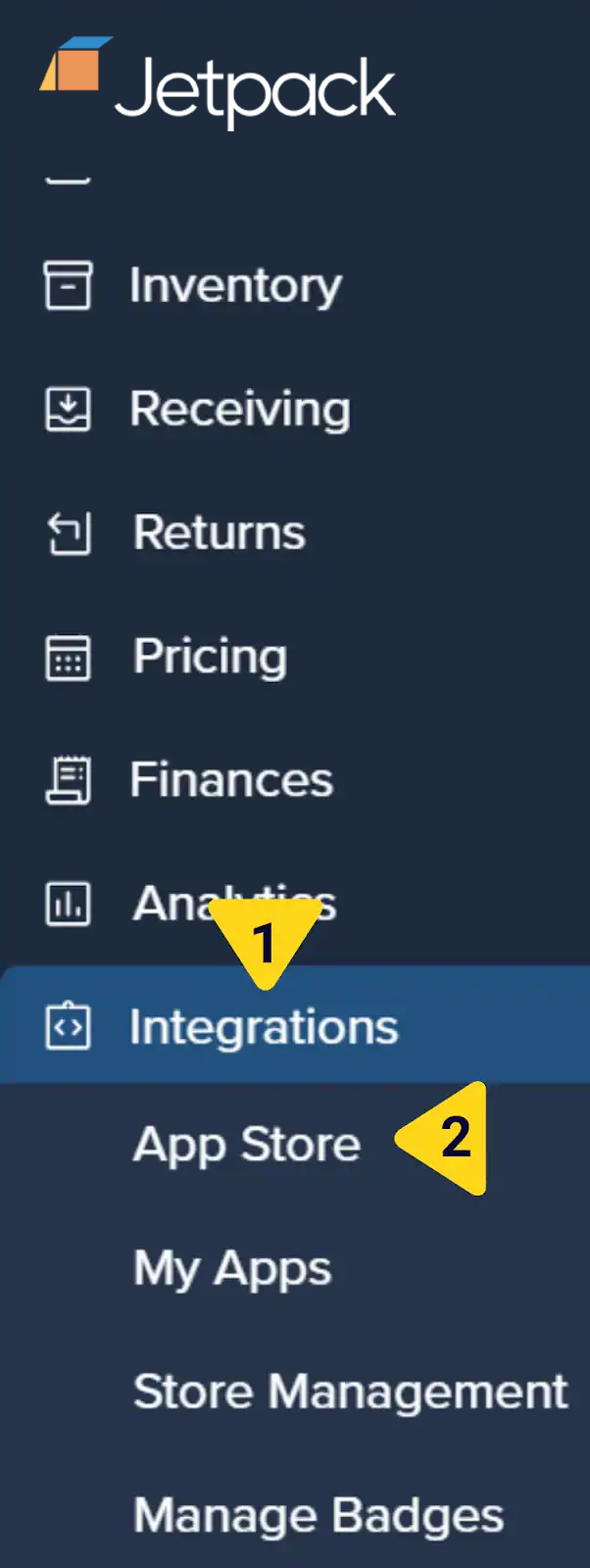
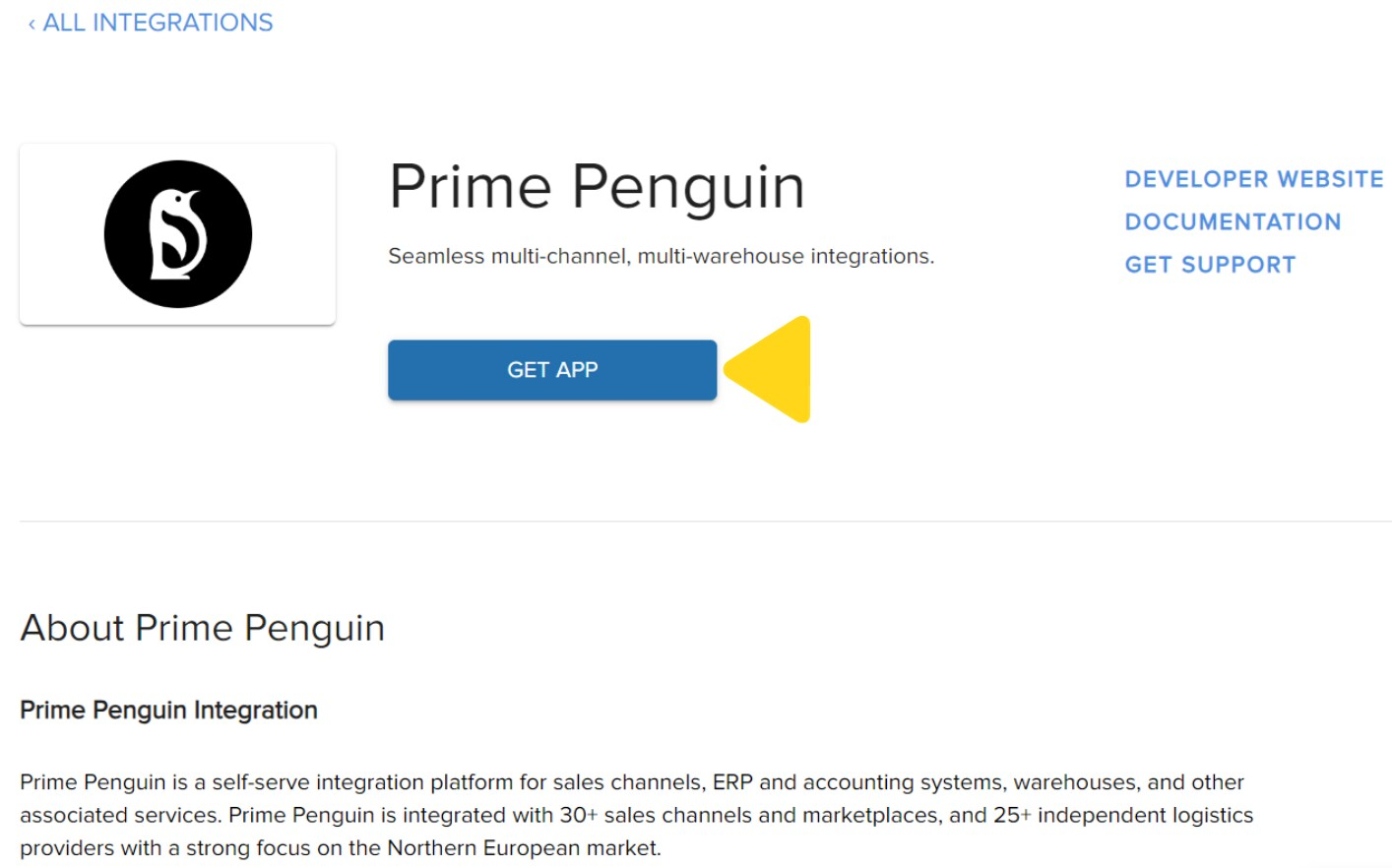
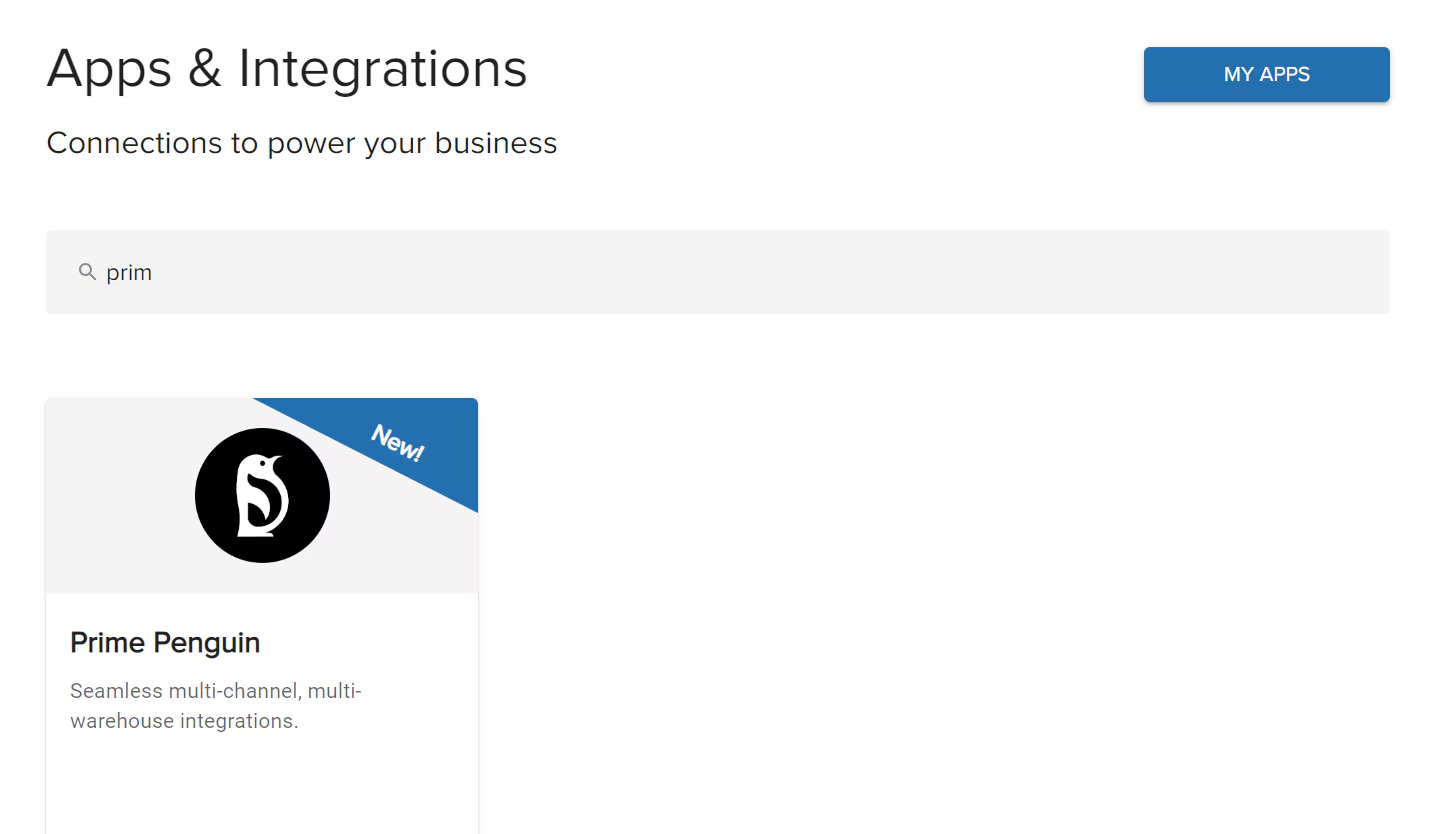 You will be redirected to Prime Penguin's website. Follow the prompts there to complete the connection through your Prime Penguin account.
 ***
## Let's Dive Deeper
Back to the main integrations guide
Learn how integrations work in Jetpack
Set up your product catalog
Understand how orders flow into Jetpack
Monitor and manage your inventory levels
How orders are allocated to fulfillment centers
***
Contact Jetpack Care for assistance via Slack, phone, or email!
***
## Let's Dive Deeper
Back to the main integrations guide
Learn how integrations work in Jetpack
Set up your product catalog
Understand how orders flow into Jetpack
Monitor and manage your inventory levels
How orders are allocated to fulfillment centers
***
Contact Jetpack Care for assistance via Slack, phone, or email!