> ## Documentation Index
> Fetch the complete documentation index at: https://help.jetpack3pl.com/llms.txt
> Use this file to discover all available pages before exploring further.
# Order Desk Integration
> Connect over 300 sales channels to Jetpack through Order Desk's powerful integration platform with automated order routing, tracking sync, and inventory management.
Order Desk serves as a powerful middleware integration that connects over 300 sales channels—including carts, marketplaces, shipping services, and ERPs—to your Jetpack dashboard. Orders flow seamlessly into Jetpack for fulfillment, while tracking information and inventory levels automatically sync back to your original sales channels.

About ShipBob Integration References
This integration is built and supported by Order Desk. During setup, you'll see references to "ShipBob" within the Order Desk platform. This is expected—Jetpack has licensed ShipBob's integration infrastructure to provide reliable connections to Order Desk's extensive platform network.
***
## Order Desk Integration Overview
The [Order Desk](https://www.orderdesk.com/?utm_source=shipbob\&utm_medium=helpcenterarticle) integration lets you connect over 300 sales channels including carts, marketplaces, shipping services, and ERPs, so your orders flow seamlessly into Jetpack for fulfillment.
 This integration is built and supported by Order Desk. For assistance, contact [support@orderdesk.com](mailto:support@orderdesk.com).
***
## Order Desk Features and Capabilities
Order Desk offers these benefits for managing complex order workflows across hundreds of platforms:
| Feature | What It Does |
| ----------------------------- | ------------------------------------------------------------------------------------------------------------------------------------------- |
| **300+ Channel Integrations** | Connect platforms like Shopify, Magento, Walmart, Amazon, ShipStation, NetSuite, and more to a single Order Desk account. |
| **Robust Rules Engine** | Use a drag-and-drop interface to split, combine, skip, cancel, or modify orders based on virtually any parameter. |
| **Tracking Sync** | After Jetpack fulfills an order, Order Desk automatically sends tracking numbers and completion updates back to the original sales channel. |
| **Inventory Sync** | Push Jetpack's inventory quantity levels into upstream systems on a recurring schedule to keep stock accurate everywhere. |
***
## Setting Up Your Order Desk Integration
From your Jetpack dashboard, navigate to **Apps & Integrations**.
Locate the Order Desk integration and click **Get App**.
Complete the Order Desk signup process. A 30-day free trial is available.
In the Order Desk platform, go to the left navigation and select **Manage Integrations**.
This integration is built and supported by Order Desk. For assistance, contact [support@orderdesk.com](mailto:support@orderdesk.com).
***
## Order Desk Features and Capabilities
Order Desk offers these benefits for managing complex order workflows across hundreds of platforms:
| Feature | What It Does |
| ----------------------------- | ------------------------------------------------------------------------------------------------------------------------------------------- |
| **300+ Channel Integrations** | Connect platforms like Shopify, Magento, Walmart, Amazon, ShipStation, NetSuite, and more to a single Order Desk account. |
| **Robust Rules Engine** | Use a drag-and-drop interface to split, combine, skip, cancel, or modify orders based on virtually any parameter. |
| **Tracking Sync** | After Jetpack fulfills an order, Order Desk automatically sends tracking numbers and completion updates back to the original sales channel. |
| **Inventory Sync** | Push Jetpack's inventory quantity levels into upstream systems on a recurring schedule to keep stock accurate everywhere. |
***
## Setting Up Your Order Desk Integration
From your Jetpack dashboard, navigate to **Apps & Integrations**.
Locate the Order Desk integration and click **Get App**.
Complete the Order Desk signup process. A 30-day free trial is available.
In the Order Desk platform, go to the left navigation and select **Manage Integrations**.
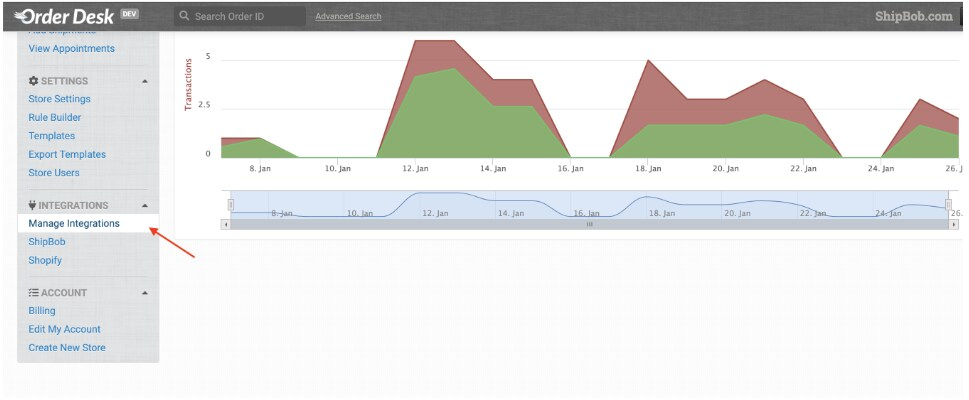 In the Manage Integrations section, click the **ShipBob** tile.
When prompted, log in to ShipBob and click **Allow** to authorize the connection.
You will be redirected back to Order Desk. Data will now flow automatically between Order Desk and Jetpack.
***
## Support and Assistance
Order Desk is built and supported by Order Desk. For assistance with setup, configuration, or troubleshooting, contact Order Desk support:
**Email:** [support@orderdesk.com](mailto:support@orderdesk.com)
***
## Let's Dive Deeper
Back to the main integrations guide
Connect your Fulfil.io ERP system
Integrate customer support with order tracking
Optimize inventory forecasting and purchasing
Connect your ecommerce platform
View and manage your orders
In the Manage Integrations section, click the **ShipBob** tile.
When prompted, log in to ShipBob and click **Allow** to authorize the connection.
You will be redirected back to Order Desk. Data will now flow automatically between Order Desk and Jetpack.
***
## Support and Assistance
Order Desk is built and supported by Order Desk. For assistance with setup, configuration, or troubleshooting, contact Order Desk support:
**Email:** [support@orderdesk.com](mailto:support@orderdesk.com)
***
## Let's Dive Deeper
Back to the main integrations guide
Connect your Fulfil.io ERP system
Integrate customer support with order tracking
Optimize inventory forecasting and purchasing
Connect your ecommerce platform
View and manage your orders

Questions? Contact Jetpack Care.
If you have any questions or run into issues, you can always contact Jetpack Care for help. Our team is always here to assist via Slack, phone, or email!