> ## Documentation Index
> Fetch the complete documentation index at: https://help.jetpack3pl.com/llms.txt
> Use this file to discover all available pages before exploring further.
# Linnworks
> Connect Linnworks with Jetpack to manage orders from 200+ sales channels through powerful automation and customization.
Linnworks is a world-class order management software that connects product and order data from various sources like Shopify, Walmart, and Target.com, processing orders using a flexible, powerful rules engine. When paired with Jetpack, Linnworks connects over 200 sales channels, automating and customizing your order flow for efficient fulfillment.

About ShipBob Integration References
During setup, you'll work with the "ShipBob" integration in Linnworks. This is expected—Jetpack has licensed ShipBob's integration infrastructure to provide reliable connections. Your data flows seamlessly to your Jetpack dashboard.
## Key Features
Linnworks allows you to manage orders from a diverse range of sources by integrating with ecommerce carts like Shopify, Magento, and Prestashop, marketplaces like Walmart, Amazon, and Wish, shipping services like Shipstation and Easypost, and ERPs like NetSuite.
The platform provides powerful customization capabilities for order management. You can customize how orders are split, combined, modified, canceled, or even skipped based on nearly any parameter. Although the Jetpack integration does not currently support custom rules within Jetpack, you can leverage Linnworks' robust engine to pre-process orders before they are sent.
Linnworks provides real-time, fulfillable inventory counts from Jetpack, whether as a total across all fulfillment centers or per individual center, depending on your setup.
***
## Integration Details
### Unique Product Identifier
A SKU acts as the unique identifier between Linnworks and Jetpack. When a product is created in Linnworks, a corresponding SKU is generated and can be viewed on the Jetpack dashboard.
***
## Syncing Product SKUs via the Composite Field
By default, products will sync to the Jetpack dashboard using the SKU field. To allow your product SKUs to sync using the Composite or SKU field, you must configure the Consider Composite Products Sub Items feature in your Jetpack dashboard.
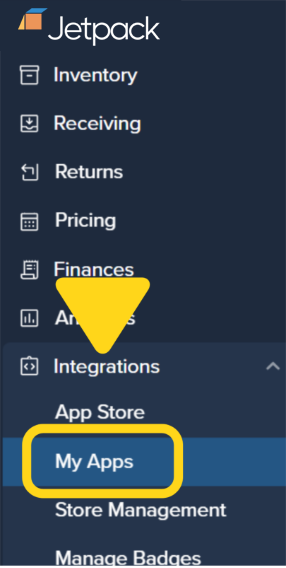
Click **Integrations** on the left-hand navigation bar. Additional menu options will appear.
 Locate the Linnworks app tile and select the **3 horizontal dots icon**. Additional menu options will appear.
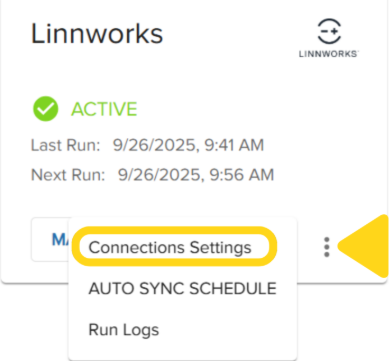 You will be redirected to the Configure Your Integrations Settings page for Linnworks.
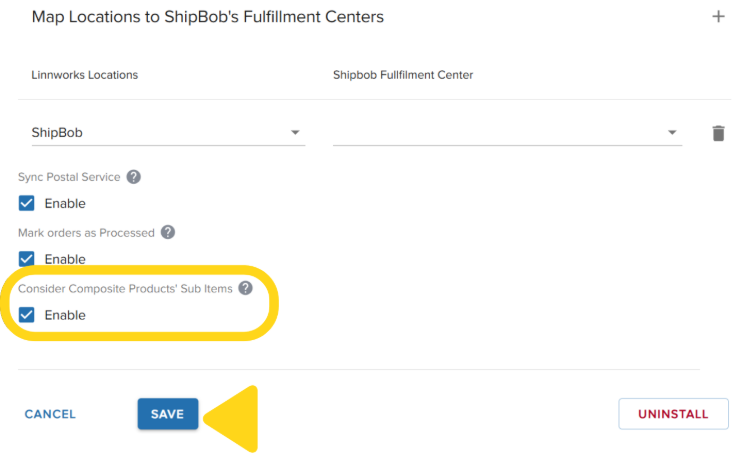
Check the box next to **Consider Composite Products Sub Items**, then click **SAVE**.
You will be redirected to the Configure Your Integrations Settings page for Linnworks.
Check the box next to **Consider Composite Products Sub Items**, then click **SAVE**.
 ***
## Product Syncing
Existing products can be synced from Linnworks to Jetpack on a scheduled basis or manually using the Sync Orders option. If an order contains a product that isn't yet synced, it will be automatically created in Jetpack.
| Sync Method | How It Works |
| --------------- | --------------------------------------------------------------------------------------------------------- |
| **Manual Sync** | Initiated through your Linnworks account using the Sync Orders button located in the integration settings |
| **Auto Sync** | Orders are automatically synced based on a configurable schedule |
Any order changes made in Linnworks after syncing must be updated directly in Jetpack.
***
## Inventory Quantity Sync
Enable inventory sync in the Linnworks connection settings to update inventory levels during each sync cycle.
You can choose between aggregated inventory counts (total across all Jetpack fulfillment centers) or per-fulfillment center counts.
For bundled products, the system calculates the fulfillable quantity based on the item with the lowest available units to prevent overselling. Linnworks can also decompose bundles, allowing you to either send individual line items to Jetpack or pass through a "parent SKU." This ensures that inventory calculations for bundles are accurate and help prevent overselling.
***
## Order Fulfillment Tracking
Once an order is fulfilled, a unique tracking number is uploaded to the Order Details page, linking to the carrier's website and marking the order as complete in Linnworks.
***
## Ship Start Date
Define a ship start date to control when Jetpack begins importing and shipping your orders, which can be set to a past date (up to 120 days) or a future date.
***
## Linnworks Implementation Options
Once an implementation path is chosen, switching requires significant rework.
| Implementation Type | How It Works | Inventory Management |
| ------------------------------ | -------------------------------------------------------------------------------------------------------------- | --------------------------------------------------------------------------------------------------------------------------------------------------- |
| **Single Location Setup** | Jetpack manages fulfillment center routing automatically | Inventory counts in Linnworks reflect total inventory across all centers |
| **Individual Locations Setup** | Each fulfillment center must be created in Linnworks, and orders are directed to a specific fulfillment center | Inventory counts are managed on a per-fulfillment center basis (e.g., 200 units in Fulfillment Center A, 400 in Fulfillment Center B, and so forth) |
***
## Let's Dive Deeper
Back to the main integrations guide
Understand integration types and management
Set up your product catalog
Understand how orders flow into Jetpack
Monitor and manage your inventory levels
View and manage your orders
***
## Product Syncing
Existing products can be synced from Linnworks to Jetpack on a scheduled basis or manually using the Sync Orders option. If an order contains a product that isn't yet synced, it will be automatically created in Jetpack.
| Sync Method | How It Works |
| --------------- | --------------------------------------------------------------------------------------------------------- |
| **Manual Sync** | Initiated through your Linnworks account using the Sync Orders button located in the integration settings |
| **Auto Sync** | Orders are automatically synced based on a configurable schedule |
Any order changes made in Linnworks after syncing must be updated directly in Jetpack.
***
## Inventory Quantity Sync
Enable inventory sync in the Linnworks connection settings to update inventory levels during each sync cycle.
You can choose between aggregated inventory counts (total across all Jetpack fulfillment centers) or per-fulfillment center counts.
For bundled products, the system calculates the fulfillable quantity based on the item with the lowest available units to prevent overselling. Linnworks can also decompose bundles, allowing you to either send individual line items to Jetpack or pass through a "parent SKU." This ensures that inventory calculations for bundles are accurate and help prevent overselling.
***
## Order Fulfillment Tracking
Once an order is fulfilled, a unique tracking number is uploaded to the Order Details page, linking to the carrier's website and marking the order as complete in Linnworks.
***
## Ship Start Date
Define a ship start date to control when Jetpack begins importing and shipping your orders, which can be set to a past date (up to 120 days) or a future date.
***
## Linnworks Implementation Options
Once an implementation path is chosen, switching requires significant rework.
| Implementation Type | How It Works | Inventory Management |
| ------------------------------ | -------------------------------------------------------------------------------------------------------------- | --------------------------------------------------------------------------------------------------------------------------------------------------- |
| **Single Location Setup** | Jetpack manages fulfillment center routing automatically | Inventory counts in Linnworks reflect total inventory across all centers |
| **Individual Locations Setup** | Each fulfillment center must be created in Linnworks, and orders are directed to a specific fulfillment center | Inventory counts are managed on a per-fulfillment center basis (e.g., 200 units in Fulfillment Center A, 400 in Fulfillment Center B, and so forth) |
***
## Let's Dive Deeper
Back to the main integrations guide
Understand integration types and management
Set up your product catalog
Understand how orders flow into Jetpack
Monitor and manage your inventory levels
View and manage your orders

Questions? Contact Jetpack Care.
If you have any questions or run into issues, you can always contact Jetpack Care for help. Our team is always here to assist via Slack, phone, or email!