> ## Documentation Index
> Fetch the complete documentation index at: https://help.jetpack3pl.com/llms.txt
> Use this file to discover all available pages before exploring further.
# Klaviyo Integration
> Integrate Klaviyo with Jetpack to push order status updates and fulfillment data for personalized marketing campaigns.
Integrating Klaviyo with Jetpack enables you to push order status updates and fulfillment data—including pre-tracking information, tracking numbers, and recipient details—from Jetpack to your Klaviyo account. This one-way data sync powers personalized customer experiences across your marketing channels by leveraging real-time order information.

About ShipBob Integration References
During setup, you'll authorize the "ShipBob" integration in Klaviyo. This is expected—Jetpack has licensed ShipBob's integration infrastructure to provide reliable connections. Your data flows seamlessly to your Jetpack dashboard.
***
## Klaviyo Integration Overview
The Klaviyo integration supports a one-way sync where you choose a Klaviyo list to receive recipient profiles and activity updates from Jetpack. All order information created within your specified sync period is imported and subsequently updated based on new or changed orders. This allows you to personalize customer experiences across marketing channels with up-to-date fulfillment status.
Stock level information will also sync to Klaviyo to power inventory-based marketing messages like "Product A is back in stock."
***
## Connecting the Klaviyo Integration
Follow these steps to connect Klaviyo to your Jetpack dashboard:
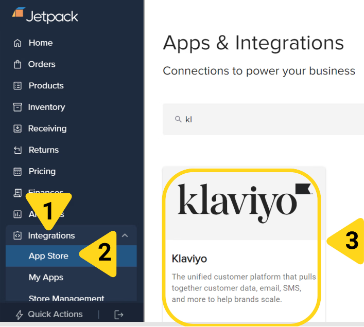
Click **Integrations** on the left-hand navigation bar, then select **App Store** from the menu options.
Locate the **Klaviyo** tile by scrolling or using the search bar, then click it.
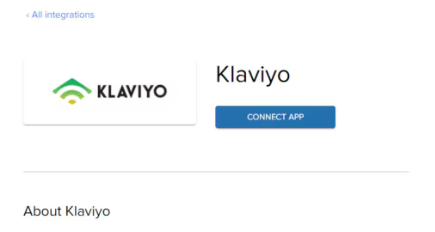
 On the Klaviyo details page, click the **CONNECT APP** button.
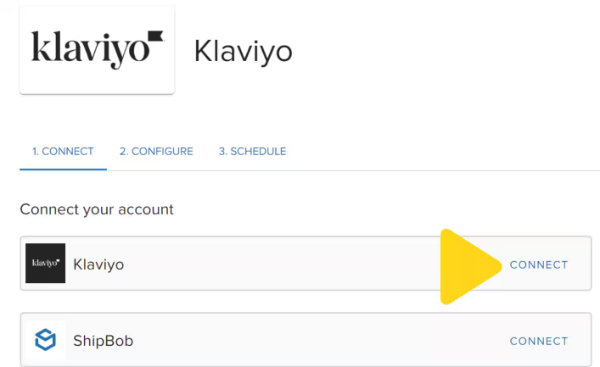
 A pop-up window will appear showing both Klaviyo and ShipBob connection options.
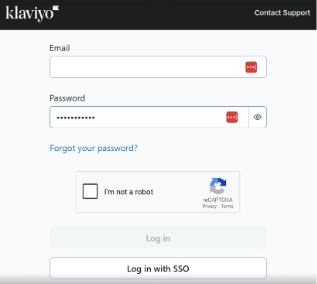
 Enter your Klaviyo email and password in the login form.
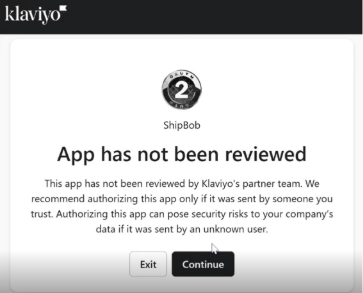
 Klaviyo will display a security notice indicating the app has not been reviewed. Click **Continue** to proceed.
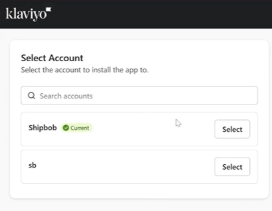
 Choose the account you want to install the integration to.
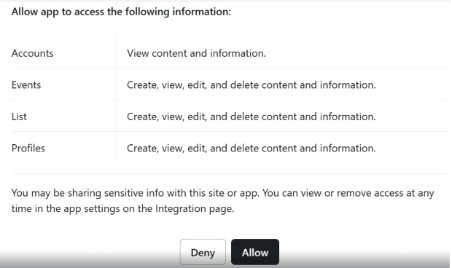
 Klaviyo will display the permissions being granted:
* Accounts: View content and information
* Events: Create, view, edit, and delete content
* List: Create, view, edit, and delete content
* Profiles: Create, view, edit, and delete content
Klaviyo will display the permissions being granted:
* Accounts: View content and information
* Events: Create, view, edit, and delete content
* List: Create, view, edit, and delete content
* Profiles: Create, view, edit, and delete content
 You'll receive a success message. Close the pop-up window.
 Back on the connection page, click **CONNECT** next to ShipBob.
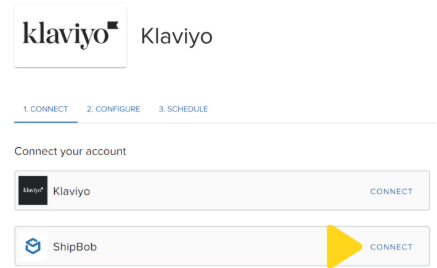 A pop-up will appear prompting you to log in with your Jetpack dashboard credentials.
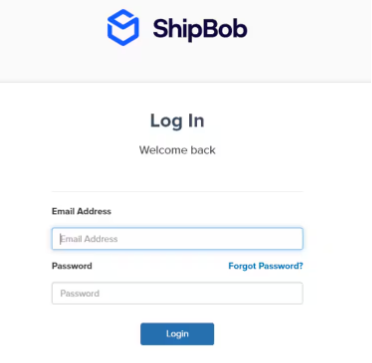 Once logged in, provide a channel name (we recommend "Klaviyo"). Review the permissions being granted:
* View and create orders
* Read access to Orders
* Write access to Orders
* Access to use OpenID Connect
* Read access to Channels
* Offline access
Once logged in, provide a channel name (we recommend "Klaviyo"). Review the permissions being granted:
* View and create orders
* Read access to Orders
* Write access to Orders
* Access to use OpenID Connect
* Read access to Channels
* Offline access
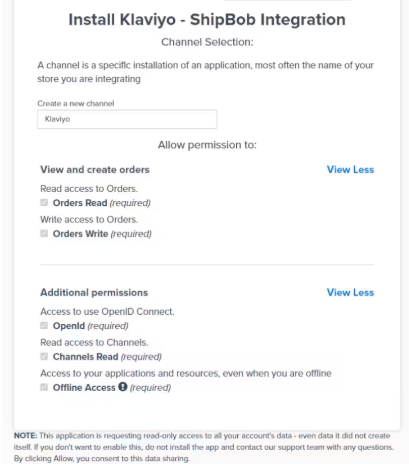 Click the **Allow & Install** button to complete the integration setup.
Once both Klaviyo and ShipBob options on the connection page show **Connected**, you can proceed to configure the integration.
***
## Configuring Klaviyo Integration Settings
After connecting both Klaviyo and ShipBob, configure your sync settings from the **2. CONFIGURE** tab:
Click the **Allow & Install** button to complete the integration setup.
Once both Klaviyo and ShipBob options on the connection page show **Connected**, you can proceed to configure the integration.
***
## Configuring Klaviyo Integration Settings
After connecting both Klaviyo and ShipBob, configure your sync settings from the **2. CONFIGURE** tab:
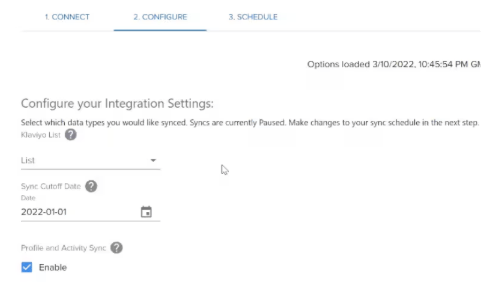 Choose the Klaviyo list you want to share access with. This list will be used to push customer profile and activity data.
Specify the earliest date from which Jetpack should start syncing order information. The maximum look-back period is 60 days (e.g., selecting 1/1/22 will sync all orders from that date forward).
Check the box labeled **Enable** under profile and activity sync to ensure order recipients and events are pushed to your selected Klaviyo list.
***
## Scheduling the Sync
From the **3. SCHEDULE** tab:
Choose from the options provided (e.g., Every 30 minutes, etc.). By default, the schedule will be configured to paused.
The first sync will occur based on the selected frequency. For example, if set to every 30 minutes, the initial sync will run 30 minutes from when you save.
***
## Uninstalling Klaviyo
If you need to disconnect your Klaviyo integration:
Click **Integrations** on the left-hand navigation bar, then select **My Apps**.
On the My Apps page, find Klaviyo in your list of installed integrations.
Choose the Klaviyo list you want to share access with. This list will be used to push customer profile and activity data.
Specify the earliest date from which Jetpack should start syncing order information. The maximum look-back period is 60 days (e.g., selecting 1/1/22 will sync all orders from that date forward).
Check the box labeled **Enable** under profile and activity sync to ensure order recipients and events are pushed to your selected Klaviyo list.
***
## Scheduling the Sync
From the **3. SCHEDULE** tab:
Choose from the options provided (e.g., Every 30 minutes, etc.). By default, the schedule will be configured to paused.
The first sync will occur based on the selected frequency. For example, if set to every 30 minutes, the initial sync will run 30 minutes from when you save.
***
## Uninstalling Klaviyo
If you need to disconnect your Klaviyo integration:
Click **Integrations** on the left-hand navigation bar, then select **My Apps**.
On the My Apps page, find Klaviyo in your list of installed integrations.
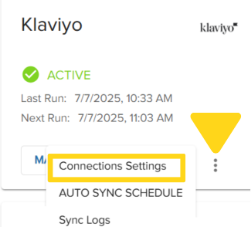
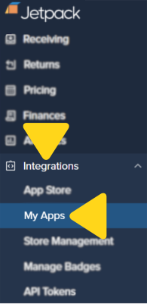 Additional menu options will appear. Select **Connection Settings**.
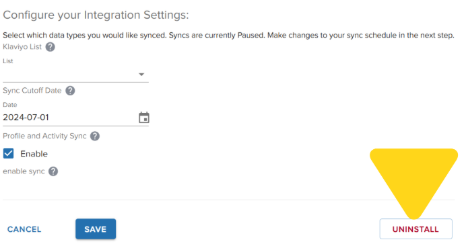
 On the Klaviyo app page, click **Uninstall** to disconnect the integration.
 ***
## Let's Dive Deeper
Back to the main integrations guide
Customer support integration
Shipment tracking integration
Learn about managing all your integrations
View and manage your orders
Configure shipping and fulfillment settings
***
## Let's Dive Deeper
Back to the main integrations guide
Customer support integration
Shipment tracking integration
Learn about managing all your integrations
View and manage your orders
Configure shipping and fulfillment settings

Questions? Contact Jetpack Care.
If you have any questions or run into issues, you can always contact Jetpack Care for help. Our team is always here to assist via Slack, phone, or email!