> ## Documentation Index
> Fetch the complete documentation index at: https://help.jetpack3pl.com/llms.txt
> Use this file to discover all available pages before exploring further.

# Gorgias

> Integrate your Jetpack account with Gorgias to view order and customer data directly within support tickets.

<div className="page-intro">
  Connecting Jetpack to Gorgias enables your support team to view order and customer data directly within Gorgias tickets. This integration syncs customer profiles and order details into Gorgias, displays comprehensive data in the ticket sidebar, and provides deep-link access back to Jetpack's order details page—all without your agents needing to leave the ticket.
</div>

<div
  style={{
backgroundColor: 'var(--color-background-secondary, #f8f9fa)',
padding: '8px 24px',
borderRadius: '8px',
marginTop: '16px',
marginBottom: '20px',
border: '1px solid var(--color-border, #e5e7eb)'
}}
>
  <div
    style={{
display: 'flex',
alignItems: 'center',
gap: '10px',
marginBottom: '0px'
}}
  >
    <img
      src="https://mintcdn.com/jetpack/l0jHEdf4TBXptPmb/images/shipbob-logomark.svg?fit=max&auto=format&n=l0jHEdf4TBXptPmb&q=85&s=12e573fede92cef73c1e1c767cd19643"
      alt="ShipBob"
      style={{
    height: '20px',
    width: 'auto'
  }}
      width="22"
      height="22"
      data-path="images/shipbob-logomark.svg"
    />

    <div
      style={{
  fontSize: '16px',
  fontWeight: '600',
  color: 'var(--color-text-primary, #1f2937)',
  letterSpacing: '0.3px'
}}
    >
      About ShipBob Integration References
    </div>
  </div>

  <div
    style={{
fontSize: '15px',
lineHeight: '1.7',
color: 'var(--color-text-secondary, #4b5563)',
marginTop: '0'
}}
  >
    During setup, you'll install the <strong>"ShipBob (Alloy)"</strong> app from the Gorgias App Store. This is expected—Jetpack has licensed ShipBob's integration infrastructure to provide reliable connections. Your data flows seamlessly to your Jetpack dashboard and displays in Gorgias tickets.
  </div>
</div>

## Gorgias Integration Overview

By connecting Jetpack to Gorgias, your support agents can:

* Sync customer profiles and order details into Gorgias
* View Jetpack data in the Gorgias sidebar without leaving the ticket
* Deep-link from Gorgias back to the Jetpack order details page
* Leverage [the AI Agent](https://docs.gorgias.com/en-US/ai-agent-action-get-fulfillment-data-from-shipbob-937575) for the most accurate fulfillment information

[Learn more about Gorgias](https://gorgias.grsm.io/sbob)

***

## Gorgias Features and Capabilities

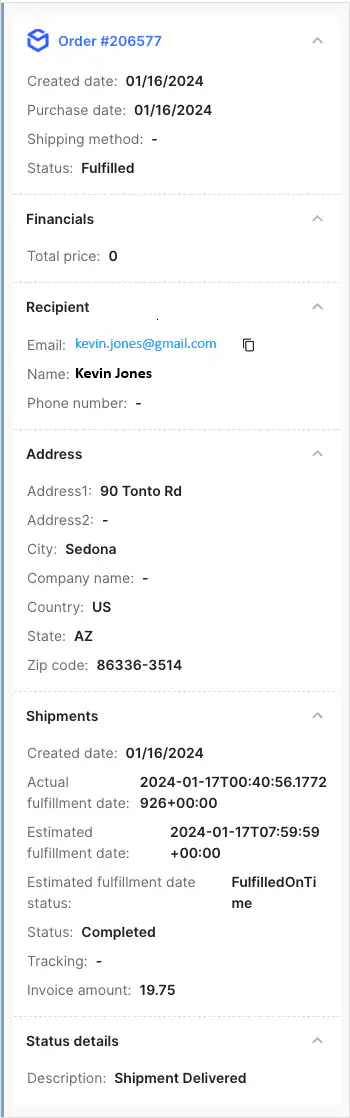
Once connected, Gorgias will display the following Jetpack widgets and fields in your ticket sidebar:

| Widget                          | Data Fields Available                                                                                                                                                                                                                                                                                            |
| ------------------------------- | ---------------------------------------------------------------------------------------------------------------------------------------------------------------------------------------------------------------------------------------------------------------------------------------------------------------- |
| **Order Widget**                | <ul><li>Order #</li><li>Status</li><li>Date Created</li><li>Purchase Date</li><li>Reference ID</li><li>Shipping Method</li></ul>                                                                                                                                                                                 |
| **Customer Widget**             | <ul><li>Full Name</li><li>Email Address</li><li>Phone Number</li></ul>                                                                                                                                                                                                                                           |
| **Address Widget**              | <ul><li>Address 1 & 2</li><li>City, State/Province, Zip/Postal Code</li><li>Country</li><li>Company (if provided)</li></ul>                                                                                                                                                                                      |
| **Shipments Widget**            | <ul><li>Jetpack Order URL (deep link)</li><li>Estimated Fulfillment Date & Status</li><li>Actual Fulfillment Date</li><li>Requires Signature</li><li>Shipment Status</li><li>Shipping Option</li><li>Invoice Amount</li><li>Insurance Value</li><li>Package Material</li><li>Fulfillment Location Name</li></ul> |
| **Tracking Information Widget** | <ul><li>Carrier & Service</li><li>Tracking Number & URL</li></ul>                                                                                                                                                                                                                                                |
| **Product Widget (per item)**   | <ul><li>Name & Reference ID</li><li>SKU</li><li>Quantity & Quantity Committed</li><li>"Is Dangerous" Flag</li></ul>                                                                                                                                                                                              |
| **Status Details Widget**       | <ul><li>Status ID</li><li>Status Description</li></ul>                                                                                                                                                                                                                                                           |

<Warning title="Integration Limitations">
  Only the last month of orders (prior to the integration date) will sync. You cannot cancel orders or initiate returns from Gorgias; these actions must be performed in the Jetpack dashboard.
</Warning>

<Info title="Integration Maintained by Gorgias">
  This integration is maintained by Gorgias (built by Alloy). For questions, reach out to Gorgias support at [support@gorgias.com](mailto:support@gorgias.com).
</Info>

***

## Setting Up the Gorgias Integration

Follow these steps to connect Jetpack to Gorgias from within the Gorgias platform:

<Steps>
  <Step title="Click Settings">
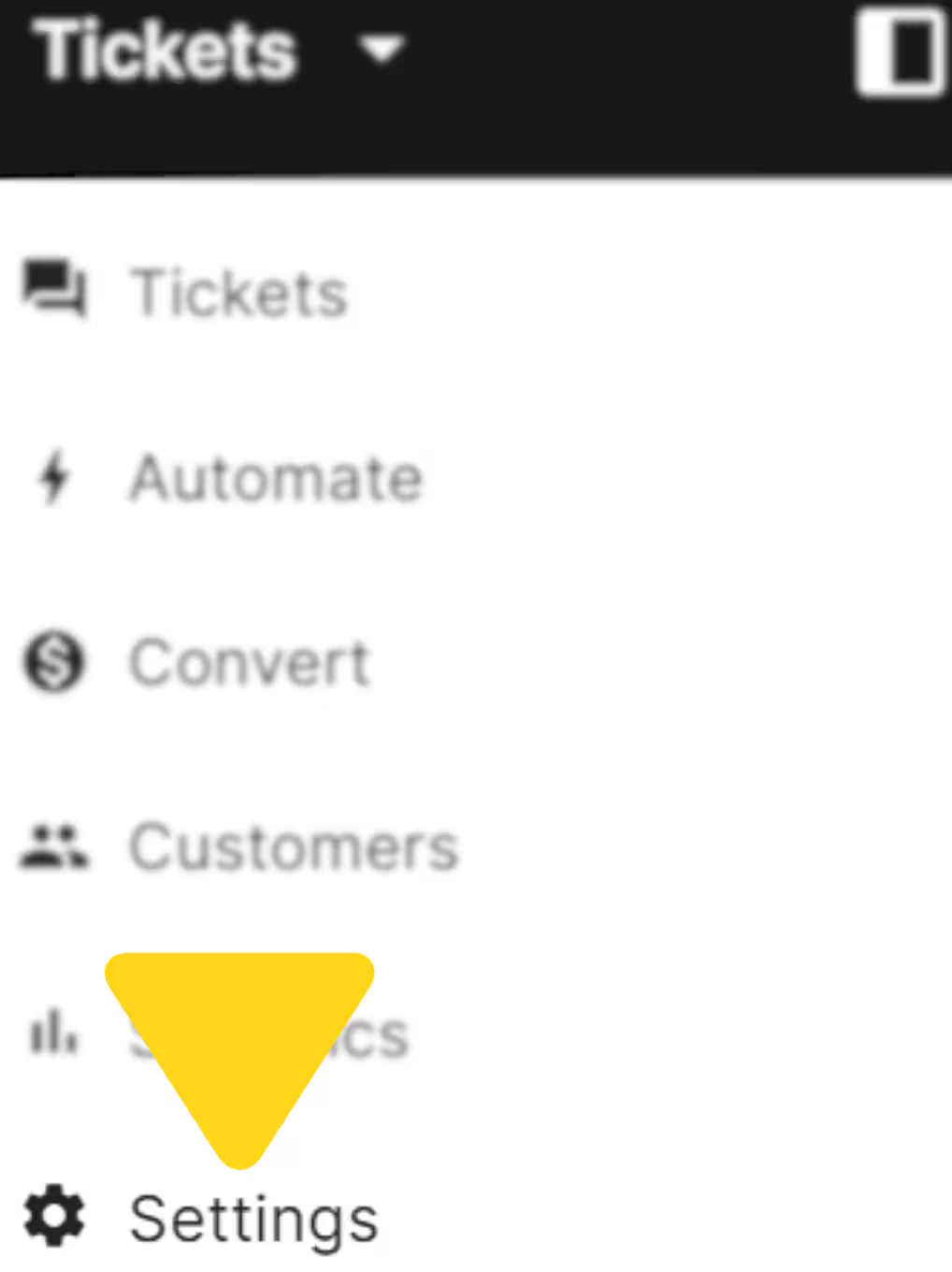
    In Gorgias, click **Settings** in the left navigation menu.
    <img src="https://mintcdn.com/jetpack/jkR7KU2qKWzZ0qOM/images/other-integrations/gorgias-settings.png?fit=max&auto=format&n=jkR7KU2qKWzZ0qOM&q=85&s=9e3ffc72d94e0d567925fd28bc10b1e5" alt="Gorgias navigation menu with Settings highlighted" className="screenshot" width="1018" height="1360" data-path="images/other-integrations/gorgias-settings.png" />
  </Step>

  <Step title="Under APP STORE, select All apps">
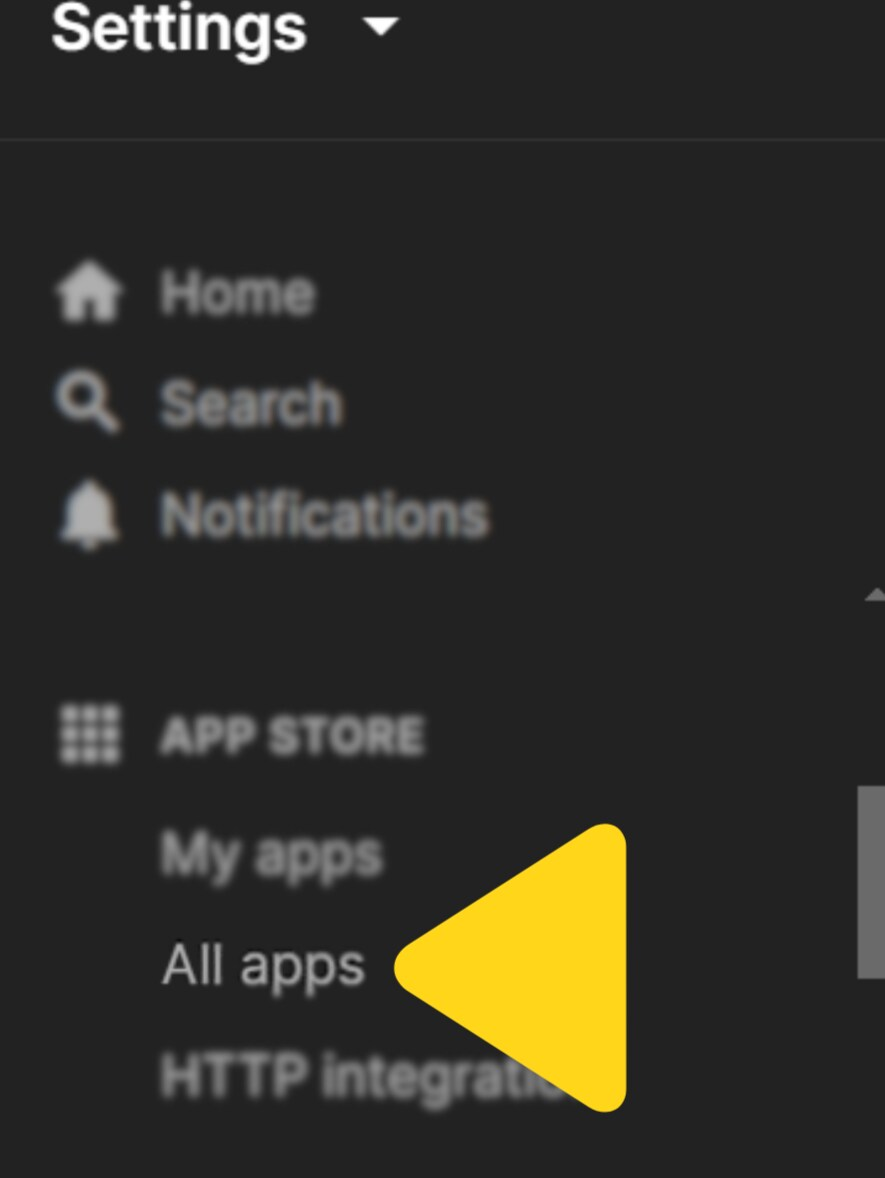
    Under the **APP STORE** section, click **All apps**.
    <img src="https://mintcdn.com/jetpack/jkR7KU2qKWzZ0qOM/images/other-integrations/gorgias-all-apps.png?fit=max&auto=format&n=jkR7KU2qKWzZ0qOM&q=85&s=60431a907b4ecef3fd1a40c000c22ea6" alt="Settings menu showing APP STORE section with All apps option" className="screenshot" width="885" height="1178" data-path="images/other-integrations/gorgias-all-apps.png" />
  </Step>

  <Step title="Find and click the ShipBob (Alloy) tile">
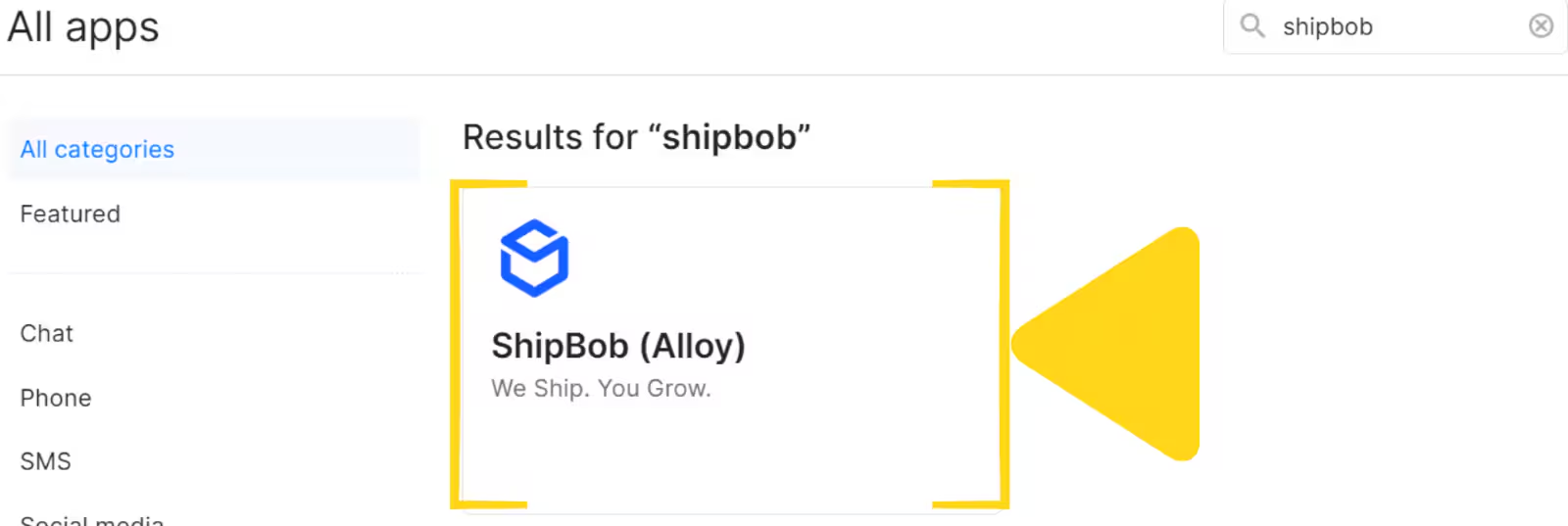
    Search for "shipbob" in the app search bar, then click the **ShipBob (Alloy)** tile.
    <img src="https://mintcdn.com/jetpack/jkR7KU2qKWzZ0qOM/images/other-integrations/gorgias-search-results.png?fit=max&auto=format&n=jkR7KU2qKWzZ0qOM&q=85&s=55411cba773cc81183b00d0cef8ced4d" alt="All apps page showing search results for shipbob with ShipBob (Alloy) tile" className="screenshot" width="1600" height="537" data-path="images/other-integrations/gorgias-search-results.png" />
  </Step>

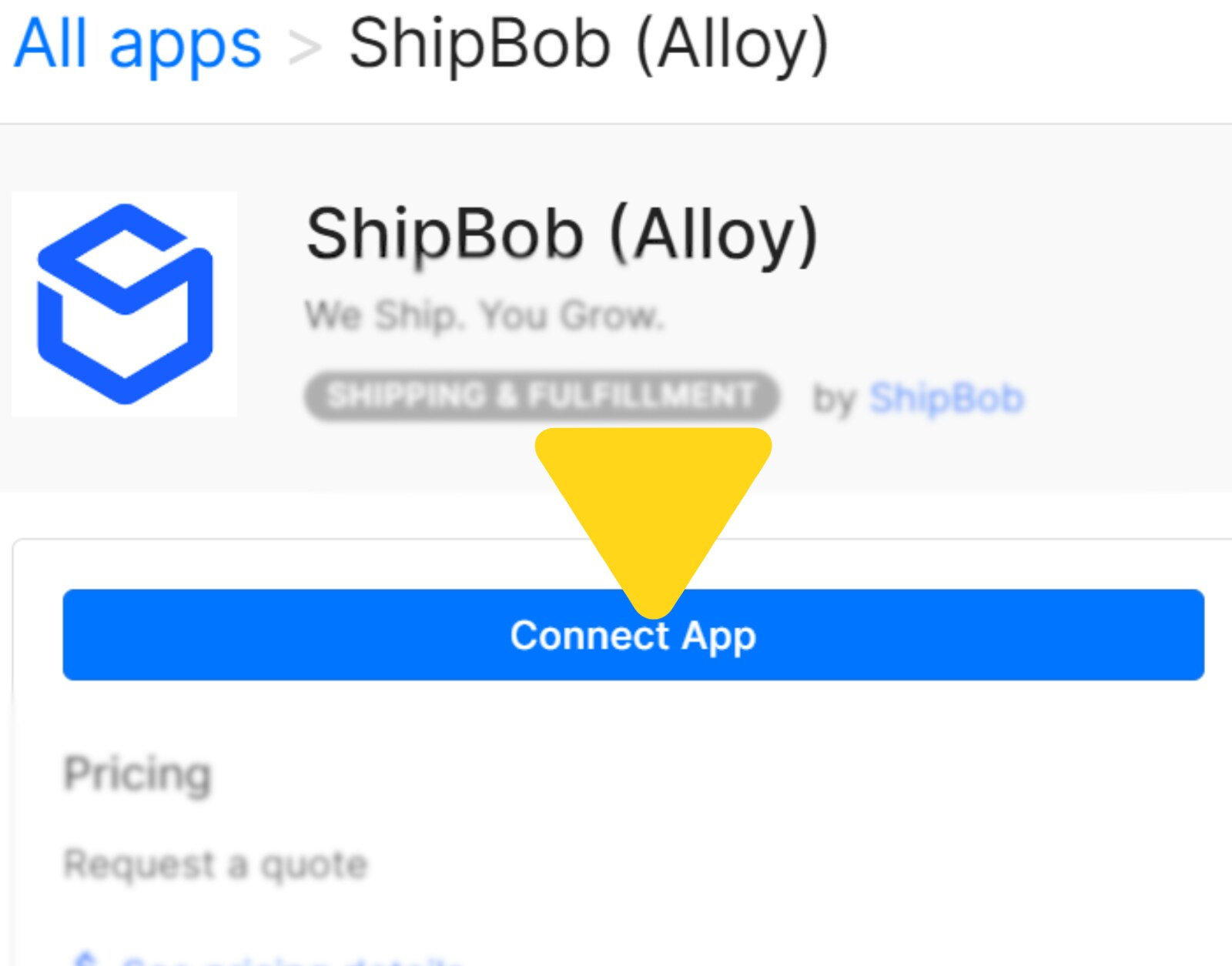
  <Step title="Click Connect App">
    Click the **Connect App** button.

    <img src="https://mintcdn.com/jetpack/jkR7KU2qKWzZ0qOM/images/other-integrations/gorgias-connect-app.png?fit=max&auto=format&n=jkR7KU2qKWzZ0qOM&q=85&s=82e0f95409ede2130501c2a1d87f4db6" alt="ShipBob (Alloy) app page with Connect App button" className="screenshot" width="1600" height="1255" data-path="images/other-integrations/gorgias-connect-app.png" />
  </Step>

  <Step title="In the pop-up, click Install">
    In the installation popup, click **Install**.
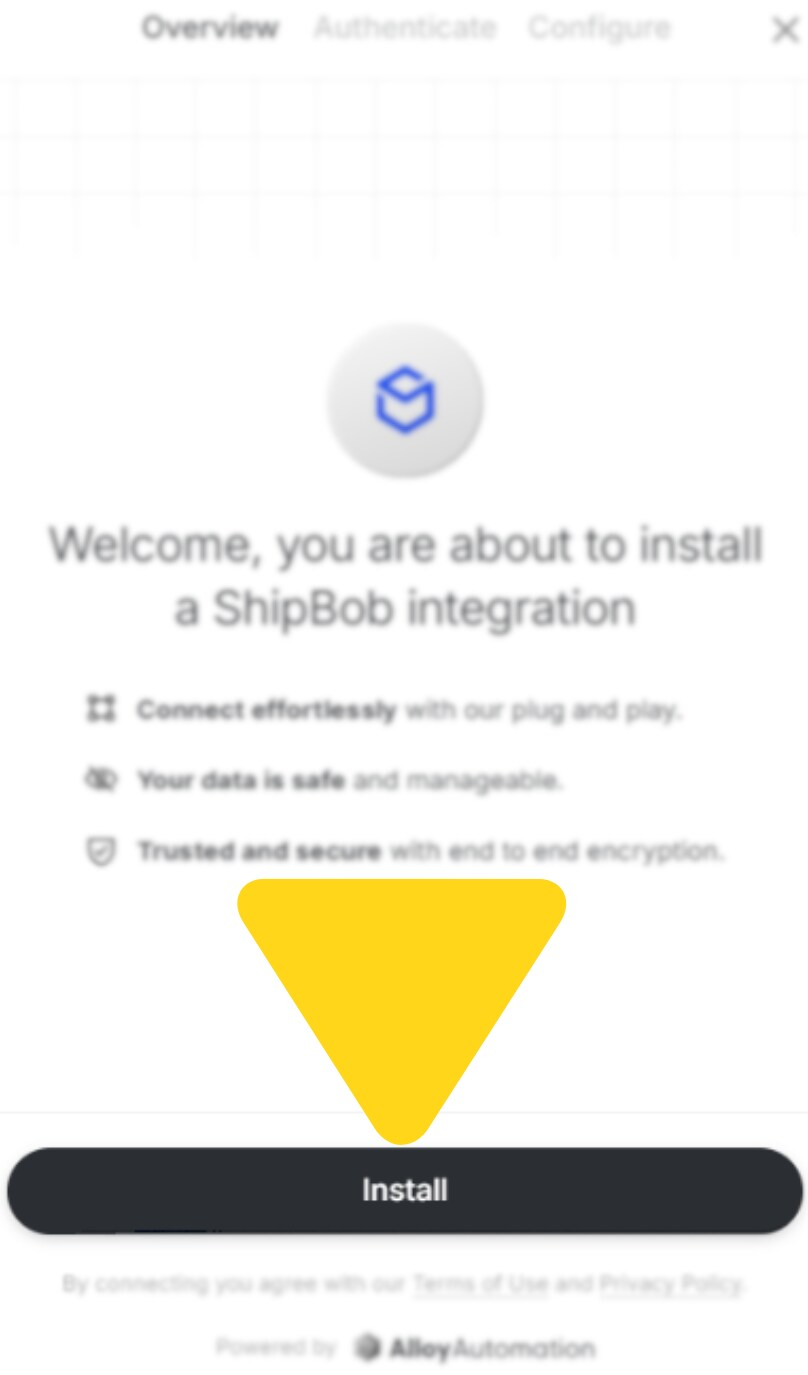
    <img src="https://mintcdn.com/jetpack/jkR7KU2qKWzZ0qOM/images/other-integrations/gorgias-install.png?fit=max&auto=format&n=jkR7KU2qKWzZ0qOM&q=85&s=aa5b88e188bcd710dd5559dc7e551bc5" alt="Installation popup with Install button" className="screenshot" width="808" height="1375" data-path="images/other-integrations/gorgias-install.png" />
  </Step>

  <Step title="In the Gorgias pop-up, click Connect next to ShipBob (twice)">
    You'll need to click the **Connect** button next to ShipBob twice during the authentication flow.
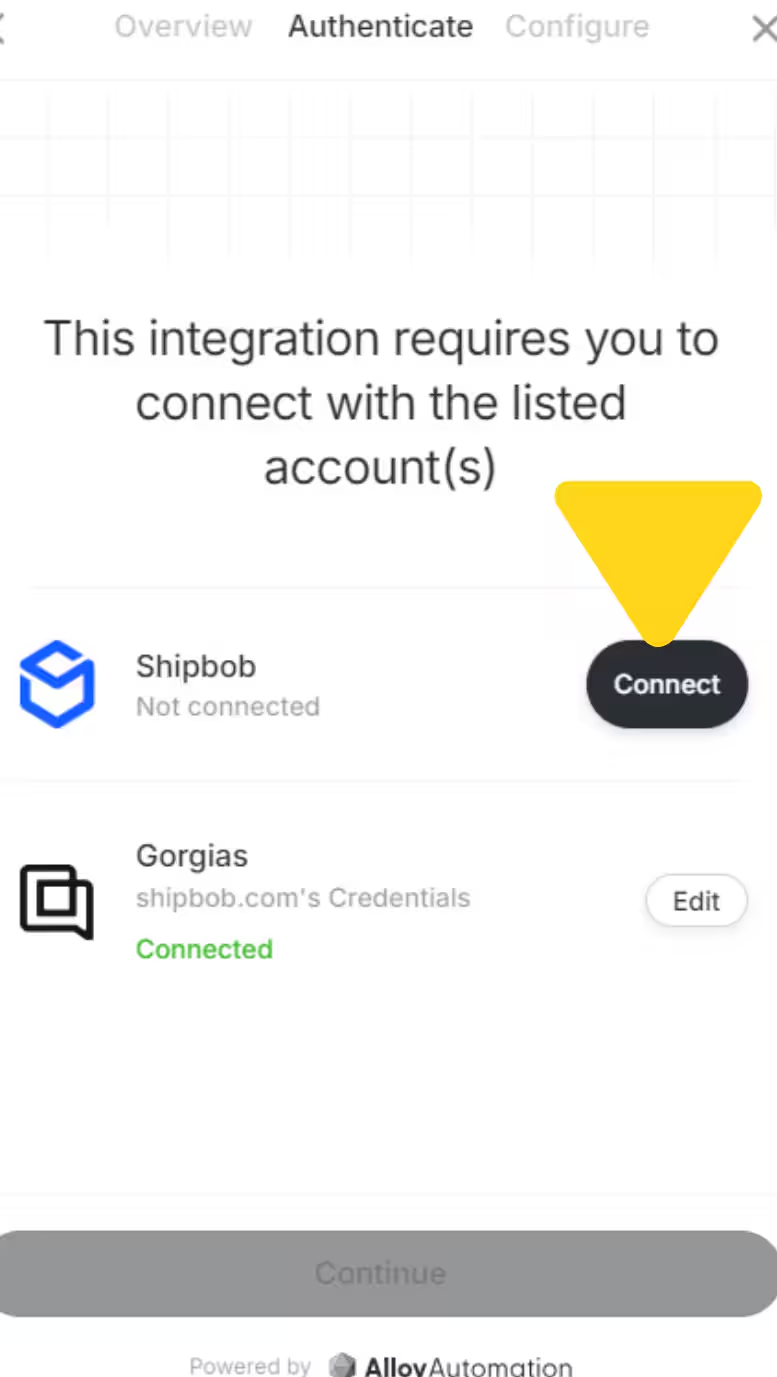
    <img src="https://mintcdn.com/jetpack/jkR7KU2qKWzZ0qOM/images/other-integrations/gorgias-connect-shipbob.png?fit=max&auto=format&n=jkR7KU2qKWzZ0qOM&q=85&s=73048ac53cc53e7ac0f3c0f328bc30b1" alt="Authentication screen showing ShipBob with Connect button" className="screenshot" width="777" height="1377" data-path="images/other-integrations/gorgias-connect-shipbob.png" />
  </Step>

  <Step title="Log in to authorize the connection">
    You'll be presented with a **ShipBob login screen**. This is expected, Jetpack uses ShipBob's integration infrastructure under the hood, so the login screen carries ShipBob branding. **Enter your Jetpack WMS (dashboard) credentials here** to continue the setup.
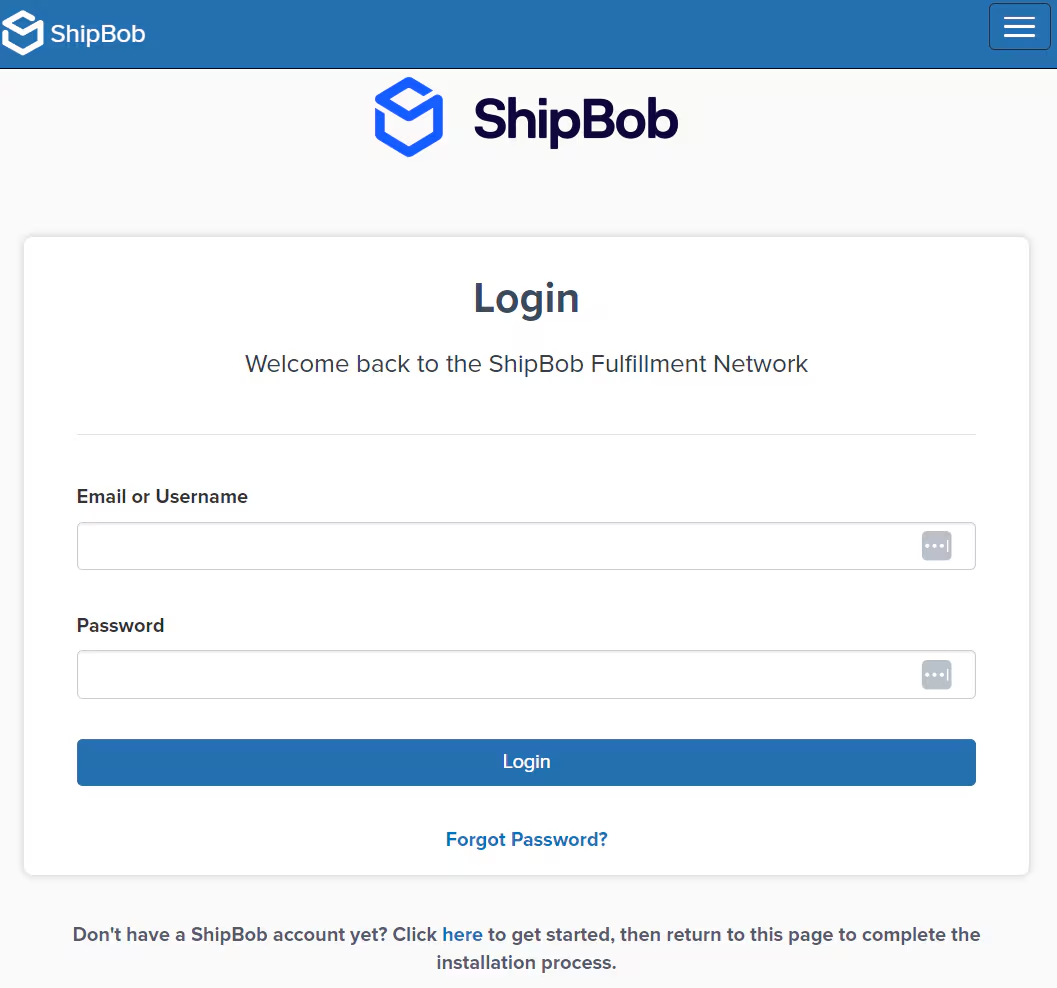
    <img src="https://mintcdn.com/jetpack/jkR7KU2qKWzZ0qOM/images/other-integrations/gorgias-login.png?fit=max&auto=format&n=jkR7KU2qKWzZ0qOM&q=85&s=4eec7fe056bed325d49da701314d505d" alt="Login screen presented during the Gorgias connection flow, enter your Jetpack WMS credentials here" className="screenshot" width="1057" height="988" data-path="images/other-integrations/gorgias-login.png" />
  </Step>

  <Step title="Enter a channel name and review permissions">
    Enter a descriptive channel name (e.g., "ShipBob-Gorgias"), review the permissions, and click **Allow & Install**.
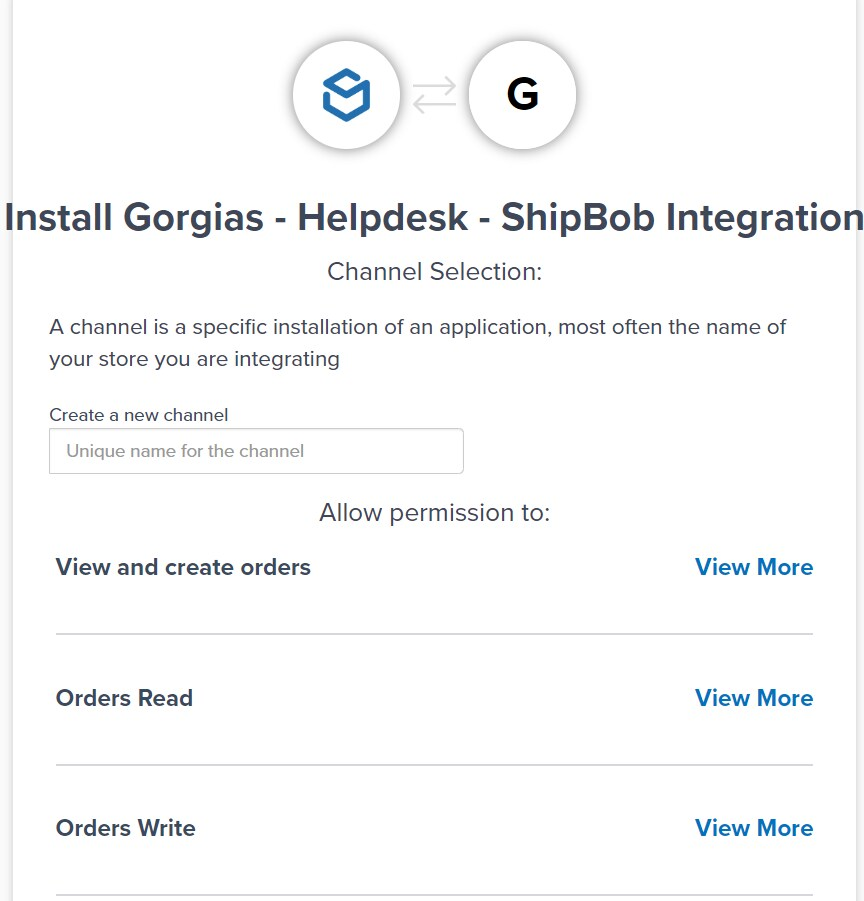
    <img src="https://mintcdn.com/jetpack/jkR7KU2qKWzZ0qOM/images/other-integrations/gorgias-permissions.png?fit=max&auto=format&n=jkR7KU2qKWzZ0qOM&q=85&s=55a97afb359f7105ad69c084c426177e" alt="Channel selection screen with permissions list" className="screenshot" width="864" height="901" data-path="images/other-integrations/gorgias-permissions.png" />
  </Step>

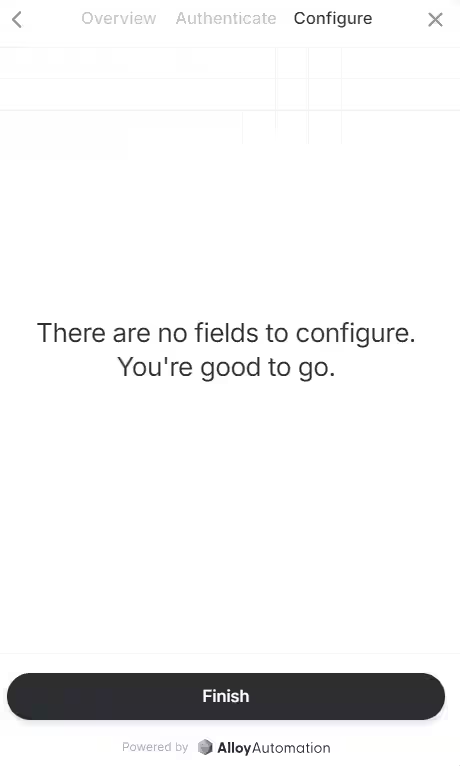
  <Step title="Click Finish to complete setup">
    Click **Finish** to complete the integration. Jetpack data will begin populating in the Gorgias ticket sidebar.
    <img src="https://mintcdn.com/jetpack/jkR7KU2qKWzZ0qOM/images/other-integrations/gorgias-finish.png?fit=max&auto=format&n=jkR7KU2qKWzZ0qOM&q=85&s=b10c6e0ab456925344ae22f9893407fd" alt="Configuration complete screen with Finish button" className="screenshot" width="460" height="766" data-path="images/other-integrations/gorgias-finish.png" />
  </Step>
</Steps>

Once connected, your support agents will see comprehensive Jetpack order and customer data within the Gorgias ticket sidebar.
<img src="https://mintcdn.com/jetpack/jkR7KU2qKWzZ0qOM/images/other-integrations/gorgias-sidebar.png?fit=max&auto=format&n=jkR7KU2qKWzZ0qOM&q=85&s=fcda25013689b4f35a36b9aeb627671d" alt="Gorgias ticket sidebar showing ShipBob order information" className="screenshot" width="350" height="1118" data-path="images/other-integrations/gorgias-sidebar.png" />

***

## Uninstalling the Gorgias Integration

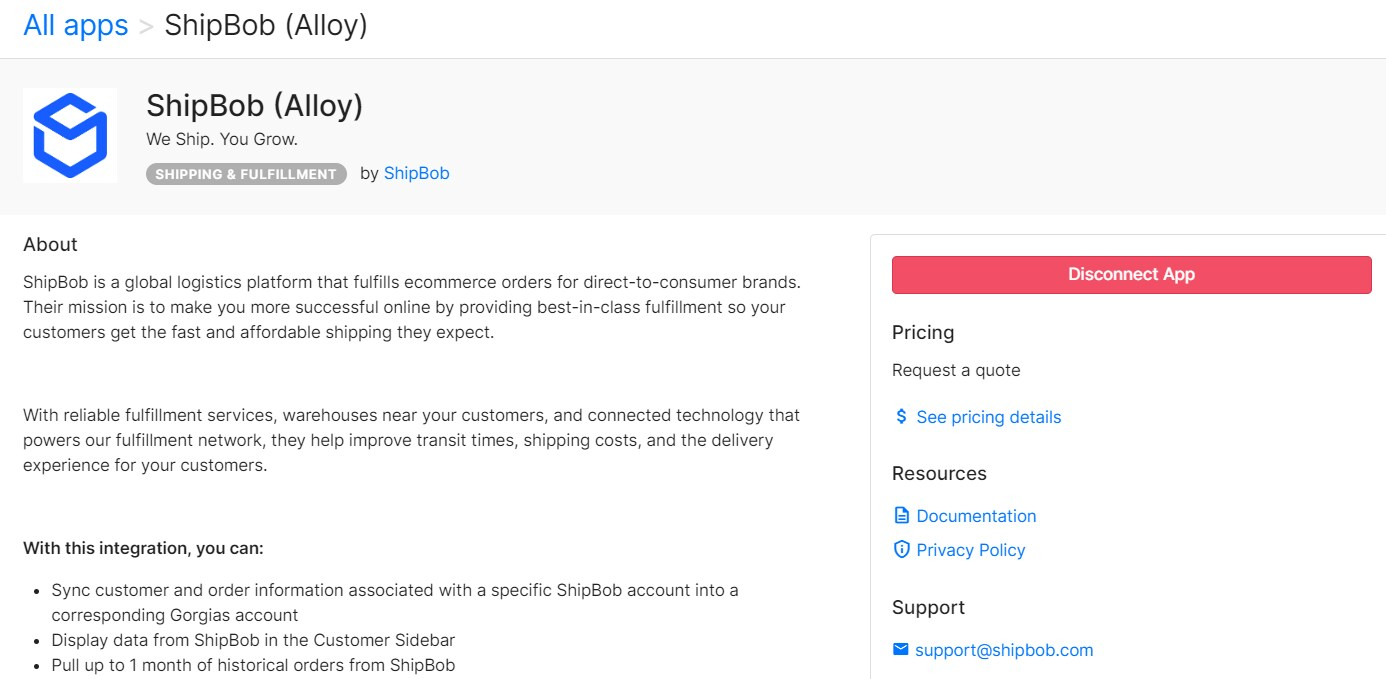
To remove the Jetpack integration from Gorgias, log in to Gorgias, navigate to the ShipBob (Alloy) app page, and click **Disconnect App**.
<img src="https://mintcdn.com/jetpack/jkR7KU2qKWzZ0qOM/images/other-integrations/gorgias-disconnect.png?fit=max&auto=format&n=jkR7KU2qKWzZ0qOM&q=85&s=18cda9bb7af9dca3c8fd4ef75c3143c3" alt="ShipBob (Alloy) app page showing Disconnect App button" className="screenshot" width="1386" height="679" data-path="images/other-integrations/gorgias-disconnect.png" />

***

## Let's Dive Deeper

<CardGroup cols={3}>
  <Card title="Other Integrations Overview" icon="grid" href="/fulfillment/account-setup/other-integrations">
    Back to the main integrations guide
  </Card>

  <Card title="Integrations + Apps Overview" icon="plug" href="/fulfillment/account-setup/integrations-overview">
    Learn how to manage all your integrations
  </Card>

  <Card title="Klaviyo Marketing" icon="envelope" href="/fulfillment/account-setup/other-integrations/klaviyo">
    Connect your email marketing platform
  </Card>

  <Card title="Loop Returns" icon="arrows-rotate" href="/fulfillment/account-setup/other-integrations/loop">
    Integrate your returns management system
  </Card>

  <Card title="Order Management" icon="list-check" href="/fulfillment/order-management">
    View and manage your orders
  </Card>

  <Card title="Shipping & Fulfillment FAQs" icon="circle-question" href="/fulfillment/faqs/shipping-fulfillment">
    Common questions about shipping and fulfillment

  </Card>
</CardGroup>

<div className="jetpack-callout">
  <img src="https://mintcdn.com/jetpack/2iejPNBTYKEx6ntF/images/jetpack-logomark-256.png?fit=max&auto=format&n=2iejPNBTYKEx6ntF&q=85&s=340604ced4add3864f2641341826e1c9" alt="Jetpack" className="jetpack-callout-icon" width="256" height="256" data-path="images/jetpack-logomark-256.png" />

  <div className="jetpack-callout-content">
    <h4 className="jetpack-callout-title">Questions? Contact Jetpack Care.</h4>
    <p className="jetpack-callout-text">If you have any questions or run into issues, you can always contact Jetpack Care for help. Our team is always here to assist via Slack, phone, or email!</p>
  </div>
</div>