> ## Documentation Index
> Fetch the complete documentation index at: https://help.jetpack3pl.com/llms.txt
> Use this file to discover all available pages before exploring further.
# Fulfil.io Integration
> Connect your Fulfil.io ERP to Jetpack to sync products, inventory, customer shipments, tracking information, and warehouse receiving orders.
Integrating Fulfil.io with Jetpack enables you to use your ERP as the source of truth for products, inventory, fulfillment, and tracking, while Jetpack handles the logistics. This integration syncs customer shipments, tracking information, and warehouse receiving orders between Fulfil.io and Jetpack, streamlining your operations and keeping your inventory data synchronized across platforms.

About ShipBob Integration References
During setup, you'll connect to the "ShipBob" integration through the Fulfil-3PL connector. This is expected—Jetpack has licensed ShipBob's integration infrastructure to provide reliable connections. Your data flows seamlessly to your Jetpack dashboard.
## Fulfil.io Integration Overview
Jetpack's integration with Fulfil.io enables you to use your ERP to manage core operational data while leveraging Jetpack for order fulfillment and logistics. Once integrated, you can:
* **Sync customer shipments:** Import B2C orders from Fulfil.io into Jetpack (with historical data available for up to the last 60 days) so Jetpack can pick, pack, and ship them
* **Sync tracking information:** Automatically update order records in Fulfil.io with unique tracking numbers once Jetpack fulfills the orders
* **Create Warehouse Receiving Orders (WROs):** Generate WROs based on Supplier Shipment records from Fulfil.io, ensuring that inventory is properly packaged and shipped to Jetpack warehouses for stocking
Lot numbers and expiration dates are not currently supported.
For more information on sending inventory to Jetpack, see [Creating Warehouse Receiving Orders](/fulfillment/sending-inventory/creating-wro).
***
## Integrating Fulfil.io with Jetpack
By following these detailed steps, you can seamlessly integrate Fulfil.io with Jetpack to streamline your operations, manage customer and supplier shipments effectively, and keep your inventory data synchronized across platforms.
### From the Jetpack Dashboard
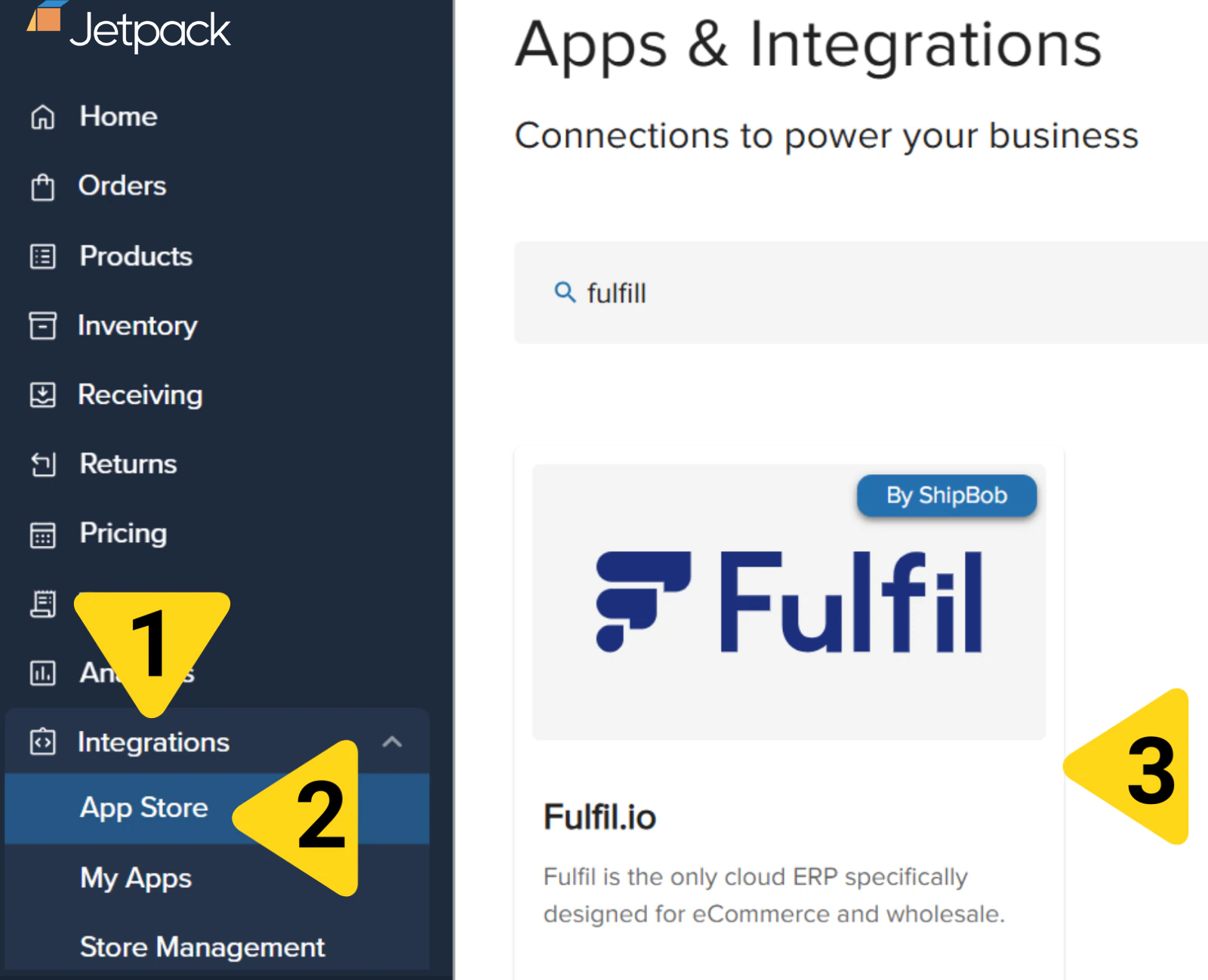
Click **Integrations** on the left-hand navigation bar, then select **App Store** to be redirected.
Find the Fulfil.io tile using scrolling or the search bar, then click it.
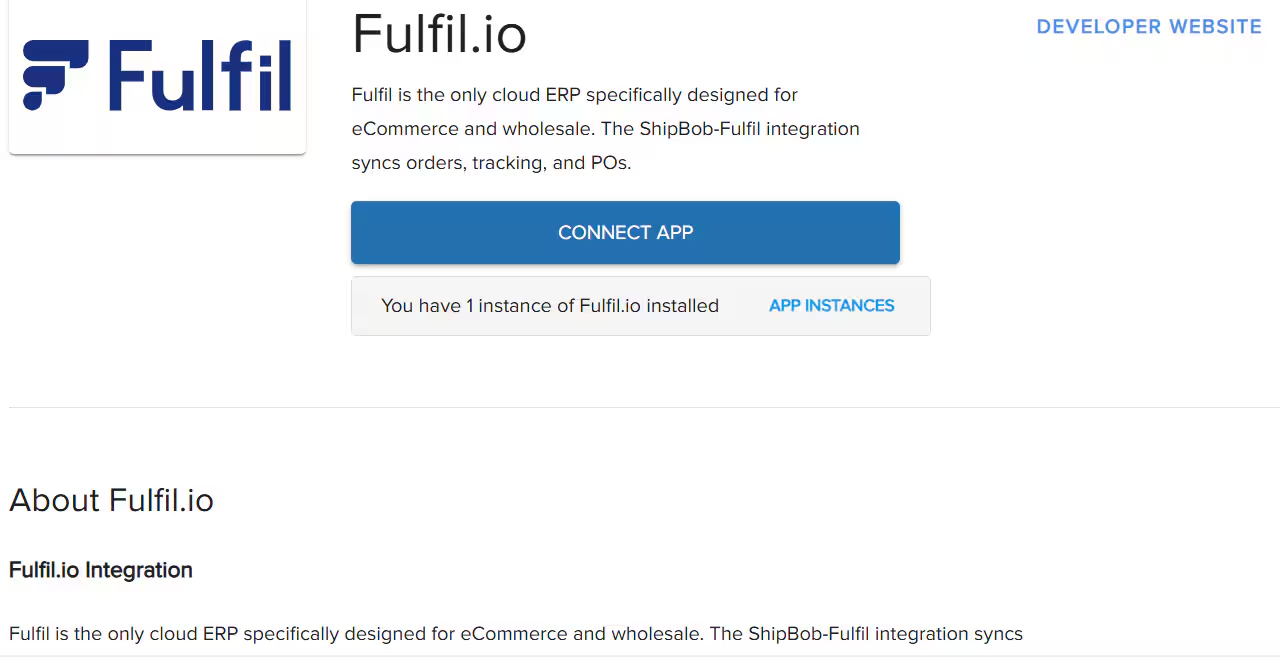
 Review the integration details and click **CONNECT APP** to begin the integration process.
 ### Connect Fulfil-3PL
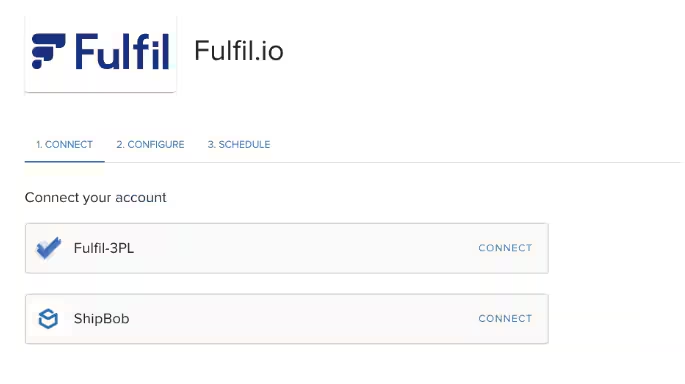
On the connection screen, click **CONNECT** next to Fulfil-3PL.
### Connect Fulfil-3PL
On the connection screen, click **CONNECT** next to Fulfil-3PL.
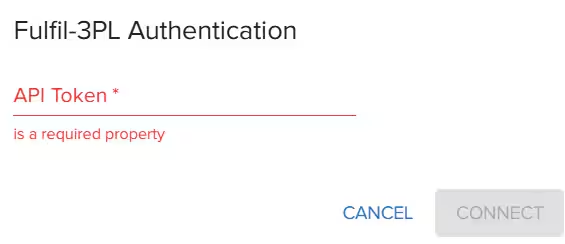
 In the pop-up window, enter your API key from Fulfil.io.
 **To find your API key:**
In your Fulfil.io dashboard:
1. Go to **Inventory & Stock** > **Locations**
2. Click on the desired location and click **View access token**
**To find your API key:**
In your Fulfil.io dashboard:
1. Go to **Inventory & Stock** > **Locations**
2. Click on the desired location and click **View access token**
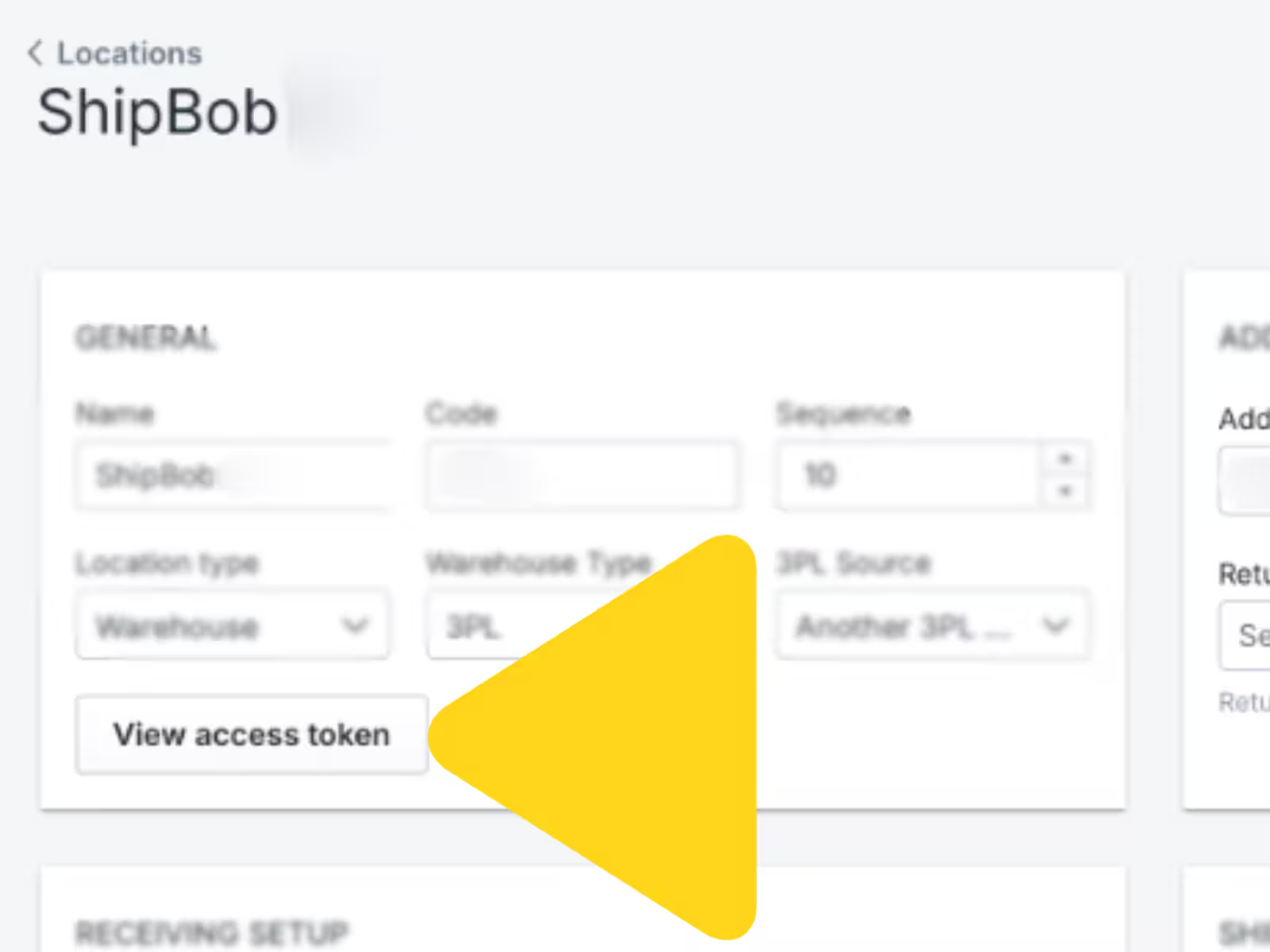 Complete the Fulfil-3PL connection by clicking **CONNECT**.
### Connect ShipBob
After completing the Fulfil-3PL connection, click **CONNECT** next to ShipBob.
In the pop-up window, enter your Jetpack dashboard username and password.
Complete the Fulfil-3PL connection by clicking **CONNECT**.
### Connect ShipBob
After completing the Fulfil-3PL connection, click **CONNECT** next to ShipBob.
In the pop-up window, enter your Jetpack dashboard username and password.
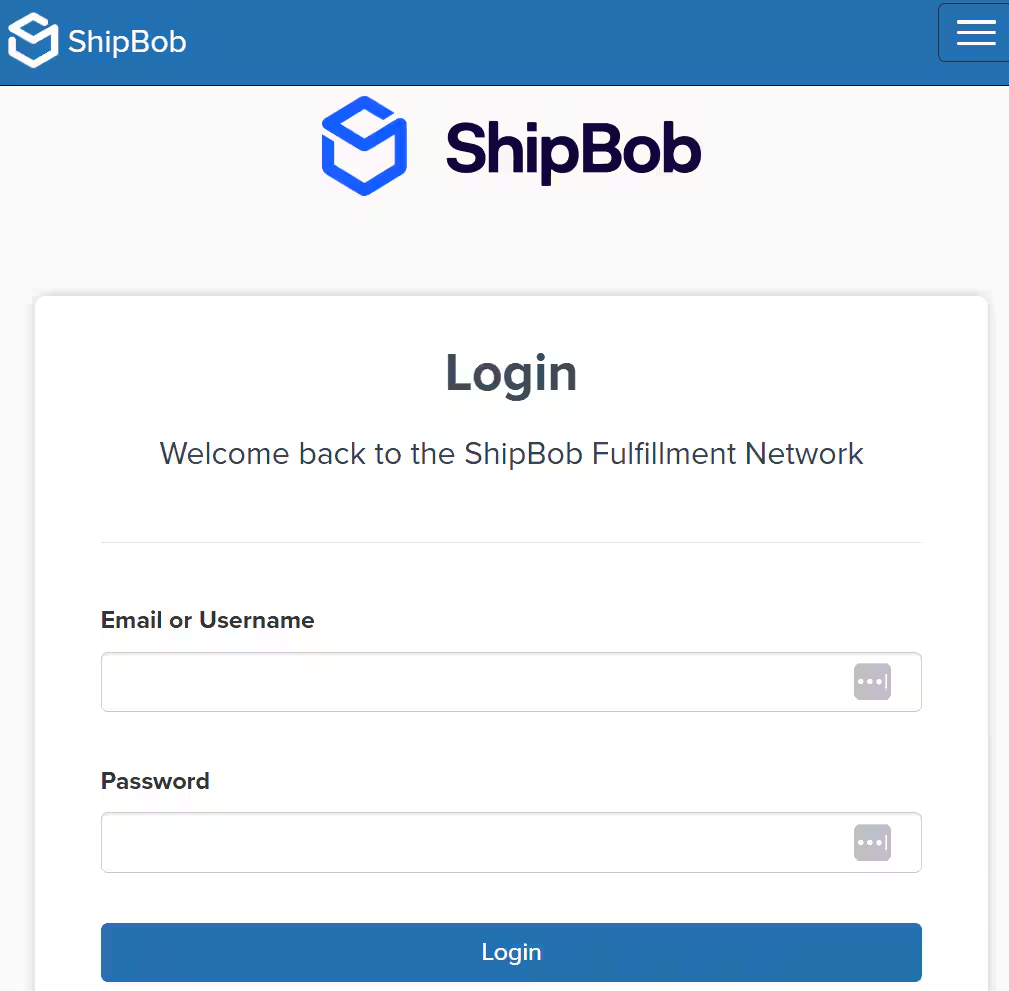 Enter a channel name for the integration (for example, "Fulfil.io"), review the permissions, and click **Authorize & Install**.
When both Fulfil-3PL and ShipBob show **Connected**, the integration is successfully established.
***
## Configuring Fulfil.io Connection Settings
After integration, you can update various settings on the **Connection Settings** page. Click **Save** after making changes.
Enter a channel name for the integration (for example, "Fulfil.io"), review the permissions, and click **Authorize & Install**.
When both Fulfil-3PL and ShipBob show **Connected**, the integration is successfully established.
***
## Configuring Fulfil.io Connection Settings
After integration, you can update various settings on the **Connection Settings** page. Click **Save** after making changes.
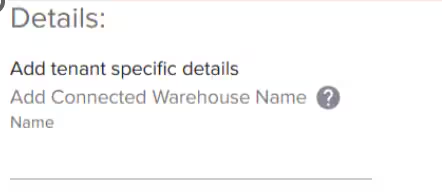 ### Details and Fulfil.io-Jetpack Location Mapping
Configure the connection between your Fulfil.io locations and Jetpack fulfillment centers:
### Details and Fulfil.io-Jetpack Location Mapping
Configure the connection between your Fulfil.io locations and Jetpack fulfillment centers:
 Enter the name of the warehouse for this Fulfil.io connection.
Choose your Jetpack fulfillment center from the dropdown menu.
Enter the Record ID in the provided textbox.
**To find your Record ID:**
In Fulfil.io:
1. Navigate to the **Locations** page for your Jetpack fulfillment center
2. Click the three horizontal dots at the top right and select **View Logs**
3. Copy the Record ID shown in the pop-up
Use the **+** icon to add additional location mappings or the trash can icon to remove an entry.
Enter the name of the warehouse for this Fulfil.io connection.
Choose your Jetpack fulfillment center from the dropdown menu.
Enter the Record ID in the provided textbox.
**To find your Record ID:**
In Fulfil.io:
1. Navigate to the **Locations** page for your Jetpack fulfillment center
2. Click the three horizontal dots at the top right and select **View Logs**
3. Copy the Record ID shown in the pop-up
Use the **+** icon to add additional location mappings or the trash can icon to remove an entry.
 ***
## Configuring Customer Shipments Settings
Under **Customer Shipments**, configure the following settings:
***
## Configuring Customer Shipments Settings
Under **Customer Shipments**, configure the following settings:
 | Setting | What It Controls |
| --------------------------------------- | ------------------------------------------------------------------------------------------------------------------------------------------------------------------------------------------------------------------------------------------------------------------------------------------------------------------------------------------------------------------------------------------------------------------------------------------------------------------------------------------------------------------------------------------------------------------------------------------------------------------------------------------------------------------------------------------------------------------------------------------------------------------------------------------------------------------------------------------------------------------------------------------------------------------------------------------------------------------------------------------------------------------------------------------------------------------------------------------------------------------------------------------------------------------------------------------------------------------------------------------------------------------------------------------------------------------------------------------------------------------------------------------------------------------------------------------------------------------------------------------------------------------------------------------------------------------------------------------------------------------------------------------------------------------------------------------------------------------------------------------------------------------------------------------------------------------------------------------------------------------------------------------------------------------------------------------------------------------------------------------------------------------------------------------------------------------------------------------------------------------------------------------------- |
| **Enable Syncing** | Check the box to enable syncing of customer shipments so that B2C orders from Fulfil.io are imported into Jetpack. |
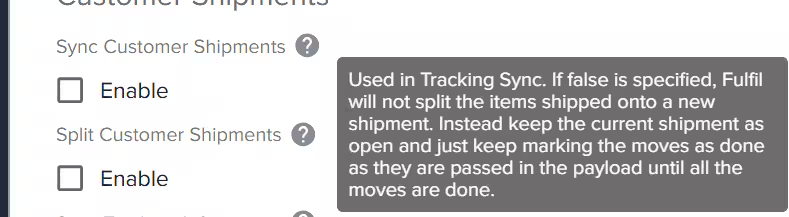
| **Split Customer Shipments** | Enable this option to create new orders in Fulfil.io if Jetpack's Operations team splits an order (e.g., when products do not fit in standard packaging). |
| **Sync Tracking Information** | Enable this option so carrier tracking data syncs back to Fulfil.io once orders are labeled by Jetpack. |
| **Send Warehouse During Tracking Sync** | Check this option to sync the fulfillment center's name to Fulfil.io, providing visibility to your customers. |
| **Import Delay Filter** |
| Setting | What It Controls |
| --------------------------------------- | ------------------------------------------------------------------------------------------------------------------------------------------------------------------------------------------------------------------------------------------------------------------------------------------------------------------------------------------------------------------------------------------------------------------------------------------------------------------------------------------------------------------------------------------------------------------------------------------------------------------------------------------------------------------------------------------------------------------------------------------------------------------------------------------------------------------------------------------------------------------------------------------------------------------------------------------------------------------------------------------------------------------------------------------------------------------------------------------------------------------------------------------------------------------------------------------------------------------------------------------------------------------------------------------------------------------------------------------------------------------------------------------------------------------------------------------------------------------------------------------------------------------------------------------------------------------------------------------------------------------------------------------------------------------------------------------------------------------------------------------------------------------------------------------------------------------------------------------------------------------------------------------------------------------------------------------------------------------------------------------------------------------------------------------------------------------------------------------------------------------------------------------------- |
| **Enable Syncing** | Check the box to enable syncing of customer shipments so that B2C orders from Fulfil.io are imported into Jetpack. |
| **Split Customer Shipments** | Enable this option to create new orders in Fulfil.io if Jetpack's Operations team splits an order (e.g., when products do not fit in standard packaging). |
| **Sync Tracking Information** | Enable this option so carrier tracking data syncs back to Fulfil.io once orders are labeled by Jetpack. |
| **Send Warehouse During Tracking Sync** | Check this option to sync the fulfillment center's name to Fulfil.io, providing visibility to your customers. |
| **Import Delay Filter** | 
Choose between **create\_date** (delay begins when the order is created) or **write\_date** (delay begins when the order is updated). This applies a 60-minute delay before orders sync to Jetpack. |
***
## Configuring Supplier Shipments Settings
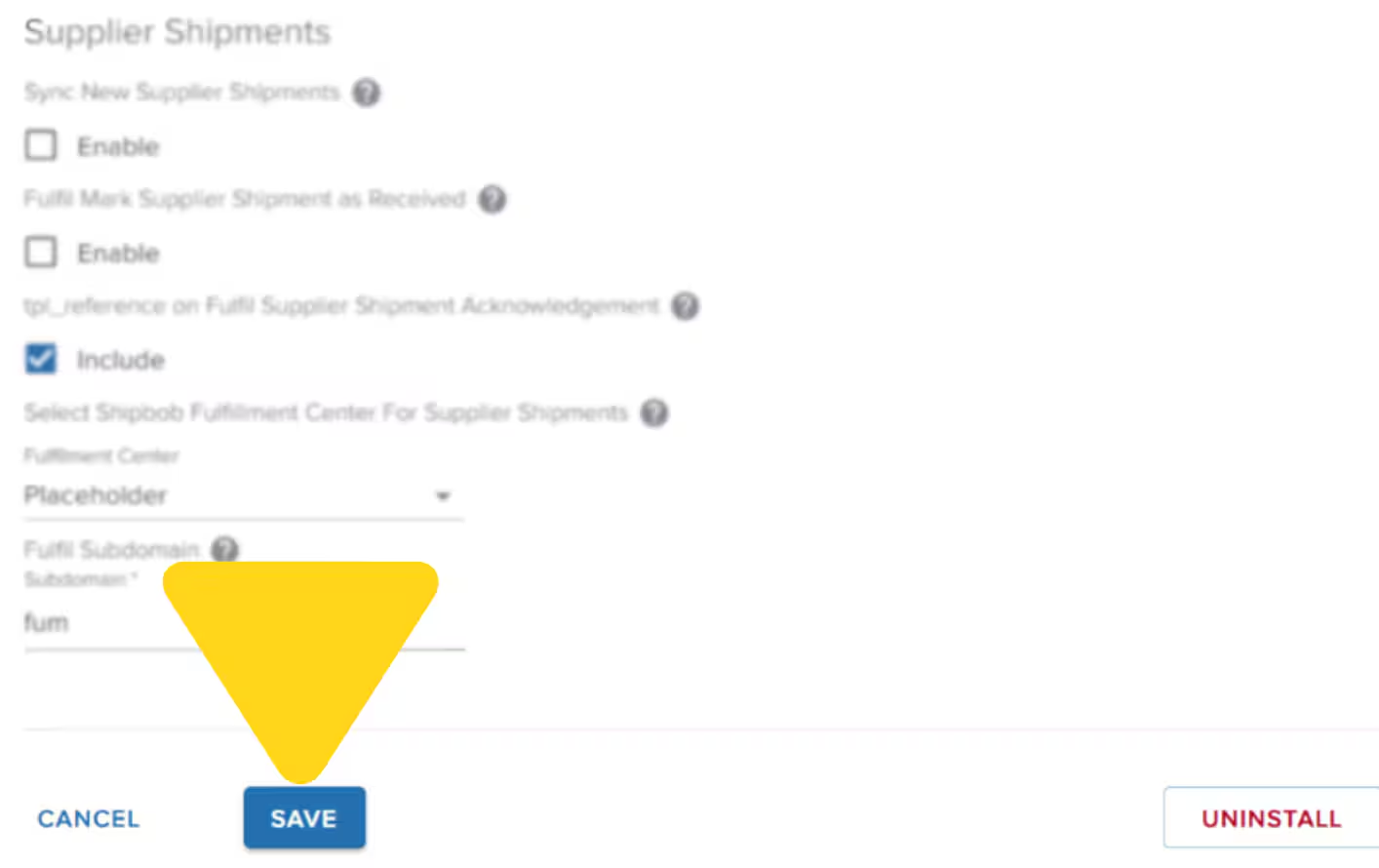
Under **Supplier Shipments**, complete the following fields and click **Save** to apply your changes:
| Setting | What It Controls |
| -------------------------------------------------------------- | ------------------------------------------------------------------------------------------------------------------------------------------- |
| **Sync New Supplier Shipments** | Enable this feature to allow Fulfil.io supplier shipments to import into Jetpack as WROs for inbound inventory. |
| **Fulfil Mark Supplier Shipments as Received** | Enable Jetpack to mark supplier shipments as Received in Fulfil.io once the WRO is completed. |
| **tpl\_reference on Fulfil Supplier Shipment Acknowledgement** | Enable the sync of the Jetpack WRO ID (tpl\_reference) back to Fulfil.io, allowing easy identification of the associated WRO. |
| **Select Fulfillment Center** | Choose the appropriate Jetpack fulfillment center for the WRO from the dropdown. (Keep in mind the hub process when making this selection.) |
| **Subdomain** | Enter the Fulfil.io subdomain used for API requests. |
***
## Import B2B Orders from Fulfil.io
For Jetpack to import B2B orders, the customer shipment record must have one of the following service\_codes:
| Service Code | Description |
| --------------------------- | ----------------------------------------------------------------------------------------------------------------------------------------------------------- |
| **3pl-b2b-parcel** | Use this service\_code to create the B2B order as a Jetpack parcel shipment (Jetpack will purchase shipping labels and charge your account accordingly). |
| **3pl-b2b-parcel-prepaid** | Use this service\_code to create the B2B order as a prepaid parcel shipment (you will upload prepaid shipping labels to ship the order). |
| **3pl-b2b-freight** | Use this service\_code to create the B2B order as a Jetpack Freight shipment (Jetpack will arrange the freight pickup and charge your account accordingly). |
| **3pl-b2b-freight-prepaid** | Use this service\_code to create the B2B order as a prepaid freight shipment (you will arrange freight pickup). |
Learn more about [creating manual B2B orders](/fulfillment/b2b/creating-manual-b2b-orders).
***
## Uninstalling the Fulfil.io Integration
If you need to disconnect your Fulfil.io integration:
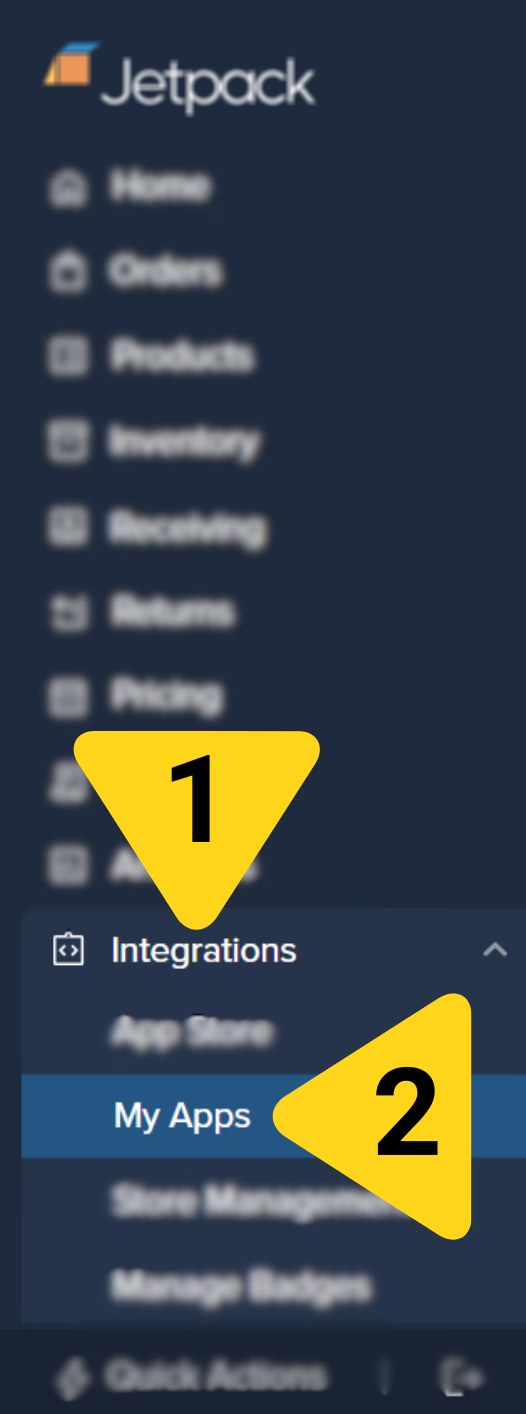
From the Jetpack dashboard, click **Integrations** on the left-hand navigation bar, then select **My Apps** to view your active integrations.
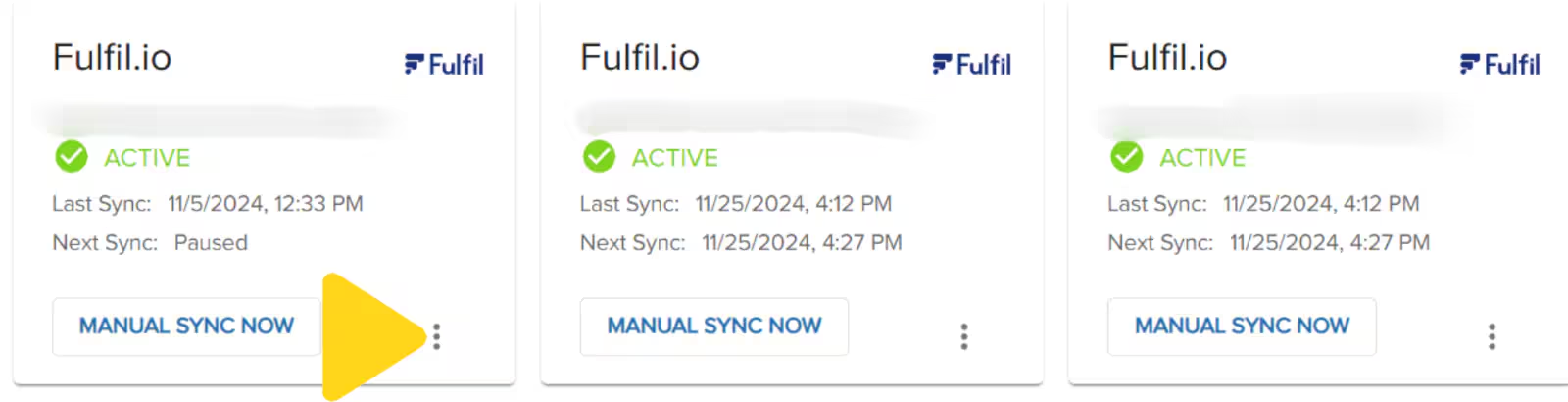
 Locate your Fulfil.io integration and click the three vertical dots.
 Select **Connections Settings** from the dropdown menu.
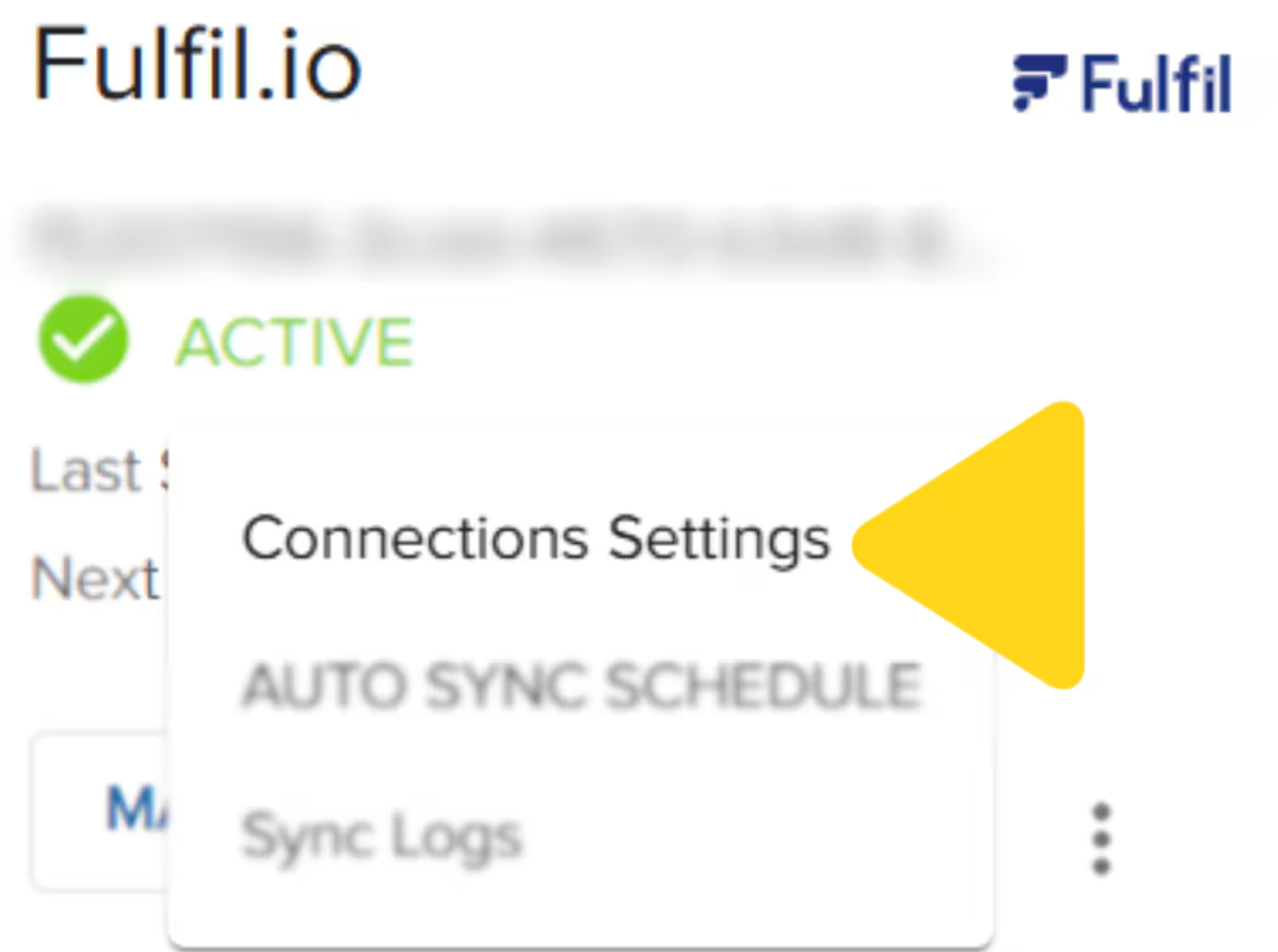 Click **UNINSTALL** located at the bottom right of the page. This will remove the Fulfil.io integration.
***
## Let's Dive Deeper
Back to the main integrations guide
Learn about managing integrations
Send inventory to Jetpack
Explore B2B fulfillment options
Another ERP integration option
View and manage your orders
Click **UNINSTALL** located at the bottom right of the page. This will remove the Fulfil.io integration.
***
## Let's Dive Deeper
Back to the main integrations guide
Learn about managing integrations
Send inventory to Jetpack
Explore B2B fulfillment options
Another ERP integration option
View and manage your orders

Questions? Contact Jetpack Care.
If you have any questions or run into issues, you can always contact Jetpack Care for help. Our team is always here to assist via Slack, phone, or email!