> ## Documentation Index
> Fetch the complete documentation index at: https://help.jetpack3pl.com/llms.txt
> Use this file to discover all available pages before exploring further.
# Alloy
> Build customized workflows between your ecommerce store, Jetpack, and marketing tools using Alloy's no-code automation platform.
The Alloy + Jetpack integration empowers you to build customized workflows between your ecommerce store (Shopify, BigCommerce, etc.), marketing tools (Tone Messaging, Mailchimp), and more. If you're dealing with manual processes that consume too much time, Alloy can automate these tasks efficiently.

About ShipBob Integration References
During setup, you'll authorize the "ShipBob" integration in Alloy. This is expected—Jetpack has licensed ShipBob's integration infrastructure to provide reliable connections. Your data flows seamlessly to your Jetpack dashboard.
## Alloy Key Features
 Alloy connects with all the top ecommerce tools, enabling you to integrate without writing any code. The platform offers built-in integrations, a user-friendly drag-and-drop workflow builder, and robust customization options.
| Feature | Description |
| ---------------------------------- | ----------------------------------------------------------------------------------------------------------------------------------------------------------------------------- |
| **Built-in Integrations** | Alloy connects with all the top ecommerce tools, enabling you to integrate without writing any code |
| **Drag-and-Drop Workflow Builder** | Create custom workflows in as little as 5 minutes using a simple interface. If you need help, white glove support and an online forum are available |
| **Full Customization** | Utilize built-in tools to filter data, split into conditional (true/false) paths, and trigger actions like sending emails or texts, all designed to automate repetitive tasks |
***
## Setting Up Your Alloy Integration
From the Jetpack dashboard:
Access the Apps & Integrations section from your Jetpack dashboard.
Find the Alloy integration in the available apps list.
A 7-day free trial is available.
Alloy connects with all the top ecommerce tools, enabling you to integrate without writing any code. The platform offers built-in integrations, a user-friendly drag-and-drop workflow builder, and robust customization options.
| Feature | Description |
| ---------------------------------- | ----------------------------------------------------------------------------------------------------------------------------------------------------------------------------- |
| **Built-in Integrations** | Alloy connects with all the top ecommerce tools, enabling you to integrate without writing any code |
| **Drag-and-Drop Workflow Builder** | Create custom workflows in as little as 5 minutes using a simple interface. If you need help, white glove support and an online forum are available |
| **Full Customization** | Utilize built-in tools to filter data, split into conditional (true/false) paths, and trigger actions like sending emails or texts, all designed to automate repetitive tasks |
***
## Setting Up Your Alloy Integration
From the Jetpack dashboard:
Access the Apps & Integrations section from your Jetpack dashboard.
Find the Alloy integration in the available apps list.
A 7-day free trial is available.
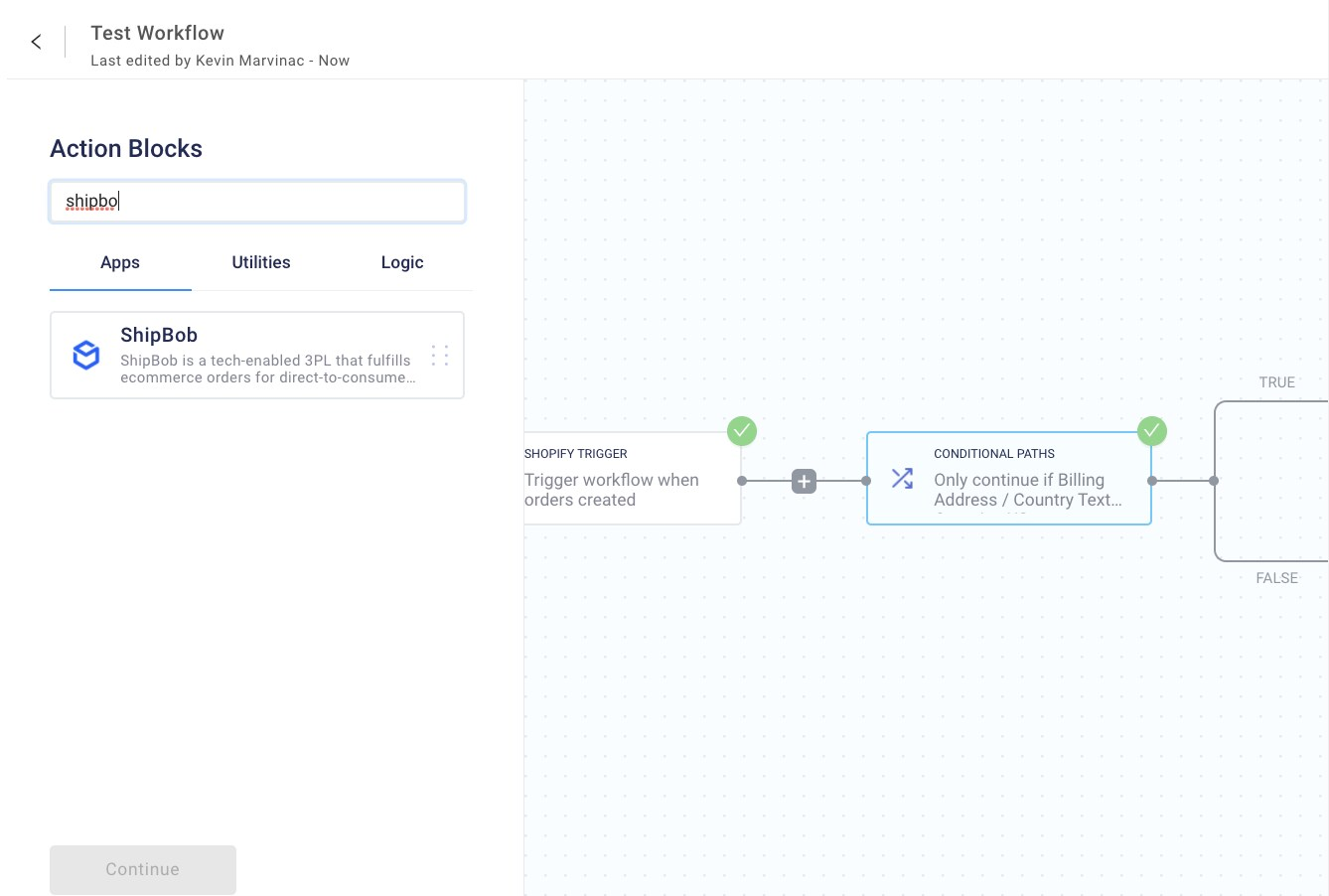 Use the search function to locate the ShipBob app integration.
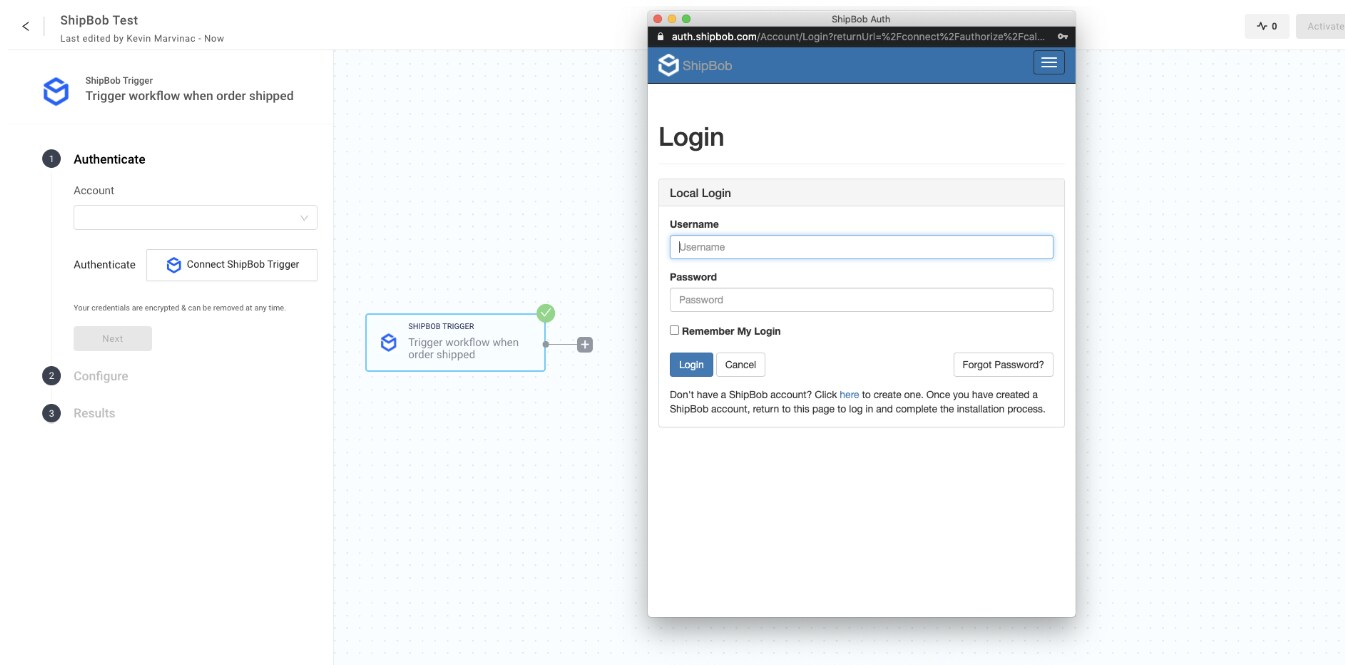 A pop-up will appear, prompting you to log in and grant Alloy permission to access your data.
***
## How to Use Alloy
Alloy workflows are built using four key components:
### Triggers
These are events that start a workflow (e.g., "order is shipped").
### Action Blocks
These perform subsequent actions such as retrieving data ("find the shipment status"), creating orders, or applying logic ("ignore orders from Canada").
### Logic
Customize your workflow by splitting paths based on specific criteria or iterating over multiple items.
### Utilities
Prebuilt functions include converting data to PDF, performing simple calculations, and sending emails or SMS messages.
For more information, watch the [video demonstration and explore additional workflow ideas](http://help.runalloy.com/en/articles/4616920-shipbob-integration?utm_source=shipbob\&utm_medium=web\&utm_campaign=alloy-shipbob-partnership\&utm_content=app-store) provided by the Alloy team.
***
## Support & Troubleshooting
This app is maintained by the Alloy team. For support-related inquiries or troubleshooting assistance, please [refer to this page](https://docs.runalloy.com/integrations/shipbob-integration) or contact the Alloy team directly.
***
## Let's Dive Deeper
Back to the main integrations guide
Learn about integration types and management
Another automation platform for connecting your tools
Connect your ecommerce platform
Learn about order import methods
View and manage your orders
A pop-up will appear, prompting you to log in and grant Alloy permission to access your data.
***
## How to Use Alloy
Alloy workflows are built using four key components:
### Triggers
These are events that start a workflow (e.g., "order is shipped").
### Action Blocks
These perform subsequent actions such as retrieving data ("find the shipment status"), creating orders, or applying logic ("ignore orders from Canada").
### Logic
Customize your workflow by splitting paths based on specific criteria or iterating over multiple items.
### Utilities
Prebuilt functions include converting data to PDF, performing simple calculations, and sending emails or SMS messages.
For more information, watch the [video demonstration and explore additional workflow ideas](http://help.runalloy.com/en/articles/4616920-shipbob-integration?utm_source=shipbob\&utm_medium=web\&utm_campaign=alloy-shipbob-partnership\&utm_content=app-store) provided by the Alloy team.
***
## Support & Troubleshooting
This app is maintained by the Alloy team. For support-related inquiries or troubleshooting assistance, please [refer to this page](https://docs.runalloy.com/integrations/shipbob-integration) or contact the Alloy team directly.
***
## Let's Dive Deeper
Back to the main integrations guide
Learn about integration types and management
Another automation platform for connecting your tools
Connect your ecommerce platform
Learn about order import methods
View and manage your orders

Questions? Contact Jetpack Care.
If you have any questions or run into issues, you can always contact Jetpack Care for help. Our team is always here to assist via Slack, phone, or email!