> ## Documentation Index
> Fetch the complete documentation index at: https://help.jetpack3pl.com/llms.txt
> Use this file to discover all available pages before exploring further.
# TikTok Shop Integration
> Configure TikTok Shop with Jetpack using Seller Shipping via third-party middleware to automatically import and fulfill orders.
Connecting TikTok Shop to Jetpack using Seller Shipping enables you to fulfill orders directly through your Jetpack fulfillment centers. TikTok Shop offers an in-app shopping experience that lets you sell products directly on TikTok. This integration requires a third-party middleware provider to connect TikTok Shop with your Jetpack dashboard, allowing you to import orders, sync tracking information, and meet TikTok's strict shipping requirements.

About ShipBob Integration References
During setup, you'll configure ship option mapping in your Jetpack dashboard. Jetpack has licensed ShipBob's integration infrastructure to provide reliable connections through middleware partners.
***
## Prerequisites
Before setting up TikTok Shop with Jetpack, ensure you have:
* **Active TikTok Shop account** (US or UK)
* **Products that comply with TikTok's product guidelines**
* **Jetpack merchant account** with login credentials
* **Third-party middleware provider** (such as Aftership or Pipe17)
### Requirements to Sell on TikTok Shop Using Seller Shipping
Please review TikTok's product guidelines to ensure you can sell on TikTok Shop:
* [Products unsupported by TikTok](https://seller-uk.tiktok.com/university/essay?knowledge_id=7753822475077378)
* [Products prohibited by TikTok](https://seller-uk.tiktok.com/university/essay?knowledge_id=7753844603979521)
### Regional Requirements
**Applicable for the US:**
* Orders must ship within the US (excluding Puerto Rico, Guam, the Northern Mariana Islands, American Samoa, and Minor Outlying Islands)
* Review [TikTok Shop's US Seller Registration Guidelines](https://seller-us.tiktok.com/university/essay?knowledge_id=6837894379964161)
**Applicable for the UK:**
* Orders must ship within the UK
* Review [TikTok's UK Seller Registration Guidelines](https://seller-uk.tiktok.com/university/essay?knowledge_id=7753847099606786)
***
## How the Integration Works
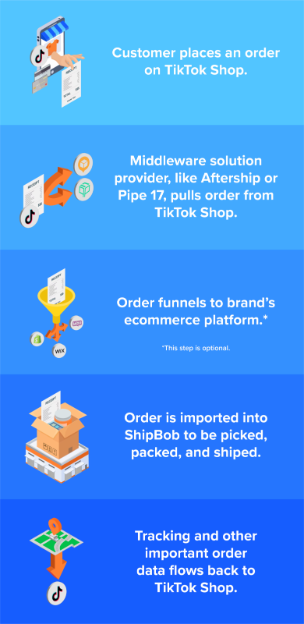
TikTok Shop connects to Jetpack through a middleware provider that acts as a bridge between the two platforms. Orders placed on TikTok Shop flow through the middleware to your Jetpack dashboard, where they're automatically imported for fulfillment. After Jetpack ships the order, tracking information flows back to TikTok Shop through the same middleware connection.
 ***
## Step 1: Register for TikTok Shop
Register for [TikTok Shop US](https://seller-us-accounts.tiktok.com/account/register?channel=shipbob) or [TikTok Shop UK](https://seller-uk-accounts.tiktok.com/account/register?channel=shipbob).
After registration, expect an update from TikTok within 3–5 business days.
If you do not hear back within the 3–5 business day timeframe, [contact the TikTok team](https://seller-us.tiktok.com/contact-us).
***
## Step 2: Integrate TikTok Shop with Jetpack via Middleware
Jetpack does not have a direct integration with TikTok for Seller Shipping. You must use a third-party middleware provider to connect to TikTok Shop (e.g., Aftership or Pipe17).
Set up your account with a middleware provider (Aftership, Pipe17, etc.) and connect the middleware to your TikTok Shop account.
From your Jetpack dashboard:
1. Click **Integrations** on the left-hand navigation bar
2. Select **App Store**
3. Locate your middleware provider's integration
4. Follow the middleware provider's setup instructions to connect with Jetpack
After integrating the middleware provider with Jetpack, you can import your TikTok Shop order and product data directly into Jetpack.
Email [partnerships@shipbob.com](mailto:partnerships@shipbob.com) for an introduction to middleware partners or for additional questions about using a middleware provider to integrate TikTok Shop and Jetpack.
***
## Step 3: Add Your Product Catalog to TikTok Shop
You can either create products directly in TikTok Shop Seller Center or import them via your middleware integration.
### Adding Products Individually in TikTok Seller Center
From TikTok Seller Center:
***
## Step 1: Register for TikTok Shop
Register for [TikTok Shop US](https://seller-us-accounts.tiktok.com/account/register?channel=shipbob) or [TikTok Shop UK](https://seller-uk-accounts.tiktok.com/account/register?channel=shipbob).
After registration, expect an update from TikTok within 3–5 business days.
If you do not hear back within the 3–5 business day timeframe, [contact the TikTok team](https://seller-us.tiktok.com/contact-us).
***
## Step 2: Integrate TikTok Shop with Jetpack via Middleware
Jetpack does not have a direct integration with TikTok for Seller Shipping. You must use a third-party middleware provider to connect to TikTok Shop (e.g., Aftership or Pipe17).
Set up your account with a middleware provider (Aftership, Pipe17, etc.) and connect the middleware to your TikTok Shop account.
From your Jetpack dashboard:
1. Click **Integrations** on the left-hand navigation bar
2. Select **App Store**
3. Locate your middleware provider's integration
4. Follow the middleware provider's setup instructions to connect with Jetpack
After integrating the middleware provider with Jetpack, you can import your TikTok Shop order and product data directly into Jetpack.
Email [partnerships@shipbob.com](mailto:partnerships@shipbob.com) for an introduction to middleware partners or for additional questions about using a middleware provider to integrate TikTok Shop and Jetpack.
***
## Step 3: Add Your Product Catalog to TikTok Shop
You can either create products directly in TikTok Shop Seller Center or import them via your middleware integration.
### Adding Products Individually in TikTok Seller Center
From TikTok Seller Center:
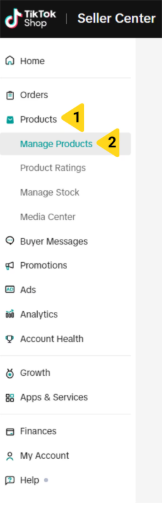
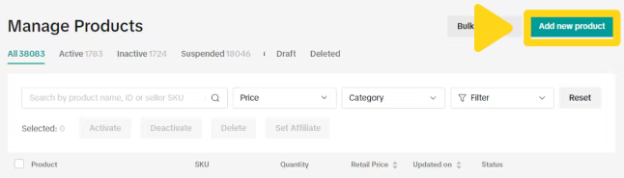 Fill in all product information including title, description, images, pricing, and inventory.
[Learn more about adding products in TikTok Seller Center](https://seller-us.tiktok.com/university/essay?knowledge_id=6581713858676522).
To import products via an integration, please refer to the initial setup guide provided by your middleware provider.
***
## Step 4: Configure Shipment Templates in TikTok Shop
TikTok Shop only supports flat-rate shipping costs. You'll need to create shipping templates that define your shipping rates and delivery options.
From TikTok Shop Seller Center:
Fill in all product information including title, description, images, pricing, and inventory.
[Learn more about adding products in TikTok Seller Center](https://seller-us.tiktok.com/university/essay?knowledge_id=6581713858676522).
To import products via an integration, please refer to the initial setup guide provided by your middleware provider.
***
## Step 4: Configure Shipment Templates in TikTok Shop
TikTok Shop only supports flat-rate shipping costs. You'll need to create shipping templates that define your shipping rates and delivery options.
From TikTok Shop Seller Center:
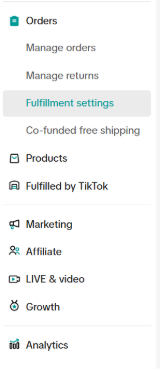
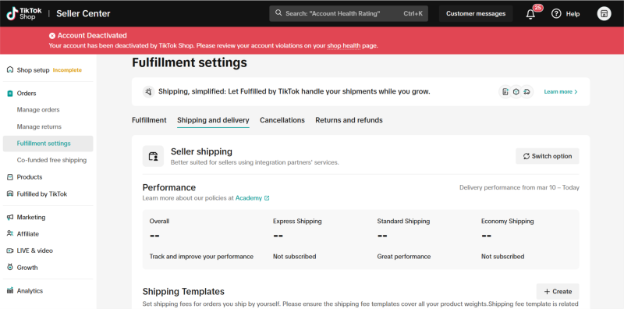 Please ensure this matches the information in your account under [Warehouse Settings](https://seller-us.tiktok.com/university/essay?knowledge_id=1047661675677441).
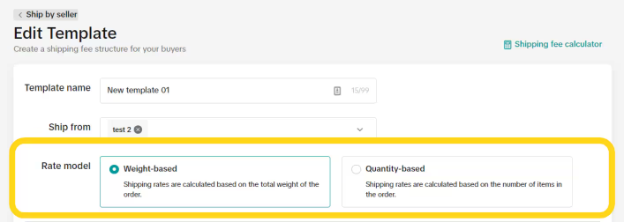 * **Weight-based:** Shipping rates based on total order weight
* **Quantity-based:** Shipping rates based on the number of products
* **Weight-based:** Shipping rates based on total order weight
* **Quantity-based:** Shipping rates based on the number of products
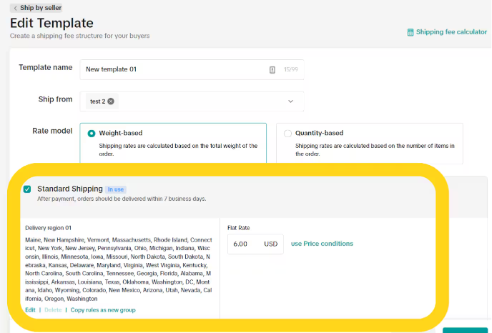 1. Check the box for **Standard Shipping** and enter the desired flat rate
2. Optionally configure **Express Shipping** and/or **Economy Shipping** with their flat rates
You can create [subcategories for groups of states](https://seller-us.tiktok.com/university/essay?knowledge_id=6837882170099457) to offer different shipping rates by region.
***
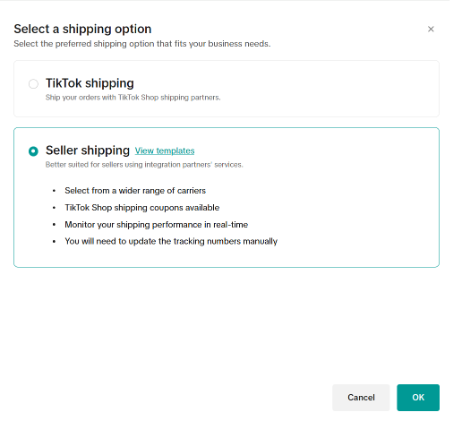
## Step 5: Configure Seller Shipping Fulfillment Settings
Seller Shipping must be enabled before listing your products on TikTok Shop.
Do not select TikTok Shipping. Selecting TikTok Shipping will import orders with redacted customer details into Jetpack, making them ineligible for fulfillment by Jetpack. If an order is created with TikTok Shipping, you must either fulfill it yourself or cancel and have it recreated after enabling Seller Shipping.
To configure Seller Shipping fulfillment settings, navigate to TikTok Shop Seller Center:
1. Check the box for **Standard Shipping** and enter the desired flat rate
2. Optionally configure **Express Shipping** and/or **Economy Shipping** with their flat rates
You can create [subcategories for groups of states](https://seller-us.tiktok.com/university/essay?knowledge_id=6837882170099457) to offer different shipping rates by region.
***
## Step 5: Configure Seller Shipping Fulfillment Settings
Seller Shipping must be enabled before listing your products on TikTok Shop.
Do not select TikTok Shipping. Selecting TikTok Shipping will import orders with redacted customer details into Jetpack, making them ineligible for fulfillment by Jetpack. If an order is created with TikTok Shipping, you must either fulfill it yourself or cancel and have it recreated after enabling Seller Shipping.
To configure Seller Shipping fulfillment settings, navigate to TikTok Shop Seller Center:
 ***
## Step 6: Configure Ship Options in Jetpack
After configuring TikTok Shop settings, you must map TikTok's shipping methods to Jetpack ship options to ensure orders are fulfilled with the correct carrier services.
From your Jetpack dashboard:
***
## Step 6: Configure Ship Options in Jetpack
After configuring TikTok Shop settings, you must map TikTok's shipping methods to Jetpack ship options to ensure orders are fulfilled with the correct carrier services.
From your Jetpack dashboard:
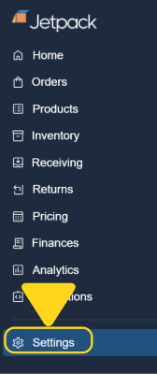 Additional menu options will appear.
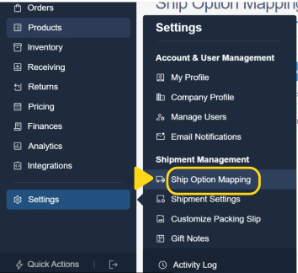
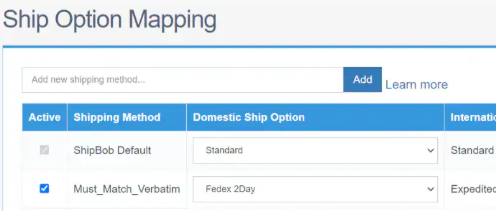 Enter one of the following exactly as shown:
* Seller Shipping: Standard Shipping
* Seller Shipping: Economy Shipping
* Seller Shipping: Express Shipping
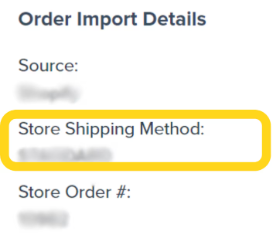
To confirm the exact shipping method name, import a test order and review the **Store Shipping Method** field in the order details.
Enter one of the following exactly as shown:
* Seller Shipping: Standard Shipping
* Seller Shipping: Economy Shipping
* Seller Shipping: Express Shipping
To confirm the exact shipping method name, import a test order and review the **Store Shipping Method** field in the order details.
 Add all the shipping methods you have enabled for TikTok Shop.
**For Standard & Economy Shipping:**
* Select **TikTok FBM US Standard** (a TikTok-specific shipping option that excludes unsupported carriers CLD and UDS)
* Do not map TikTok Standard Shipping to ShipBob's default Standard ship option
* To request TikTok FBM US Standard, please use Slack or email
**For Express Shipping:**
* Map to **ShipBob 2-Day Express** or another express carrier service
* Avoid carriers CLD and UDS
You will receive a success message confirming your changes.
Unsupported carrier tracking information (e.g., from CDL and UDS) may not sync properly, which could affect compliance with TikTok's requirements.
Remember to cancel the test order in your Jetpack dashboard after verifying the integration to avoid fulfillment charges.
Learn more about [configuring default carriers with ship option mapping](/fulfillment/account-setup/shipping-preferences/choosing-default-carriers).
***
## Step 7: Tagging TikTok Orders Imported from Other Platforms
TikTok Shop requires orders to be shipped within 2 business days. To ensure priority fulfillment, you must tag your TikTok orders before they are imported into Jetpack.
### Required Tags (Use Exactly as Shown)
Tag your TikTok orders with one of the following tags (verbatim) before they are imported into Jetpack:
* **TikTok-FBM**
* **TikTok Shop**
* **TikTok FBM**
### Why Tagging is Important
Without proper tagging, orders imported via Jetpack's Developer API, Shopify, or middleware will show a default Source (API or Shopify) and may not be prioritized for TikTok's 2-day shipping requirement.
Use any supported tagging application (e.g., Shopify Flow) to add the tags at the order level. [Learn more about using tags in Shopify](https://help.shopify.com/en/manual/shopify-admin/productivity-tools/using-tags).
### If Orders Appear with Incorrect Source
**If orders appear with a Source other than TikTok:** Update the tags accordingly.
**If you update the tag of orders that are already imported to Jetpack:** You must clean sweep and reimport the affected order(s). [Learn more about clean sweep and reimport](https://support.shipbob.com/s/article/Clean-Sweep-Orders).
***
## Step 8: Start Selling on TikTok Shop
After completing all configuration steps, you can start selling on TikTok Shop.
TikTok requires consistent investment in content creation and marketing to drive sales. Jetpack partners with several TikTok marketing agencies to boost conversions. For more information, reach out to [partnerships@shipbob.com](mailto:partnerships@shipbob.com).
***
## TikTok Shop Integration FAQs
**Seller Shipping** allows you to fulfill orders through your own fulfillment partner (Jetpack) and provides full customer shipping details. This is the required option for Jetpack fulfillment.
**TikTok Shipping** is TikTok's own fulfillment service that redacts customer information, making orders ineligible for Jetpack fulfillment. Always select Seller Shipping when configuring your TikTok Shop.
TikTok Shop's Seller Shipping model requires a middleware provider to connect with third-party fulfillment platforms like Jetpack. Middleware providers like Aftership and Pipe17 specialize in managing these connections and ensure reliable data flow between platforms.
TikTok FBM US Standard is a TikTok-specific shipping option configured by Jetpack that excludes carriers CLD and UDS, which are not supported by TikTok Shop. This ship option ensures your orders ship with carriers that provide tracking information compatible with TikTok's requirements.
To request TikTok FBM US Standard, use Slack or email.
TikTok Shop requires orders to be shipped within 2 business days of being placed. This is why proper order tagging is critical—it ensures Jetpack prioritizes TikTok orders for fast fulfillment.
Yes, TikTok Shop only supports flat-rate shipping costs. You configure these flat rates when creating shipping templates in TikTok Seller Center. You can create different rates for Standard, Express, and Economy shipping, and you can create subcategories for different groups of states if needed.
If an order is created with TikTok Shipping, it will be imported with redacted customer details, making it ineligible for fulfillment by Jetpack. You must either fulfill it yourself or cancel the order and have it recreated after enabling Seller Shipping.
Create a test order in TikTok Shop and wait for it to import to Jetpack (typically within 15 minutes). Check the order details in your Jetpack dashboard to confirm the Store Shipping Method field matches what you configured in Ship Option Mapping. Also verify the order is assigned to the correct carrier service.
Remember to cancel the test order after verification to avoid fulfillment charges.
Avoid using carriers CLD and UDS for TikTok Shop orders. These carriers' tracking information may not sync properly with TikTok Shop, which could affect compliance with TikTok's requirements and impact your seller performance metrics.
***
## Let's Dive Deeper
Back to the main integrations guide
Set up your product catalog
Understand how orders flow into Jetpack
Configure shipping method mappings
Third-party integrations overview
Track and manage your orders
Add all the shipping methods you have enabled for TikTok Shop.
**For Standard & Economy Shipping:**
* Select **TikTok FBM US Standard** (a TikTok-specific shipping option that excludes unsupported carriers CLD and UDS)
* Do not map TikTok Standard Shipping to ShipBob's default Standard ship option
* To request TikTok FBM US Standard, please use Slack or email
**For Express Shipping:**
* Map to **ShipBob 2-Day Express** or another express carrier service
* Avoid carriers CLD and UDS
You will receive a success message confirming your changes.
Unsupported carrier tracking information (e.g., from CDL and UDS) may not sync properly, which could affect compliance with TikTok's requirements.
Remember to cancel the test order in your Jetpack dashboard after verifying the integration to avoid fulfillment charges.
Learn more about [configuring default carriers with ship option mapping](/fulfillment/account-setup/shipping-preferences/choosing-default-carriers).
***
## Step 7: Tagging TikTok Orders Imported from Other Platforms
TikTok Shop requires orders to be shipped within 2 business days. To ensure priority fulfillment, you must tag your TikTok orders before they are imported into Jetpack.
### Required Tags (Use Exactly as Shown)
Tag your TikTok orders with one of the following tags (verbatim) before they are imported into Jetpack:
* **TikTok-FBM**
* **TikTok Shop**
* **TikTok FBM**
### Why Tagging is Important
Without proper tagging, orders imported via Jetpack's Developer API, Shopify, or middleware will show a default Source (API or Shopify) and may not be prioritized for TikTok's 2-day shipping requirement.
Use any supported tagging application (e.g., Shopify Flow) to add the tags at the order level. [Learn more about using tags in Shopify](https://help.shopify.com/en/manual/shopify-admin/productivity-tools/using-tags).
### If Orders Appear with Incorrect Source
**If orders appear with a Source other than TikTok:** Update the tags accordingly.
**If you update the tag of orders that are already imported to Jetpack:** You must clean sweep and reimport the affected order(s). [Learn more about clean sweep and reimport](https://support.shipbob.com/s/article/Clean-Sweep-Orders).
***
## Step 8: Start Selling on TikTok Shop
After completing all configuration steps, you can start selling on TikTok Shop.
TikTok requires consistent investment in content creation and marketing to drive sales. Jetpack partners with several TikTok marketing agencies to boost conversions. For more information, reach out to [partnerships@shipbob.com](mailto:partnerships@shipbob.com).
***
## TikTok Shop Integration FAQs
**Seller Shipping** allows you to fulfill orders through your own fulfillment partner (Jetpack) and provides full customer shipping details. This is the required option for Jetpack fulfillment.
**TikTok Shipping** is TikTok's own fulfillment service that redacts customer information, making orders ineligible for Jetpack fulfillment. Always select Seller Shipping when configuring your TikTok Shop.
TikTok Shop's Seller Shipping model requires a middleware provider to connect with third-party fulfillment platforms like Jetpack. Middleware providers like Aftership and Pipe17 specialize in managing these connections and ensure reliable data flow between platforms.
TikTok FBM US Standard is a TikTok-specific shipping option configured by Jetpack that excludes carriers CLD and UDS, which are not supported by TikTok Shop. This ship option ensures your orders ship with carriers that provide tracking information compatible with TikTok's requirements.
To request TikTok FBM US Standard, use Slack or email.
TikTok Shop requires orders to be shipped within 2 business days of being placed. This is why proper order tagging is critical—it ensures Jetpack prioritizes TikTok orders for fast fulfillment.
Yes, TikTok Shop only supports flat-rate shipping costs. You configure these flat rates when creating shipping templates in TikTok Seller Center. You can create different rates for Standard, Express, and Economy shipping, and you can create subcategories for different groups of states if needed.
If an order is created with TikTok Shipping, it will be imported with redacted customer details, making it ineligible for fulfillment by Jetpack. You must either fulfill it yourself or cancel the order and have it recreated after enabling Seller Shipping.
Create a test order in TikTok Shop and wait for it to import to Jetpack (typically within 15 minutes). Check the order details in your Jetpack dashboard to confirm the Store Shipping Method field matches what you configured in Ship Option Mapping. Also verify the order is assigned to the correct carrier service.
Remember to cancel the test order after verification to avoid fulfillment charges.
Avoid using carriers CLD and UDS for TikTok Shop orders. These carriers' tracking information may not sync properly with TikTok Shop, which could affect compliance with TikTok's requirements and impact your seller performance metrics.
***
## Let's Dive Deeper
Back to the main integrations guide
Set up your product catalog
Understand how orders flow into Jetpack
Configure shipping method mappings
Third-party integrations overview
Track and manage your orders

Questions? Contact Jetpack Care.
If you have any questions or run into issues, you can always contact Jetpack Care for help. Our team is always here to assist via Slack, phone, or email!