> ## Documentation Index
> Fetch the complete documentation index at: https://help.jetpack3pl.com/llms.txt
> Use this file to discover all available pages before exploring further.
# Squarespace Integration
> Connect your Squarespace Commerce store to Jetpack for automatic product syncing, order importing, and real-time inventory management.
Integrating your Squarespace Commerce store with Jetpack streamlines your fulfillment operations by automatically syncing products, importing orders, and updating inventory levels. This guide walks you through the complete setup process and explains all the features available with the Squarespace integration.

About ShipBob Integration References
During setup, you'll authorize the "ShipBob" integration in your Squarespace account. This is expected—Jetpack has licensed ShipBob's integration infrastructure to provide reliable connections. Your data flows seamlessly to your Jetpack dashboard.
***
## Prerequisites
Before connecting your Squarespace store to Jetpack, ensure you have:
* **Active Squarespace website** with Commerce enabled
* **Jetpack merchant account** with login credentials and access to your dashboard
***
## Installing the Squarespace Integration
Follow these steps to connect your Squarespace Commerce store from your Jetpack dashboard:
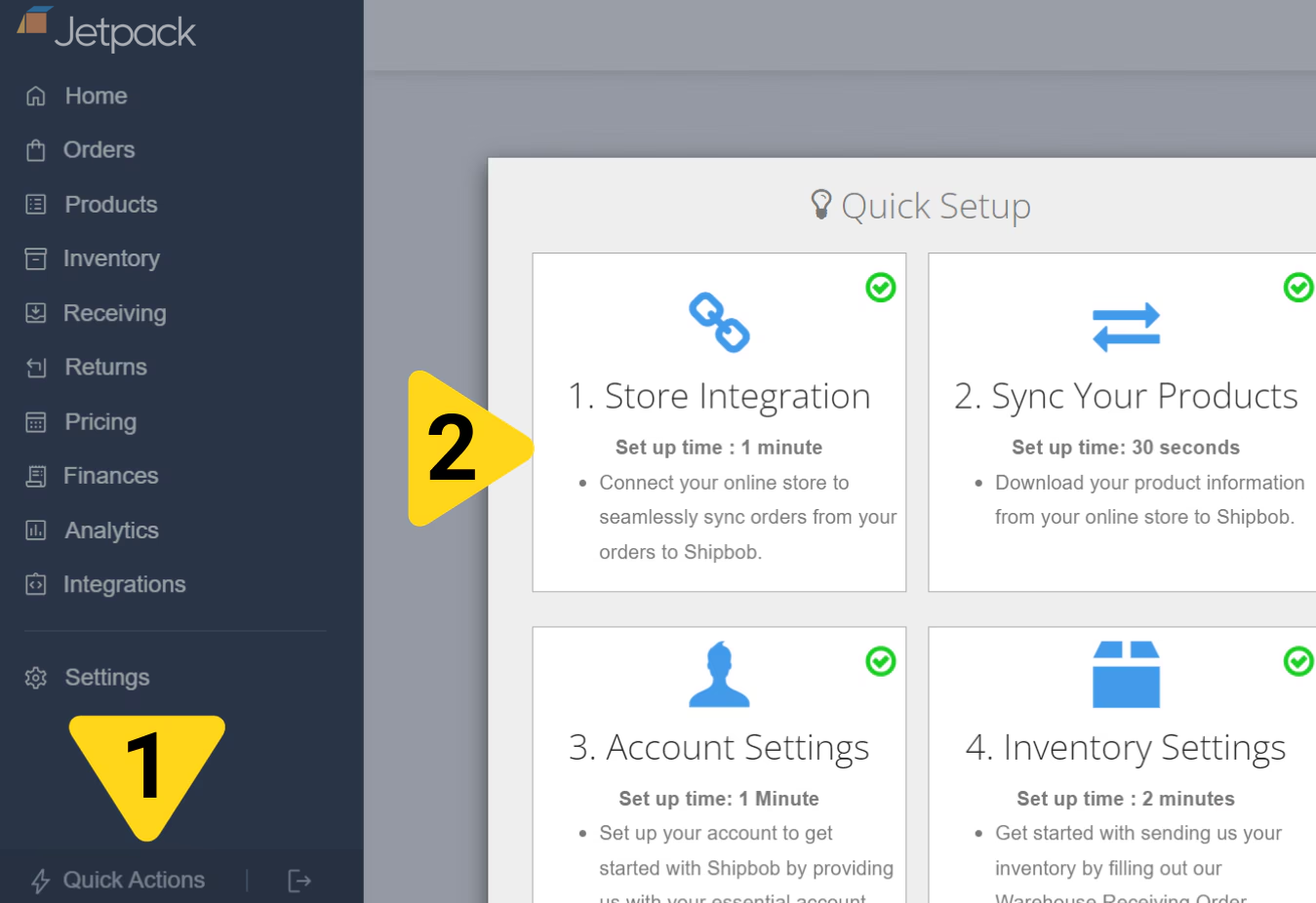
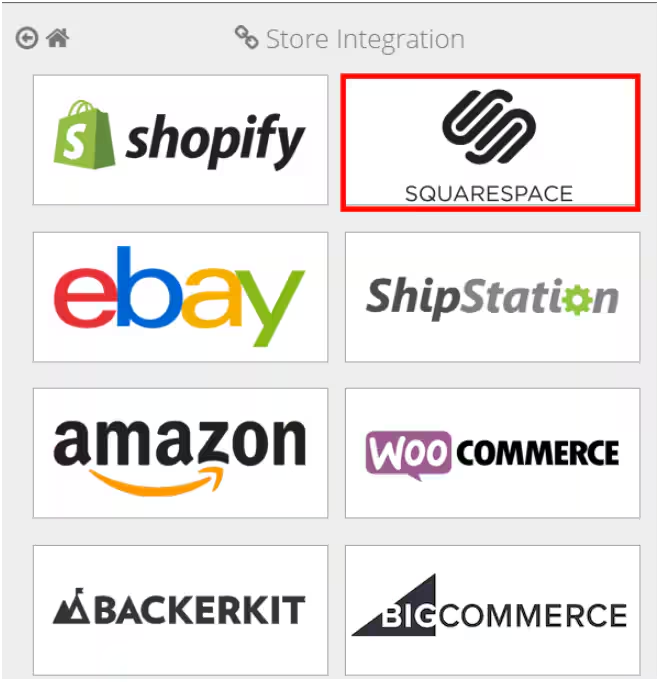
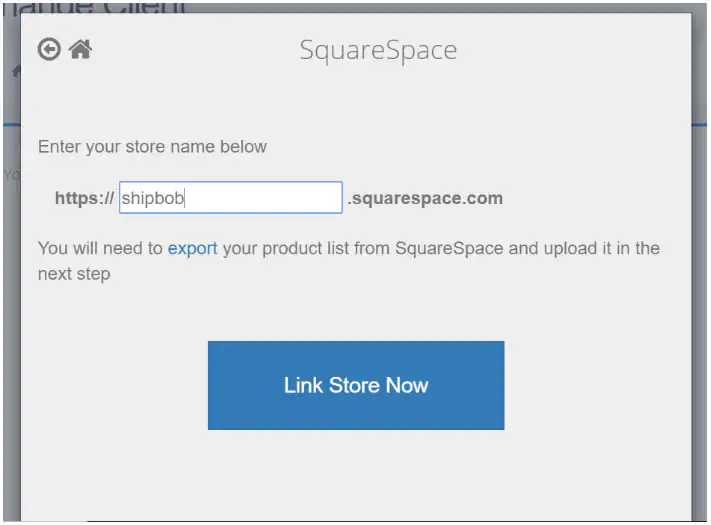 Type your store name in the field. The format will be `https://[your-store-name].squarespace.com`.
You will need to export your product list from Squarespace and upload it in the next step of the onboarding process.
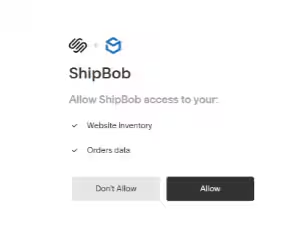
You'll be redirected to Squarespace to authorize the connection.
Squarespace will show the permissions needed:
* Website Inventory
* Orders data
Type your store name in the field. The format will be `https://[your-store-name].squarespace.com`.
You will need to export your product list from Squarespace and upload it in the next step of the onboarding process.
You'll be redirected to Squarespace to authorize the connection.
Squarespace will show the permissions needed:
* Website Inventory
* Orders data
 You'll be redirected back to your Jetpack dashboard, and your Squarespace integration will be active.
Once the connection is established, Jetpack immediately begins syncing your products and orders.
***
## What Syncs Automatically
After connecting your Squarespace store, Jetpack automatically handles product syncing, order importing, inventory updates, and fulfillment notifications.
### Product Syncing
When you connect Squarespace to Jetpack, you have the option to sync existing products from your store to the Jetpack Product Catalog. This ensures your fulfillment operations have access to complete product information needed for accurate order processing.
**What syncs:**
* Product name, SKU, weight, and dimensions (if provided in Squarespace)
* Product images for easy identification in the dashboard
* Product variants (each variant syncs as a separate product in Jetpack)
**Sync timing:** Products sync immediately when created or updated in Squarespace. After the initial setup, you can sync products at any time using Quick Actions in your Jetpack dashboard.
**Auto-sync from orders:** Orders containing products not yet synced to the Jetpack dashboard will automatically create those products when the order is imported.
You'll be redirected back to your Jetpack dashboard, and your Squarespace integration will be active.
Once the connection is established, Jetpack immediately begins syncing your products and orders.
***
## What Syncs Automatically
After connecting your Squarespace store, Jetpack automatically handles product syncing, order importing, inventory updates, and fulfillment notifications.
### Product Syncing
When you connect Squarespace to Jetpack, you have the option to sync existing products from your store to the Jetpack Product Catalog. This ensures your fulfillment operations have access to complete product information needed for accurate order processing.
**What syncs:**
* Product name, SKU, weight, and dimensions (if provided in Squarespace)
* Product images for easy identification in the dashboard
* Product variants (each variant syncs as a separate product in Jetpack)
**Sync timing:** Products sync immediately when created or updated in Squarespace. After the initial setup, you can sync products at any time using Quick Actions in your Jetpack dashboard.
**Auto-sync from orders:** Orders containing products not yet synced to the Jetpack dashboard will automatically create those products when the order is imported.
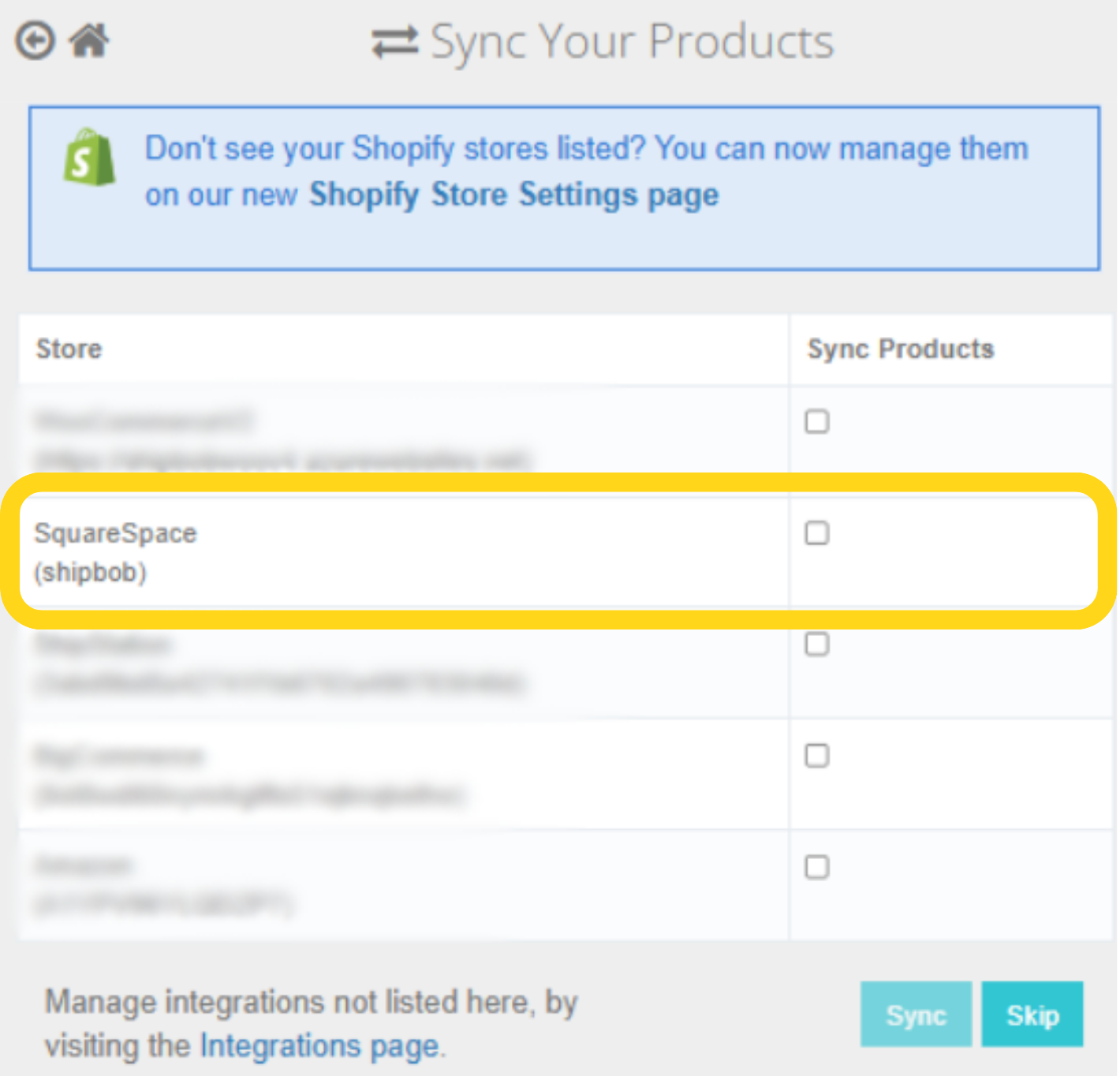 For more information about managing synced products, see [Syncing Products](/fulfillment/managing-products/syncing-products).
### Product Variants
Squarespace product variants (such as size, color, or other options) sync to Jetpack automatically. At Jetpack, each variant is treated as its own product:
* Each variant syncs as a separate SKU in Jetpack
* Variant options are appended to the product name in Jetpack's Product Catalog (e.g., "Hat - Blue", "Hat - Red")
* Inventory is tracked separately for each variant
This ensures that customers receive the exact variant they ordered and that inventory levels remain accurate for each option.
Once you've synced products with Jetpack, do not change or edit SKUs in Squarespace. The SKU is the unique identifier Jetpack uses to match products. Changing it will cause Jetpack to create a new product instead of updating the existing one, leading to inventory discrepancies.
### Order Importing
Orders placed in your Squarespace store are imported to Jetpack for fulfillment within 15 minutes. Only orders with "Paid" and "Pending" status are imported.
**What syncs:**
* Customer name and shipping address
* Products and quantities ordered
* Shipping method selected at checkout
* Order notes
* Order number (mapped to Jetpack Reference ID)
**What doesn't sync:**
* Unpaid orders
* Canceled orders
* Orders already marked as fulfilled in Squarespace
**Import methods:**
* **Manual sync:** Click **Sync Orders** on the Orders page to manually import orders at any time
* **Auto sync:** Enable automatic order syncing during initial setup to import orders every hour
**Order lookback period:** Jetpack saves and displays order data for the past 120 days for Squarespace integrations.
For more information, see [Importing Orders](/fulfillment/account-setup/importing-orders).
### Inventory Syncing
Jetpack syncs available inventory levels back to Squarespace in near real-time, ensuring your store always reflects accurate stock counts. This prevents overselling and helps maintain customer satisfaction by displaying correct product availability.
**Sync triggers:**
* Receiving new inventory at Jetpack fulfillment centers
* Fulfilling orders
* Processing inventory adjustments
* Restocking returned items
**Sync frequency:** Near real-time, typically within 15 minutes of any inventory change.
**How inventory syncs:** Jetpack updates the "Quantity" field in Squarespace for each product, reflecting the total available inventory across all Jetpack fulfillment centers.
If you manually adjust inventory quantities in Squarespace, Jetpack's next inventory sync will overwrite your manual adjustment. All inventory changes should be made in your Jetpack dashboard to ensure accuracy and prevent discrepancies.
### Tracking Numbers and Fulfillment
When Jetpack ships an order from a fulfillment center, the integration automatically updates Squarespace with tracking information and marks the order complete:
* Tracking number syncs to the order in Squarespace
* Order status updates to "Fulfilled"
* Squarespace sends a fulfillment notification email to your customer with the tracking link
* Tracking updates become visible in Squarespace admin and the customer's order history
**Tracking details synced:**
* Carrier name
* Tracking number
* Tracking URL
**Split shipments:** If an order ships from multiple Jetpack fulfillment centers or in multiple packages, each shipment is updated in Squarespace separately with its own tracking number, and customers receive separate notifications for each shipment.
***
## Configuring Ship Option Mapping
Before Jetpack can fulfill your Squarespace orders, you must map your Squarespace shipping options to Jetpack ship options. This ensures that the shipping method your customer selects at checkout matches the corresponding fulfillment service in your Jetpack dashboard.
**To configure ship option mapping:**
1. Navigate to **Settings > Ship Option Mapping** in your Jetpack dashboard
2. Locate your Squarespace shipping methods in the list
3. For each method, select the corresponding Jetpack ship option from the dropdown (e.g., ShipBob Standard, ShipBob 2-Day Express, ShipBob Overnight)
4. Mark the method as **Active**
5. Click **Save Mapping**
Orders cannot be fulfilled until you complete ship option mapping. Any orders imported before mapping is configured will be placed on hold until you map the shipping methods.
Learn more about [configuring default carriers with ship option mapping](/fulfillment/account-setup/shipping-preferences/choosing-default-carriers).
***
## Verifying Your Integration
After installation and configuration, create a test order to verify the integration is working correctly:
1. Place a test order in your Squarespace Commerce store
2. Wait up to 15 minutes for the order to sync
3. Check your Jetpack Orders page to confirm the order appears
4. Verify the order details match your Squarespace order
After confirming your integration works, cancel the test order in your Jetpack dashboard to avoid fulfillment charges.
***
## Advanced Features and Capabilities
### Gift Messages and Order Notes
The Squarespace integration supports both order notes and gift messages, ensuring special customer requests are fulfilled accurately.
**Order Notes**: Sync from Squarespace to Jetpack automatically and are visible in the order details. Fulfillment center staff can view these notes during order processing.
**Gift Messages**: Contact Jetpack Care if you need gift messages to appear on packing slips included with orders.
### Automation Rules
Jetpack supports automation rules for Squarespace orders. Rules are recurring, automated procedures that help provide a smooth fulfillment process. For example, you can create rules to automatically apply specific fulfillment behaviors based on order characteristics.
For more information, see [Automation Rules](/fulfillment/rules-customization-kitting/automation-rules).
### Multiple Squarespace Sites
You can connect multiple Squarespace sites to a single Jetpack account. Each site must be connected separately through the Store Integration process, and each will have its own ship option mapping configuration.
### Product Images
When you sync products to Jetpack, product images are imported automatically (if they exist in Squarespace). This only happens for new products imported using the sync products feature, making it easier to identify items in your Jetpack dashboard.
***
## Squarespace Integration FAQs
Orders are imported to Jetpack within 15 minutes of being placed in your Squarespace store. Only orders with "Paid" and "Pending" status are imported—unpaid, canceled, or already-fulfilled orders are not imported.
You can also manually sync orders at any time by clicking **Sync Orders** on the Orders page in your Jetpack dashboard.
When Jetpack ships an order, the integration automatically updates the order status to "Fulfilled" in Squarespace and adds the tracking number. Squarespace then sends a fulfillment notification email to your customer with the tracking link.
Inventory levels sync from Jetpack to Squarespace in near real-time, typically within 15 minutes of any inventory change, including receiving, fulfillment, adjustments, and returns processing.
Yes, you can connect multiple Squarespace sites to a single Jetpack account. Each site must be connected separately through the Store Integration process, and each will have its own ship option mapping configuration.
If a product is out of stock at Jetpack when an order is placed, the order will be placed on hold in the Jetpack dashboard until inventory is received. Jetpack does not prevent customers from ordering out-of-stock items in Squarespace—you must manage available inventory quantities in your Squarespace admin.
Each Squarespace product variant syncs to Jetpack as a separate product with its own SKU. Variant options (like size or color) are appended to the product name in Jetpack's Product Catalog (e.g., "Hat - Blue", "Hat - Red"), and inventory is tracked separately for each variant.
Gift message functionality requires configuration by Jetpack Care. Contact Jetpack Care if you need gift messages from Squarespace orders to appear on packing slips.
Yes, contact Jetpack Care to disable automatic inventory syncing. However, you'll need to manually update Squarespace inventory levels to reflect accurate stock quantities if syncing is disabled.
The SKU is the unique identifier Jetpack uses to match products between Squarespace and your Jetpack dashboard. If you change a SKU in Squarespace after syncing, Jetpack will not be able to identify the product correctly and will create a new product in the system, leading to inventory discrepancies and fulfillment issues.
Orders containing products that haven't been synced to the Jetpack dashboard will automatically create those products in your Product Catalog when the order is imported. This ensures orders can be fulfilled even if you haven't manually synced all products.
***
## Reinstalling Squarespace (Updating Your Token)
If you need to refresh your Squarespace integration token or reconnect your store, follow these steps:
Then select **Store Management**.
On the Store Management page, find your Squarespace store in the list.
Type the same store name you used during initial setup.
You'll be redirected to your Squarespace Extensions panel.
Then click **DISCONNECT SHIPBOB**.
Navigate back until you reach the integration setup page.
Click **Allow** to complete the token refresh.
Your Squarespace integration token is now refreshed, and your store will resume syncing with Jetpack.
***
## Let's Dive Deeper
Back to the main integrations guide
Learn how product syncing works
Configure shipping method mappings
Configure your Product Catalog after syncing
Understand order import methods
Set up automated fulfillment workflows
For more information about managing synced products, see [Syncing Products](/fulfillment/managing-products/syncing-products).
### Product Variants
Squarespace product variants (such as size, color, or other options) sync to Jetpack automatically. At Jetpack, each variant is treated as its own product:
* Each variant syncs as a separate SKU in Jetpack
* Variant options are appended to the product name in Jetpack's Product Catalog (e.g., "Hat - Blue", "Hat - Red")
* Inventory is tracked separately for each variant
This ensures that customers receive the exact variant they ordered and that inventory levels remain accurate for each option.
Once you've synced products with Jetpack, do not change or edit SKUs in Squarespace. The SKU is the unique identifier Jetpack uses to match products. Changing it will cause Jetpack to create a new product instead of updating the existing one, leading to inventory discrepancies.
### Order Importing
Orders placed in your Squarespace store are imported to Jetpack for fulfillment within 15 minutes. Only orders with "Paid" and "Pending" status are imported.
**What syncs:**
* Customer name and shipping address
* Products and quantities ordered
* Shipping method selected at checkout
* Order notes
* Order number (mapped to Jetpack Reference ID)
**What doesn't sync:**
* Unpaid orders
* Canceled orders
* Orders already marked as fulfilled in Squarespace
**Import methods:**
* **Manual sync:** Click **Sync Orders** on the Orders page to manually import orders at any time
* **Auto sync:** Enable automatic order syncing during initial setup to import orders every hour
**Order lookback period:** Jetpack saves and displays order data for the past 120 days for Squarespace integrations.
For more information, see [Importing Orders](/fulfillment/account-setup/importing-orders).
### Inventory Syncing
Jetpack syncs available inventory levels back to Squarespace in near real-time, ensuring your store always reflects accurate stock counts. This prevents overselling and helps maintain customer satisfaction by displaying correct product availability.
**Sync triggers:**
* Receiving new inventory at Jetpack fulfillment centers
* Fulfilling orders
* Processing inventory adjustments
* Restocking returned items
**Sync frequency:** Near real-time, typically within 15 minutes of any inventory change.
**How inventory syncs:** Jetpack updates the "Quantity" field in Squarespace for each product, reflecting the total available inventory across all Jetpack fulfillment centers.
If you manually adjust inventory quantities in Squarespace, Jetpack's next inventory sync will overwrite your manual adjustment. All inventory changes should be made in your Jetpack dashboard to ensure accuracy and prevent discrepancies.
### Tracking Numbers and Fulfillment
When Jetpack ships an order from a fulfillment center, the integration automatically updates Squarespace with tracking information and marks the order complete:
* Tracking number syncs to the order in Squarespace
* Order status updates to "Fulfilled"
* Squarespace sends a fulfillment notification email to your customer with the tracking link
* Tracking updates become visible in Squarespace admin and the customer's order history
**Tracking details synced:**
* Carrier name
* Tracking number
* Tracking URL
**Split shipments:** If an order ships from multiple Jetpack fulfillment centers or in multiple packages, each shipment is updated in Squarespace separately with its own tracking number, and customers receive separate notifications for each shipment.
***
## Configuring Ship Option Mapping
Before Jetpack can fulfill your Squarespace orders, you must map your Squarespace shipping options to Jetpack ship options. This ensures that the shipping method your customer selects at checkout matches the corresponding fulfillment service in your Jetpack dashboard.
**To configure ship option mapping:**
1. Navigate to **Settings > Ship Option Mapping** in your Jetpack dashboard
2. Locate your Squarespace shipping methods in the list
3. For each method, select the corresponding Jetpack ship option from the dropdown (e.g., ShipBob Standard, ShipBob 2-Day Express, ShipBob Overnight)
4. Mark the method as **Active**
5. Click **Save Mapping**
Orders cannot be fulfilled until you complete ship option mapping. Any orders imported before mapping is configured will be placed on hold until you map the shipping methods.
Learn more about [configuring default carriers with ship option mapping](/fulfillment/account-setup/shipping-preferences/choosing-default-carriers).
***
## Verifying Your Integration
After installation and configuration, create a test order to verify the integration is working correctly:
1. Place a test order in your Squarespace Commerce store
2. Wait up to 15 minutes for the order to sync
3. Check your Jetpack Orders page to confirm the order appears
4. Verify the order details match your Squarespace order
After confirming your integration works, cancel the test order in your Jetpack dashboard to avoid fulfillment charges.
***
## Advanced Features and Capabilities
### Gift Messages and Order Notes
The Squarespace integration supports both order notes and gift messages, ensuring special customer requests are fulfilled accurately.
**Order Notes**: Sync from Squarespace to Jetpack automatically and are visible in the order details. Fulfillment center staff can view these notes during order processing.
**Gift Messages**: Contact Jetpack Care if you need gift messages to appear on packing slips included with orders.
### Automation Rules
Jetpack supports automation rules for Squarespace orders. Rules are recurring, automated procedures that help provide a smooth fulfillment process. For example, you can create rules to automatically apply specific fulfillment behaviors based on order characteristics.
For more information, see [Automation Rules](/fulfillment/rules-customization-kitting/automation-rules).
### Multiple Squarespace Sites
You can connect multiple Squarespace sites to a single Jetpack account. Each site must be connected separately through the Store Integration process, and each will have its own ship option mapping configuration.
### Product Images
When you sync products to Jetpack, product images are imported automatically (if they exist in Squarespace). This only happens for new products imported using the sync products feature, making it easier to identify items in your Jetpack dashboard.
***
## Squarespace Integration FAQs
Orders are imported to Jetpack within 15 minutes of being placed in your Squarespace store. Only orders with "Paid" and "Pending" status are imported—unpaid, canceled, or already-fulfilled orders are not imported.
You can also manually sync orders at any time by clicking **Sync Orders** on the Orders page in your Jetpack dashboard.
When Jetpack ships an order, the integration automatically updates the order status to "Fulfilled" in Squarespace and adds the tracking number. Squarespace then sends a fulfillment notification email to your customer with the tracking link.
Inventory levels sync from Jetpack to Squarespace in near real-time, typically within 15 minutes of any inventory change, including receiving, fulfillment, adjustments, and returns processing.
Yes, you can connect multiple Squarespace sites to a single Jetpack account. Each site must be connected separately through the Store Integration process, and each will have its own ship option mapping configuration.
If a product is out of stock at Jetpack when an order is placed, the order will be placed on hold in the Jetpack dashboard until inventory is received. Jetpack does not prevent customers from ordering out-of-stock items in Squarespace—you must manage available inventory quantities in your Squarespace admin.
Each Squarespace product variant syncs to Jetpack as a separate product with its own SKU. Variant options (like size or color) are appended to the product name in Jetpack's Product Catalog (e.g., "Hat - Blue", "Hat - Red"), and inventory is tracked separately for each variant.
Gift message functionality requires configuration by Jetpack Care. Contact Jetpack Care if you need gift messages from Squarespace orders to appear on packing slips.
Yes, contact Jetpack Care to disable automatic inventory syncing. However, you'll need to manually update Squarespace inventory levels to reflect accurate stock quantities if syncing is disabled.
The SKU is the unique identifier Jetpack uses to match products between Squarespace and your Jetpack dashboard. If you change a SKU in Squarespace after syncing, Jetpack will not be able to identify the product correctly and will create a new product in the system, leading to inventory discrepancies and fulfillment issues.
Orders containing products that haven't been synced to the Jetpack dashboard will automatically create those products in your Product Catalog when the order is imported. This ensures orders can be fulfilled even if you haven't manually synced all products.
***
## Reinstalling Squarespace (Updating Your Token)
If you need to refresh your Squarespace integration token or reconnect your store, follow these steps:
Then select **Store Management**.
On the Store Management page, find your Squarespace store in the list.
Type the same store name you used during initial setup.
You'll be redirected to your Squarespace Extensions panel.
Then click **DISCONNECT SHIPBOB**.
Navigate back until you reach the integration setup page.
Click **Allow** to complete the token refresh.
Your Squarespace integration token is now refreshed, and your store will resume syncing with Jetpack.
***
## Let's Dive Deeper
Back to the main integrations guide
Learn how product syncing works
Configure shipping method mappings
Configure your Product Catalog after syncing
Understand order import methods
Set up automated fulfillment workflows

Questions? Contact Jetpack Care.
If you have any questions or run into issues during setup, you can always contact Jetpack Care for help. Our team is always here to assist via Slack, phone, or email!