> ## Documentation Index
> Fetch the complete documentation index at: https://help.jetpack3pl.com/llms.txt
> Use this file to discover all available pages before exploring further.
# Shopify via ShipStation
> Use ShipStation as middleware to connect your Shopify store to Jetpack while maintaining your existing workflow.
If you currently use ShipStation to manage your Shopify orders, you can integrate Jetpack with ShipStation to maintain your existing workflow while leveraging Jetpack's fulfillment services. This guide walks you through connecting the three platforms and configuring order forwarding rules.

About ShipBob Integration References
When using ShipStation as middleware, you'll see "ShipBob" references in both the ShipStation interface and Shopify App Store. This is expected—Jetpack has licensed ShipBob's integration infrastructure to provide reliable connections. Your data flows seamlessly to your Jetpack dashboard.
***
## How the Integration Works
Using ShipStation as middleware creates the following data flow:
1. **Orders placed in Shopify** → sync to ShipStation
2. **ShipStation** → forwards orders to Jetpack for fulfillment
3. **Jetpack fulfills orders** → sends tracking numbers back to ShipStation
4. **ShipStation** → updates Shopify with tracking information and fulfillment status
This architecture allows you to continue using ShipStation's order management features while outsourcing fulfillment to Jetpack.
***
## Prerequisites
Before setting up the integration, ensure you have:
* An active Shopify store
* An active ShipStation account
* A Jetpack merchant account
* Shopify already connected to ShipStation (orders syncing from Shopify to ShipStation)
***
## Connecting Jetpack to ShipStation
Follow these steps to establish the connection between your ShipStation account and Jetpack.
From your Jetpack dashboard, click **Quick Actions** in the left sidebar. The Quick Setup modal will appear with integration options.
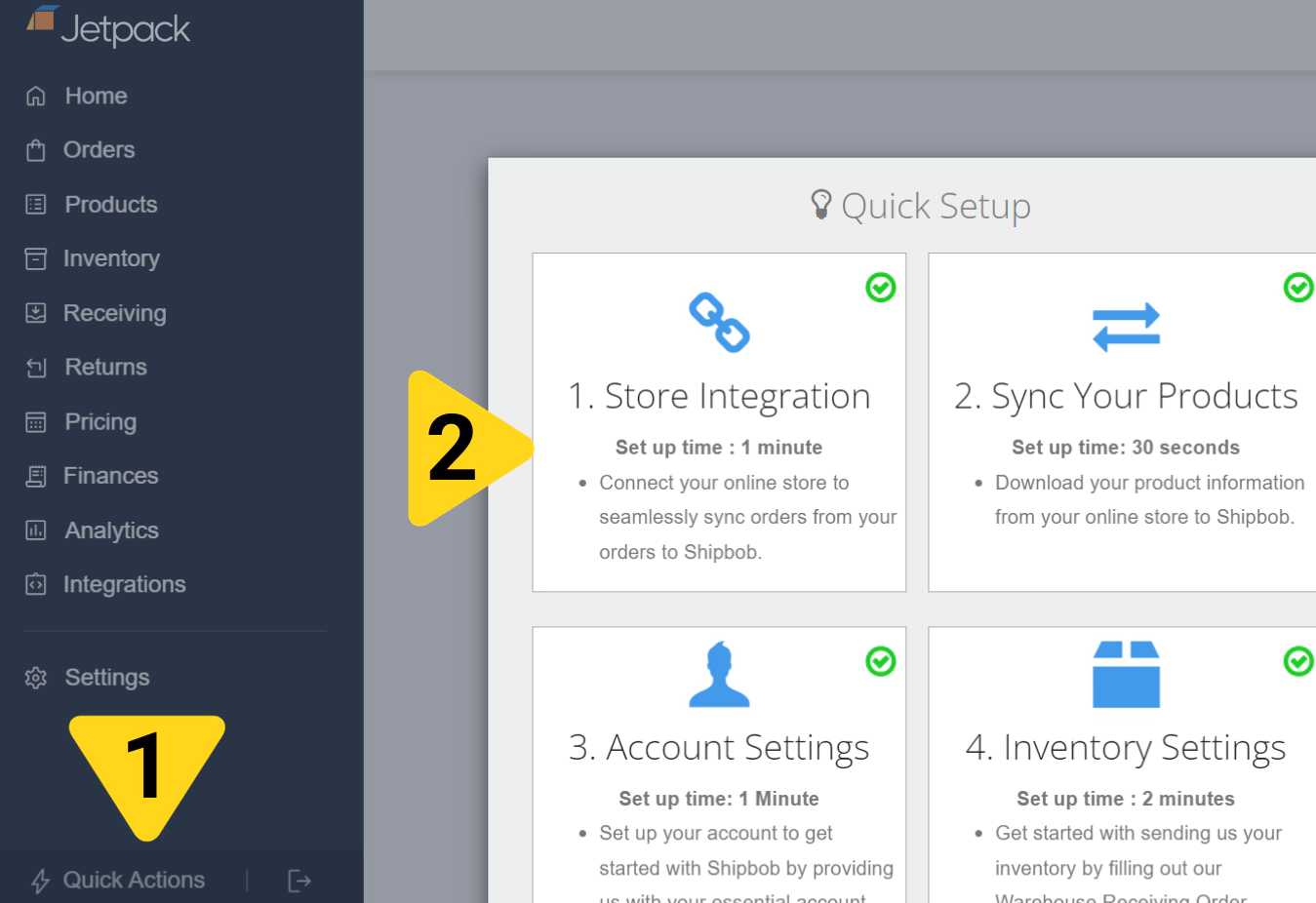 In the Quick Setup modal, click the **Store Integration** card. You'll be taken to the Store Integration page showing available integrations.
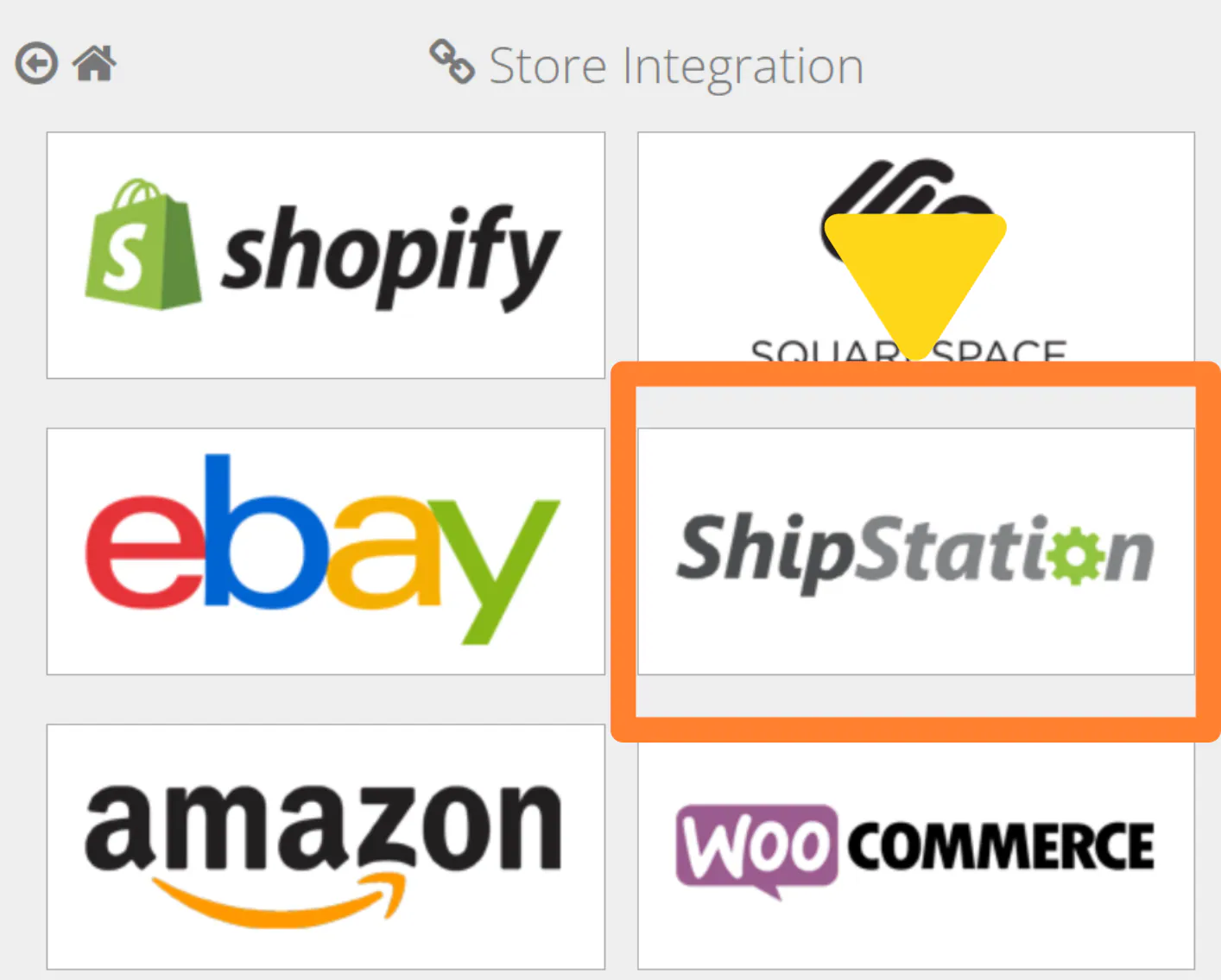 On the Store Integration page, locate and click the **ShipStation** tile. The ShipStation integration setup page will appear, prompting you to enter API credentials.
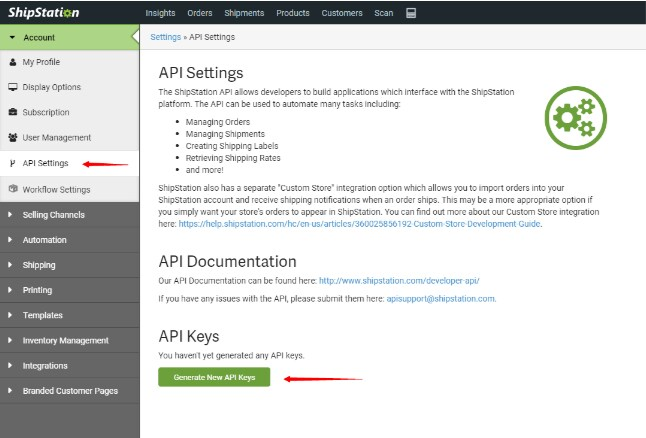
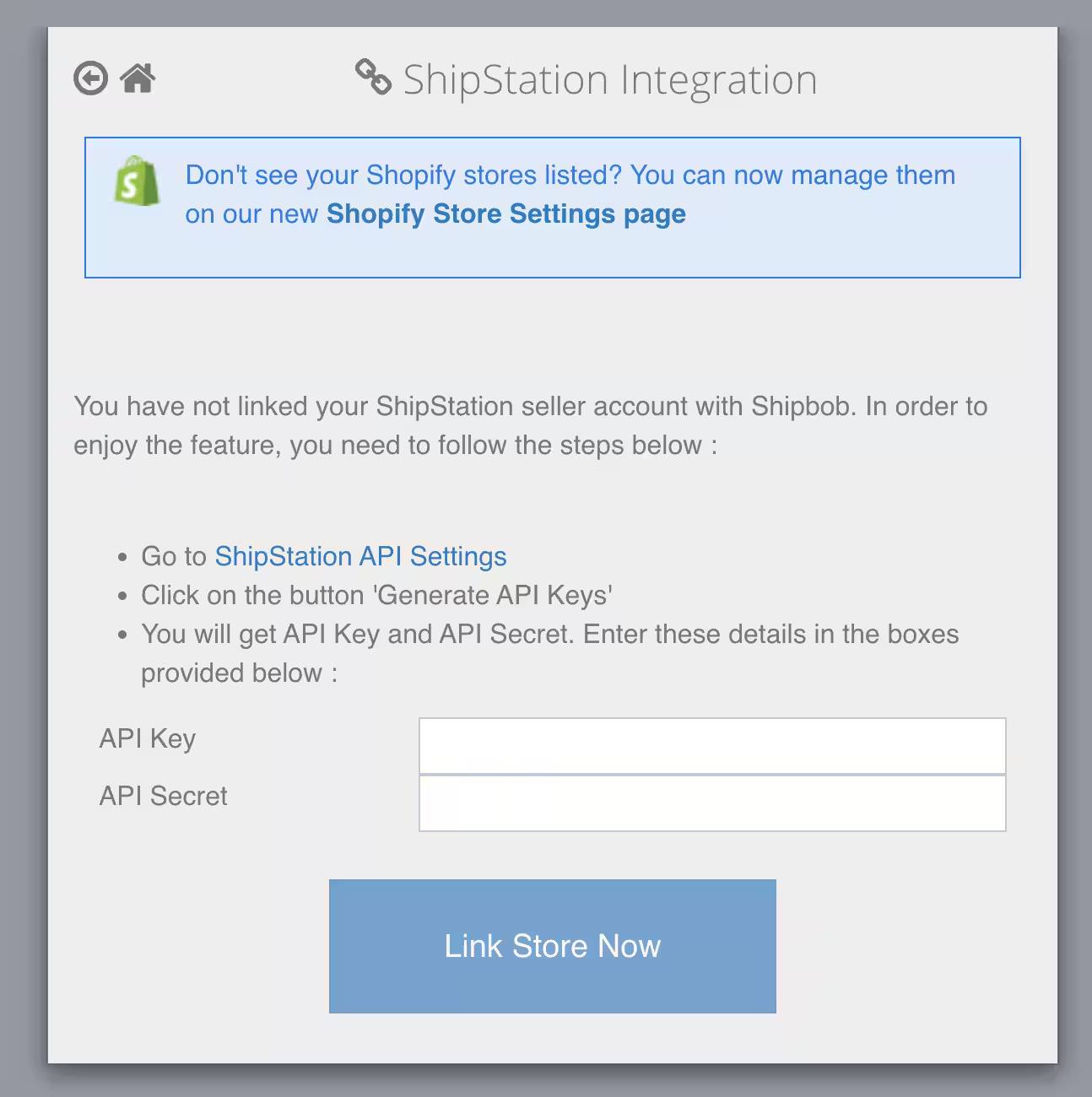 To obtain your API credentials, you'll need to generate them from your ShipStation account:
* In your ShipStation dashboard, navigate to **Account > API Settings**
* Click **Generate New API Keys**
* Copy the API Key and API Secret that are generated
To obtain your API credentials, you'll need to generate them from your ShipStation account:
* In your ShipStation dashboard, navigate to **Account > API Settings**
* Click **Generate New API Keys**
* Copy the API Key and API Secret that are generated
 Back in the Jetpack dashboard, paste the API Key and API Secret into the corresponding fields on the ShipStation integration page.
After entering your credentials, click the **Link Store Now** button. Jetpack will establish the connection to your ShipStation account, and you'll be redirected back to complete the integration setup.
Once connected, ShipStation can forward orders to Jetpack for fulfillment.
***
## Configuring Order Forwarding Rules
After connecting Jetpack to ShipStation, you need to create automation rules that forward your Shopify orders to Jetpack for fulfillment.
**In your ShipStation dashboard:**
1. Navigate to **Settings > Automation Rules**
2. Click **Create New Rule** or **Add Rule**
3. Configure the rule with the following settings:
* **Trigger:** Set to "Order is imported from Shopify"
* **Action:** Set to "Forward to ShipBob"
4. Save the rule
This automation ensures that every order imported from Shopify is automatically forwarded to Jetpack for fulfillment. You can create additional rules with conditions (e.g., forward only orders over a certain value, or only orders with specific products) if needed.
***
## Configuring Ship Option Mapping in Jetpack
Once orders are forwarded from ShipStation to Jetpack, you must map the ShipStation shipping methods to Jetpack ship options to ensure orders are fulfilled with the correct shipping service.
**In your Jetpack dashboard:**
1. Navigate to **Settings > Ship Option Mapping**
2. Locate your ShipStation shipping methods in the list
3. For each method, select the corresponding Jetpack ship option (e.g., ShipBob Standard, ShipBob 2-Day Express, ShipBob Overnight)
4. Mark each method as **Active**
5. Click **Save Mapping**
Orders cannot be fulfilled until ship option mapping is complete. Any orders forwarded from ShipStation before mapping is configured will be placed on hold in your Jetpack dashboard.
***
## How Inventory Syncing Works
Inventory syncing behaves differently when using ShipStation as middleware compared to a direct Shopify-to-Jetpack integration.
**Inventory Updates:**
* Jetpack syncs available inventory quantities **directly to Shopify** (not through ShipStation)
* ShipStation does not act as an intermediary for inventory data
* Inventory updates occur in near real-time, typically within 15 minutes of changes at Jetpack fulfillment centers
**Why this matters:**
* Your Shopify store always reflects accurate inventory levels from Jetpack
* ShipStation displays inventory data from Shopify, not directly from Jetpack
* You do not need to configure inventory syncing in ShipStation for Jetpack products
***
## Order Fulfillment Flow
When a customer places an order, the fulfillment process works as follows:
1. **Order is placed** in your Shopify store
2. **Order imports to ShipStation** via your Shopify integration
3. **ShipStation automation rule triggers** and forwards the order to Jetpack
4. **Jetpack fulfills the order** at a fulfillment center
5. **Tracking number is sent** from Jetpack back to ShipStation
6. **ShipStation marks the order as fulfilled** in Shopify and includes the tracking number
7. **Customer receives fulfillment notification** from Shopify with tracking information
***
## Important Considerations
### ShipStation Fees
You may incur additional fees from ShipStation for using their platform as middleware. Review ShipStation's pricing to understand costs associated with order volume and integrations.
### Order Editing
Orders forwarded to Jetpack can only be edited within the Jetpack dashboard before they are picked and packed. Changes made in ShipStation after an order is forwarded will not update the order in Jetpack.
### Returns Processing
Returns must be processed in Jetpack and manually updated in Shopify. ShipStation does not automatically handle returns for orders fulfilled by Jetpack. Consider using a returns management integration like Loop Returns or AfterShip Returns to automate the returns process.
### Direct Integration Alternative
If you do not need ShipStation's order management features, consider connecting Shopify directly to Jetpack instead. A direct integration simplifies your tech stack and eliminates ShipStation fees. See the [Shopify Integration Guide](/fulfillment/account-setup/integrating-store/shopify) for setup instructions.
***
## Troubleshooting Common Issues
### Orders Not Forwarding to Jetpack
**Check the following:**
* Verify the automation rule is active in ShipStation
* Confirm the trigger condition matches your Shopify orders (e.g., "Order is imported from Shopify")
* Ensure the action is set to "Forward to ShipBob"
* Check that the ShipBob integration is still authorized in ShipStation
### Orders Stuck on Hold in Jetpack
**Possible causes:**
* Ship option mapping is not configured or incomplete
* Products are out of stock at Jetpack
* Order address is invalid or incomplete
**To resolve:**
* Complete ship option mapping in your Jetpack dashboard
* Verify inventory is available for the products in the order
* Review the order details in Jetpack for validation errors
### Tracking Numbers Not Syncing to Shopify
**Check the following:**
* Verify ShipStation's connection to Shopify is active
* Confirm ShipStation's Shopify integration settings allow order updates
* Check that Jetpack successfully sent the tracking number to ShipStation
***
## ShipStation Integration FAQs
No, you should use one method or the other. Using both simultaneously will create duplicate orders in Jetpack. Choose either:
* **ShipStation as middleware:** Shopify → ShipStation → Jetpack
* **Direct integration:** Shopify → Jetpack
The direct integration is simpler and eliminates ShipStation fees, but using ShipStation provides additional order management features.
No, Jetpack syncs inventory directly to Shopify, bypassing ShipStation. ShipStation displays inventory levels from Shopify, not directly from Jetpack. This ensures your Shopify store always has accurate, real-time inventory data.
Yes, you can create conditional automation rules in ShipStation to forward only orders that meet specific criteria (e.g., orders over a certain value, orders containing specific products, or orders shipping to certain regions). Configure these conditions when creating your automation rule in ShipStation.
Yes, Jetpack's standard fulfillment fees apply to all orders fulfilled by Jetpack, regardless of whether they are forwarded from ShipStation or imported directly from Shopify. Additionally, you may incur ShipStation fees for using their platform.
Changes made in ShipStation after an order is forwarded will not update the order in Jetpack. If you need to edit an order, make changes in the Jetpack dashboard before the order is picked and packed.
***
## Let's Dive Deeper
Back to the main integrations guide
Connect Shopify directly to Jetpack
Learn more about mapping shipping methods
Configure your Product Catalog
Track and manage your orders
Third-party integrations overview
Back in the Jetpack dashboard, paste the API Key and API Secret into the corresponding fields on the ShipStation integration page.
After entering your credentials, click the **Link Store Now** button. Jetpack will establish the connection to your ShipStation account, and you'll be redirected back to complete the integration setup.
Once connected, ShipStation can forward orders to Jetpack for fulfillment.
***
## Configuring Order Forwarding Rules
After connecting Jetpack to ShipStation, you need to create automation rules that forward your Shopify orders to Jetpack for fulfillment.
**In your ShipStation dashboard:**
1. Navigate to **Settings > Automation Rules**
2. Click **Create New Rule** or **Add Rule**
3. Configure the rule with the following settings:
* **Trigger:** Set to "Order is imported from Shopify"
* **Action:** Set to "Forward to ShipBob"
4. Save the rule
This automation ensures that every order imported from Shopify is automatically forwarded to Jetpack for fulfillment. You can create additional rules with conditions (e.g., forward only orders over a certain value, or only orders with specific products) if needed.
***
## Configuring Ship Option Mapping in Jetpack
Once orders are forwarded from ShipStation to Jetpack, you must map the ShipStation shipping methods to Jetpack ship options to ensure orders are fulfilled with the correct shipping service.
**In your Jetpack dashboard:**
1. Navigate to **Settings > Ship Option Mapping**
2. Locate your ShipStation shipping methods in the list
3. For each method, select the corresponding Jetpack ship option (e.g., ShipBob Standard, ShipBob 2-Day Express, ShipBob Overnight)
4. Mark each method as **Active**
5. Click **Save Mapping**
Orders cannot be fulfilled until ship option mapping is complete. Any orders forwarded from ShipStation before mapping is configured will be placed on hold in your Jetpack dashboard.
***
## How Inventory Syncing Works
Inventory syncing behaves differently when using ShipStation as middleware compared to a direct Shopify-to-Jetpack integration.
**Inventory Updates:**
* Jetpack syncs available inventory quantities **directly to Shopify** (not through ShipStation)
* ShipStation does not act as an intermediary for inventory data
* Inventory updates occur in near real-time, typically within 15 minutes of changes at Jetpack fulfillment centers
**Why this matters:**
* Your Shopify store always reflects accurate inventory levels from Jetpack
* ShipStation displays inventory data from Shopify, not directly from Jetpack
* You do not need to configure inventory syncing in ShipStation for Jetpack products
***
## Order Fulfillment Flow
When a customer places an order, the fulfillment process works as follows:
1. **Order is placed** in your Shopify store
2. **Order imports to ShipStation** via your Shopify integration
3. **ShipStation automation rule triggers** and forwards the order to Jetpack
4. **Jetpack fulfills the order** at a fulfillment center
5. **Tracking number is sent** from Jetpack back to ShipStation
6. **ShipStation marks the order as fulfilled** in Shopify and includes the tracking number
7. **Customer receives fulfillment notification** from Shopify with tracking information
***
## Important Considerations
### ShipStation Fees
You may incur additional fees from ShipStation for using their platform as middleware. Review ShipStation's pricing to understand costs associated with order volume and integrations.
### Order Editing
Orders forwarded to Jetpack can only be edited within the Jetpack dashboard before they are picked and packed. Changes made in ShipStation after an order is forwarded will not update the order in Jetpack.
### Returns Processing
Returns must be processed in Jetpack and manually updated in Shopify. ShipStation does not automatically handle returns for orders fulfilled by Jetpack. Consider using a returns management integration like Loop Returns or AfterShip Returns to automate the returns process.
### Direct Integration Alternative
If you do not need ShipStation's order management features, consider connecting Shopify directly to Jetpack instead. A direct integration simplifies your tech stack and eliminates ShipStation fees. See the [Shopify Integration Guide](/fulfillment/account-setup/integrating-store/shopify) for setup instructions.
***
## Troubleshooting Common Issues
### Orders Not Forwarding to Jetpack
**Check the following:**
* Verify the automation rule is active in ShipStation
* Confirm the trigger condition matches your Shopify orders (e.g., "Order is imported from Shopify")
* Ensure the action is set to "Forward to ShipBob"
* Check that the ShipBob integration is still authorized in ShipStation
### Orders Stuck on Hold in Jetpack
**Possible causes:**
* Ship option mapping is not configured or incomplete
* Products are out of stock at Jetpack
* Order address is invalid or incomplete
**To resolve:**
* Complete ship option mapping in your Jetpack dashboard
* Verify inventory is available for the products in the order
* Review the order details in Jetpack for validation errors
### Tracking Numbers Not Syncing to Shopify
**Check the following:**
* Verify ShipStation's connection to Shopify is active
* Confirm ShipStation's Shopify integration settings allow order updates
* Check that Jetpack successfully sent the tracking number to ShipStation
***
## ShipStation Integration FAQs
No, you should use one method or the other. Using both simultaneously will create duplicate orders in Jetpack. Choose either:
* **ShipStation as middleware:** Shopify → ShipStation → Jetpack
* **Direct integration:** Shopify → Jetpack
The direct integration is simpler and eliminates ShipStation fees, but using ShipStation provides additional order management features.
No, Jetpack syncs inventory directly to Shopify, bypassing ShipStation. ShipStation displays inventory levels from Shopify, not directly from Jetpack. This ensures your Shopify store always has accurate, real-time inventory data.
Yes, you can create conditional automation rules in ShipStation to forward only orders that meet specific criteria (e.g., orders over a certain value, orders containing specific products, or orders shipping to certain regions). Configure these conditions when creating your automation rule in ShipStation.
Yes, Jetpack's standard fulfillment fees apply to all orders fulfilled by Jetpack, regardless of whether they are forwarded from ShipStation or imported directly from Shopify. Additionally, you may incur ShipStation fees for using their platform.
Changes made in ShipStation after an order is forwarded will not update the order in Jetpack. If you need to edit an order, make changes in the Jetpack dashboard before the order is picked and packed.
***
## Let's Dive Deeper
Back to the main integrations guide
Connect Shopify directly to Jetpack
Learn more about mapping shipping methods
Configure your Product Catalog
Track and manage your orders
Third-party integrations overview

Questions? Contact Jetpack Care.
If you have any questions or run into issues during setup, you can always contact Jetpack Care for help. Our team is always here to assist via Slack, phone, or email!