> ## Documentation Index
> Fetch the complete documentation index at: https://help.jetpack3pl.com/llms.txt
> Use this file to discover all available pages before exploring further.
# SHEIN Integration
> Connect your SHEIN Marketplace account to Jetpack to automatically sync orders, products, tracking, and inventory.
Integrating SHEIN Marketplace with Jetpack enables automatic hourly syncing of orders, products, tracking information, and inventory between your SHEIN account and your Jetpack dashboard. This integration streamlines your SHEIN operations with automatic order import, tracking updates, and optional product and inventory syncing.

About ShipBob Integration References
During setup, you'll authorize the "ShipBob" integration in SHEIN Marketplace. This is expected—Jetpack has licensed ShipBob's integration infrastructure to provide reliable connections. Your data flows seamlessly to your Jetpack dashboard.
***
## Prerequisites
Before connecting your SHEIN Marketplace account to Jetpack, ensure you have:
* **Active SHEIN Marketplace account** - [Sign up here](https://seller-us.shein.com/homepage) if you don't have one
* **Active listings** in SHEIN Marketplace
* **Jetpack merchant account** with login credentials
***
## Installing the SHEIN Integration
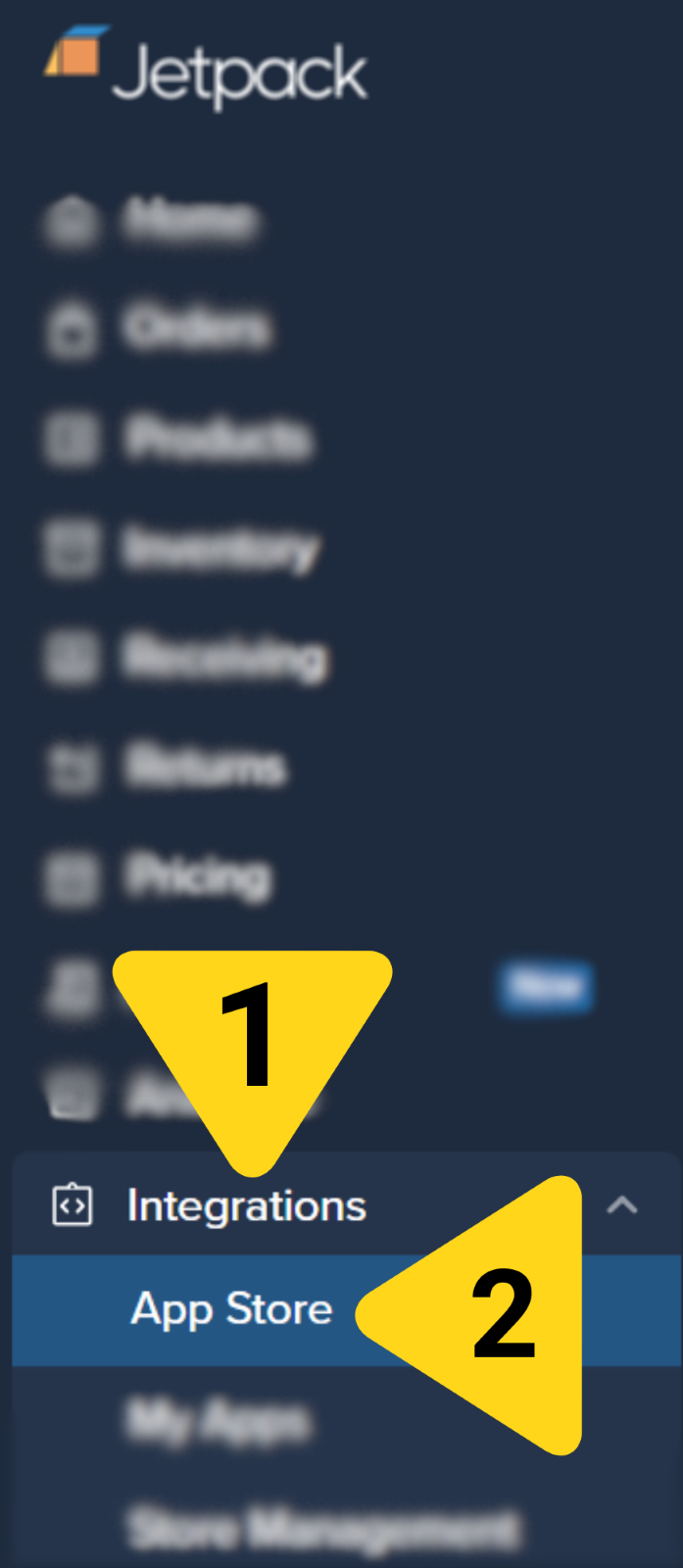
Follow these steps to connect your SHEIN Marketplace account from your Jetpack dashboard:
Additional menu options will appear.
You'll be redirected to the Apps & Integrations page.
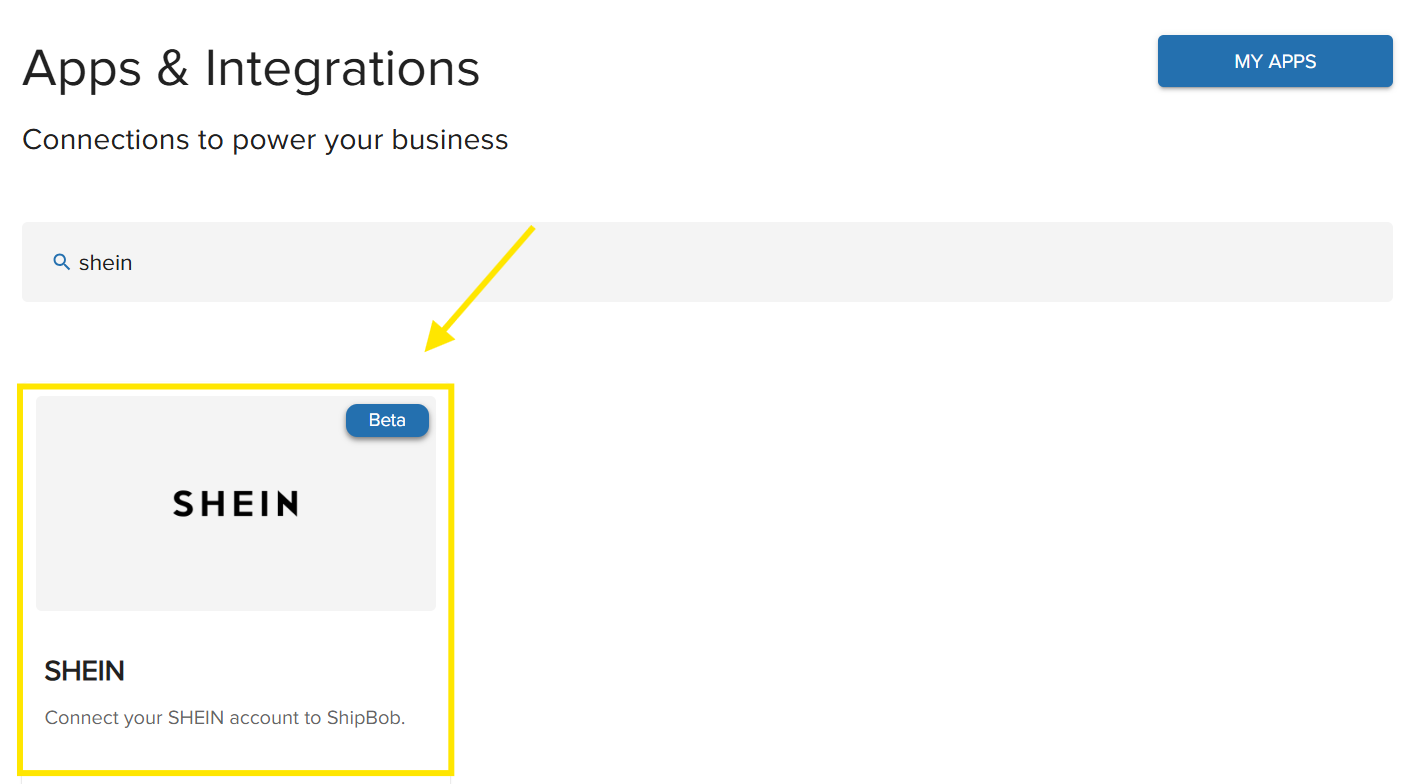
 You can scroll through the page or use the search bar to find SHEIN. You'll be redirected to the SHEIN app page.
 You'll be redirected to the SHEIN integration page.
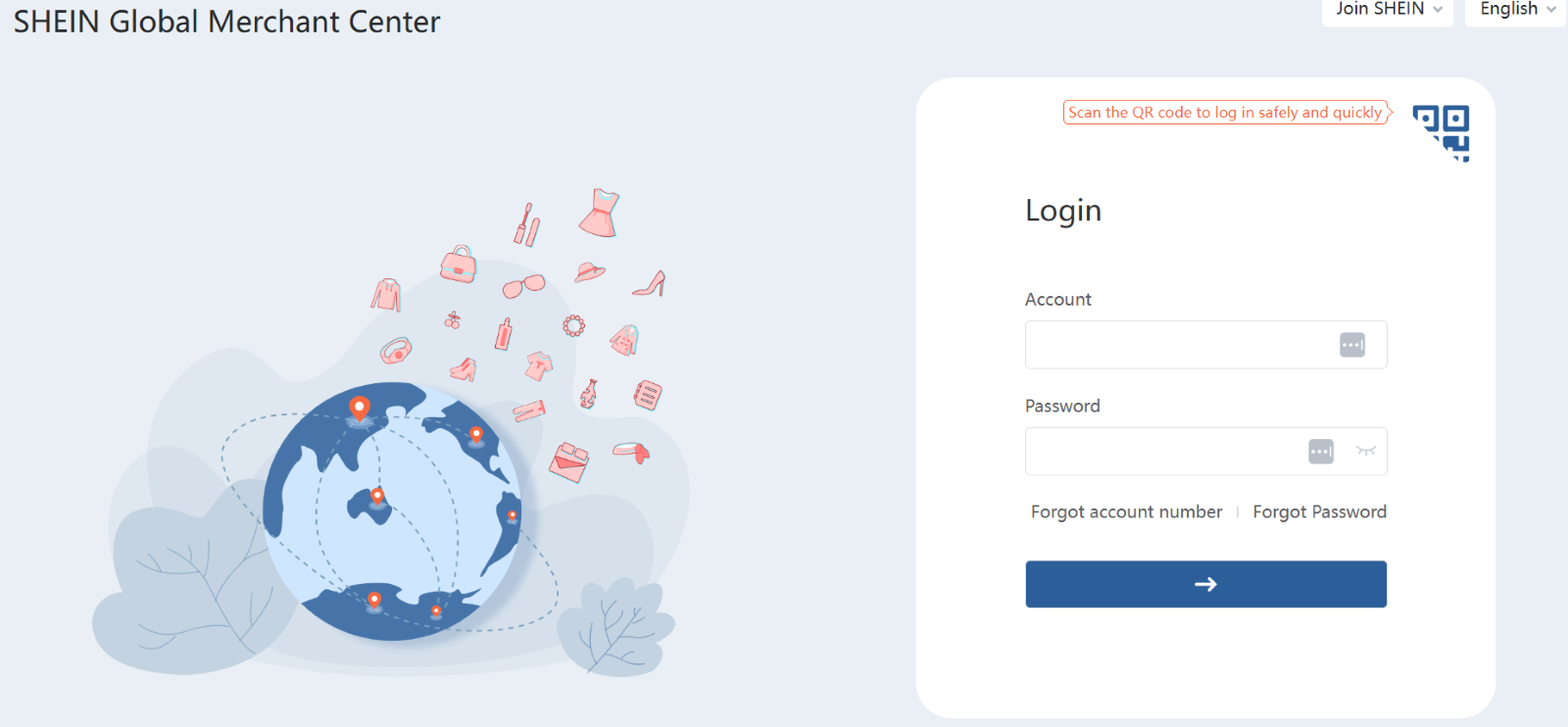
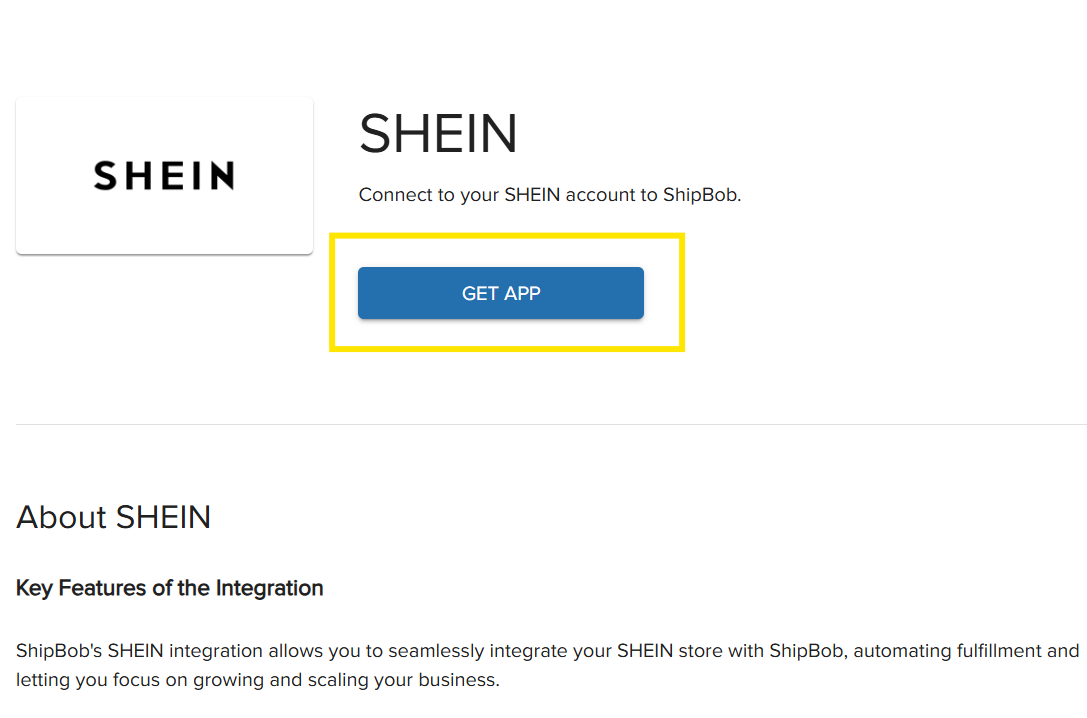 A pop-up window will appear prompting you to log in to SHEIN.
 Enter your account information and password to continue.
 SHEIN will display the permissions required for the integration to function properly.
Authorize the connection to complete the integration. The pop-up window will close and you'll return to your Jetpack dashboard.
Once SHEIN is successfully connected, you can configure the integration's sync settings.
***
## Configuring Your SHEIN Integration Settings
After connecting SHEIN to Jetpack, you can enable automatic syncing for orders, tracking, products, and inventory. All sync features run hourly to keep your systems up to date.
SHEIN will display the permissions required for the integration to function properly.
Authorize the connection to complete the integration. The pop-up window will close and you'll return to your Jetpack dashboard.
Once SHEIN is successfully connected, you can configure the integration's sync settings.
***
## Configuring Your SHEIN Integration Settings
After connecting SHEIN to Jetpack, you can enable automatic syncing for orders, tracking, products, and inventory. All sync features run hourly to keep your systems up to date.
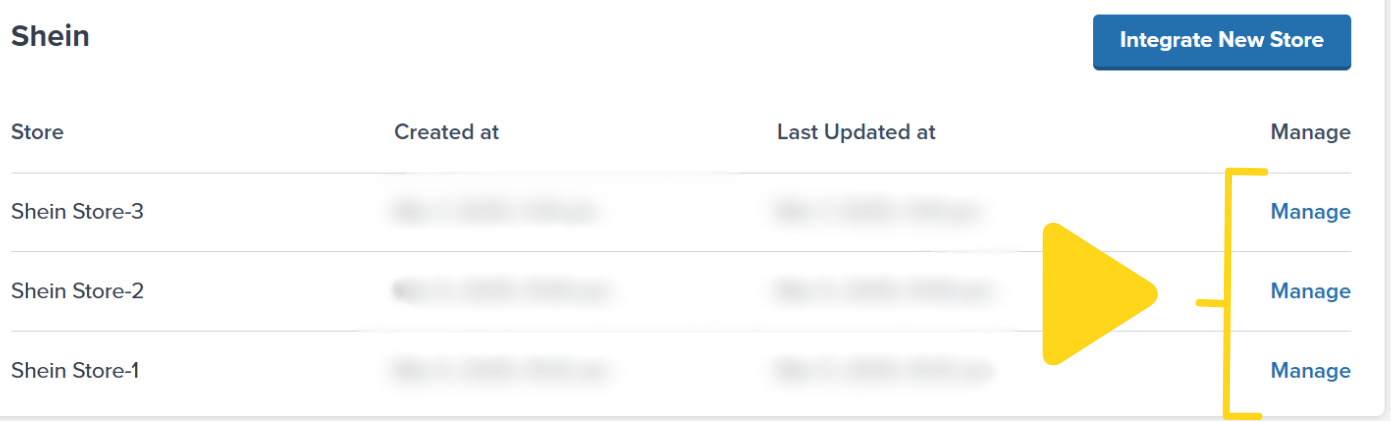 To access configuration settings:
1. From the SHEIN integration page in your Jetpack dashboard, click **Manage** (hyperlinked) to the right of your SHEIN store
2. A pop-up window will appear showing configuration toggles
To access configuration settings:
1. From the SHEIN integration page in your Jetpack dashboard, click **Manage** (hyperlinked) to the right of your SHEIN store
2. A pop-up window will appear showing configuration toggles
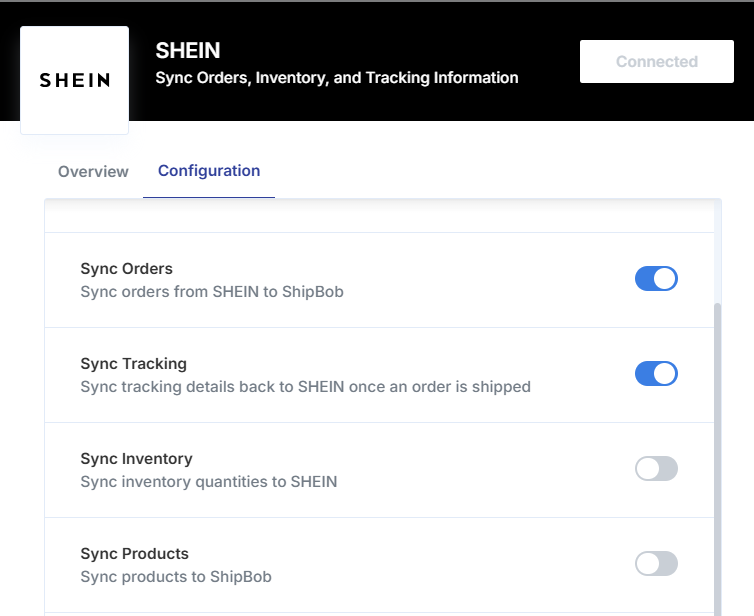 Enable any of the following features by clicking the toggle icon (which will appear blue when enabled and gray when disabled):
### Sync Orders
Enable this feature to automatically allow new orders in the **Pending** status to sync from SHEIN to Jetpack every hour.
**How it works:**
* Orders sync hourly from SHEIN to Jetpack
* Only orders in "Pending" status are imported
* Once an order is created in Jetpack, the order status updates to **"to be shipped"** in SHEIN
### Sync Tracking
Enable this feature to allow carrier tracking information to sync to SHEIN every hour once Jetpack fulfills an order.
**How it works:**
* When Jetpack ships an order, tracking details sync to SHEIN
* Updates include carrier name and tracking number
* SHEIN customers can track their shipments through the SHEIN platform
### Sync Products
Enable this feature to automatically sync new SKUs in the **Listing** and **Pending** status from SHEIN every hour to Jetpack.
**How it works:**
* New SKUs sync from SHEIN to Jetpack hourly
* When a new SKU syncs, a product is automatically created in your Product Catalog
* Orders synced from SHEIN that contain products not yet in your Jetpack dashboard will trigger automatic product creation
If you don't want a new product created automatically, you can add the SKU to an existing product's Sales Channel before the order syncs. Learn more about [Sales Channels](/fulfillment/managing-products/sales-channels).
### Sync Inventory
Enable this feature to allow the **Fulfillable quantity** from the Inventory Status page to sync to SHEIN every hour.
**How Fulfillable Quantity is calculated:**
```
Fulfillable Quantity = On Hand Quantity - Committed Quantity
```
**What syncs:**
* Available inventory across all Jetpack fulfillment centers
* Updates occur hourly
* Jetpack excludes **Digital** and **Inactive** products from inventory updates sent to SHEIN
This ensures SHEIN always displays accurate stock levels for your products, preventing overselling.
***
## Uninstalling the SHEIN Integration
If you need to disconnect your SHEIN integration, follow these steps:
Additional menu options will appear.
You'll be redirected to the My Apps page.
Enable any of the following features by clicking the toggle icon (which will appear blue when enabled and gray when disabled):
### Sync Orders
Enable this feature to automatically allow new orders in the **Pending** status to sync from SHEIN to Jetpack every hour.
**How it works:**
* Orders sync hourly from SHEIN to Jetpack
* Only orders in "Pending" status are imported
* Once an order is created in Jetpack, the order status updates to **"to be shipped"** in SHEIN
### Sync Tracking
Enable this feature to allow carrier tracking information to sync to SHEIN every hour once Jetpack fulfills an order.
**How it works:**
* When Jetpack ships an order, tracking details sync to SHEIN
* Updates include carrier name and tracking number
* SHEIN customers can track their shipments through the SHEIN platform
### Sync Products
Enable this feature to automatically sync new SKUs in the **Listing** and **Pending** status from SHEIN every hour to Jetpack.
**How it works:**
* New SKUs sync from SHEIN to Jetpack hourly
* When a new SKU syncs, a product is automatically created in your Product Catalog
* Orders synced from SHEIN that contain products not yet in your Jetpack dashboard will trigger automatic product creation
If you don't want a new product created automatically, you can add the SKU to an existing product's Sales Channel before the order syncs. Learn more about [Sales Channels](/fulfillment/managing-products/sales-channels).
### Sync Inventory
Enable this feature to allow the **Fulfillable quantity** from the Inventory Status page to sync to SHEIN every hour.
**How Fulfillable Quantity is calculated:**
```
Fulfillable Quantity = On Hand Quantity - Committed Quantity
```
**What syncs:**
* Available inventory across all Jetpack fulfillment centers
* Updates occur hourly
* Jetpack excludes **Digital** and **Inactive** products from inventory updates sent to SHEIN
This ensures SHEIN always displays accurate stock levels for your products, preventing overselling.
***
## Uninstalling the SHEIN Integration
If you need to disconnect your SHEIN integration, follow these steps:
Additional menu options will appear.
You'll be redirected to the My Apps page.
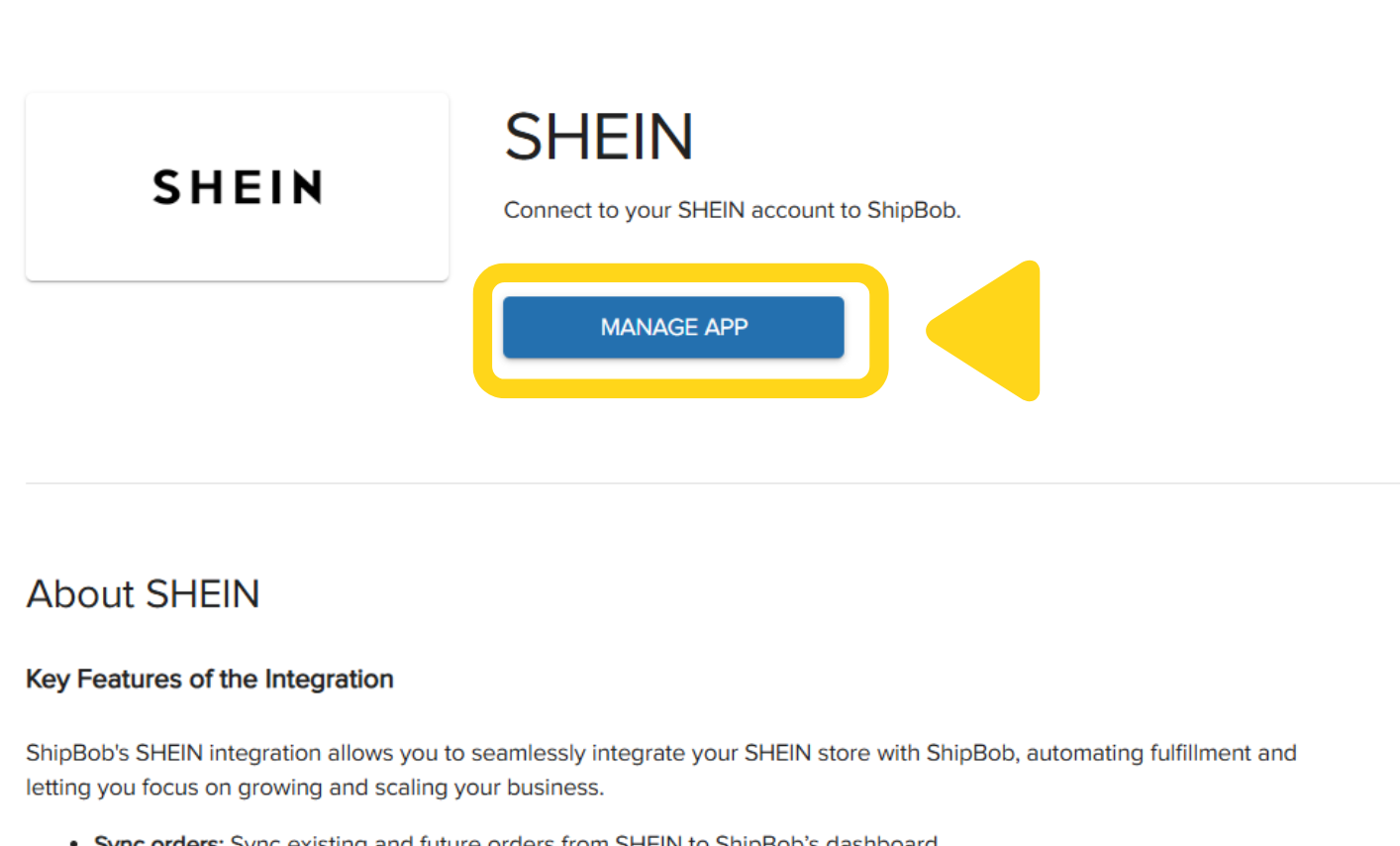
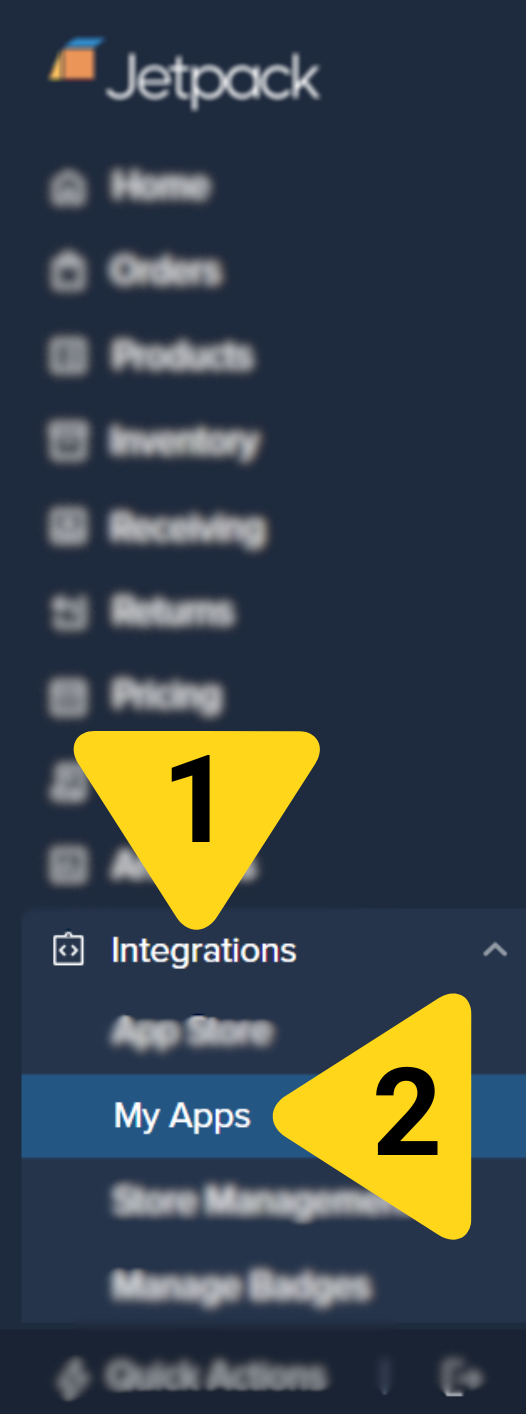 You'll be redirected to the SHEIN app page.
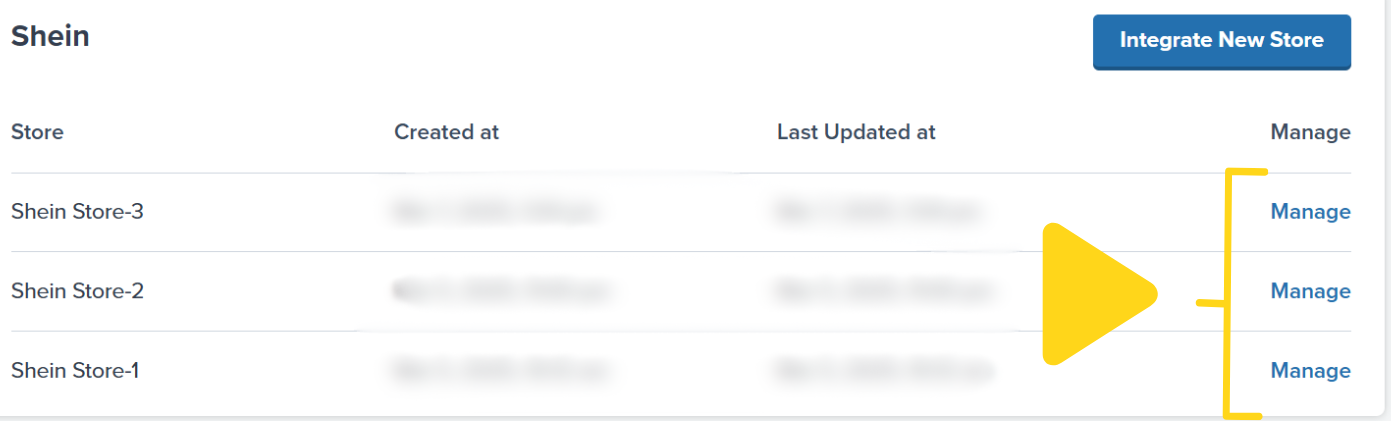
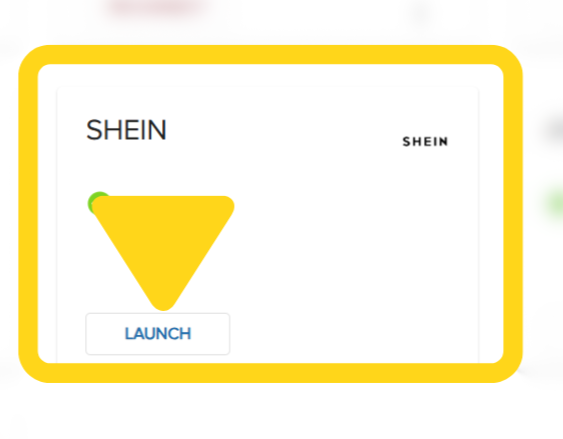 You'll be redirected to the Manage App page for SHEIN.
 A pop-up window will appear.
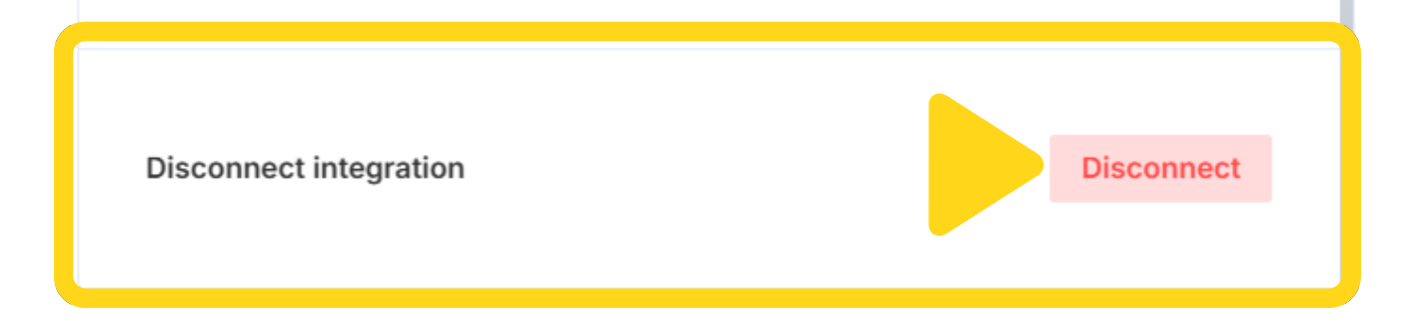
 The button is located next to "Disconnect integration" in the pop-up window. Your SHEIN integration will be disconnected.
 ***
## SHEIN Integration FAQs
Only orders in "Pending" status sync from SHEIN to Jetpack. Orders sync automatically every hour when you have Sync Orders enabled.
Inventory levels sync from Jetpack to SHEIN every hour when Sync Inventory is enabled. The sync uses your Fulfillable quantity (On Hand - Committed).
Yes, you can connect multiple SHEIN stores to a single Jetpack account. Each store must be connected separately through the integration process.
When Sync Products is enabled, orders containing new products automatically create those products in your Product Catalog. To prevent duplicates, add the SKU to an existing product's Sales Channel before the order syncs.
Digital products don't require physical fulfillment, and Inactive products shouldn't be available for sale. Excluding them prevents SHEIN from showing inventory for products that Jetpack won't fulfill.
Once Jetpack creates an order from SHEIN, the order status in SHEIN automatically updates to "to be shipped" status, indicating it's being fulfilled.
***
## Let's Dive Deeper
Back to the main integrations guide
Set up your product catalog
Understand how orders flow into Jetpack
Inventory management and tracking
Learn about Sales Channels
Manage and troubleshoot integrations
***
## SHEIN Integration FAQs
Only orders in "Pending" status sync from SHEIN to Jetpack. Orders sync automatically every hour when you have Sync Orders enabled.
Inventory levels sync from Jetpack to SHEIN every hour when Sync Inventory is enabled. The sync uses your Fulfillable quantity (On Hand - Committed).
Yes, you can connect multiple SHEIN stores to a single Jetpack account. Each store must be connected separately through the integration process.
When Sync Products is enabled, orders containing new products automatically create those products in your Product Catalog. To prevent duplicates, add the SKU to an existing product's Sales Channel before the order syncs.
Digital products don't require physical fulfillment, and Inactive products shouldn't be available for sale. Excluding them prevents SHEIN from showing inventory for products that Jetpack won't fulfill.
Once Jetpack creates an order from SHEIN, the order status in SHEIN automatically updates to "to be shipped" status, indicating it's being fulfilled.
***
## Let's Dive Deeper
Back to the main integrations guide
Set up your product catalog
Understand how orders flow into Jetpack
Inventory management and tracking
Learn about Sales Channels
Manage and troubleshoot integrations

Questions? Contact Jetpack Care.
If you have any questions or run into issues during setup, you can always contact Jetpack Care for help. Our team is always here to assist via Slack, phone, or email!