> ## Documentation Index
> Fetch the complete documentation index at: https://help.jetpack3pl.com/llms.txt
> Use this file to discover all available pages before exploring further.
# Macy's Integration
> Connect your Macy's Marketplace account to Jetpack using Mirakl to automatically sync products, orders, tracking, inventory, and returns.
Integrating Macy's Marketplace with Jetpack using Mirakl enables automatic syncing of products, orders, tracking information, inventory levels, and return information between your Macy's Marketplace account and your Jetpack dashboard. This integration streamlines your Macy's operations with frequent data syncing every 15 minutes.

About ShipBob Integration References
During setup, you'll connect Macy's Marketplace through Mirakl using your Jetpack dashboard. Jetpack has licensed ShipBob's integration infrastructure to provide reliable connections. Your data flows seamlessly to your Jetpack dashboard.
## Prerequisites
Before connecting your Macy's Marketplace account to Jetpack, ensure you have:
* A Mirakl Marketplace account set up with Macy's Marketplace ([Learn more about Macy's Marketplace and Mirakl](https://www.mirakl.com/))
* A Jetpack PAT (Personal Access Token) - you can generate a new PAT or use an existing one
* A Jetpack merchant account
***
## Connecting Macy's Marketplace to Jetpack
Follow these steps to integrate Macy's Marketplace with your Jetpack dashboard using Mirakl:
The Integrations menu will expand showing additional options.
You'll be redirected to the Apps & Integrations page.
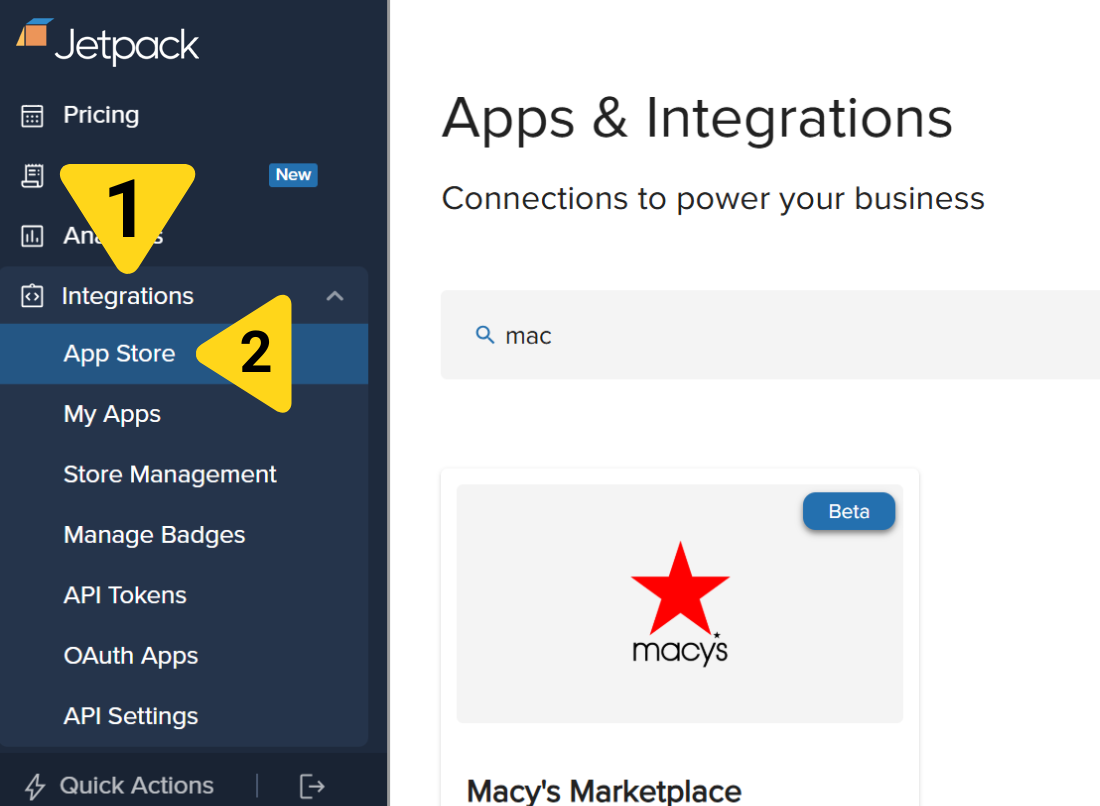 You can locate the Macy's tile by using the search bar or scrolling through the page.
You'll be redirected to the Macy's Marketplace store management page.
You can locate the Macy's tile by using the search bar or scrolling through the page.
You'll be redirected to the Macy's Marketplace store management page.
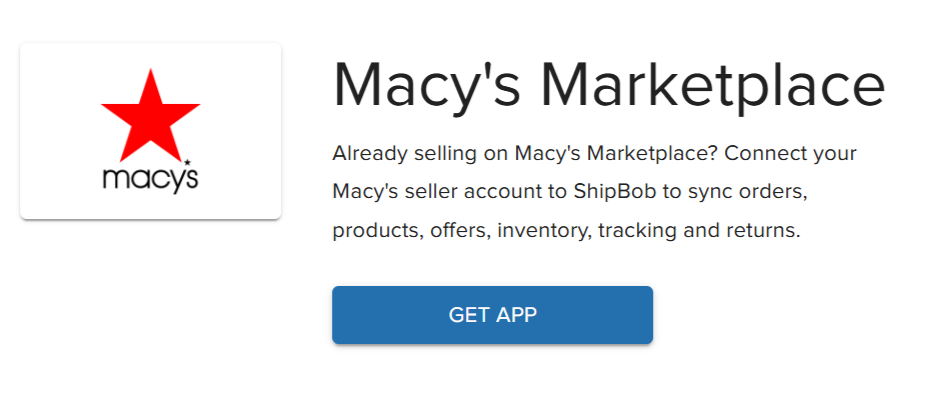 A form will appear requesting your Mirakl credentials.
 Input the URL from Mirakl that corresponds with your Macy's Marketplace store in the textbox under **Mirakl URL**.
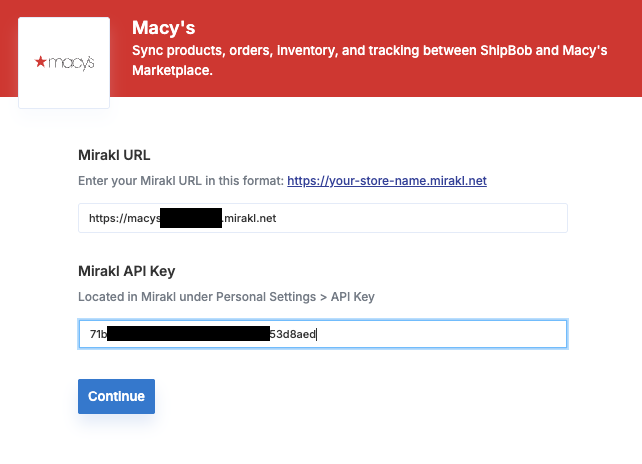 You can retrieve this by logging into your Mirakl Dashboard and copying the web browser's URL.
Paste your API key in the textbox under **Mirakl API Key**.
You can retrieve your API key by logging into your Mirakl Dashboard, clicking your profile image (located at the top right of the page), selecting Personal Settings, and selecting the API Key tab.
The integration will connect and the status will update to **Connected**.
You can retrieve this by logging into your Mirakl Dashboard and copying the web browser's URL.
Paste your API key in the textbox under **Mirakl API Key**.
You can retrieve your API key by logging into your Mirakl Dashboard, clicking your profile image (located at the top right of the page), selecting Personal Settings, and selecting the API Key tab.
The integration will connect and the status will update to **Connected**.
 Once connected, all products (offers) will sync from Macy's Marketplace to your Jetpack Product Catalog.
The configuration settings will appear.
Enter your Jetpack PAT in the textbox under **ShipBob PAT**.
Once connected, all products (offers) will sync from Macy's Marketplace to your Jetpack Product Catalog.
The configuration settings will appear.
Enter your Jetpack PAT in the textbox under **ShipBob PAT**.
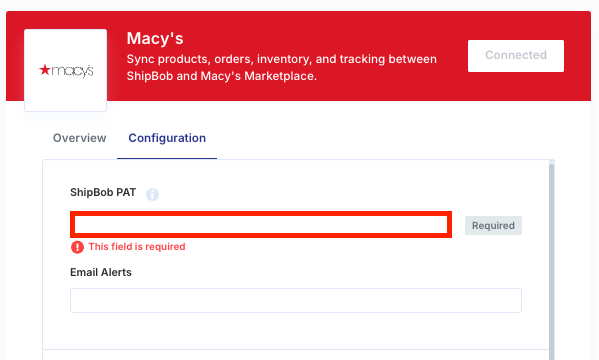 You can generate a new PAT or use an existing one.
Input the email address to which you want to send a daily return notification in the textbox under **Email Notifications**.
You can generate a new PAT or use an existing one.
Input the email address to which you want to send a daily return notification in the textbox under **Email Notifications**.
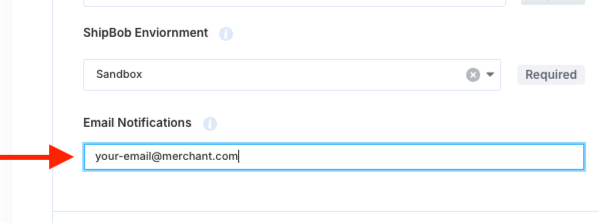 If an email address is provided, you will be emailed a report at 9 am EST every day that details return orders in the Completed status in Jetpack (i.e., Store Order ID, Reference ID, Jetpack Fulfillment Center, Action Requested, and Action Taken).
[Learn more about returns at Jetpack](/fulfillment/returns)
If you do not want to receive daily return notifications, you can leave this field blank.
***
## Configuring Your Macy's Marketplace Integration Settings
Once Macy's Marketplace is successfully connected, you can configure the integration's settings.
From the Macy's Marketplace integration page in your Jetpack dashboard, click **Manage** (hyperlinked) to the right of the desired Macy's Marketplace store.
The configuration settings will appear showing all available sync options.
If an email address is provided, you will be emailed a report at 9 am EST every day that details return orders in the Completed status in Jetpack (i.e., Store Order ID, Reference ID, Jetpack Fulfillment Center, Action Requested, and Action Taken).
[Learn more about returns at Jetpack](/fulfillment/returns)
If you do not want to receive daily return notifications, you can leave this field blank.
***
## Configuring Your Macy's Marketplace Integration Settings
Once Macy's Marketplace is successfully connected, you can configure the integration's settings.
From the Macy's Marketplace integration page in your Jetpack dashboard, click **Manage** (hyperlinked) to the right of the desired Macy's Marketplace store.
The configuration settings will appear showing all available sync options.
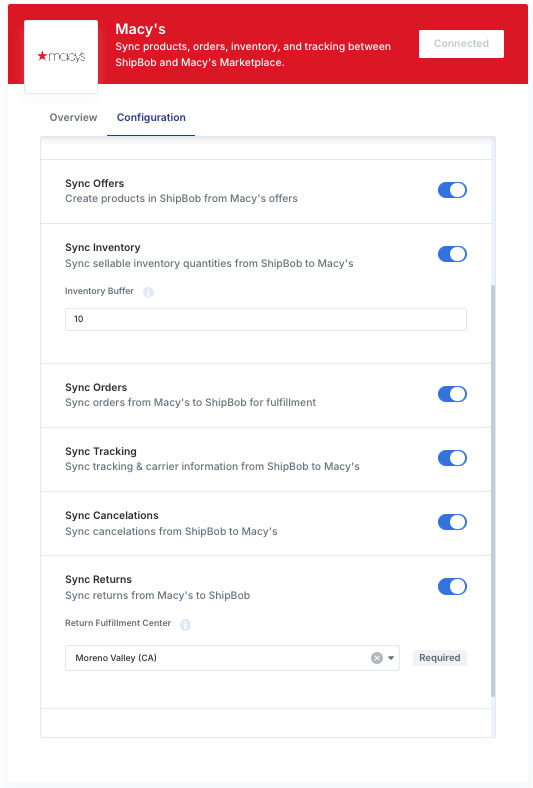 Enable any of the following features by clicking the toggle icon (which will appear blue when enabled and gray when disabled).
### Sync Offers
Enable this feature to automatically sync products (referred to as Offers in Mirakl) from Macy's Marketplace to Jetpack every 15 minutes.
**Important Notes:**
* Jetpack will create products using the shop\_sku from Mirakl
* To prevent duplicate products from being created, make sure you add the shop\_sku from Mirakl to existing products' Sales Channels in your Jetpack dashboard
### Sync Inventory
Enable this feature to automatically sync the Sellable quantities from Macy's Marketplace every 15 minutes.
**Important Notes:**
* When this feature is enabled, Jetpack's dashboard will only sync quantities for products that exist in Mirakl or Macy's Marketplace. Products in your Jetpack dashboard that are not on Mirakl or Macy's Marketplace (e.g., a product you sell exclusively through a different retailer) will not sync through or be impacted by this integration.
* Sellable quantity = Fulfillable quantity - Exception quantity
* Your Sellable, Fulfillable, and Exception quantities can be viewed from the Inventory Status page in your Jetpack dashboard
* Jetpack will exclude Digital and Inactive products from inventory updates sent to Mirakl
### Inventory Buffer (Applicable only if Sync Inventory is enabled)
Input a numerical value in the textbox.
Enable any of the following features by clicking the toggle icon (which will appear blue when enabled and gray when disabled).
### Sync Offers
Enable this feature to automatically sync products (referred to as Offers in Mirakl) from Macy's Marketplace to Jetpack every 15 minutes.
**Important Notes:**
* Jetpack will create products using the shop\_sku from Mirakl
* To prevent duplicate products from being created, make sure you add the shop\_sku from Mirakl to existing products' Sales Channels in your Jetpack dashboard
### Sync Inventory
Enable this feature to automatically sync the Sellable quantities from Macy's Marketplace every 15 minutes.
**Important Notes:**
* When this feature is enabled, Jetpack's dashboard will only sync quantities for products that exist in Mirakl or Macy's Marketplace. Products in your Jetpack dashboard that are not on Mirakl or Macy's Marketplace (e.g., a product you sell exclusively through a different retailer) will not sync through or be impacted by this integration.
* Sellable quantity = Fulfillable quantity - Exception quantity
* Your Sellable, Fulfillable, and Exception quantities can be viewed from the Inventory Status page in your Jetpack dashboard
* Jetpack will exclude Digital and Inactive products from inventory updates sent to Mirakl
### Inventory Buffer (Applicable only if Sync Inventory is enabled)
Input a numerical value in the textbox.
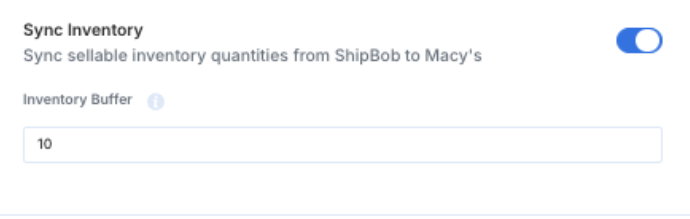 The Inventory Buffer allows Jetpack to reduce the total Sellable units from Jetpack by the number indicated before updating Macy's Marketplace with the available quantity for each Offer.
**Example:** If you input 5 for your Inventory Buffer, and Product A has 10 units, Jetpack will sync 5 units to Product A in Macy's Marketplace (5 fewer units than the actual units available).
### Order Sync
Enable this feature to allow Macy's Marketplace to sync new orders in the Accepted status to Jetpack every 15 minutes.
**How it works:**
* Jetpack will review all orders in the Awaiting Acceptance status in Macy's Marketplace
* Once reviewed, Jetpack will update the order to Accepted in Macy's Marketplace and create the order in Jetpack
### Sync Tracking
Enable this feature to allow Jetpack to sync carrier tracking information for shipments in the Labeled status to Macy's Marketplace every 15 minutes.
### Sync Cancelations
Enable this feature to allow Jetpack to automatically update orders to Canceled in Macy's Marketplace when an order is canceled in Jetpack.
If an order is canceled in Mirakl, you must also manually cancel the order in your Jetpack dashboard.
### Sync Returns
This feature allows Jetpack to automatically create return orders every 15 minutes for all Incidents in Macy's Marketplace.
Return compliance must be vetted on a case-by-case basis. Before enabling this feature, you must contact Jetpack Care using Slack or email.
**Important Notes:**
* Once you are approved to enable Sync Returns, you must manually update the Incident and refund your customer in Macy's Marketplace
* We recommend providing your email address to receive a daily return report from Jetpack (Step 18 under the Connecting Macy's Marketplace to Jetpack section above)
* [Learn more about the Returns page](/fulfillment/returns) in Jetpack
### Return Fulfillment Center (Applicable only if Sync Returns is enabled)
Select the Jetpack fulfillment center using the drop-down menu under **Return Fulfillment Center**.
The Inventory Buffer allows Jetpack to reduce the total Sellable units from Jetpack by the number indicated before updating Macy's Marketplace with the available quantity for each Offer.
**Example:** If you input 5 for your Inventory Buffer, and Product A has 10 units, Jetpack will sync 5 units to Product A in Macy's Marketplace (5 fewer units than the actual units available).
### Order Sync
Enable this feature to allow Macy's Marketplace to sync new orders in the Accepted status to Jetpack every 15 minutes.
**How it works:**
* Jetpack will review all orders in the Awaiting Acceptance status in Macy's Marketplace
* Once reviewed, Jetpack will update the order to Accepted in Macy's Marketplace and create the order in Jetpack
### Sync Tracking
Enable this feature to allow Jetpack to sync carrier tracking information for shipments in the Labeled status to Macy's Marketplace every 15 minutes.
### Sync Cancelations
Enable this feature to allow Jetpack to automatically update orders to Canceled in Macy's Marketplace when an order is canceled in Jetpack.
If an order is canceled in Mirakl, you must also manually cancel the order in your Jetpack dashboard.
### Sync Returns
This feature allows Jetpack to automatically create return orders every 15 minutes for all Incidents in Macy's Marketplace.
Return compliance must be vetted on a case-by-case basis. Before enabling this feature, you must contact Jetpack Care using Slack or email.
**Important Notes:**
* Once you are approved to enable Sync Returns, you must manually update the Incident and refund your customer in Macy's Marketplace
* We recommend providing your email address to receive a daily return report from Jetpack (Step 18 under the Connecting Macy's Marketplace to Jetpack section above)
* [Learn more about the Returns page](/fulfillment/returns) in Jetpack
### Return Fulfillment Center (Applicable only if Sync Returns is enabled)
Select the Jetpack fulfillment center using the drop-down menu under **Return Fulfillment Center**.
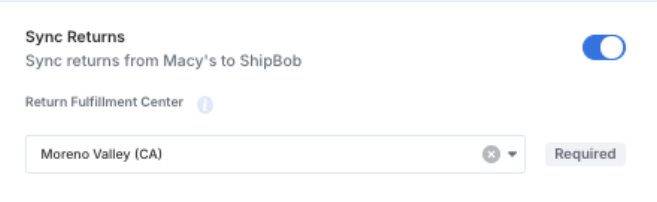 Jetpack will let you know which fulfillment center to send returns to; you must select that fulfillment center from the drop-down menu.
***
## Uninstalling the Macy's Marketplace Integration
If you need to disconnect your Macy's Marketplace integration:
The Integrations menu will expand showing additional options.
You'll be redirected to the My Apps page.
You'll be redirected to the Macy's Marketplace app page.
You'll be redirected to the Manage App page for Macy's Marketplace.
Click **Manage** (hyperlinked) next to the desired Macy's Marketplace store.
The disconnect options will appear.
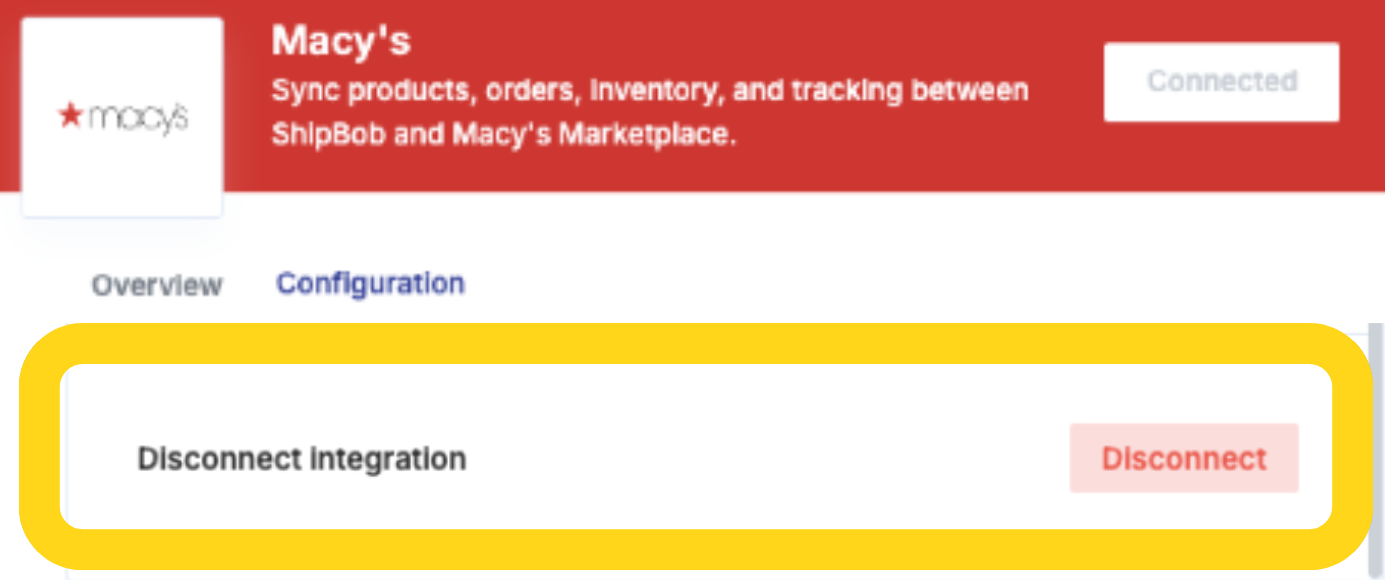
Click the **Disconnect** button located next to "Disconnect integration" to disconnect your Macy's Marketplace store.
Jetpack will let you know which fulfillment center to send returns to; you must select that fulfillment center from the drop-down menu.
***
## Uninstalling the Macy's Marketplace Integration
If you need to disconnect your Macy's Marketplace integration:
The Integrations menu will expand showing additional options.
You'll be redirected to the My Apps page.
You'll be redirected to the Macy's Marketplace app page.
You'll be redirected to the Manage App page for Macy's Marketplace.
Click **Manage** (hyperlinked) next to the desired Macy's Marketplace store.
The disconnect options will appear.
Click the **Disconnect** button located next to "Disconnect integration" to disconnect your Macy's Marketplace store.
 ### Reconnecting After Disconnection
If you wish to reconnect the store after it is disconnected:
Click **Manage** (hyperlinked) next to the desired Macy's Marketplace store.
The reconnection options will appear.
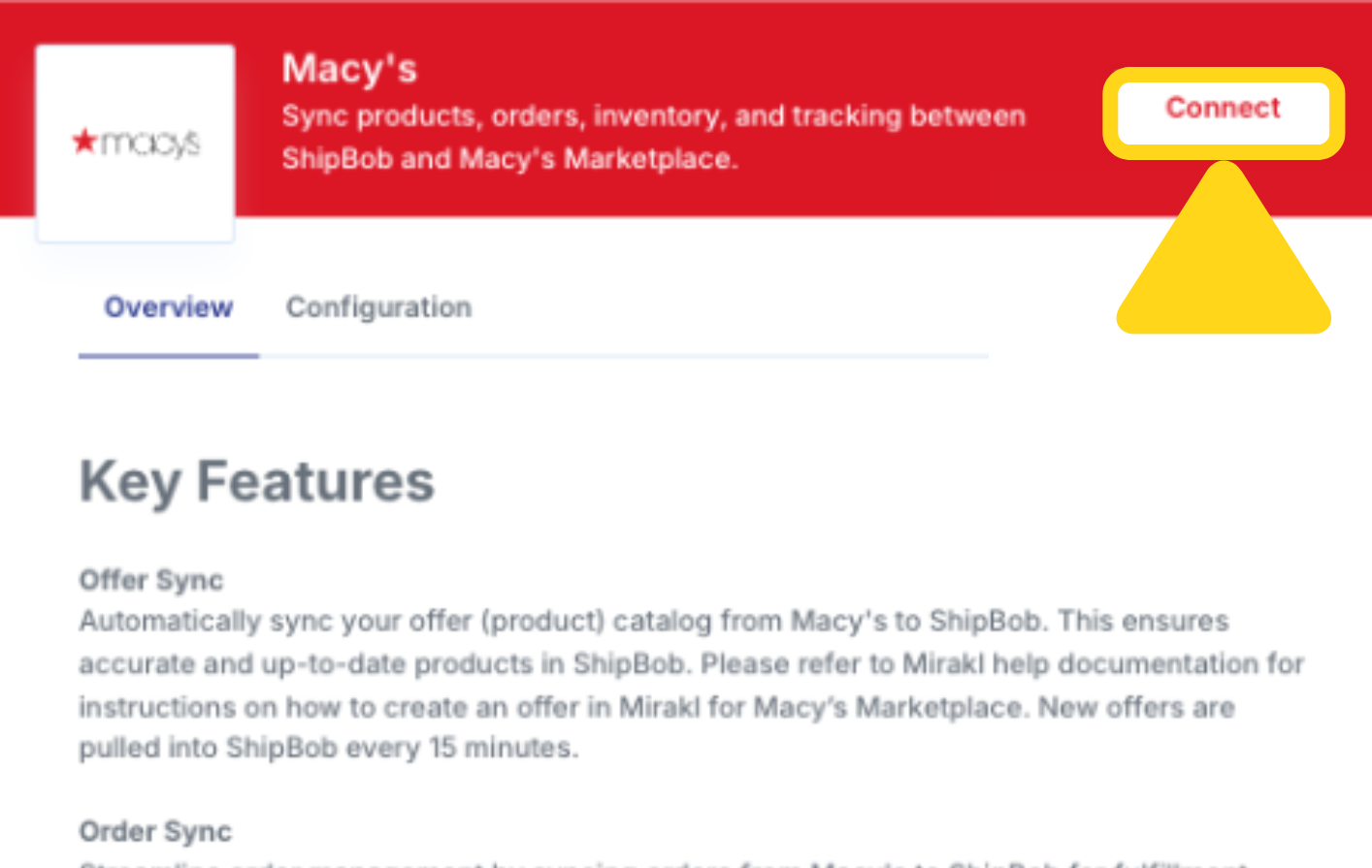
Click the **Connect** button to reconnect your Macy's Marketplace store.
### Reconnecting After Disconnection
If you wish to reconnect the store after it is disconnected:
Click **Manage** (hyperlinked) next to the desired Macy's Marketplace store.
The reconnection options will appear.
Click the **Connect** button to reconnect your Macy's Marketplace store.
 ***
## Let's Dive Deeper
Back to the main integrations guide
Set up your product catalog
Understand how orders flow into Jetpack
Inventory management and tracking
Learn more about returns at Jetpack
Manage and troubleshoot integrations
***
## Let's Dive Deeper
Back to the main integrations guide
Set up your product catalog
Understand how orders flow into Jetpack
Inventory management and tracking
Learn more about returns at Jetpack
Manage and troubleshoot integrations

Questions? Contact Jetpack Care.
If you have any questions or run into issues, you can always contact Jetpack Care for help. Our team is always here to assist via Slack, phone, or email!