> ## Documentation Index
> Fetch the complete documentation index at: https://help.jetpack3pl.com/llms.txt
> Use this file to discover all available pages before exploring further.
# eBay Integration
> Connect your eBay store to Jetpack for automatic order fulfillment, product syncing, and seamless tracking updates every 30 minutes.
Integrating your eBay store with Jetpack streamlines your fulfillment operations by automatically importing orders, syncing products, and posting tracking information back to eBay. This guide walks you through the complete setup process, including connecting your eBay account, syncing your product catalog, and enabling automatic order imports every 30 minutes.

About ShipBob Integration References
During setup, you'll authorize the "ShipBob" integration in eBay. This is expected—Jetpack has licensed ShipBob's integration infrastructure to provide reliable connections. Your data flows seamlessly to your Jetpack dashboard.
***
## Prerequisites
Before connecting your eBay store, ensure you have:
* An active eBay Seller Hub account with login credentials
* Active eBay listings with SKUs assigned to each product
* A Jetpack merchant account with access to your dashboard
Each unique product on eBay must have a unique SKU defined. The eBay SKU will be considered the unique identifier for the product when syncing to Jetpack. Orders without SKUs may not import correctly.
***
## eBay Integration Overview
When you integrate eBay with Jetpack, your orders will import automatically every 30 minutes. You can also trigger manual syncs at any time from the Orders page. Once an order is fulfilled in Jetpack, tracking details are posted back to your eBay store and the order is marked as Fulfilled.
***
## Setting Up Your eBay Integration
Follow these steps to connect your eBay store from your Jetpack dashboard:
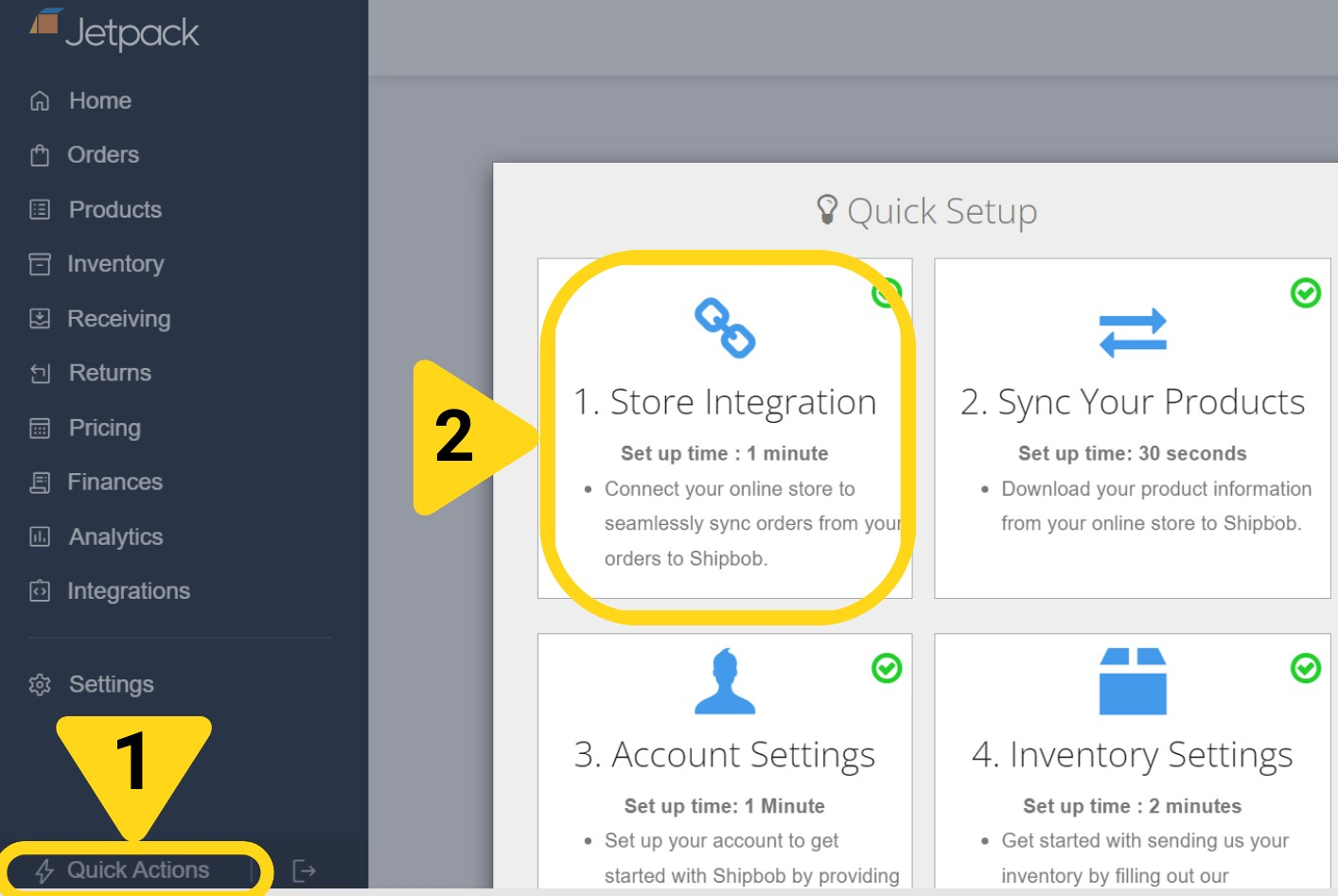
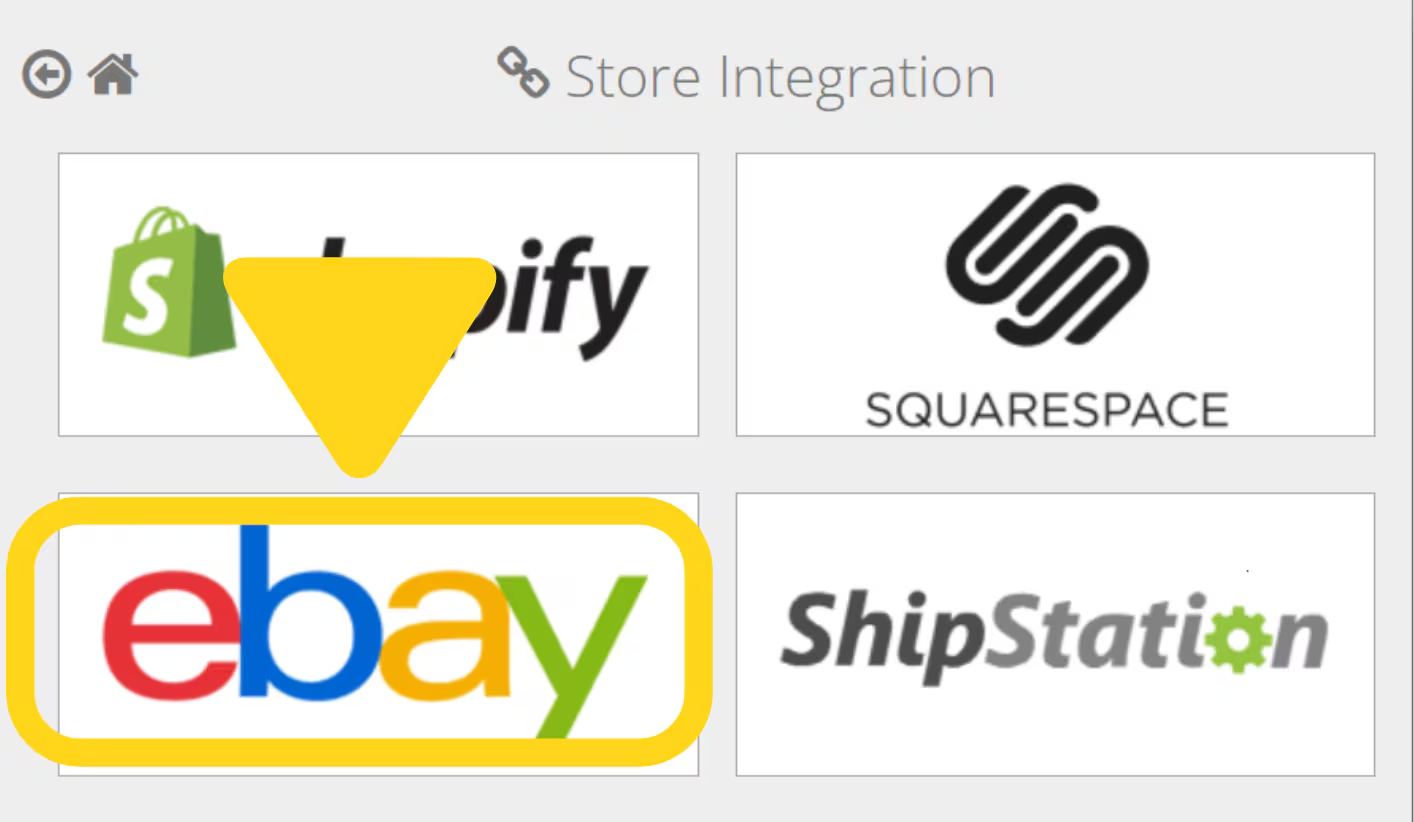
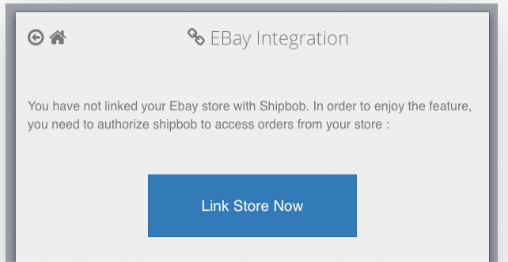 You'll be redirected to eBay to authorize the connection.
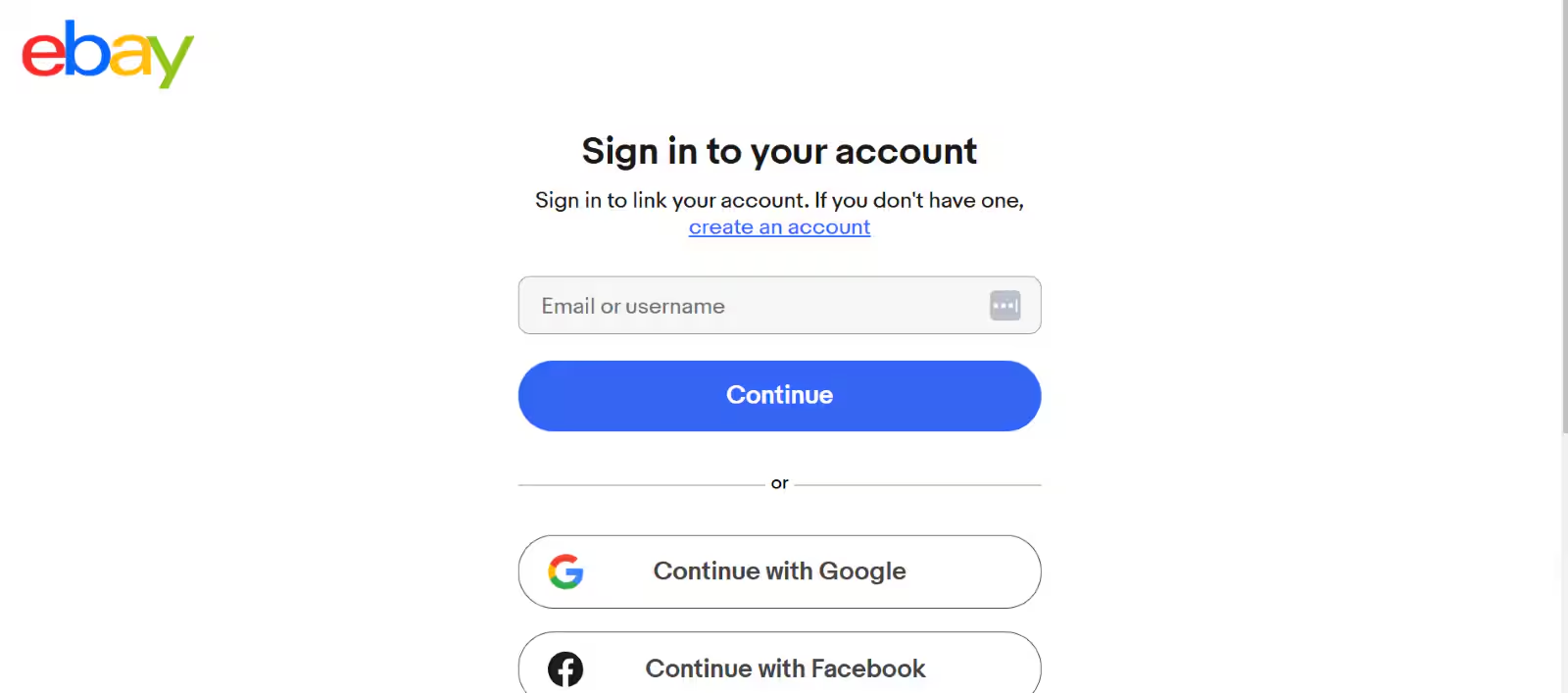 Sign in to your eBay account. If you don't have one, you can create an account.
Review eBay's terms of service and privacy policy. By clicking "Agree," you're allowing ShipBob to link your eBay account.
Sign in to your eBay account. If you don't have one, you can create an account.
Review eBay's terms of service and privacy policy. By clicking "Agree," you're allowing ShipBob to link your eBay account.
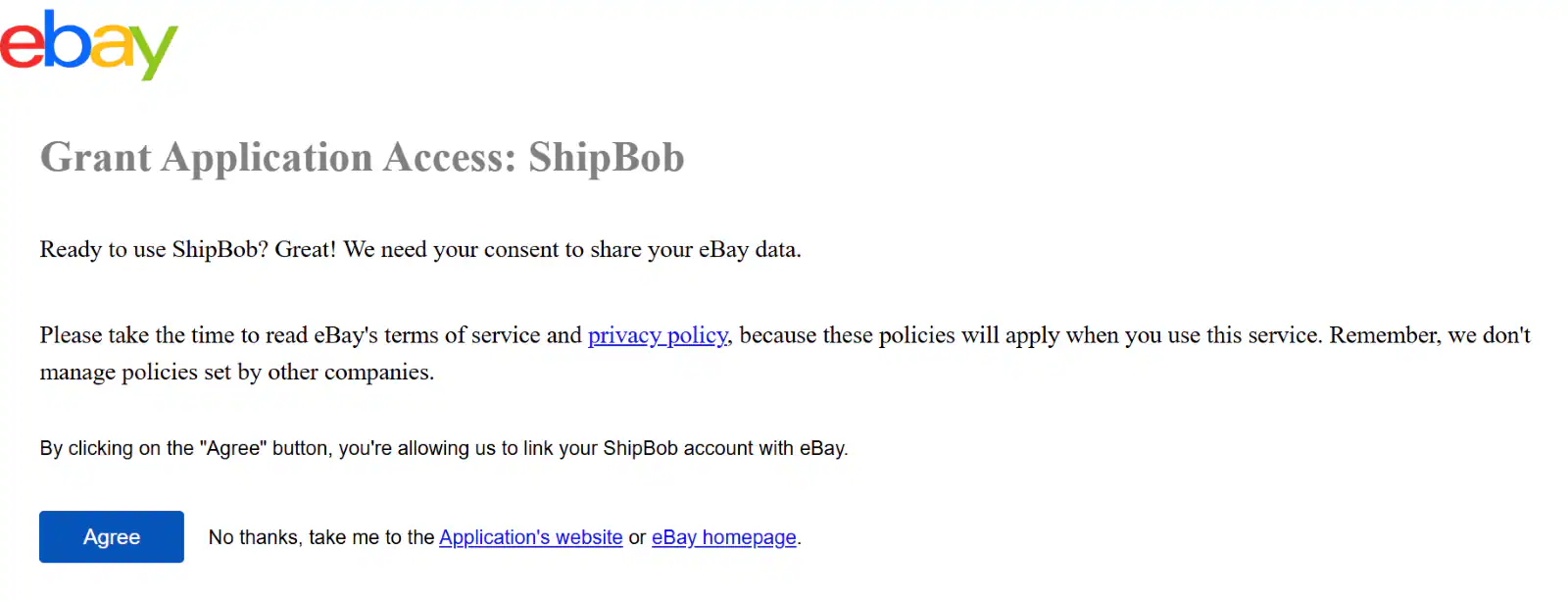 You'll be redirected back to Jetpack with the integration connected. Your eBay store is now linked and ready to sync products and orders.
***
## Syncing eBay Products to Jetpack
After connecting your eBay store, you can sync your product catalog to Jetpack. This imports your eBay listings into the Jetpack Product Catalog with new Inventory IDs, making it easier to fulfill orders.
If an imported order contains SKUs not yet in Jetpack, new products will be created automatically when the order imports.
Follow these steps to sync your eBay products:
You'll be redirected back to Jetpack with the integration connected. Your eBay store is now linked and ready to sync products and orders.
***
## Syncing eBay Products to Jetpack
After connecting your eBay store, you can sync your product catalog to Jetpack. This imports your eBay listings into the Jetpack Product Catalog with new Inventory IDs, making it easier to fulfill orders.
If an imported order contains SKUs not yet in Jetpack, new products will be created automatically when the order imports.
Follow these steps to sync your eBay products:
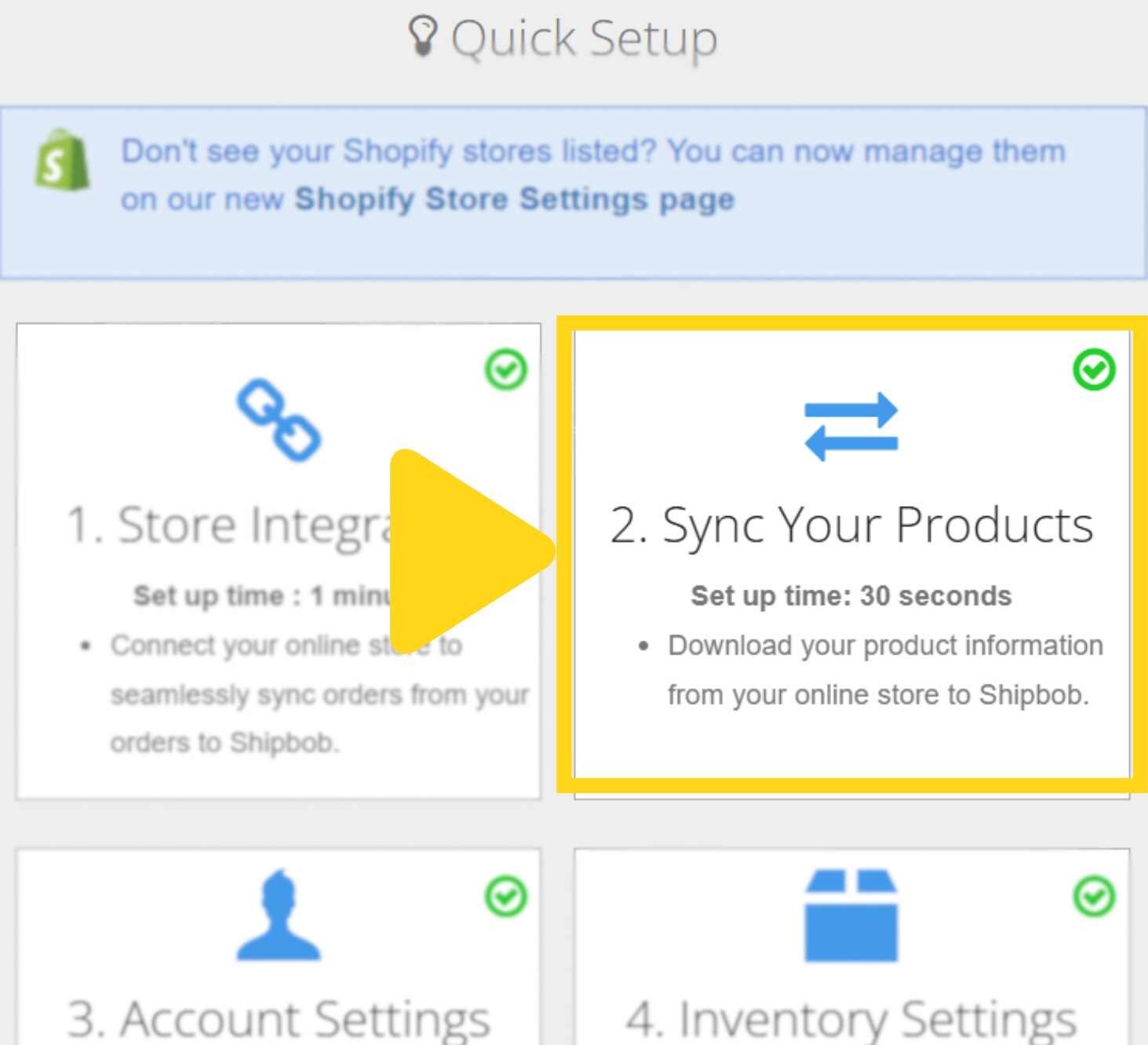
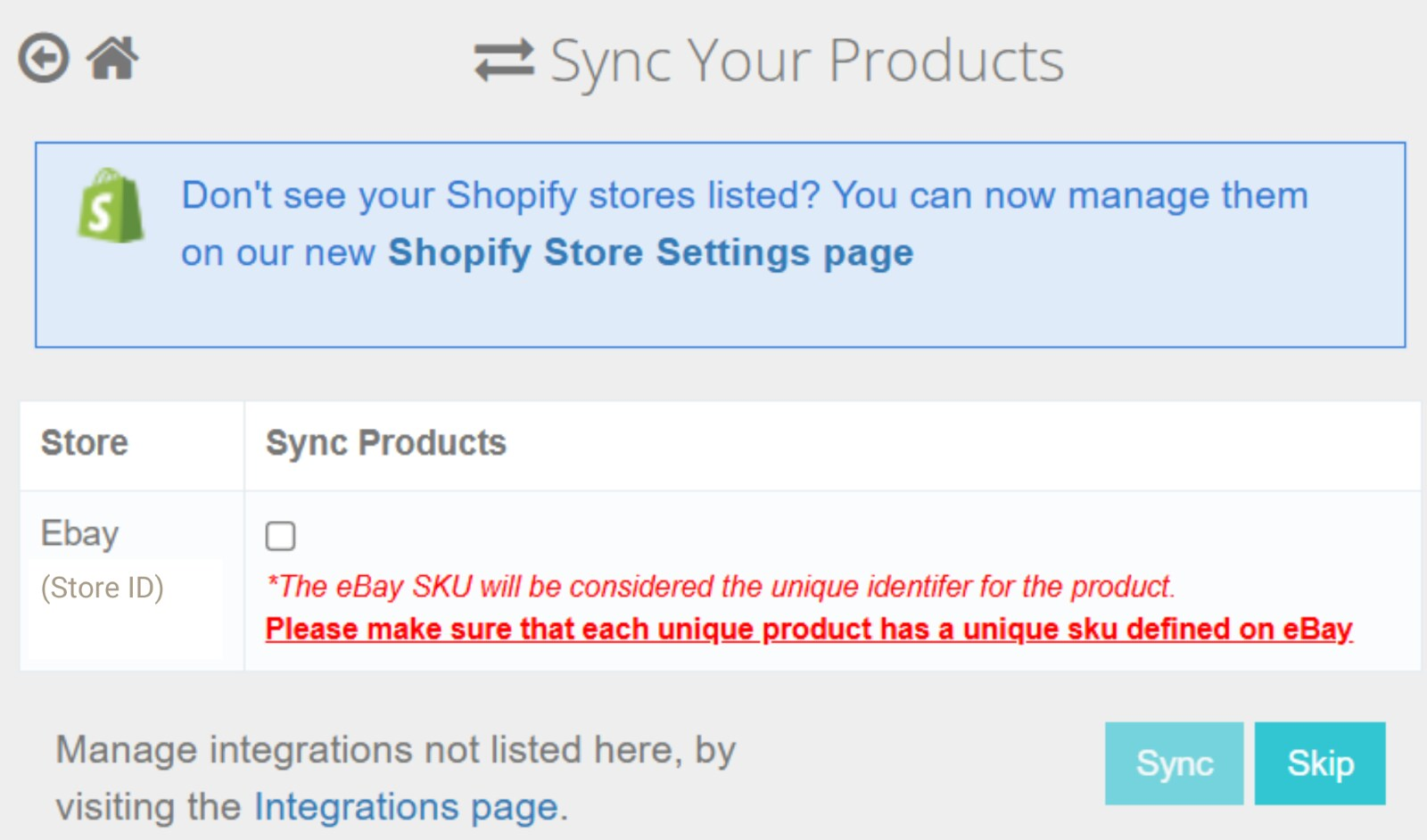 Review the notice: "The eBay SKU will be considered the unique identifier for the product. Please make sure that each unique product has a unique sku defined on eBay."
Your eBay catalog items will now appear in Jetpack's Product Catalog with new Inventory IDs assigned.
Learn more about [managing products](/fulfillment/managing-products) in your Jetpack dashboard.
***
## Auto-Syncing eBay Orders to Jetpack
Jetpack can automatically fetch eBay orders every 30 minutes and push back tracking information. Follow these steps to enable automatic order syncing:
Review the notice: "The eBay SKU will be considered the unique identifier for the product. Please make sure that each unique product has a unique sku defined on eBay."
Your eBay catalog items will now appear in Jetpack's Product Catalog with new Inventory IDs assigned.
Learn more about [managing products](/fulfillment/managing-products) in your Jetpack dashboard.
***
## Auto-Syncing eBay Orders to Jetpack
Jetpack can automatically fetch eBay orders every 30 minutes and push back tracking information. Follow these steps to enable automatic order syncing:
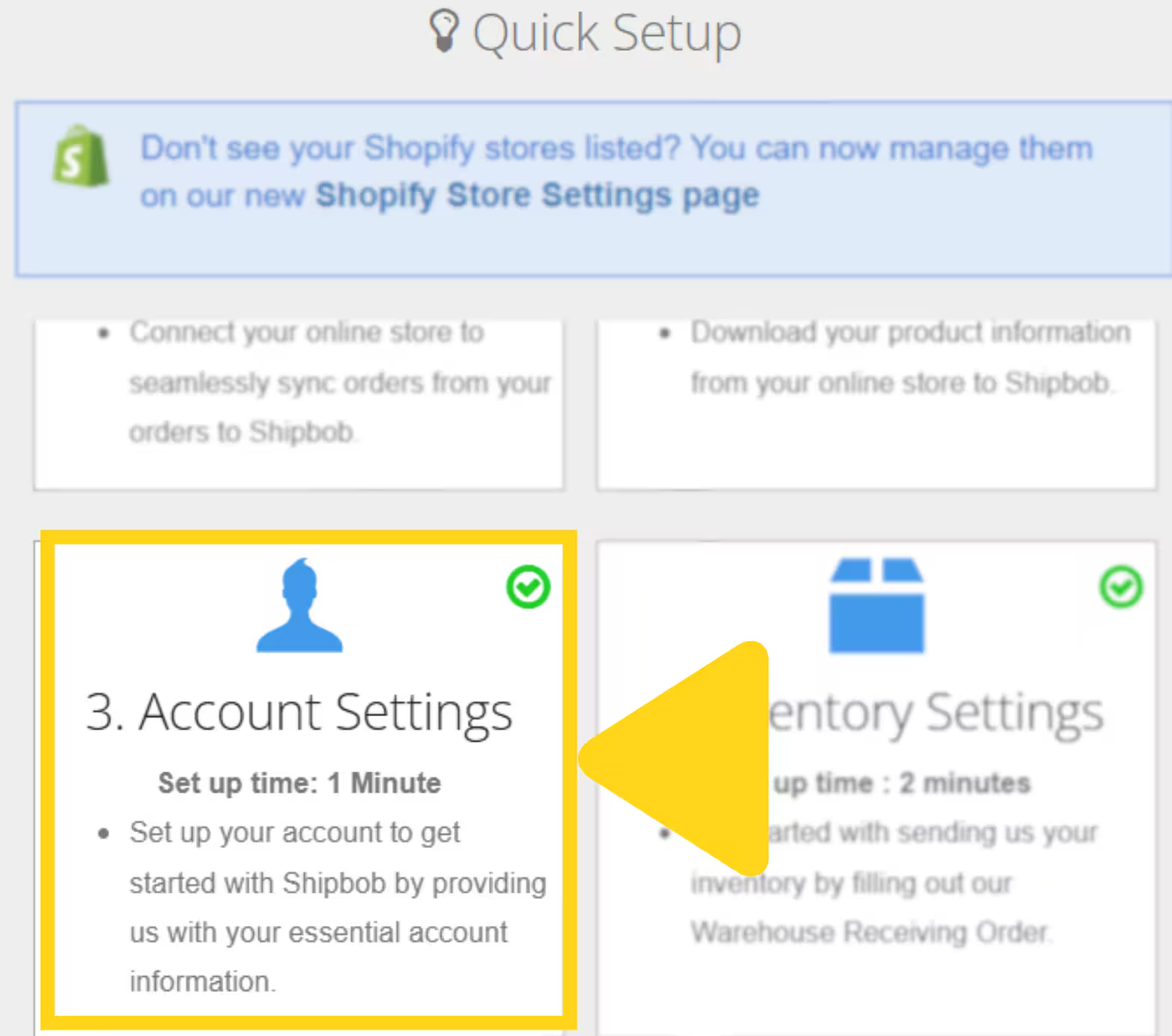
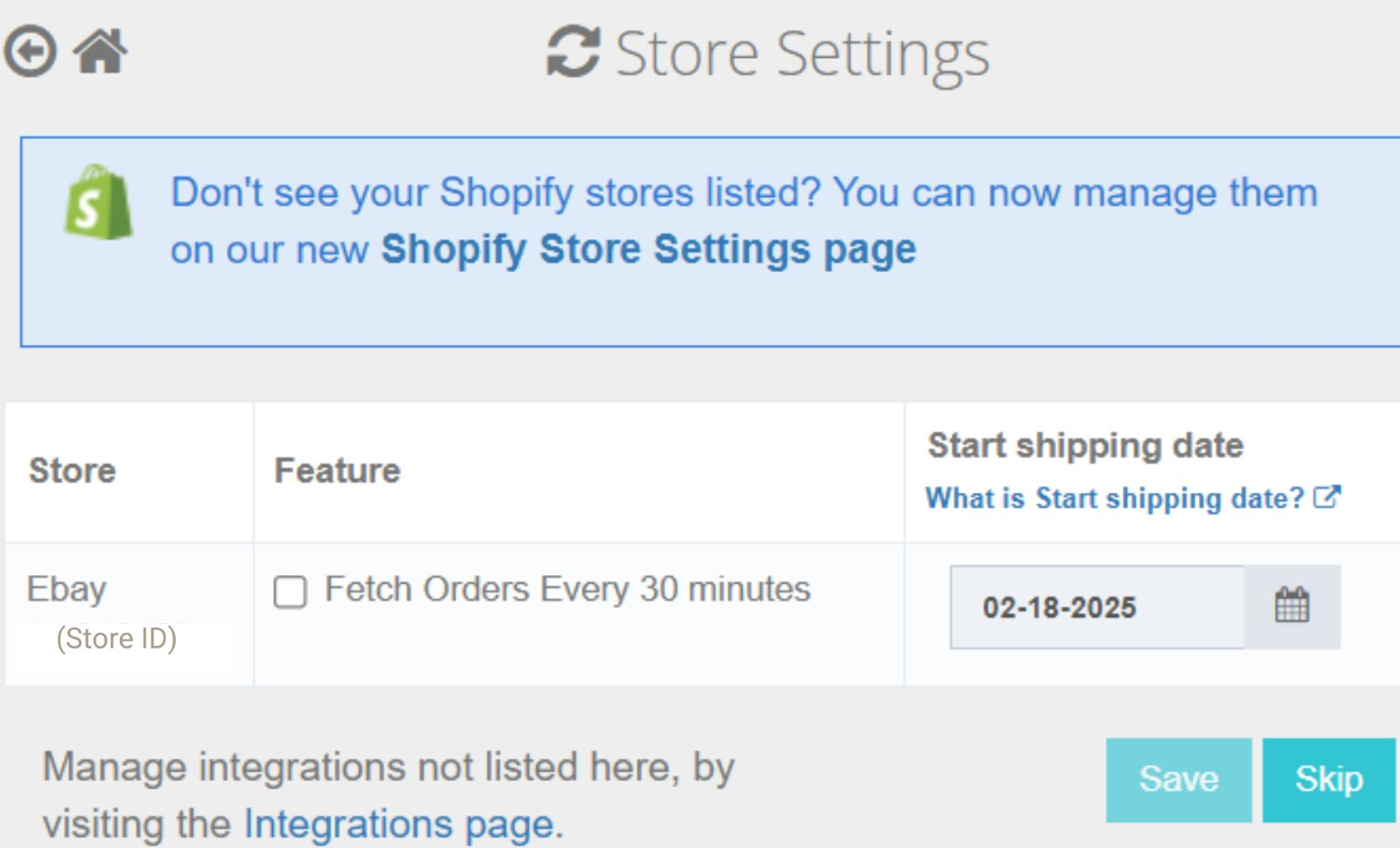 Check the box next to "Fetch Orders Every 30 minutes" for your eBay store. A confirmation popup will appear.
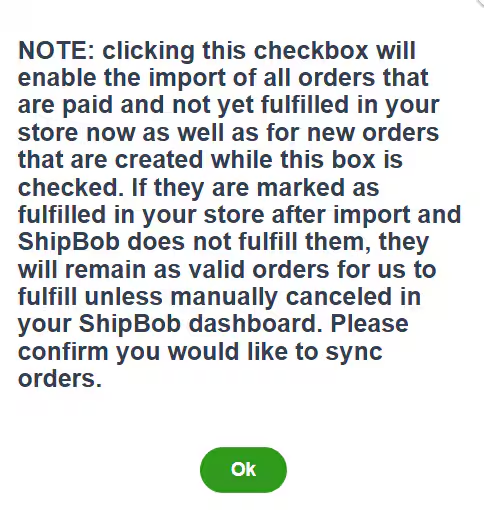 Review the confirmation message: Enabling this checkbox will import all orders that are paid and not yet fulfilled in your store now as well as for new orders that are created while this box is checked. If orders are marked as fulfilled in your store after import and Jetpack does not fulfill them, they will remain as valid orders for fulfillment unless manually canceled in your Jetpack dashboard.
Click the calendar icon to set a Start Shipping Date. Jetpack will backfill orders from this date forward.
Orders will now import automatically every 30 minutes according to your configuration.
You can also trigger manual syncs at any time from the Orders page in your Jetpack dashboard.
***
## Configuring Ship Option Mapping
Before Jetpack can fulfill your eBay orders, you must map eBay shipping services to Jetpack ship options. This ensures that the shipping method your customer selects at checkout matches the corresponding fulfillment service in your Jetpack dashboard.
**To configure ship option mapping:**
1. Navigate to **Settings > Ship Option Mapping** in your Jetpack dashboard
2. Locate your eBay shipping methods in the list (Standard Shipping, Expedited Shipping, One Day Shipping, Economy Shipping, etc.)
3. For each method, select the corresponding Jetpack ship option from the dropdown
4. Mark the method as **Active**
5. Click **Save Mapping**
Orders cannot be fulfilled until you complete ship option mapping. Any orders imported before mapping is configured will be placed on hold until you map the shipping methods.
Learn more about [configuring default carriers with ship option mapping](/fulfillment/account-setup/shipping-preferences/choosing-default-carriers).
***
## Viewing eBay Fulfillment
After Jetpack fulfills an order, a unique tracking number posts to the order details in Jetpack and updates back to your eBay listing automatically. The order status on eBay will reflect as Fulfilled, keeping your buyers informed.
**What happens when an order ships:**
* Tracking information is sent back to eBay
* Order is marked as shipped in eBay Seller Hub
* eBay sends a shipment notification to your customer with the tracking link
* Tracking updates become visible in eBay Seller Hub and the customer's purchase history
***
## Advanced Features and Capabilities
### Manual Order Syncing
You can trigger manual order syncs at any time from the Orders page in your Jetpack dashboard. This is useful if you need to import orders immediately without waiting for the automatic 30-minute sync cycle.
### Start Shipping Date
The Start Shipping Date feature allows you to backfill orders from a specific date when enabling auto-sync. Jetpack will import all paid, unfulfilled orders from your selected date forward. This is particularly useful when first setting up your integration or after a period of manual order entry.
### Multiple eBay Accounts
You can connect multiple eBay seller accounts to the same Jetpack account. Each eBay account must be connected separately through the integration process, and each will have its own configuration for auto-sync and ship option mapping.
***
## eBay Integration FAQs
eBay orders are imported automatically every 30 minutes when auto-sync is enabled. Only paid orders that are not yet fulfilled are imported to Jetpack for fulfillment. You can also trigger manual syncs at any time from the Orders page.
Products do not sync automatically upon connection, but you can manually sync your eBay catalog through Quick Actions > Sync Your Products. Additionally, if an imported order contains SKUs not yet in Jetpack, new products will be created automatically.
When Jetpack ships an order, tracking information is sent back to eBay and the order is marked as Fulfilled in eBay Seller Hub. eBay automatically sends a shipment notification to your customer with the tracking link.
Each unique product on eBay must have a unique SKU defined. The eBay SKU is used as the unique identifier when syncing to Jetpack. Orders without SKUs may not import correctly, so ensure all eBay listings have SKUs assigned before connecting the integration.
Yes, you can connect multiple eBay seller accounts to the same Jetpack account. Each account must be connected separately, and you can configure auto-sync and ship option mapping for each account independently.
The Start Shipping Date allows you to backfill orders from a specific date when enabling auto-sync. Jetpack will import all paid, unfulfilled orders from your selected date forward. This is useful when first setting up your integration.
If orders are marked as fulfilled in your eBay store after they've been imported to Jetpack, and Jetpack does not fulfill them, they will remain as valid orders in your Jetpack dashboard for fulfillment unless you manually cancel them.
***
## Related Articles
* [Shopify: Initial Setup](/fulfillment/account-setup/integrating-store/shopify) - Connect your Shopify store
* [Amazon Integration: Initial Setup](/fulfillment/account-setup/integrating-store/amazon) - Connect your Amazon Seller Central account
* [Manual Order Syncing](/fulfillment/order-management/manual-syncing) - Trigger on-demand order imports
* [Ship Option Mapping](/fulfillment/account-setup/shipping-preferences/ship-option-mapping) - Configure shipping method mappings
***
## Let's Dive Deeper
Back to the main integrations guide
Configure your Product Catalog after syncing
Learn how product syncing works
Map eBay shipping methods to Jetpack options
Understand order import methods
View and manage imported orders
Review the confirmation message: Enabling this checkbox will import all orders that are paid and not yet fulfilled in your store now as well as for new orders that are created while this box is checked. If orders are marked as fulfilled in your store after import and Jetpack does not fulfill them, they will remain as valid orders for fulfillment unless manually canceled in your Jetpack dashboard.
Click the calendar icon to set a Start Shipping Date. Jetpack will backfill orders from this date forward.
Orders will now import automatically every 30 minutes according to your configuration.
You can also trigger manual syncs at any time from the Orders page in your Jetpack dashboard.
***
## Configuring Ship Option Mapping
Before Jetpack can fulfill your eBay orders, you must map eBay shipping services to Jetpack ship options. This ensures that the shipping method your customer selects at checkout matches the corresponding fulfillment service in your Jetpack dashboard.
**To configure ship option mapping:**
1. Navigate to **Settings > Ship Option Mapping** in your Jetpack dashboard
2. Locate your eBay shipping methods in the list (Standard Shipping, Expedited Shipping, One Day Shipping, Economy Shipping, etc.)
3. For each method, select the corresponding Jetpack ship option from the dropdown
4. Mark the method as **Active**
5. Click **Save Mapping**
Orders cannot be fulfilled until you complete ship option mapping. Any orders imported before mapping is configured will be placed on hold until you map the shipping methods.
Learn more about [configuring default carriers with ship option mapping](/fulfillment/account-setup/shipping-preferences/choosing-default-carriers).
***
## Viewing eBay Fulfillment
After Jetpack fulfills an order, a unique tracking number posts to the order details in Jetpack and updates back to your eBay listing automatically. The order status on eBay will reflect as Fulfilled, keeping your buyers informed.
**What happens when an order ships:**
* Tracking information is sent back to eBay
* Order is marked as shipped in eBay Seller Hub
* eBay sends a shipment notification to your customer with the tracking link
* Tracking updates become visible in eBay Seller Hub and the customer's purchase history
***
## Advanced Features and Capabilities
### Manual Order Syncing
You can trigger manual order syncs at any time from the Orders page in your Jetpack dashboard. This is useful if you need to import orders immediately without waiting for the automatic 30-minute sync cycle.
### Start Shipping Date
The Start Shipping Date feature allows you to backfill orders from a specific date when enabling auto-sync. Jetpack will import all paid, unfulfilled orders from your selected date forward. This is particularly useful when first setting up your integration or after a period of manual order entry.
### Multiple eBay Accounts
You can connect multiple eBay seller accounts to the same Jetpack account. Each eBay account must be connected separately through the integration process, and each will have its own configuration for auto-sync and ship option mapping.
***
## eBay Integration FAQs
eBay orders are imported automatically every 30 minutes when auto-sync is enabled. Only paid orders that are not yet fulfilled are imported to Jetpack for fulfillment. You can also trigger manual syncs at any time from the Orders page.
Products do not sync automatically upon connection, but you can manually sync your eBay catalog through Quick Actions > Sync Your Products. Additionally, if an imported order contains SKUs not yet in Jetpack, new products will be created automatically.
When Jetpack ships an order, tracking information is sent back to eBay and the order is marked as Fulfilled in eBay Seller Hub. eBay automatically sends a shipment notification to your customer with the tracking link.
Each unique product on eBay must have a unique SKU defined. The eBay SKU is used as the unique identifier when syncing to Jetpack. Orders without SKUs may not import correctly, so ensure all eBay listings have SKUs assigned before connecting the integration.
Yes, you can connect multiple eBay seller accounts to the same Jetpack account. Each account must be connected separately, and you can configure auto-sync and ship option mapping for each account independently.
The Start Shipping Date allows you to backfill orders from a specific date when enabling auto-sync. Jetpack will import all paid, unfulfilled orders from your selected date forward. This is useful when first setting up your integration.
If orders are marked as fulfilled in your eBay store after they've been imported to Jetpack, and Jetpack does not fulfill them, they will remain as valid orders in your Jetpack dashboard for fulfillment unless you manually cancel them.
***
## Related Articles
* [Shopify: Initial Setup](/fulfillment/account-setup/integrating-store/shopify) - Connect your Shopify store
* [Amazon Integration: Initial Setup](/fulfillment/account-setup/integrating-store/amazon) - Connect your Amazon Seller Central account
* [Manual Order Syncing](/fulfillment/order-management/manual-syncing) - Trigger on-demand order imports
* [Ship Option Mapping](/fulfillment/account-setup/shipping-preferences/ship-option-mapping) - Configure shipping method mappings
***
## Let's Dive Deeper
Back to the main integrations guide
Configure your Product Catalog after syncing
Learn how product syncing works
Map eBay shipping methods to Jetpack options
Understand order import methods
View and manage imported orders

Questions? Contact Jetpack Care.
If you have any questions or run into issues during setup, you can always contact Jetpack Care for help. Our team is always here to assist via Slack, phone, or email!