> ## Documentation Index
> Fetch the complete documentation index at: https://help.jetpack3pl.com/llms.txt
> Use this file to discover all available pages before exploring further.
# Amazon Integration
> Connect your Amazon Seller Central account to Jetpack to automatically import and fulfill FBM (Fulfilled by Merchant) orders.
Connecting your Amazon Seller Central account to Jetpack enables automatic import of your FBM (Fulfilled by Merchant) orders for fast, reliable fulfillment. This integration streamlines your Amazon operations by syncing orders, tracking information, and optionally inventory levels between Amazon and your Jetpack dashboard.

About ShipBob Integration References
During setup, you'll authorize the "ShipBob" integration in Amazon Seller Central. This is expected—Jetpack has licensed ShipBob's integration infrastructure to provide reliable connections. Your data flows seamlessly to your Jetpack dashboard.
## Prerequisites
Before connecting your Amazon account, ensure you have:
* An active Amazon Seller Central account
* Active FBM (Fulfilled by Merchant) listings in Amazon
* A Jetpack merchant account
This integration is for **FBM (Fulfilled by Merchant)** orders only. FBA (Fulfilled by Amazon) orders are fulfilled directly by Amazon from their fulfillment centers and are not imported to Jetpack.
***
## Connecting Amazon to Jetpack
Follow these steps to connect your Amazon Seller Central account to your Jetpack dashboard:
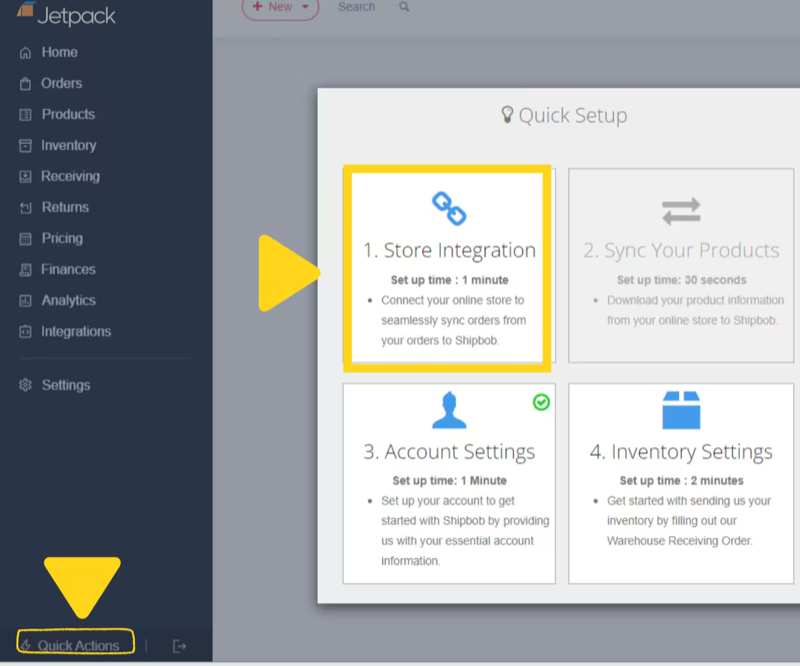
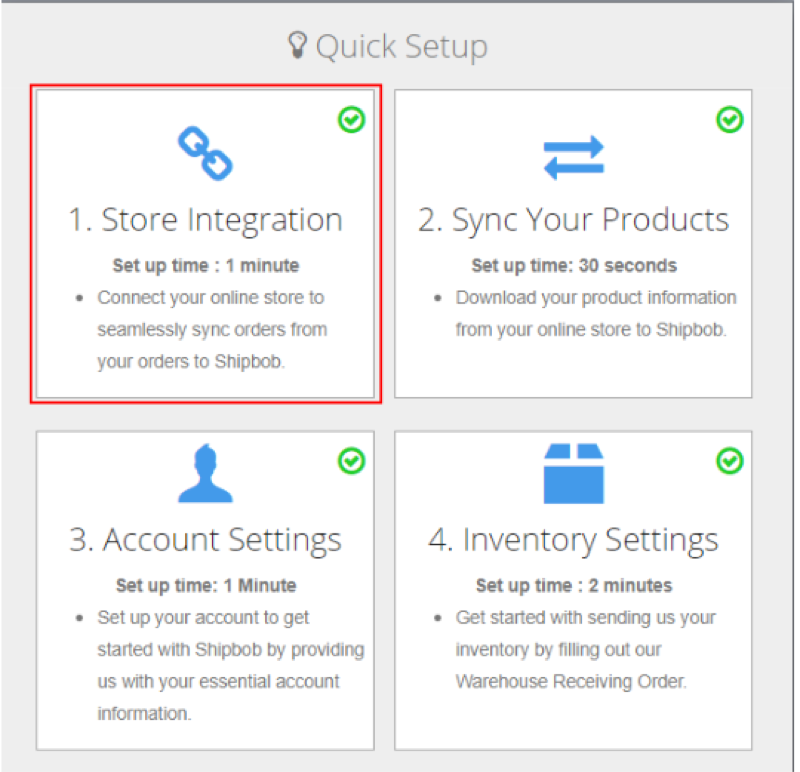
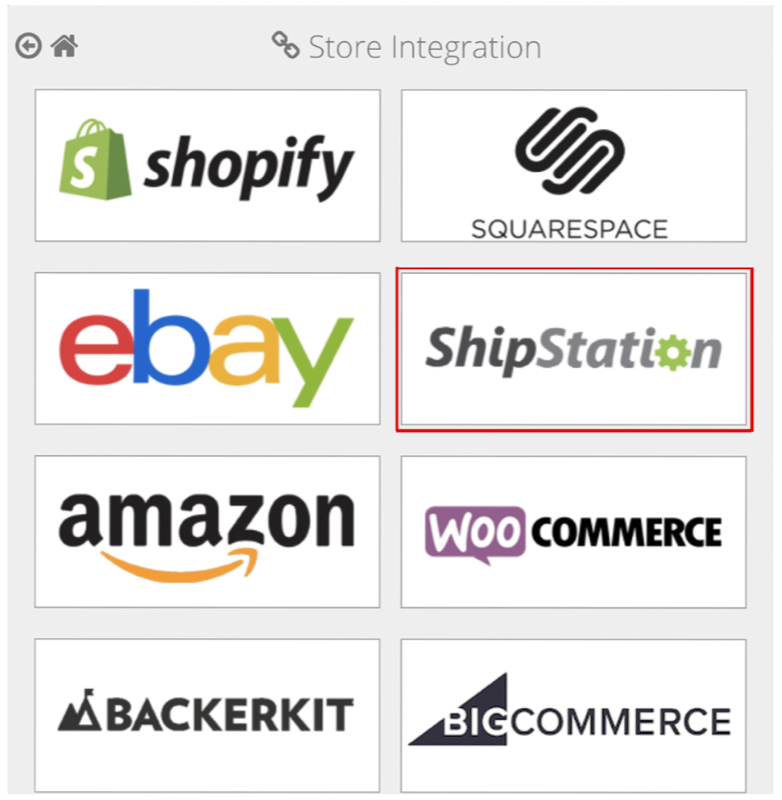 Find **Amazon** in the list and click **+ Connect**.
You will be redirected to Amazon Seller Central.
Find **Amazon** in the list and click **+ Connect**.
You will be redirected to Amazon Seller Central.
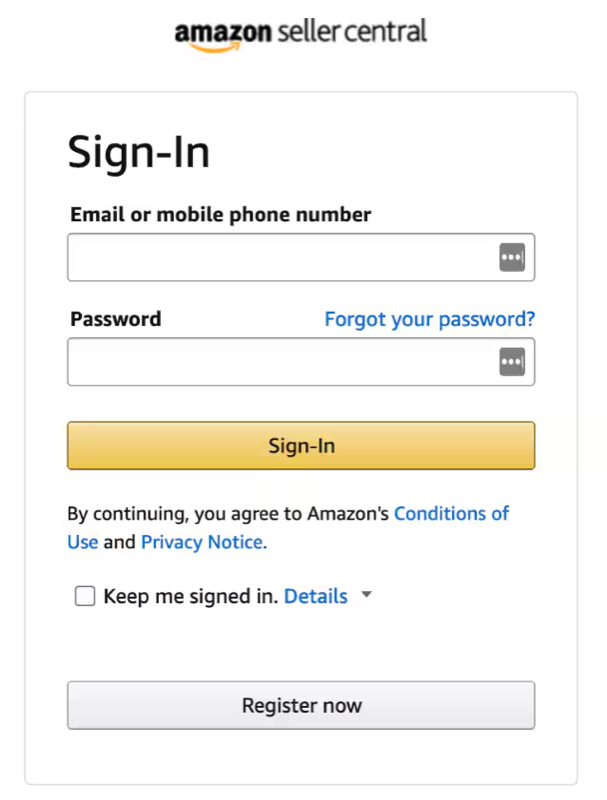 If prompted, log in with your Amazon Seller Central credentials.
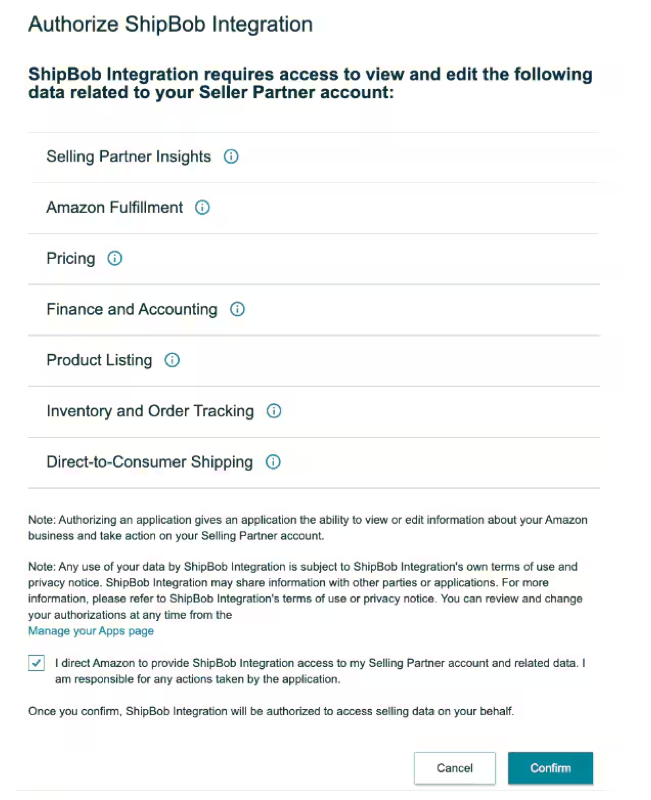 Review the permissions requested by ShipBob:
* Access to orders
* Access to inventory data
* Ability to mark orders as fulfilled
Click **Authorize** or **Confirm**.
You will be redirected back to Jetpack's Integrations page.
Your Amazon integration will now show as **Connected**.
***
## Selecting Amazon Marketplaces
If you sell on multiple Amazon marketplaces (US, CA, UK, EU, JP, AU, etc.), you'll need to select which marketplaces Jetpack should fulfill orders from.
After connecting your Amazon account, you'll see a marketplace selection screen showing all available Amazon marketplaces.
Review the permissions requested by ShipBob:
* Access to orders
* Access to inventory data
* Ability to mark orders as fulfilled
Click **Authorize** or **Confirm**.
You will be redirected back to Jetpack's Integrations page.
Your Amazon integration will now show as **Connected**.
***
## Selecting Amazon Marketplaces
If you sell on multiple Amazon marketplaces (US, CA, UK, EU, JP, AU, etc.), you'll need to select which marketplaces Jetpack should fulfill orders from.
After connecting your Amazon account, you'll see a marketplace selection screen showing all available Amazon marketplaces.
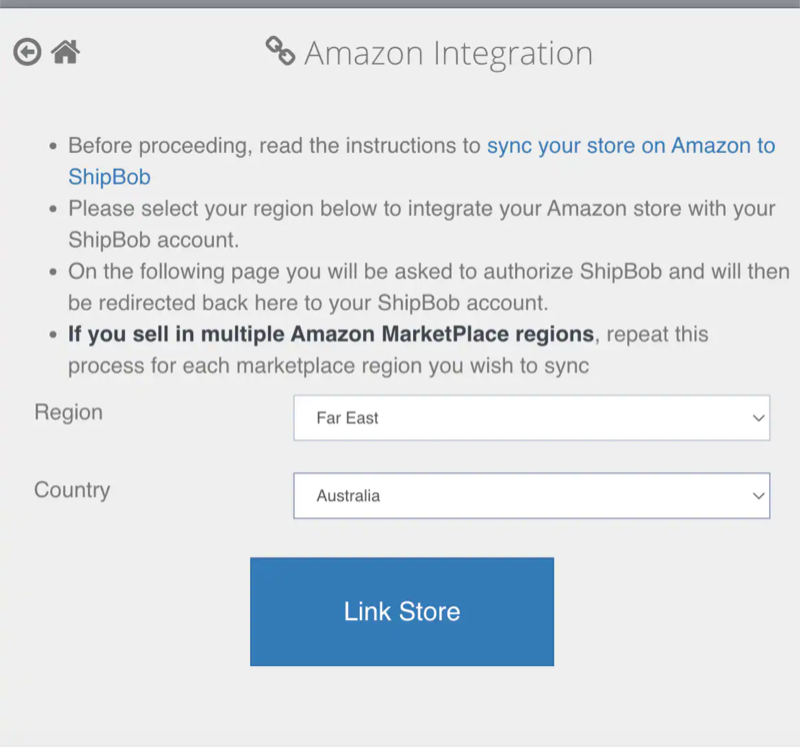 Choose all regions where you sell FBM products and want Jetpack to handle fulfillment.
Your marketplace selections will be saved and Jetpack will begin importing FBM orders from these marketplaces.
Only FBM orders from selected marketplaces will be imported to Jetpack. Make sure to select all relevant marketplaces for your business.
**Supported International Marketplaces:**
* Amazon.com (United States)
* Amazon.ca (Canada)
* Amazon.co.uk (United Kingdom)
* Amazon.de (Germany)
* Amazon.fr (France)
* Amazon.it (Italy)
* Amazon.es (Spain)
* Amazon.co.jp (Japan)
* Amazon.com.au (Australia)
***
## Product Syncing
After connecting your Amazon integration, you can sync products from Amazon Seller Central to Jetpack.
### Enabling Product Sync
During initial setup, sync all products and their images from Amazon Seller Central in bulk:
Choose all regions where you sell FBM products and want Jetpack to handle fulfillment.
Your marketplace selections will be saved and Jetpack will begin importing FBM orders from these marketplaces.
Only FBM orders from selected marketplaces will be imported to Jetpack. Make sure to select all relevant marketplaces for your business.
**Supported International Marketplaces:**
* Amazon.com (United States)
* Amazon.ca (Canada)
* Amazon.co.uk (United Kingdom)
* Amazon.de (Germany)
* Amazon.fr (France)
* Amazon.it (Italy)
* Amazon.es (Spain)
* Amazon.co.jp (Japan)
* Amazon.com.au (Australia)
***
## Product Syncing
After connecting your Amazon integration, you can sync products from Amazon Seller Central to Jetpack.
### Enabling Product Sync
During initial setup, sync all products and their images from Amazon Seller Central in bulk:
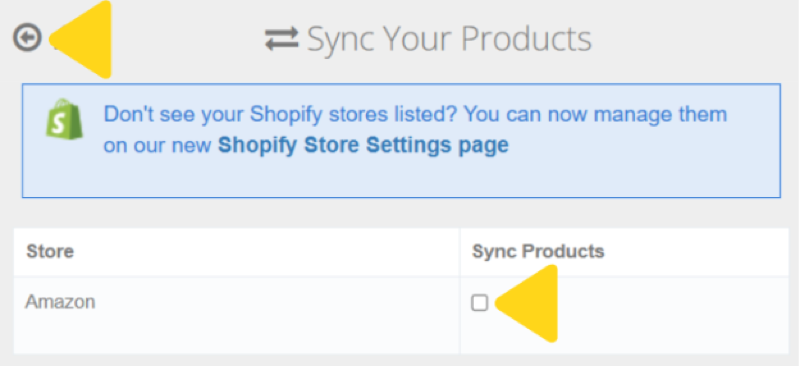 1. Locate **Amazon** under the Store column in your Jetpack dashboard
2. Check the box under the **Sync Products** column next to your Amazon store
3. All Amazon products and images will sync to your Jetpack Product Catalog
**Important Notes:**
* Match Amazon SKUs to Jetpack Inventory IDs for proper order routing
* If a new SKU is created in Amazon before it's synced to Jetpack, a new Inventory ID will be created automatically when the order is imported, and all related product images will also be imported
***
## Ship Option Mapping
Before Jetpack can fulfill Amazon orders, you need to map Amazon shipping speeds to Jetpack ship options. This ensures customer shipping selections in Amazon are matched to the appropriate fulfillment speed.
[Learn how to configure Ship Option Mapping here](/fulfillment/account-setup/shipping-preferences/choosing-default-carriers).
Amazon penalizes sellers for late shipments, which can affect your seller performance metrics. If an order cannot be fulfilled within Amazon's required timeframe, contact Jetpack Care immediately to discuss expedited fulfillment options.
***
## How FBM Orders Flow to Jetpack
Once your integration is configured, Jetpack automatically imports and fulfills your FBM orders:
### Order Import Process
**Orders Imported:**
* Unshipped FBM orders
* Orders with "Pending" status
**Orders NOT Imported:**
* FBA (Fulfilled by Amazon) orders
* Canceled orders
* Orders already marked as shipped
**Import Frequency:** Jetpack checks for new FBM orders every 15 minutes.
### Fulfillment and Tracking Confirmation
When Jetpack ships an FBM order, the following happens automatically:
1. Jetpack generates a shipping label and tracking number
2. The order is marked as fulfilled in Jetpack
3. Tracking information is sent to Amazon Seller Central
4. The order is marked as "Shipped" in Amazon
5. Amazon sends shipment confirmation email to the customer with tracking
**Tracking Details Synced:**
* Carrier name (UPS, USPS, FedEx, etc.)
* Tracking number
* Ship date
### Split Shipments
If an FBM order ships in multiple packages from Jetpack:
* Each package receives a separate tracking number
* All tracking numbers are sent to Amazon
* Amazon notifies the customer of multiple shipments
***
## Amazon Order Types
Jetpack supports various Amazon order types, each with specific handling requirements.
### Standard FBM Orders
Standard FBM orders include:
* Single-item orders
* Multi-item orders
* Domestic US orders
* Prime-eligible FBM orders (if you offer Seller Fulfilled Prime)
All standard FBM orders are imported to Jetpack automatically.
### Amazon Prime Orders (Seller Fulfilled Prime)
If you're enrolled in Amazon's Seller Fulfilled Prime (SFP) program:
* Jetpack can fulfill SFP orders
* Orders are imported with a "Prime" flag in Jetpack
* Prime orders must meet strict Amazon requirements:
* 1-day or 2-day delivery
* Weekend fulfillment capability
* High on-time delivery rate
* Free shipping to Prime members
Contact Jetpack Care to configure SFP fulfillment and ensure your SLAs meet Amazon's Prime requirements.
### Amazon Business Orders
Amazon Business (B2B) orders placed by business customers:
* Import to Jetpack like standard FBM orders
* May require business-specific packing slips or documentation
* Jetpack fulfills B2B orders as configured in your settings
**Tax-Exempt Orders:** Amazon Business orders may be tax-exempt. Jetpack does not manage tax calculations; Amazon handles tax exemptions at checkout.
### International Orders (Cross-Border FBM)
If you fulfill international orders through Amazon FBM:
* Jetpack can ship to international destinations from fulfillment centers
* Customs documentation (commercial invoices) are generated automatically by Jetpack
* Duties and taxes depend on your Delivered Duty Paid (DDP) or Delivered Duty Unpaid (DDU) settings
### Gift Orders
If customers select "This is a gift" in Amazon:
* Gift message syncs to Jetpack
* Jetpack includes the gift message on the packing slip
* Pricing is excluded from packing slip for gift orders
Jetpack does not support Amazon's gift wrap service. Gift orders are packed in standard packaging.
### Subscribe & Save Orders
Amazon Subscribe & Save orders (recurring subscriptions) are imported as individual FBM orders each time they are placed:
* Each subscription delivery is a separate order
* Jetpack fulfills each order as it's placed
### Replacement Orders
If you issue a replacement order in Amazon Seller Central:
* The replacement order is imported to Jetpack as a new FBM order
* The original order (if applicable) should be canceled in Jetpack to avoid duplicate fulfillment
***
## Returns for FBM Orders
Jetpack can process returns for FBM orders with the following workflow:
1. Customer initiates return in Amazon
2. You generate a return label (via Jetpack or your own carrier)
3. Customer ships product back to Jetpack fulfillment center
4. Create a return order in Jetpack (manually or via API)
5. Jetpack processes the return based on your configured return preferences
Amazon does not automatically notify Jetpack of return requests. You must create return orders in Jetpack manually or via integration.
Learn more about [setting returns preferences](/fulfillment/account-setup/shipping-preferences/setting-returns-preferences).
***
## Inventory Management for FBM Listings
### Manual Inventory Sync (Default)
By default, Jetpack does **not** automatically update FBM inventory levels in Amazon. You can update FBM inventory levels in Amazon Seller Central manually as needed.
### Optional Automatic Inventory Sync
1. Locate **Amazon** under the Store column in your Jetpack dashboard
2. Check the box under the **Sync Products** column next to your Amazon store
3. All Amazon products and images will sync to your Jetpack Product Catalog
**Important Notes:**
* Match Amazon SKUs to Jetpack Inventory IDs for proper order routing
* If a new SKU is created in Amazon before it's synced to Jetpack, a new Inventory ID will be created automatically when the order is imported, and all related product images will also be imported
***
## Ship Option Mapping
Before Jetpack can fulfill Amazon orders, you need to map Amazon shipping speeds to Jetpack ship options. This ensures customer shipping selections in Amazon are matched to the appropriate fulfillment speed.
[Learn how to configure Ship Option Mapping here](/fulfillment/account-setup/shipping-preferences/choosing-default-carriers).
Amazon penalizes sellers for late shipments, which can affect your seller performance metrics. If an order cannot be fulfilled within Amazon's required timeframe, contact Jetpack Care immediately to discuss expedited fulfillment options.
***
## How FBM Orders Flow to Jetpack
Once your integration is configured, Jetpack automatically imports and fulfills your FBM orders:
### Order Import Process
**Orders Imported:**
* Unshipped FBM orders
* Orders with "Pending" status
**Orders NOT Imported:**
* FBA (Fulfilled by Amazon) orders
* Canceled orders
* Orders already marked as shipped
**Import Frequency:** Jetpack checks for new FBM orders every 15 minutes.
### Fulfillment and Tracking Confirmation
When Jetpack ships an FBM order, the following happens automatically:
1. Jetpack generates a shipping label and tracking number
2. The order is marked as fulfilled in Jetpack
3. Tracking information is sent to Amazon Seller Central
4. The order is marked as "Shipped" in Amazon
5. Amazon sends shipment confirmation email to the customer with tracking
**Tracking Details Synced:**
* Carrier name (UPS, USPS, FedEx, etc.)
* Tracking number
* Ship date
### Split Shipments
If an FBM order ships in multiple packages from Jetpack:
* Each package receives a separate tracking number
* All tracking numbers are sent to Amazon
* Amazon notifies the customer of multiple shipments
***
## Amazon Order Types
Jetpack supports various Amazon order types, each with specific handling requirements.
### Standard FBM Orders
Standard FBM orders include:
* Single-item orders
* Multi-item orders
* Domestic US orders
* Prime-eligible FBM orders (if you offer Seller Fulfilled Prime)
All standard FBM orders are imported to Jetpack automatically.
### Amazon Prime Orders (Seller Fulfilled Prime)
If you're enrolled in Amazon's Seller Fulfilled Prime (SFP) program:
* Jetpack can fulfill SFP orders
* Orders are imported with a "Prime" flag in Jetpack
* Prime orders must meet strict Amazon requirements:
* 1-day or 2-day delivery
* Weekend fulfillment capability
* High on-time delivery rate
* Free shipping to Prime members
Contact Jetpack Care to configure SFP fulfillment and ensure your SLAs meet Amazon's Prime requirements.
### Amazon Business Orders
Amazon Business (B2B) orders placed by business customers:
* Import to Jetpack like standard FBM orders
* May require business-specific packing slips or documentation
* Jetpack fulfills B2B orders as configured in your settings
**Tax-Exempt Orders:** Amazon Business orders may be tax-exempt. Jetpack does not manage tax calculations; Amazon handles tax exemptions at checkout.
### International Orders (Cross-Border FBM)
If you fulfill international orders through Amazon FBM:
* Jetpack can ship to international destinations from fulfillment centers
* Customs documentation (commercial invoices) are generated automatically by Jetpack
* Duties and taxes depend on your Delivered Duty Paid (DDP) or Delivered Duty Unpaid (DDU) settings
### Gift Orders
If customers select "This is a gift" in Amazon:
* Gift message syncs to Jetpack
* Jetpack includes the gift message on the packing slip
* Pricing is excluded from packing slip for gift orders
Jetpack does not support Amazon's gift wrap service. Gift orders are packed in standard packaging.
### Subscribe & Save Orders
Amazon Subscribe & Save orders (recurring subscriptions) are imported as individual FBM orders each time they are placed:
* Each subscription delivery is a separate order
* Jetpack fulfills each order as it's placed
### Replacement Orders
If you issue a replacement order in Amazon Seller Central:
* The replacement order is imported to Jetpack as a new FBM order
* The original order (if applicable) should be canceled in Jetpack to avoid duplicate fulfillment
***
## Returns for FBM Orders
Jetpack can process returns for FBM orders with the following workflow:
1. Customer initiates return in Amazon
2. You generate a return label (via Jetpack or your own carrier)
3. Customer ships product back to Jetpack fulfillment center
4. Create a return order in Jetpack (manually or via API)
5. Jetpack processes the return based on your configured return preferences
Amazon does not automatically notify Jetpack of return requests. You must create return orders in Jetpack manually or via integration.
Learn more about [setting returns preferences](/fulfillment/account-setup/shipping-preferences/setting-returns-preferences).
***
## Inventory Management for FBM Listings
### Manual Inventory Sync (Default)
By default, Jetpack does **not** automatically update FBM inventory levels in Amazon. You can update FBM inventory levels in Amazon Seller Central manually as needed.
### Optional Automatic Inventory Sync
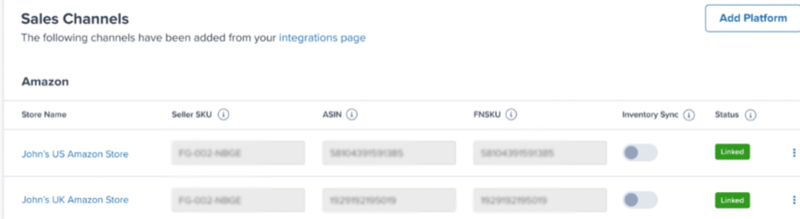 Contact Jetpack Care to enable automatic inventory syncing to Amazon FBM listings. Once enabled, inventory changes at Jetpack fulfillment centers will automatically sync back to your Amazon FBM listings.
***
## Post-Integration Configuration
After connecting your Amazon integration, configure these settings in your Jetpack dashboard:
### Automatic Order Sync
Configure the **Fetch Orders** feature to automatically sync orders from Amazon:
* Orders sync every 30 minutes automatically
* Fetches unshipped FBM orders with "Pending" status
* Orders are imported to Jetpack and queued for fulfillment
**Manual Import Option:** If you prefer manual order import instead of automatic syncing, you can use the manual order import methods in your Jetpack dashboard.
### Start Shipping Date
The **Start Shipping Date** determines how far back Jetpack will look to import orders from your Amazon store:
* Set this date during initial setup
* Only orders placed on or after this date will be imported
* Useful for controlling which historical orders to fulfill through Jetpack
### Configuration Summary
| Configuration | Details |
| ------------------------------ | ------------------------------------------------------------------------------------------------------------- |
| **Order Import Timing** | FBM orders are imported to Jetpack every 30 minutes automatically (if Fetch Orders is enabled) |
| **Tracking Updates** | When Jetpack ships an order, tracking information is sent back to Amazon and the order is marked as fulfilled |
| **Product Syncing** | Enable product syncing by checking the box under "Sync Products" in your Sales Channels settings |
| **Inventory Syncing** | Jetpack can optionally sync inventory back to Amazon FBM listings (contact Jetpack Care to enable) |
| **Multi-Marketplace Support** | Connect multiple Amazon marketplaces (US, CA, UK, EU, JP, AU) to the same Jetpack account |
| **Shipping Label Procurement** | Jetpack purchases labels through its carrier network (does not use Amazon Buy Shipping) |
***
## Important Notes
Jetpack uses Amazon Order IDs as the Reference ID in Jetpack for easy tracking and cross-reference between systems.
Jetpack's integration is for FBM orders, not Amazon MCF. If you want to fulfill non-Amazon orders using Amazon's Multi-Channel Fulfillment service, that is separate from Jetpack's integration.
If you sell on multiple channels (Amazon, Shopify, etc.), ensure you have enough inventory at Jetpack to fulfill orders from all channels. Inventory allocation is shared across all connected sales channels.
***
## Let's Dive Deeper
Back to the main integration guide
Set up your product catalog
Understand how orders flow into Jetpack
Configure return handling
FBM SKU creation and management
Configure shipping method mappings
Contact Jetpack Care to enable automatic inventory syncing to Amazon FBM listings. Once enabled, inventory changes at Jetpack fulfillment centers will automatically sync back to your Amazon FBM listings.
***
## Post-Integration Configuration
After connecting your Amazon integration, configure these settings in your Jetpack dashboard:
### Automatic Order Sync
Configure the **Fetch Orders** feature to automatically sync orders from Amazon:
* Orders sync every 30 minutes automatically
* Fetches unshipped FBM orders with "Pending" status
* Orders are imported to Jetpack and queued for fulfillment
**Manual Import Option:** If you prefer manual order import instead of automatic syncing, you can use the manual order import methods in your Jetpack dashboard.
### Start Shipping Date
The **Start Shipping Date** determines how far back Jetpack will look to import orders from your Amazon store:
* Set this date during initial setup
* Only orders placed on or after this date will be imported
* Useful for controlling which historical orders to fulfill through Jetpack
### Configuration Summary
| Configuration | Details |
| ------------------------------ | ------------------------------------------------------------------------------------------------------------- |
| **Order Import Timing** | FBM orders are imported to Jetpack every 30 minutes automatically (if Fetch Orders is enabled) |
| **Tracking Updates** | When Jetpack ships an order, tracking information is sent back to Amazon and the order is marked as fulfilled |
| **Product Syncing** | Enable product syncing by checking the box under "Sync Products" in your Sales Channels settings |
| **Inventory Syncing** | Jetpack can optionally sync inventory back to Amazon FBM listings (contact Jetpack Care to enable) |
| **Multi-Marketplace Support** | Connect multiple Amazon marketplaces (US, CA, UK, EU, JP, AU) to the same Jetpack account |
| **Shipping Label Procurement** | Jetpack purchases labels through its carrier network (does not use Amazon Buy Shipping) |
***
## Important Notes
Jetpack uses Amazon Order IDs as the Reference ID in Jetpack for easy tracking and cross-reference between systems.
Jetpack's integration is for FBM orders, not Amazon MCF. If you want to fulfill non-Amazon orders using Amazon's Multi-Channel Fulfillment service, that is separate from Jetpack's integration.
If you sell on multiple channels (Amazon, Shopify, etc.), ensure you have enough inventory at Jetpack to fulfill orders from all channels. Inventory allocation is shared across all connected sales channels.
***
## Let's Dive Deeper
Back to the main integration guide
Set up your product catalog
Understand how orders flow into Jetpack
Configure return handling
FBM SKU creation and management
Configure shipping method mappings

Questions? Contact Jetpack Care.
If you have any questions or run into issues, you can always contact Jetpack Care for help. Our team is always here to assist via Slack, phone, or email!