> ## Documentation Index
> Fetch the complete documentation index at: https://help.jetpack3pl.com/llms.txt
> Use this file to discover all available pages before exploring further.
# My Profile Settings
> Manage your personal account information, update your password, and configure multi-factor authentication for enhanced security.
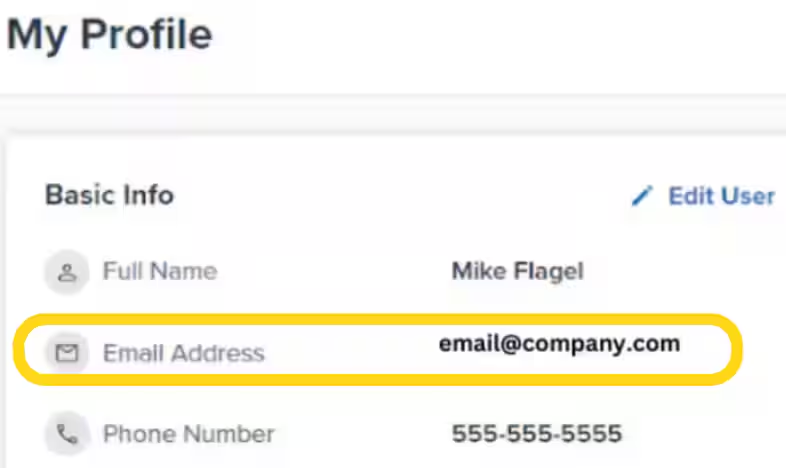
My Profile Settings control your individual user account within the Jetpack platform. Unlike Company Profile Settings (which apply to your entire organization), these settings are personal to you—managing your name, contact information, password, and security preferences.
## What Are My Profile Settings?
My Profile Settings are your personal user account configurations. Each user in your Jetpack account has their own profile with settings that control:
* **Personal Information** - Your name, email address, and phone number
* **Login Credentials** - Your password and password security
* **Account Security** - Multi-factor authentication (MFA) setup
* **Communication Preferences** - How Jetpack contacts you (email, phone)
These settings are independent from other users in your organization—changes you make here only affect your individual account.
***
## Accessing My Profile Settings
To view and edit your profile:
Your profile icon and name can be found in the top-right corner.
Options include **My Profile**, **Profile Settings**, or **Account Settings**.
You'll see all your personal account information and security options.
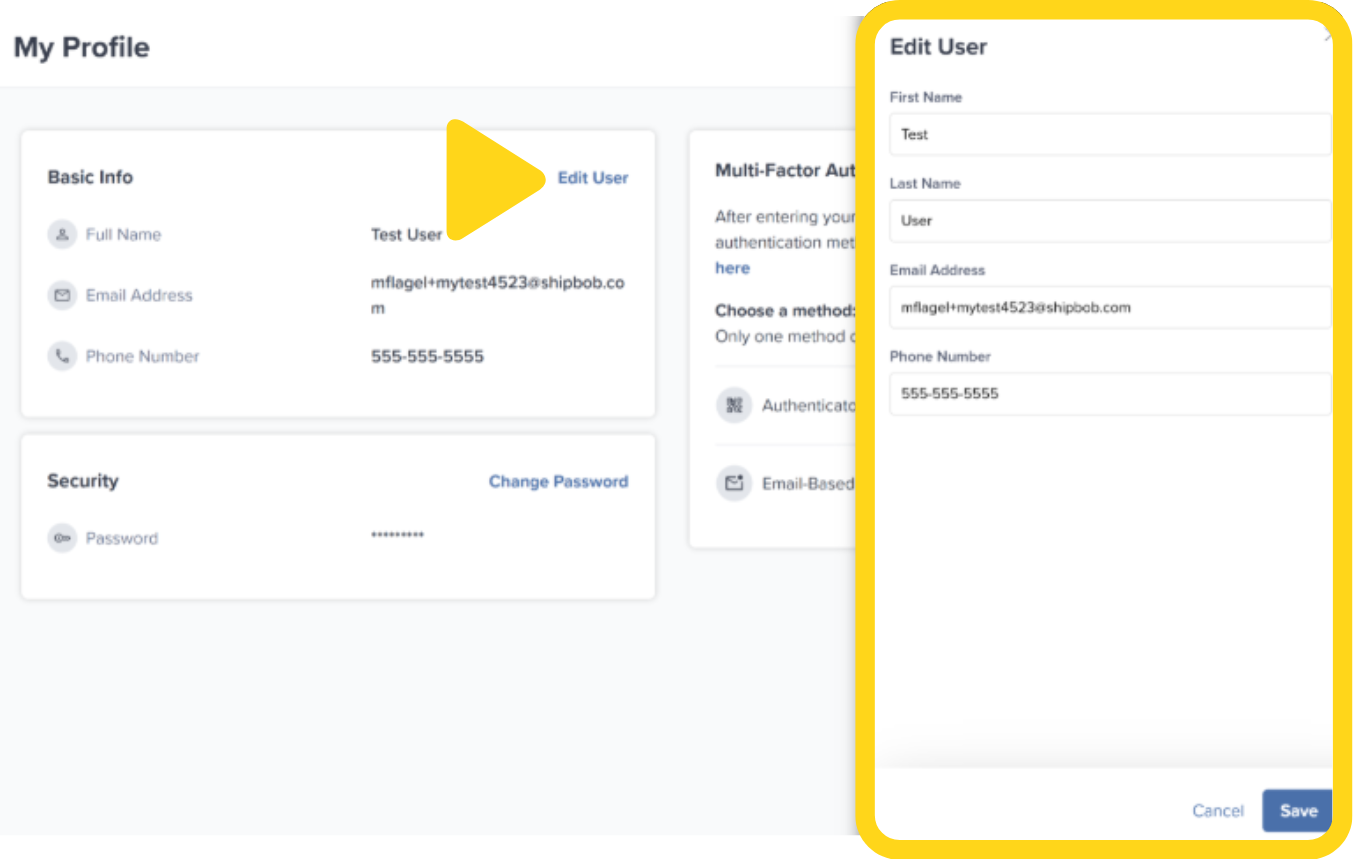 You can only edit your own profile settings through this menu. To edit other users' information (if you have permission), use [User Management Settings](/fulfillment/account-setup/accounts-users/user-management-settings).
***
## Available Profile Settings
Your My Profile Settings page contains the following information and options:
| Setting | What It Controls | How to Edit | When to Update |
| --------------------------------- | ---------------------------------------------- | ------------------------------------------- | ----------------------------------------- |
| **First Name** | Your given name as displayed in the dashboard | Directly editable in profile | After legal name change or correction |
| **Last Name** | Your surname as displayed in the dashboard | Directly editable in profile | After legal name change or correction |
| **Email Address** | Your login email and notification address | Change in profile (requires verification) | When changing employers or contact email |
| **Phone Number** | Contact number for account communications | Directly editable in profile | When updating contact information |
| **Password** | Your login password | Change password or reset via email | Regularly for security, or if compromised |
| **Two-Step Authentication (MFA)** | Multi-factor authentication for login security | Enable/disable in profile security settings | Enable immediately for better security |
***
## Personal Information
Update your name, email, and phone number to keep your profile current.
**To edit:**
You can update First Name, Last Name, Email Address, or Phone Number.
### Changing Your Email Address
Your email serves as your login username. When you change it:
Click the confirmation link sent to your new email.
Your old email receives a security notification of the change.
Your email change won't take effect until you click the verification link. Check your spam folder if you don't receive it within a few minutes.
***
## Password Management
Your password secures access to your Jetpack account. You can change your password at any time or reset it if you've forgotten it.
### Changing Your Password
To update your password while logged in:
Or navigate to **Profile Settings > Password**.
Your password is now changed. You'll continue to be logged in, but will need to use the new password for future logins.
### Resetting Your Password (If Forgotten)
If you've forgotten your password and cannot log in:
This link is located below the login button.
You can only edit your own profile settings through this menu. To edit other users' information (if you have permission), use [User Management Settings](/fulfillment/account-setup/accounts-users/user-management-settings).
***
## Available Profile Settings
Your My Profile Settings page contains the following information and options:
| Setting | What It Controls | How to Edit | When to Update |
| --------------------------------- | ---------------------------------------------- | ------------------------------------------- | ----------------------------------------- |
| **First Name** | Your given name as displayed in the dashboard | Directly editable in profile | After legal name change or correction |
| **Last Name** | Your surname as displayed in the dashboard | Directly editable in profile | After legal name change or correction |
| **Email Address** | Your login email and notification address | Change in profile (requires verification) | When changing employers or contact email |
| **Phone Number** | Contact number for account communications | Directly editable in profile | When updating contact information |
| **Password** | Your login password | Change password or reset via email | Regularly for security, or if compromised |
| **Two-Step Authentication (MFA)** | Multi-factor authentication for login security | Enable/disable in profile security settings | Enable immediately for better security |
***
## Personal Information
Update your name, email, and phone number to keep your profile current.
**To edit:**
You can update First Name, Last Name, Email Address, or Phone Number.
### Changing Your Email Address
Your email serves as your login username. When you change it:
Click the confirmation link sent to your new email.
Your old email receives a security notification of the change.
Your email change won't take effect until you click the verification link. Check your spam folder if you don't receive it within a few minutes.
***
## Password Management
Your password secures access to your Jetpack account. You can change your password at any time or reset it if you've forgotten it.
### Changing Your Password
To update your password while logged in:
Or navigate to **Profile Settings > Password**.
Your password is now changed. You'll continue to be logged in, but will need to use the new password for future logins.
### Resetting Your Password (If Forgotten)
If you've forgotten your password and cannot log in:
This link is located below the login button.
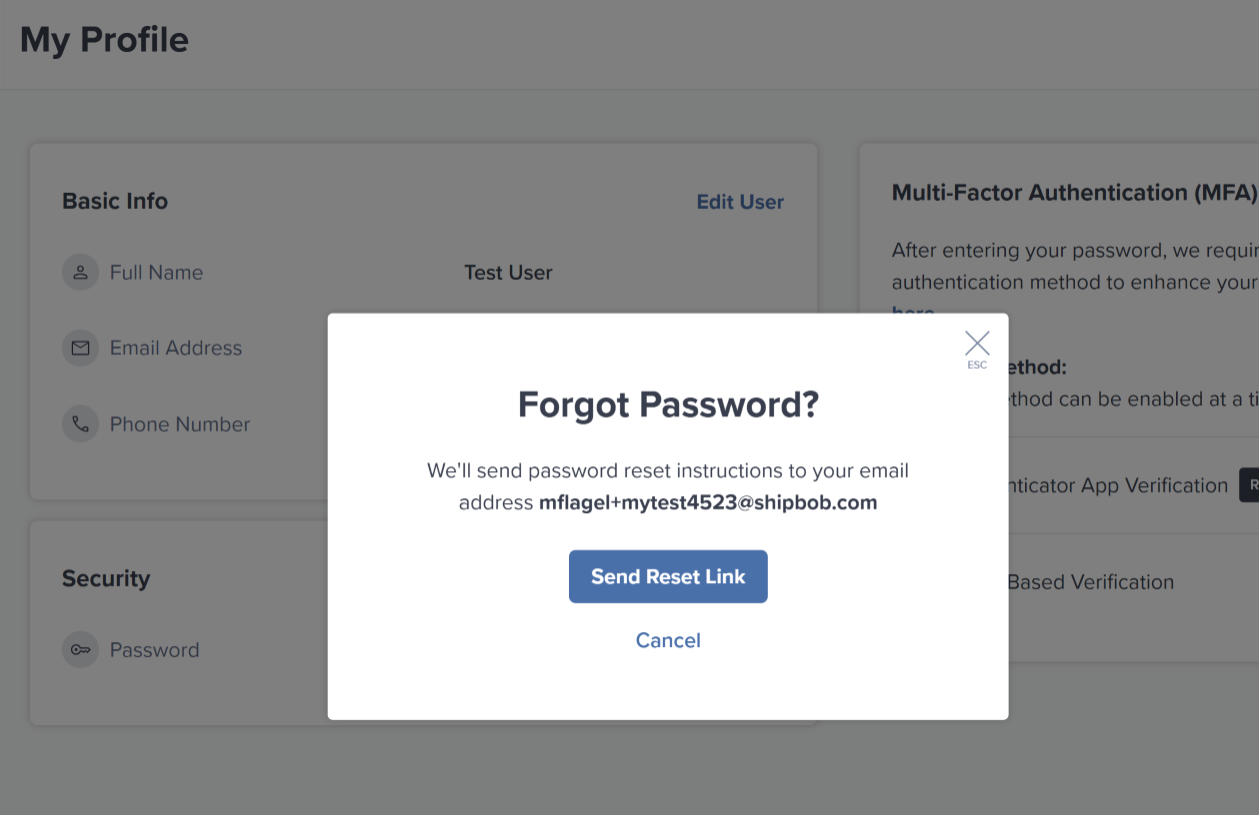 Use the email address associated with your account.
Jetpack sends a password reset link to your email.
The link is valid for a limited time, typically 24 hours.
You can now log in with your new password.
Password reset links expire after 24 hours for security reasons. If your link has expired, simply request a new reset link from the login page.
### Password Requirements
For security, Jetpack enforces strong password requirements:
Use the email address associated with your account.
Jetpack sends a password reset link to your email.
The link is valid for a limited time, typically 24 hours.
You can now log in with your new password.
Password reset links expire after 24 hours for security reasons. If your link has expired, simply request a new reset link from the login page.
### Password Requirements
For security, Jetpack enforces strong password requirements:
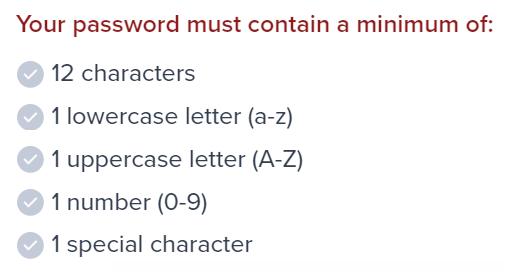 | Requirement | Description | Example |
| --------------------- | ------------------------------------------------- | ---------------------------------------------- |
| **Minimum Length** | At least 12 characters | `MyP@ssw0rd123!` meets this (14 chars) |
| **Lowercase Letter** | At least one lowercase letter (a-z) | `MyP@ssw0rd123!` contains: m, y, s, s, w, r, d |
| **Uppercase Letter** | At least one uppercase letter (A-Z) | `MyP@ssw0rd123!` contains: M, P |
| **Number** | At least one number (0-9) | `MyP@ssw0rd123!` contains: 0, 1, 2, 3 |
| **Special Character** | At least one special character (!@#\$%^&\*, etc.) | `MyP@ssw0rd123!` contains: @, ! |
**Common password errors:**
| Error Message | What It Means | How to Fix |
| ----------------------------------------- | ----------------------- | --------------------------------- |
| "Password too short" | Less than 12 characters | Add more characters (minimum 12) |
| "Password must contain uppercase" | No capital letters | Add at least one capital letter |
| "Password must contain lowercase" | No lowercase letters | Add at least one lowercase letter |
| "Password must contain number" | No numbers | Add at least one number (0-9) |
| "Password must contain special character" | No special characters | Add !, @, #, \$, %, or similar |
Use a unique password for Jetpack that you don't use elsewhere. Consider using a password manager to generate and store complex passwords securely.
***
## Two-Step Authentication (MFA)
Two-Step Authentication (also called Multi-Factor Authentication or MFA) adds an extra layer of security to your account. Even if someone obtains your password, they cannot log in without access to your second factor (typically your smartphone).
**How MFA works:**
When MFA is enabled, logging into Jetpack requires two things:
1. **Something you know** - Your password
2. **Something you have** - A time-based one-time password (TOTP) generated by an authenticator app on your smartphone
### Enabling Two-Step Authentication
To set up MFA for your account:
Or navigate to **Profile Settings > Two-Step Authentication**.
Or click **Set Up MFA**.
If you don't already have one, choose from:
* Google Authenticator (iOS/Android)
* Microsoft Authenticator (iOS/Android)
* Authy (iOS/Android)
* 1Password (iOS/Android, requires 1Password subscription)
Alternatively, manually enter the secret key shown below the QR code.
| Requirement | Description | Example |
| --------------------- | ------------------------------------------------- | ---------------------------------------------- |
| **Minimum Length** | At least 12 characters | `MyP@ssw0rd123!` meets this (14 chars) |
| **Lowercase Letter** | At least one lowercase letter (a-z) | `MyP@ssw0rd123!` contains: m, y, s, s, w, r, d |
| **Uppercase Letter** | At least one uppercase letter (A-Z) | `MyP@ssw0rd123!` contains: M, P |
| **Number** | At least one number (0-9) | `MyP@ssw0rd123!` contains: 0, 1, 2, 3 |
| **Special Character** | At least one special character (!@#\$%^&\*, etc.) | `MyP@ssw0rd123!` contains: @, ! |
**Common password errors:**
| Error Message | What It Means | How to Fix |
| ----------------------------------------- | ----------------------- | --------------------------------- |
| "Password too short" | Less than 12 characters | Add more characters (minimum 12) |
| "Password must contain uppercase" | No capital letters | Add at least one capital letter |
| "Password must contain lowercase" | No lowercase letters | Add at least one lowercase letter |
| "Password must contain number" | No numbers | Add at least one number (0-9) |
| "Password must contain special character" | No special characters | Add !, @, #, \$, %, or similar |
Use a unique password for Jetpack that you don't use elsewhere. Consider using a password manager to generate and store complex passwords securely.
***
## Two-Step Authentication (MFA)
Two-Step Authentication (also called Multi-Factor Authentication or MFA) adds an extra layer of security to your account. Even if someone obtains your password, they cannot log in without access to your second factor (typically your smartphone).
**How MFA works:**
When MFA is enabled, logging into Jetpack requires two things:
1. **Something you know** - Your password
2. **Something you have** - A time-based one-time password (TOTP) generated by an authenticator app on your smartphone
### Enabling Two-Step Authentication
To set up MFA for your account:
Or navigate to **Profile Settings > Two-Step Authentication**.
Or click **Set Up MFA**.
If you don't already have one, choose from:
* Google Authenticator (iOS/Android)
* Microsoft Authenticator (iOS/Android)
* Authy (iOS/Android)
* 1Password (iOS/Android, requires 1Password subscription)
Alternatively, manually enter the secret key shown below the QR code.
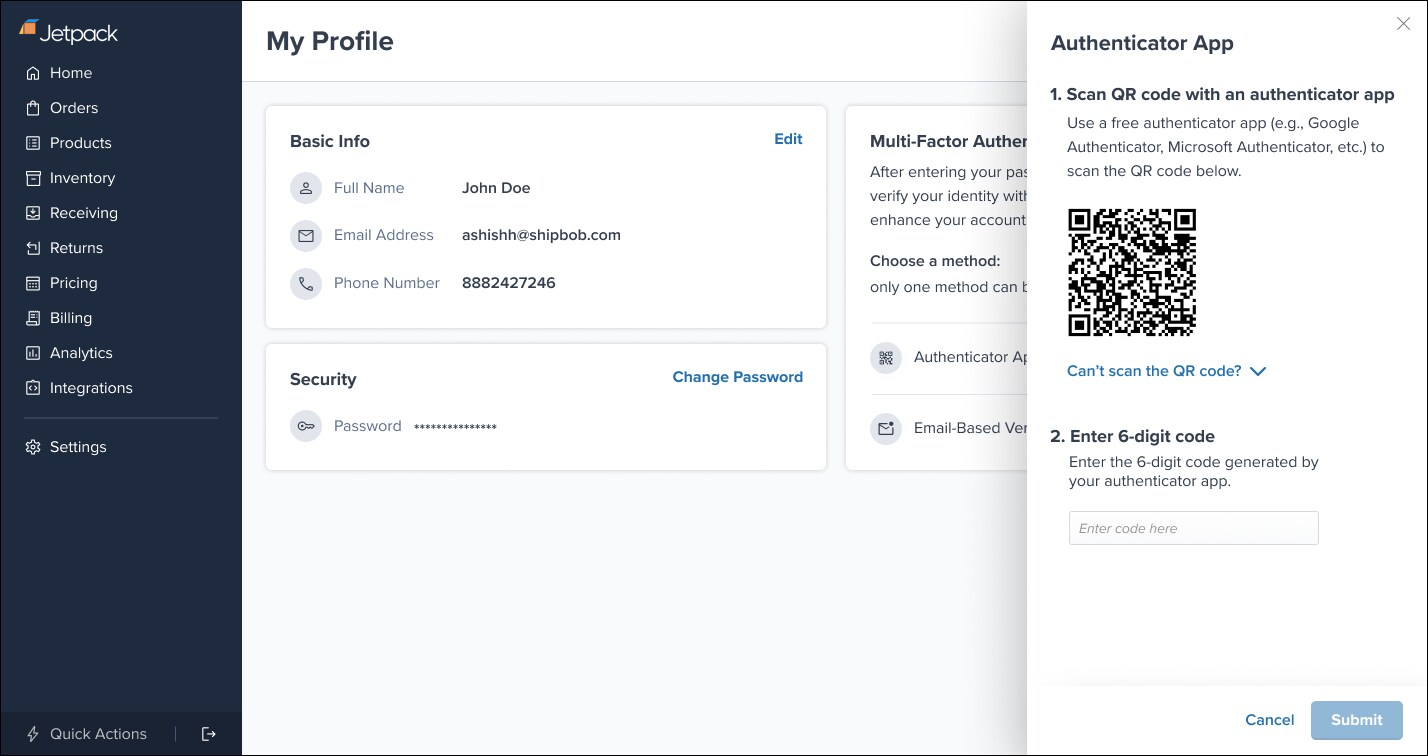 Your authenticator app will begin generating 6-digit codes that refresh every 30 seconds.
Jetpack provides backup codes in case you lose access to your authenticator app—download or print these codes and store them securely.
MFA is now enabled for your account. You'll be required to enter a code from your authenticator app each time you log in.
### Logging In with MFA Enabled
Once MFA is enabled, your login process changes:
Your authenticator app will begin generating 6-digit codes that refresh every 30 seconds.
Jetpack provides backup codes in case you lose access to your authenticator app—download or print these codes and store them securely.
MFA is now enabled for your account. You'll be required to enter a code from your authenticator app each time you log in.
### Logging In with MFA Enabled
Once MFA is enabled, your login process changes:
 You're now logged in. The system may offer to "Remember this device for 30 days" to skip MFA on trusted devices.
### Disabling Two-Step Authentication
To disable MFA (not recommended unless required):
Or navigate to **Profile Settings > Two-Step Authentication**.
Or click **Turn Off MFA**.
You may need to enter your password or current MFA code.
MFA is now disabled. You can re-enable it at any time following the setup process above.
If your Account Owner or Admin has enabled **Enforce Two-Step Authentication for All Users** in [Company Profile Settings](/fulfillment/account-setup/accounts-users), you cannot disable MFA individually. Contact your Account Owner if you need MFA enforcement adjusted.
Multi-factor authentication dramatically improves account security. Even if your password is compromised through phishing, data breaches, or keyloggers, attackers cannot access your account without your physical device. We strongly recommend enabling MFA for all users.
***
## Saving Your Profile Changes
After making any changes to your profile settings:
This button is located at the bottom of the page.
You'll see a confirmation message (e.g., "Profile updated successfully").
**Settings that require additional verification:**
* **Email Address** - Requires clicking verification link in email
* **Password** - Requires entering current password to change
* **MFA Setup** - Requires entering authenticator code to enable
All other settings (First Name, Last Name, Phone Number) save immediately without additional verification.
***
## Let's Dive Deeper
Manage account-level settings for your organization
Add, edit, and manage users in your account
Back to the Account Setup overview
Connect your store and third-party tools
Configure how your orders are packed and shipped
Set up order import from your store
You're now logged in. The system may offer to "Remember this device for 30 days" to skip MFA on trusted devices.
### Disabling Two-Step Authentication
To disable MFA (not recommended unless required):
Or navigate to **Profile Settings > Two-Step Authentication**.
Or click **Turn Off MFA**.
You may need to enter your password or current MFA code.
MFA is now disabled. You can re-enable it at any time following the setup process above.
If your Account Owner or Admin has enabled **Enforce Two-Step Authentication for All Users** in [Company Profile Settings](/fulfillment/account-setup/accounts-users), you cannot disable MFA individually. Contact your Account Owner if you need MFA enforcement adjusted.
Multi-factor authentication dramatically improves account security. Even if your password is compromised through phishing, data breaches, or keyloggers, attackers cannot access your account without your physical device. We strongly recommend enabling MFA for all users.
***
## Saving Your Profile Changes
After making any changes to your profile settings:
This button is located at the bottom of the page.
You'll see a confirmation message (e.g., "Profile updated successfully").
**Settings that require additional verification:**
* **Email Address** - Requires clicking verification link in email
* **Password** - Requires entering current password to change
* **MFA Setup** - Requires entering authenticator code to enable
All other settings (First Name, Last Name, Phone Number) save immediately without additional verification.
***
## Let's Dive Deeper
Manage account-level settings for your organization
Add, edit, and manage users in your account
Back to the Account Setup overview
Connect your store and third-party tools
Configure how your orders are packed and shipped
Set up order import from your store

Questions? Contact Jetpack Care.
If you have any questions or run into issues, you can always contact Jetpack Care for help. Our team is always here to assist via Slack, phone, or email!